


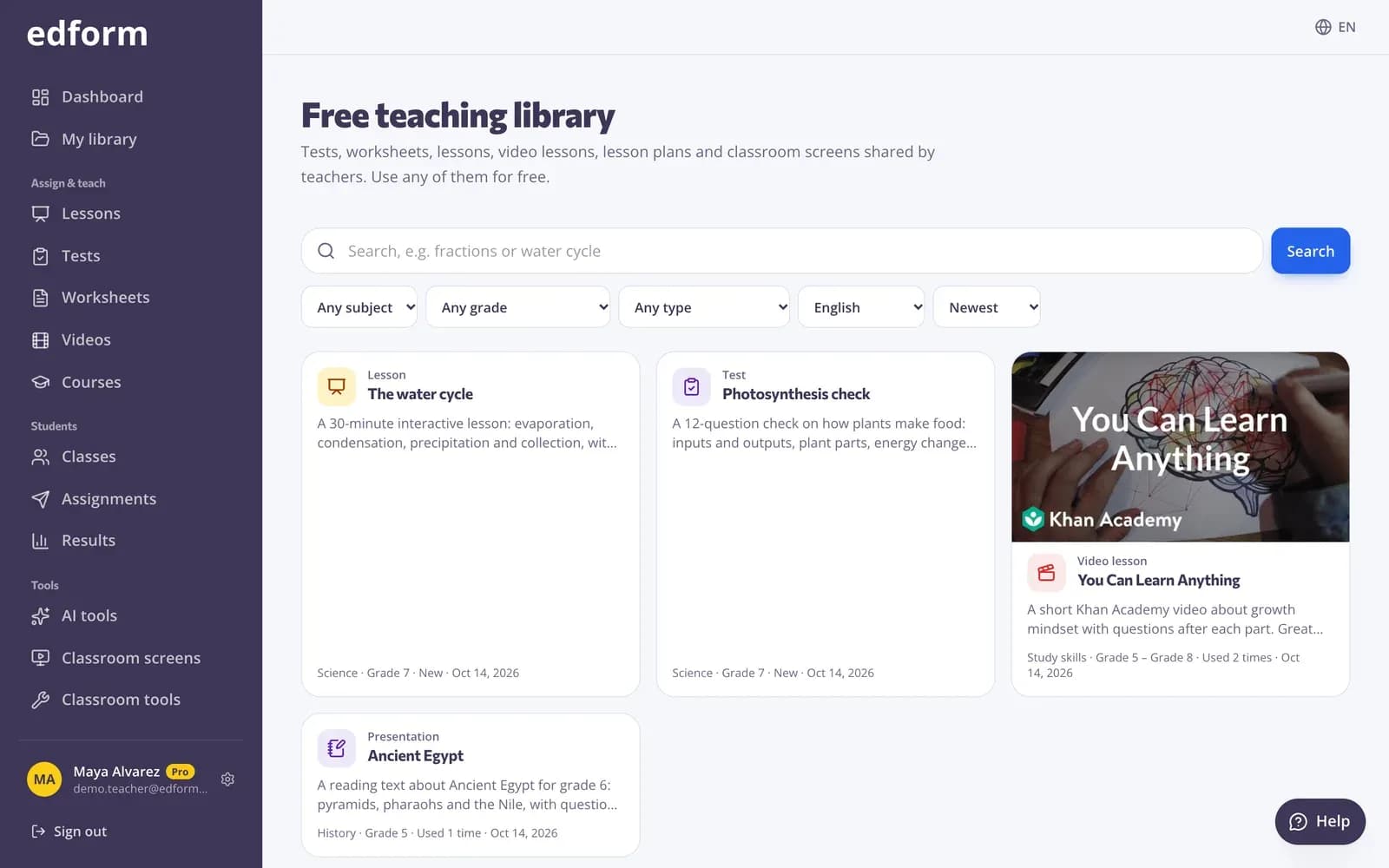
Publish your material
Step 1: Open what you want to share
Open a test, worksheet, lesson or video lesson in its editor, or one of your AI materials. For a classroom screen set, open it and click “Screen set settings”.
Step 2: Click “Publish to library”
In the editors it's in the top bar; for screen sets it's at the bottom of the settings panel.
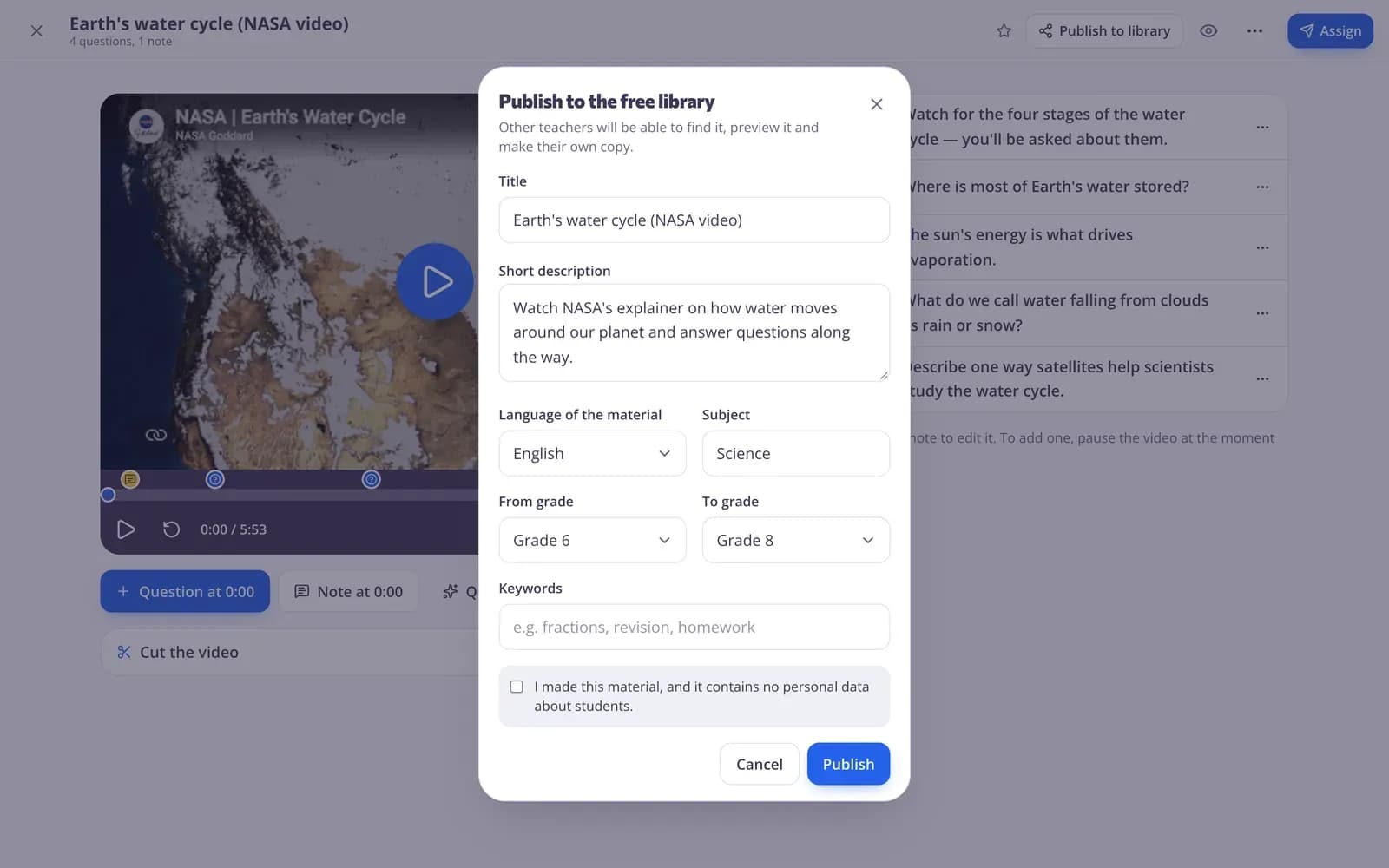
Step 3: Fill in the details
Check the “Title”, add a “Short description” of how teachers can use it, and set the “Language of the material”, “Subject”, “From grade”, “To grade” and “Keywords”.
Step 4: Confirm and click “Publish”
Tick “I made this material, and it contains no personal data about students.” and click “Publish”. Content is checked automatically, and material that isn't suitable for a school platform can't be published.
Update or unpublish
Step 1: Click “Published in the library”
The button changes once your material is published. It opens the details with “View in library”, and “Update” publishes your changes and latest content.
Step 2: Click “Unpublish” to take it down
Teachers won't find it any more. Copies they already made stay with them.
Use materials from other teachers
Step 1: Open the “Community library”
In the sidebar, under “School & community”, click “Community library”. Search for a topic, then narrow it down by subject, grade, type or language.
Step 2: Preview and click “Use this”
Open a card to preview it. “Use this” adds a copy to your account that you can change however you like.
Step 3: Report a problem
If something is wrong or inappropriate, click “Report”, choose a reason and send it. The Edform team reviews it.
Questions
Who can see what I publish?
Anyone who visits the library, including teachers without an account. They can preview it; copying it needs a free account.
Are my students' answers published too?
No. Only the material itself is published, never student results or names. Before publishing you confirm it contains no personal data about students.
What happens to copies if I change or unpublish my material?
Copies belong to the teachers who made them and stay as they are. Your changes reach the library page when you click “Update”.
Which materials can I publish?
Tests, video lessons, AI materials and classroom screen sets each have a “Publish to library” button.
Related
- Community libraryFree activities made by teachers
- For teachersQuizzes, games, lessons, AI and classroom tools in one place
- Create a quizMake a test with any mix of question types, preview it and use it with your class.
- Classroom screensBuild projector screens with timers, name pickers, instructions and polls.
- AI toolsCreate lesson plans, quizzes, slides and more with AI, then improve and use them.