


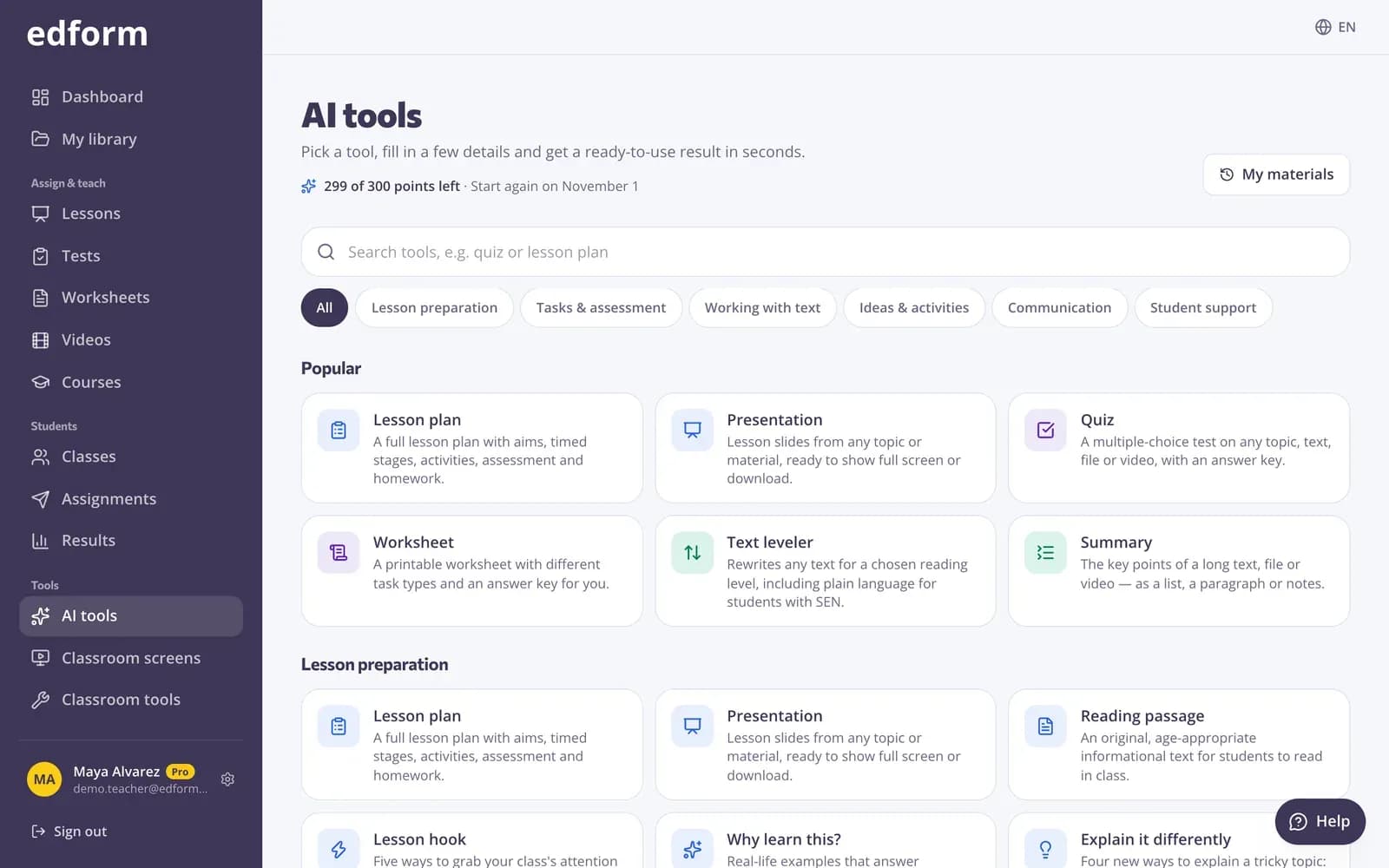
Pick a tool
Step 1: Open “AI tools”
Choose “AI tools” in the menu, or press “Create with AI” on the dashboard.
Step 2: Find the tool you need
Search with “Search tools”, for example quiz or lesson plan, or browse by group, such as “Lesson preparation”, “Tasks & assessment”, “Working with text” and “Communication”. The most used tools are under “Popular”.
Fill in the form
Step 1: Tell it what the material is about
Type a topic, or switch the tab to add your own material: “My text”, a “File” (PDF, Word, PowerPoint and more, up to 20 MB), a “Photo” of a book page or the board, a “Link” to a web page or a PDF, or a “YouTube” video with subtitles. Each tool shows the tabs it can use.
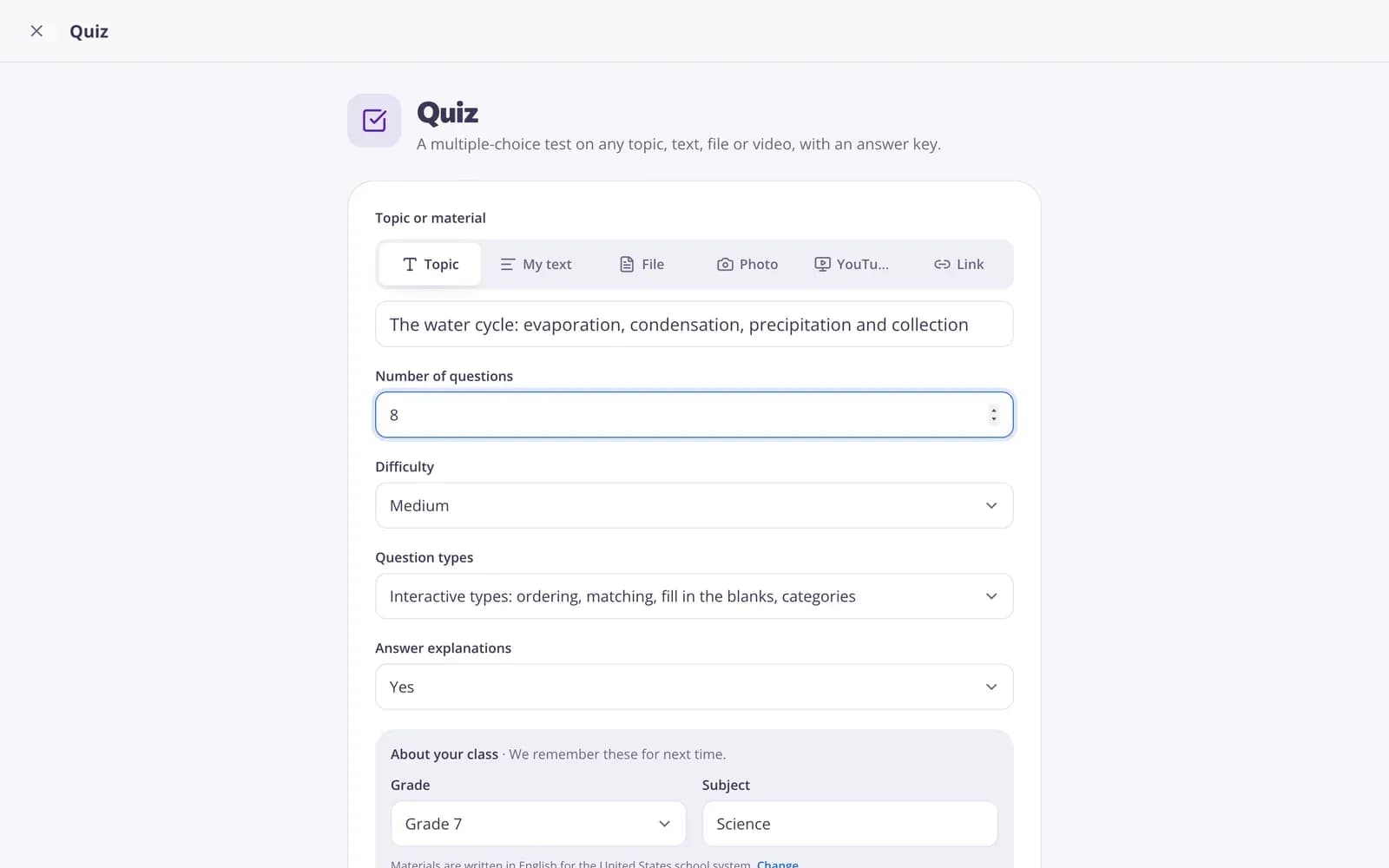
Step 2: Set the class details
Under “About your class”, choose the “Grade” and type the “Subject”, or pick one of the subjects of your school programme as you type. Edform remembers them for next time. The line below says which language and school system the material is written for; press “Change” to update them.
Step 3: Press the create button
Press the tool's button, for example “Create quiz”. The result appears in a few seconds.
Improve and use the result
Step 1: Check the result
The result opens as a material you can keep working on. Quizzes show their answers, and slides can be shown with “Present”.
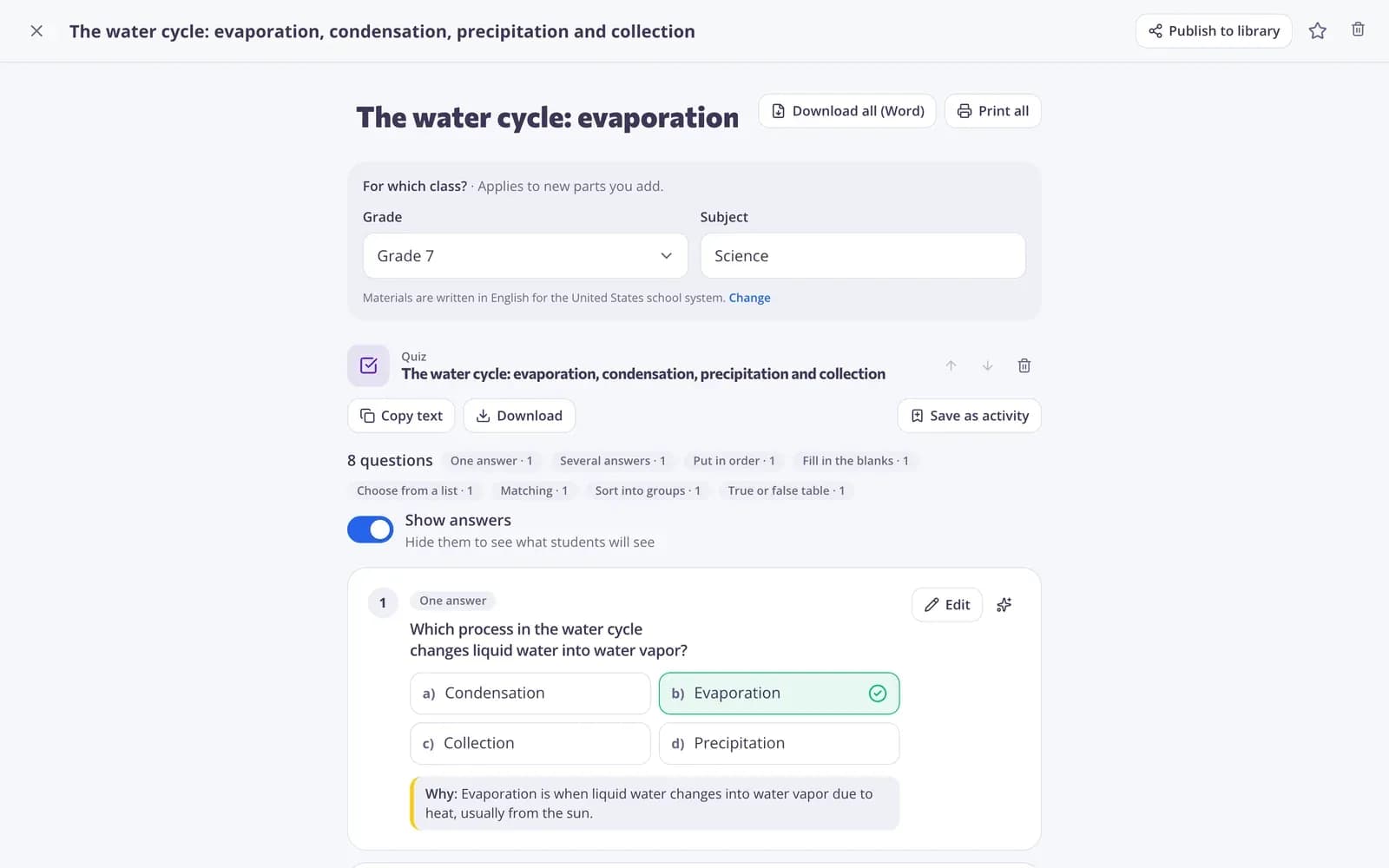
Step 2: Improve it in one click
Under “Improve the result”, press a suggestion such as “Simpler”, “Shorter” or “Add examples”, or type what to change in “Tell AI what to change” and send it. In a quiz, “Change with AI” on a question offers “Another question”, “Make easier”, “Make harder” and “Add explanation”.
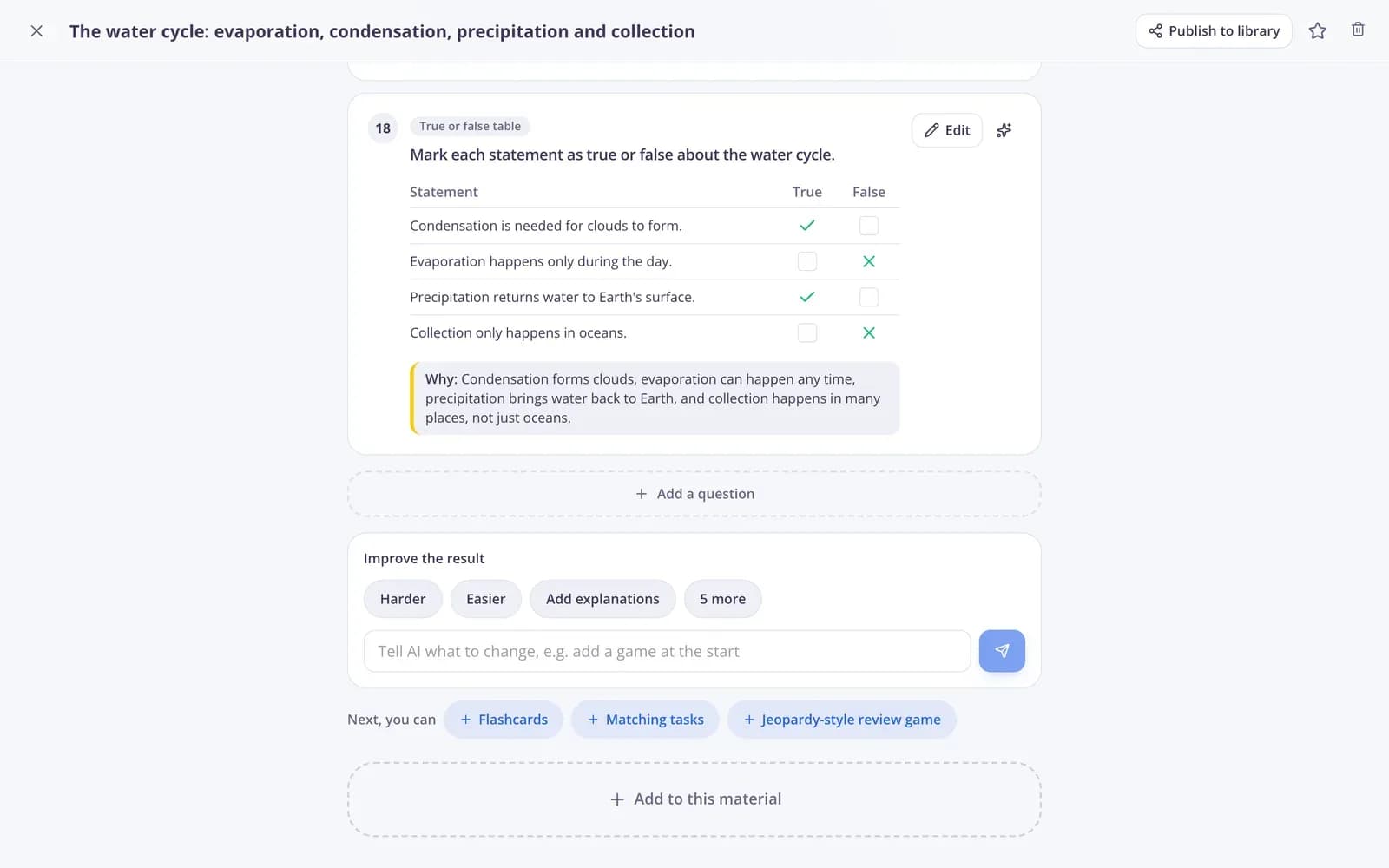
Step 3: Edit it yourself
Press “Edit” to change a text result yourself, with buttons for bold, headings and lists, and “Picture” to add a picture from your computer (you can also paste or drop one into the text).
Step 4: Download, print or copy
Text results have “Copy”, “Word” and “Print”. Quizzes, slides and cards have a “Download” menu with the formats that fit, such as Word, PowerPoint, PDF or print.
Step 5: Turn it into an activity
For quizzes, matching tasks and flashcards, press “Save as activity” and then “Open activity” to edit it and give it to your class. For slides, press “Make it a lesson” to teach them live with questions.
Build a full material
Step 1: Add another tool to the same material
Press a tool under “Next, you can”, or “Add to this material” and “Choose a tool”. Its result is added below, so a lesson plan, a quiz and a homework sheet stay together.
Step 2: Find your materials later
On the AI tools page, press “My materials” to open everything you made. Use “Download all (Word)” or “Print all” for the whole material.
Questions
Are the AI tools free?
Yes, for teachers. AI uses points: every teacher gets 5 AI points a month on the free plan, or 300 with Pro. Each AI action uses 1 point, and changing a single quiz question uses 0.1 point. Points start again on the 1st of every month. See how many you have left on the AI tools page.
Which language does AI write in?
The language of your materials, which you chose when you signed up. Change it in “Settings” under “Your materials”, together with your school system.
Can AI use my own worksheet or textbook page?
Yes. Upload the file, take a photo of the page, paste the text or add a link. Very long material is shortened, and Edform tells you when only the beginning is used.
Why was my request refused?
Requests with content that isn't suitable for a school platform can't be created. Rephrase the topic and try again.
Does AI follow my country's curriculum?
It uses your school system's stages, grading and programme. When the subject matches a subject of your school programme, AI also sees the topics taught at that grade, so the level and terms fit your class. Your own topic always comes first. See the programme in “Settings” under “Your school programme”.
Related
- AI toolsLesson plans, quizzes and more in seconds
- QuizA multiple-choice test on any topic, text, file or video, with an answer key.
- Lesson planA full lesson plan with aims, timed stages, activities, assessment and homework.
- Chrome extensionA quiz from any web page, PDF or video
- Create a quizMake a test with any mix of question types, preview it and use it with your class.
- Interactive lessonsBuild slides with questions in between and teach them live on students' devices.