


Sakai integration
Edform in Sakai
Add Edform quizzes, interactive worksheets, lessons and video lessons to your Sakai courses. Students open them from the course without another password, Edform grades them and the scores land in the Sakai gradebook.
- Works inside Sakai courses
- No extra passwords for students
- Scores in the Sakai gradebook
How does Edform work with Sakai?
Edform connects to Sakai with LTI 1.3, the 1EdTech standard Sakai uses for external tools. Your Sakai administrator adds Edform once with LTI Dynamic Registration. After that, you add Edform activities to your courses in Lessons with Add Content, or wherever your Sakai lets you add external tools: a picker with your Edform library opens inside Sakai, you pick an activity, and Sakai places it in the course. Students click it and land in Edform, signed in. Edform grades their answers and sends each student's best score back to Sakai.
How to use Edform in Sakai
- 1
Your Sakai admin adds Edform
In Sakai's Administration Workspace, the admin opens External Tools, chooses LTI Dynamic Registration, pastes https://edform.com/api/lti/register, presses Begin Configuration and saves the tool.
- 2
Add an Edform activity to your course
In Lessons with Add Content, or wherever your Sakai lets you add external tools, choose Edform and pick one of your quizzes, worksheets, lessons or video lessons.
- 3
Students open it from the course
Students click the activity, work in Edform and hand in. Their score goes to the Sakai gradebook.
Try it yourself
No sign-up needed — try it as a student
This is the real Edform player. Answer the questions and see how they're checked.
Your Edform library inside Sakai
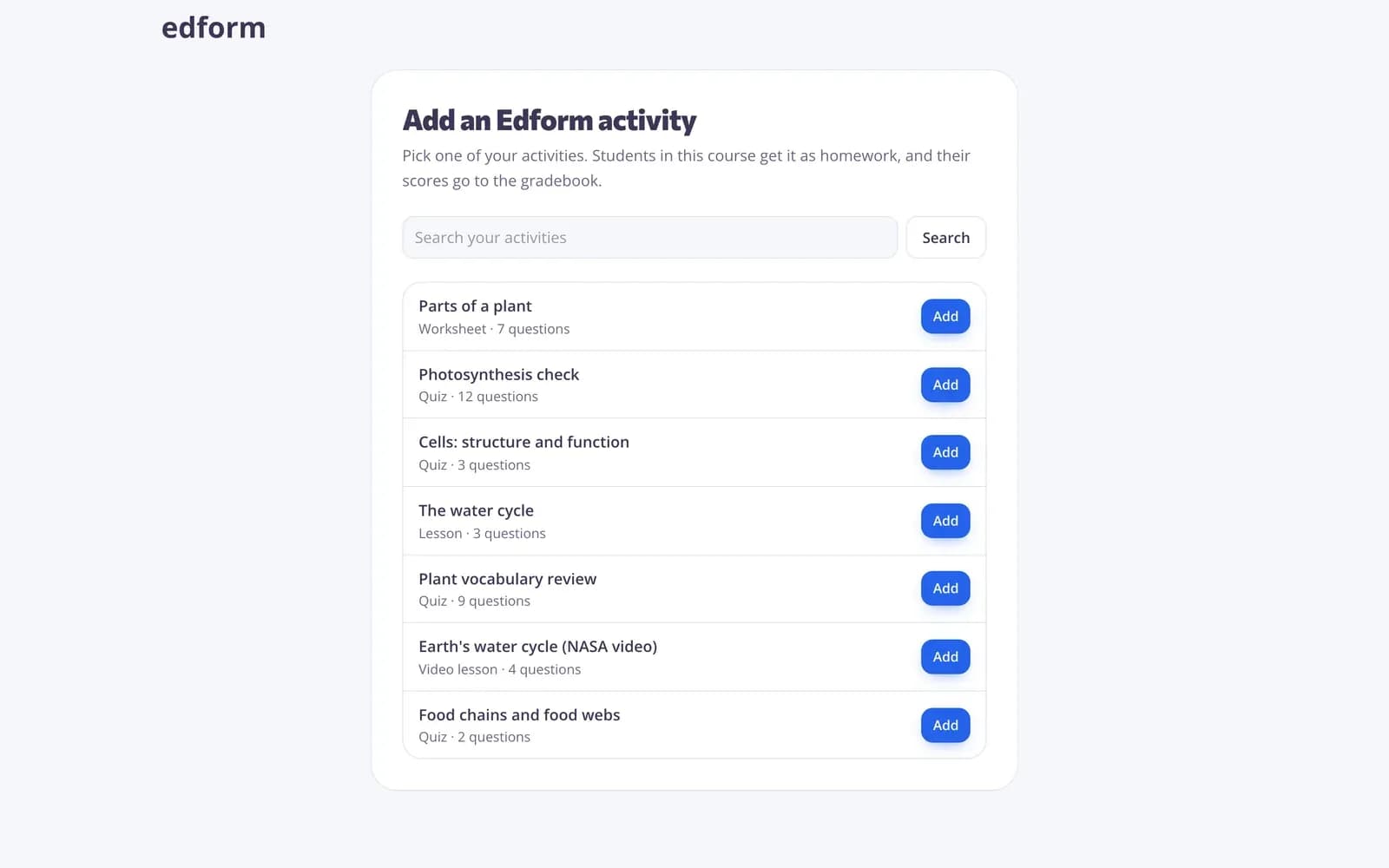
When you add Edform to a course, your Edform activities open right inside Sakai. Search, pick one and press Add: Edform creates homework for this course and Sakai adds the link with a gradebook column out of 100.
- Quizzes, worksheets, lessons, video lessons
- Homework only for this course
- Gradebook column out of 100
One click for students
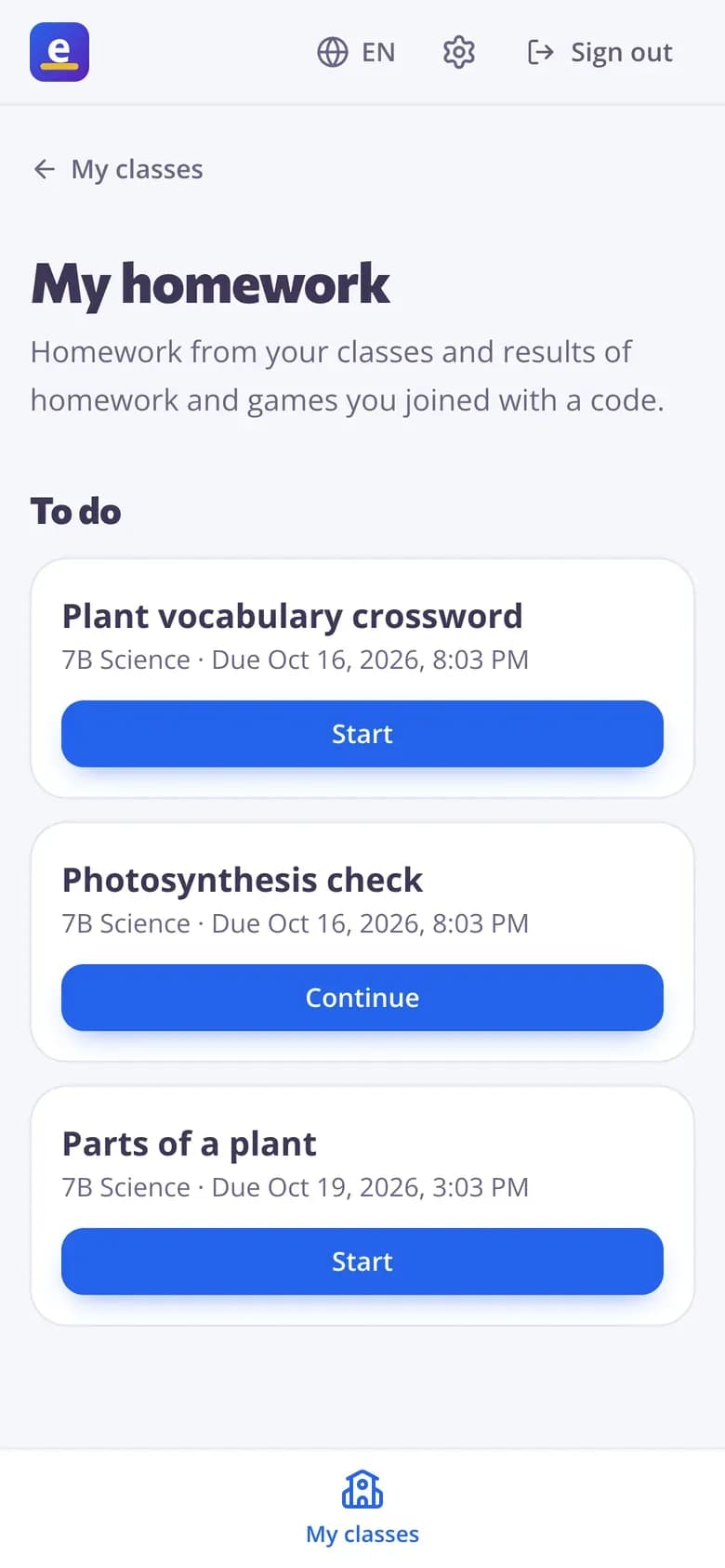
Sakai signs students in to Edform: no codes, no new passwords. The first time, Edform creates their account and puts them in the course's class. Edform also reads the course's student list, so the class is complete before anyone opens a link.
- Single sign-on from Sakai
- Class matches the course
- No join codes
Grades go to Sakai by themselves
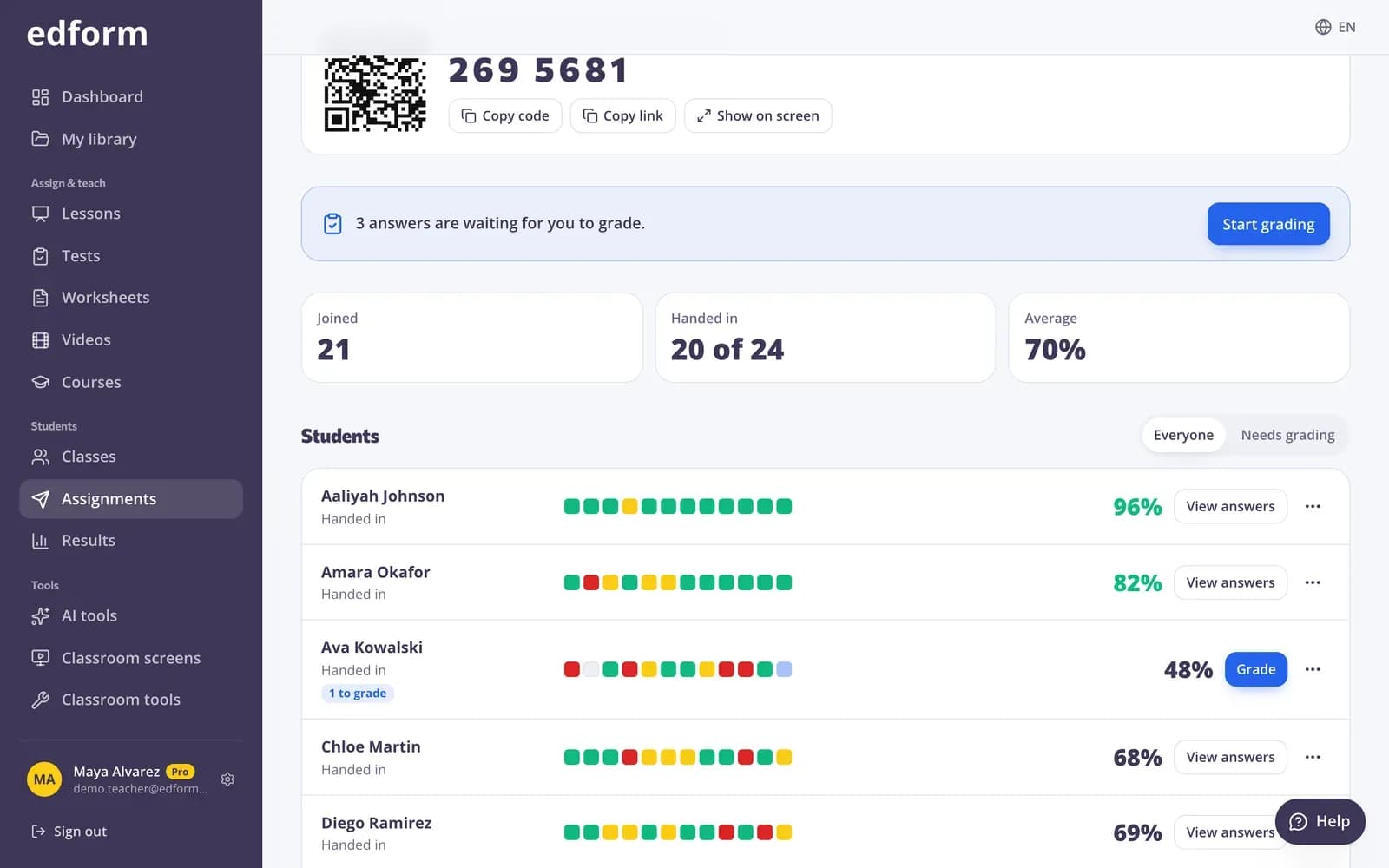
Each student's best score goes to the Sakai gradebook as soon as they hand in, and again after you grade open answers. The full report with every answer stays in Edform.
- Sent after each hand-in
- Updated after your grading
- Full answer report in Edform
What you get in Sakai
Single sign-on
Students and teachers open Edform from Sakai without another password.
Activity picker
Add Edform activities from inside Sakai with Deep Linking.
Gradebook sync
Best scores go to the Sakai gradebook, retried until Sakai accepts them.
Course roster
Edform reads the course's students, so its class matches the course.
One-URL setup
Your Sakai administrator adds Edform once with LTI Dynamic Registration.
Your existing account
Already use Edform? Connect it the first time and keep all your activities.
Teachers use it to
- 01
Assign auto-graded homework
Quizzes and worksheets graded by Edform, scores in Sakai.
- 02
Add interactive lessons and video
Lessons with questions and videos that stop for questions, all inside the course.
- 03
Stop copying marks
No exporting and importing grades: Edform sends them to Sakai.
- 04
Keep students in one place
Students find Edform work next to the rest of the Sakai course.
Explore more
- MoodleEdform quizzes and worksheets in your Moodle courses, grades in the Moodle gradebook
- CanvasEdform quizzes and worksheets in your Canvas courses, grades in the Canvas gradebook
- Other LMSs (LTI 1.3)Canvas, Moodle, Brightspace and more: activities in your course, scores in the gradebook
- IntegrationsGoogle Classroom, Microsoft Teams, LMS (LTI)
- Auto-gradingClosed answers checked the moment students hand in
- Online homeworkGive homework with a code and a deadline
Step-by-step guides
- LMS (LTI 1.3)Add Edform to Canvas, Moodle, Blackboard, Brightspace, Sakai, Open edX, itslearning or Blackbaud, add activities to a course and get scores in the gradebook.
- Assign homeworkGive a test as homework with a code, link or QR code and set the deadline.
- Homework reportsSee every student's score, each answer and how the class did on each question.
Frequently asked questions
Is Edform free in Sakai?
Yes. Adding Edform to Sakai, opening activities and sending grades are free for teachers and schools, like every Edform feature.
Which standard does Edform use?
LTI 1.3 with LTI Advantage, the 1EdTech standard Sakai uses for learning tools: single sign-on, Deep Linking to add activities, Names and Role Provisioning for the course roster, and Assignment and Grade Services for grades.
Where do I find Edform in Sakai?
In a site's Lessons, add content and choose Edform, then pick your activity. Your Sakai administrator decides where Edform appears.
How does our Sakai admin add Edform?
In Sakai's Administration Workspace, the admin opens External Tools, chooses LTI Dynamic Registration, pastes https://edform.com/api/lti/register, presses Begin Configuration and saves the tool. Our LMS guide has the details.
Do students need an Edform account?
No. Edform creates their account the first time they open an activity from Sakai and puts them in the course's class.
What data does Edform get?
The person's Sakai user id, name, role in the course and, if Sakai shares it, their email, plus the course name and its student list. Edform writes only scores back to Sakai.
Sakai is a trademark of the Apereo Foundation. Edform is not affiliated with the Apereo Foundation.
Bring Edform to your Sakai courses
Create your free teacher account, make an activity, then add it to your course. Free for teachers.
- Free for teachers
- No credit card
- Works on any device