

Interaktívne hodiny
Hodiny, na ktorých odpovedá každý žiak
Vytvorte snímky s otázkami a anketami medzi nimi, prezentujte naživo, kým žiaci odpovedajú na vlastných zariadeniach, a pozrite si každú odpoveď skôr, než budete pokračovať. Alebo nechajte žiakov prejsť hodinou vlastným tempom.
- Prezentujte naživo alebo zadajte vlastným tempom
- Otázky, ankety a slovné mraky na snímkach
- Pre učiteľov zadarmo
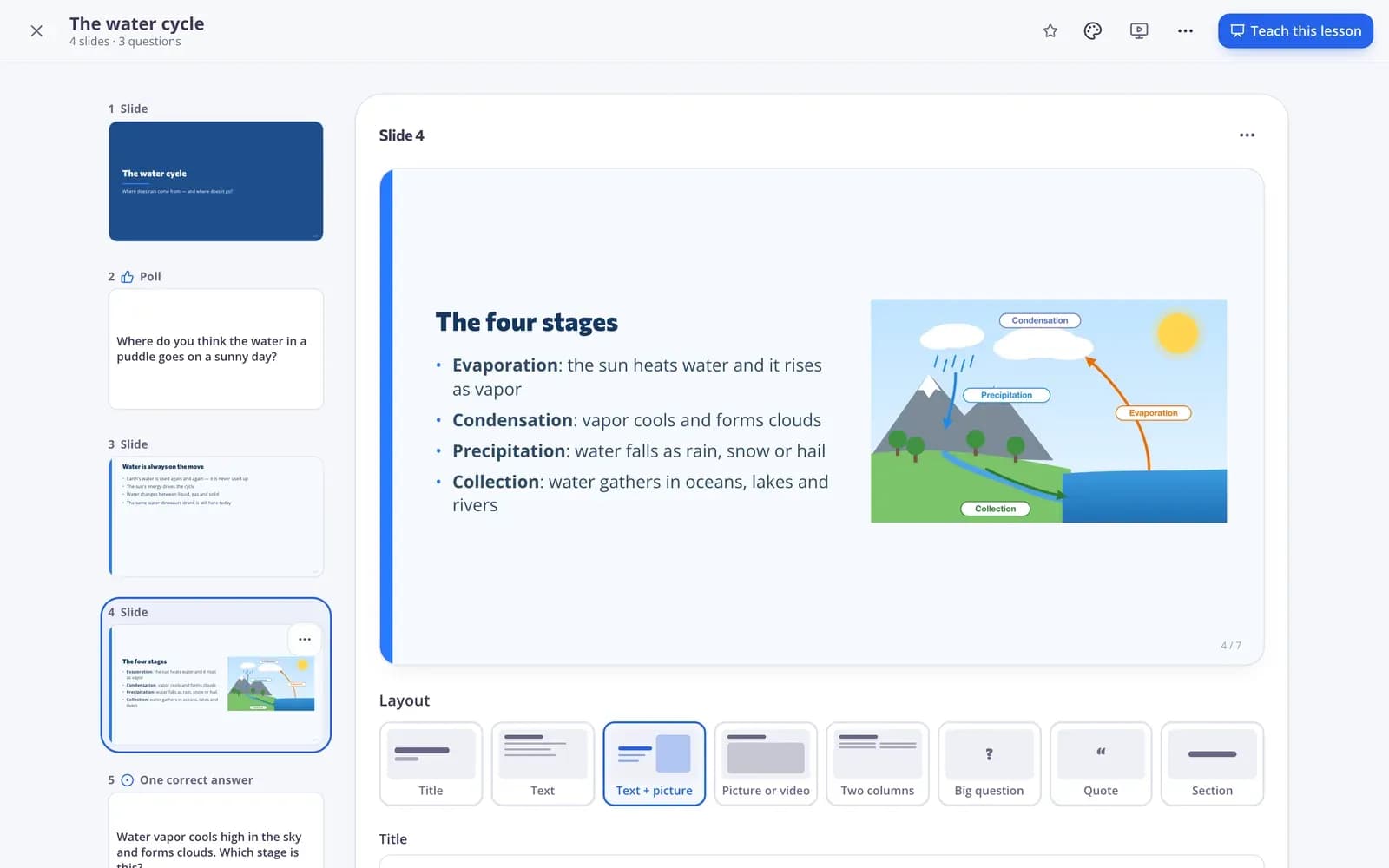
Čo je interaktívna hodina?
Interaktívna hodina je prezentácia so zabudovanými otázkami, takže odpovedá každý žiak — nielen tí, ktorí sa hlásia. V Edforme vytvoríte snímky s textom, obrázkami a videami a medzi ne pridáte otázky, ankety a slovné mraky. Keď prezentujete, žiaci sa pripoja kódom a odpovedajú na vlastných zariadeniach, kým vy vidíte každú odpoveď, odhalíte správnu a rozhodnete, kedy pokračovať. Tú istú hodinu môžete zadať aj ako domácu úlohu vlastným tempom a každá odpoveď sa zobrazí v správe.
Edform v skratke
- Cena
- Pre učiteľov zadarmo: Basic je navždy zadarmo, bez platobnej karty, a obsahuje všetky funkcie.
- AI nástroje
- Nástroje AI pre učiteľov s 5 AI bodmi mesačne v pláne Basic a 300 mesačne v pláne Pro.
- Žiaci
- Žiaci sa pripájajú pomocou kódu. Nepotrebujú e-mailovú adresu ani účet.
- Hodnotenie
- Kvízy a pracovné listy sa hodnotia automaticky, s výsledkami za každého žiaka a za každú otázku.
- Zariadenia
- Funguje v prehliadači na notebookoch, tabletoch, telefónoch a interaktívnych tabuliach. Nič netreba inštalovať.
- Jazyky
- Dostupné v 32 jazykoch.
- Funguje s
- Google Classroom, Microsoft Teams, ClassLink a vzdelávacími platformami, ktoré podporujú LTI 1.3.
- Knižnica
- Bezplatná knižnica hotových kvízov, pracovných listov a hodín, ktoré si učitelia môžu skopírovať a upraviť.
Ako viesť interaktívnu hodinu
- 1
Vytvorte svoje snímky
Vyberte rozloženie, pridajte text, obrázky alebo video a medzi snímky vložte otázky zo svojich kvízov — alebo nechajte AI napísať celú prezentáciu.
- 2
Prezentujte naživo
Spustite hodinu; žiaci sa pripoja kódom alebo QR kódom. Vy ovládate, čo je na každej obrazovke.
- 3
Pozrite si každú odpoveď
Sledujte, ako prichádzajú odpovede, odhaľte správnu odpoveď, opýtajte sa znova a potom si pozrite správu.
Vyskúšajte si to
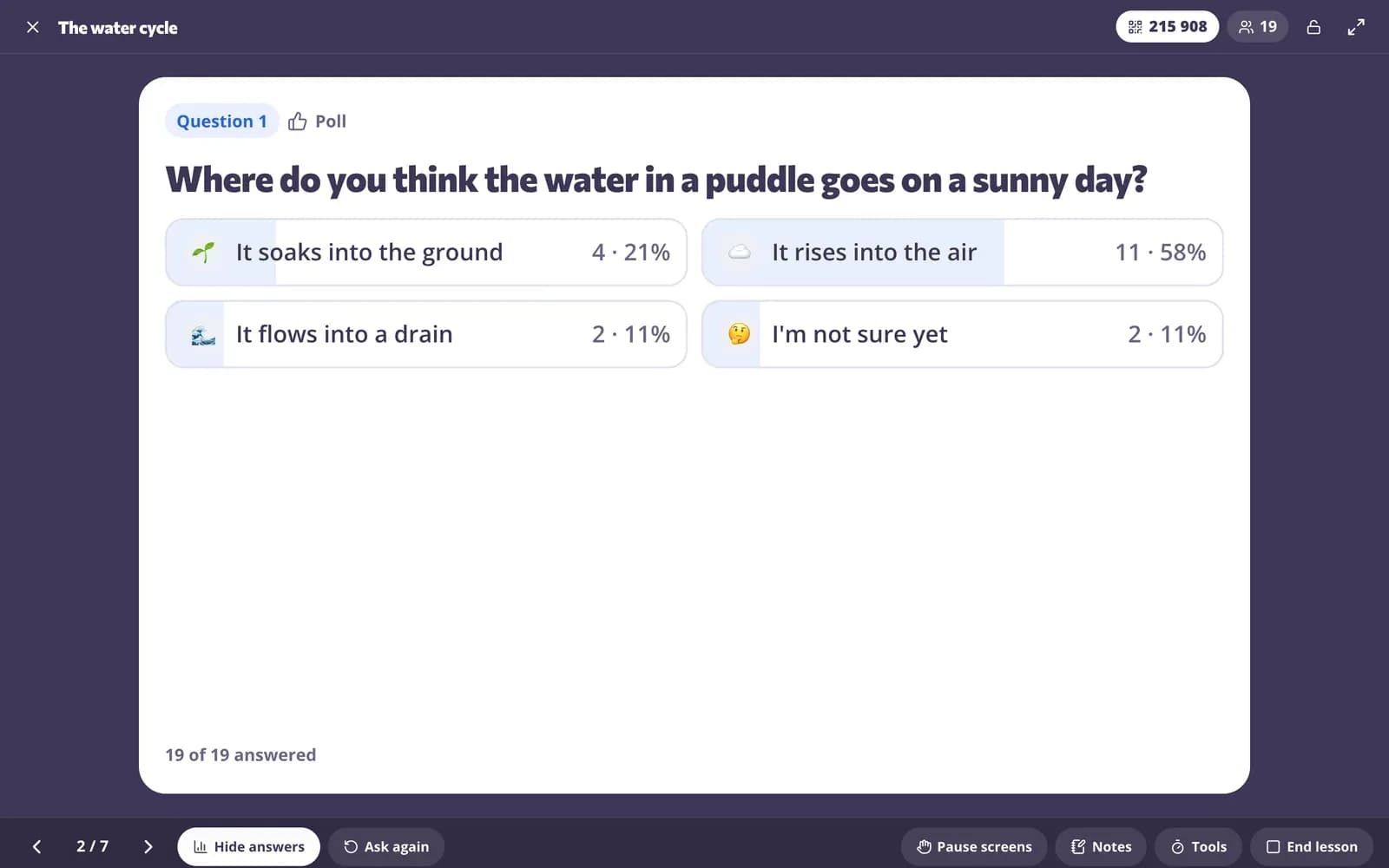
Pripojte sa k hodine naživo
Ste žiakom na hodine naživo. Odpovedzte na otázku a pozrite sa, čo odpovedala trieda.
Vy vediete, každá obrazovka nasleduje
Prezentujte zo svojho počítača, kým žiaci sledujú na svojich. Ukážte odpovede, odhaľte správnu odpoveď, opýtajte sa znova, pozastavte všetky obrazovky, keď potrebujete pozornosť, a použite časovač či výber mien bez opustenia hodiny.
- Karta na pripojenie s kódom a QR kódom
- Ukážte odpovede a odhaľte správne riešenie
- Pozastavte obrazovky a zamknite hodinu
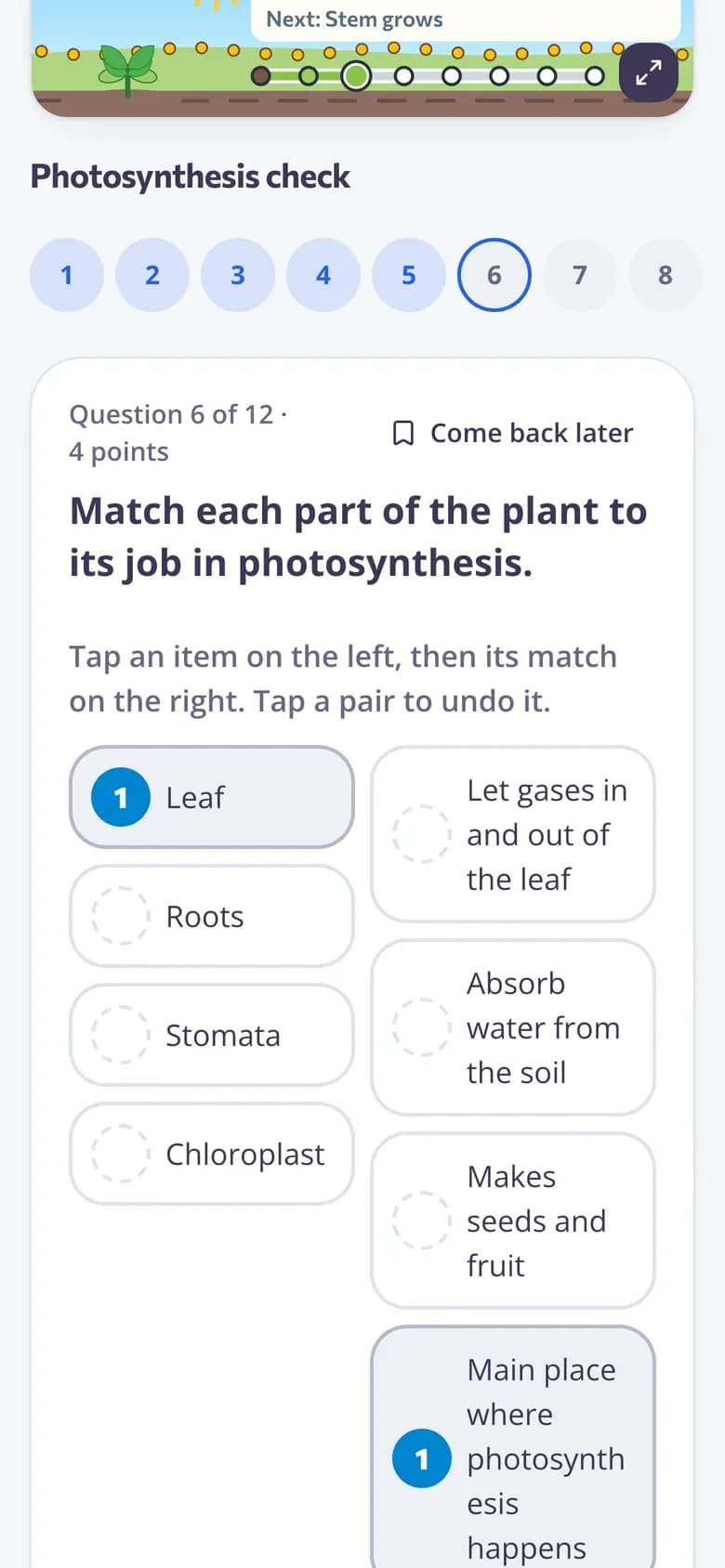
Alebo nechajte žiakov postupovať vlastným tempom
Zadajte tú istú hodinu ako domácu úlohu. Žiaci prechádzajú snímkami a odpovedajú na otázky vo vlastnom čase — ideálne pre prevrátenú triedu a žiakov, ktorí na hodine chýbali.
- Vlastným tempom na akomkoľvek zariadení
- Odpovede sa priebežne ukladajú
- Tá istá hodina, bez kopírovania
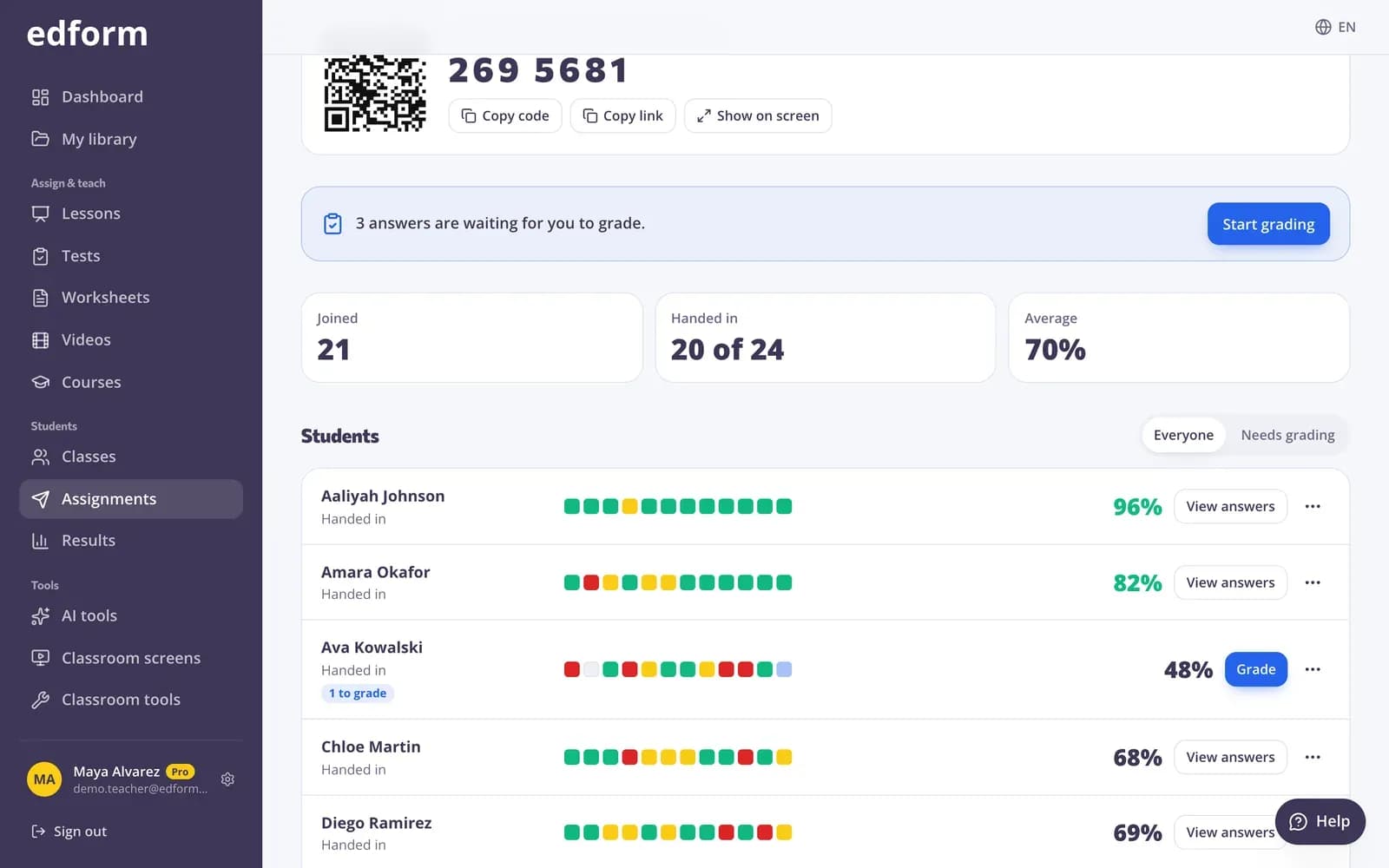
Správa ku každej hodine
Pozrite sa, kto sa pripojil, čo odpovedal každý žiak a ako si trieda poradila s každou otázkou — naživo počas hodiny aj potom.
- Prehľad naživo počas vyučovania
- Odpovede jednotlivých žiakov
- Výsledky vedľa vašich ostatných správ
Všetko, čo potrebujete na vyučovanie so snímkami
Rozloženia snímok a vzhľady
Deväť rozložení (vrátane historickej osobnosti, s ktorou sa žiaci rozprávajú), hotové témy, obrázky, videá z YouTube alebo Vimeo a poznámky pre prezentujúceho.
AI napíše prezentáciu
Opíšte hodinu a AI pripraví návrh snímok, ktoré upravíte — v jazyku, v ktorom učíte.
Ankety a slovné mraky
Opýtajte sa, ako si žiaci veria, alebo zbierajte nápady do slovného mraku priamo v hodine.
Odhaľte a opýtajte sa znova
Ukážte odpovede triedy, odhaľte tú správnu a položte otázku znova, ak potrebujú ďalší pokus.
Pozastavenie a zamknutie obrazoviek
Zmrazte obrazovky všetkých žiakov, keď potrebujete ich pozornosť, a po skončení hodinu zamknite.
Domáca úloha vlastným tempom
Zadajte hodinu na doma; otázky sa hodnotia rovnako ako v kvíze.
Učitelia používajú interaktívne hodiny na
- 01
Uvedenie novej témy
Striedajte výklad s rýchlymi kontrolami, aby ste vedeli, kto vám rozumie, skôr než budete pokračovať.
- 02
Prevrátená trieda
Žiaci prejdú hodinou doma; čas v triede venujete precvičovaniu a otázkam.
- 03
Žiaci, ktorí na hodine chýbali
Zdieľajte tú istú hodinu na prácu vlastným tempom, aby neprítomní žiaci dobehli učivo.
- 04
Diskusie
Začnite anketou alebo slovným mrakom a diskusiu postavte na skutočných odpovediach.
Objavte viac
- Živé ankety a slovné mrakyŽiaci odpovedajú na svojich zariadeniach, výsledky na vašej obrazovke
- PrezentáciaSnímky na hodinu z akejkoľvek témy či materiálu – na premietanie alebo stiahnutie.
- VideohodinyOtázky priamo vo videu
- Prevrátená triedaVideo a hodiny doma, precvičovanie a hry v triede
- Obrazovka v triedeČasovače, výber mien a ďalšie na tabuli
- Príprava na hodinuKompletná príprava na hodinu s cieľmi, časovaním, aktivitami, hodnotením a domácou úlohou.
Často kladené otázky
Ako sa žiaci pripájajú k interaktívnej hodine?
Spustite hodinu a zobrazte kartu na pripojenie. Žiaci zadajú kód alebo naskenujú QR kód na akomkoľvek zariadení a zadajú svoje meno — účet netreba.
Môžem použiť otázky, ktoré som už vytvoril(a)?
Áno. Do akejkoľvek hodiny môžete pridať otázky zo svojich kvízov alebo jedným kliknutím premeniť celý kvíz na hodinu.
Môže AI vytvoriť snímky?
Áno. V editore hodiny alebo v nástroji AI na tvorbu prezentácií použite možnosť „Vytvoriť s AI“ a potom snímky upravujte ako ktorékoľvek iné.
Sú k dispozícii hotové interaktívne hodiny?
Áno. Učitelia zdieľajú hodiny v komunitnej knižnici. Filtrovať ich môžete podľa predmetu a ročníka, hodinu si prezrieť a kliknutím na Použiť túto ju skopírujete do svojho účtu, potom môžete upraviť snímky aj otázky podľa svojej triedy.
Môžem prezentovať aj bez pripojených žiakov?
Áno. Hodinu môžete premietať len na projektore, ako bežnú prezentáciu.
Môžu žiaci robiť hodinu sami?
Áno. Zadajte ju ako domácu úlohu a žiaci ju prejdú vlastným tempom.
Fungujú interaktívne hodiny pre každý ročník?
Áno. Pre mladších žiakov voľte kratšie snímky a používajte obrázky, ankety a otázky na jedno ťuknutie. Pre starších žiakov pridajte otvorené odpovede, zoraďovanie alebo párovanie a odpovede využite na diskusiu. Všetky typy otázok, ktoré používate v kvízoch, fungujú aj v hodine.
Je to zadarmo?
Áno, interaktívne hodiny sú pre učiteľov zadarmo.
Môžu žiaci robiť hodinu z Google Classroom?
Áno. Zadajte hodinu ako domácu úlohu, aby ju žiaci prešli vlastným tempom, potom kliknite na Zdieľať do Classroom; otvorí sa okno zdieľania v Google Classroom s predvyplneným názvom, odkazom aj kódom na pripojenie, takže si vyberiete triedu a príspevok zverejníte.
Google Classroom je ochranná známka spoločnosti Google LLC. Microsoft a Microsoft Teams sú ochranné známky skupiny spoločností Microsoft.
Odučte svoju ďalšiu hodinu interaktívne
Vytvorte ju za pár minút alebo nechajte AI pripraviť návrh — pre učiteľov zadarmo.
- Pre učiteľov zadarmo
- Bez platobnej karty
- Funguje na akomkoľvek zariadení