


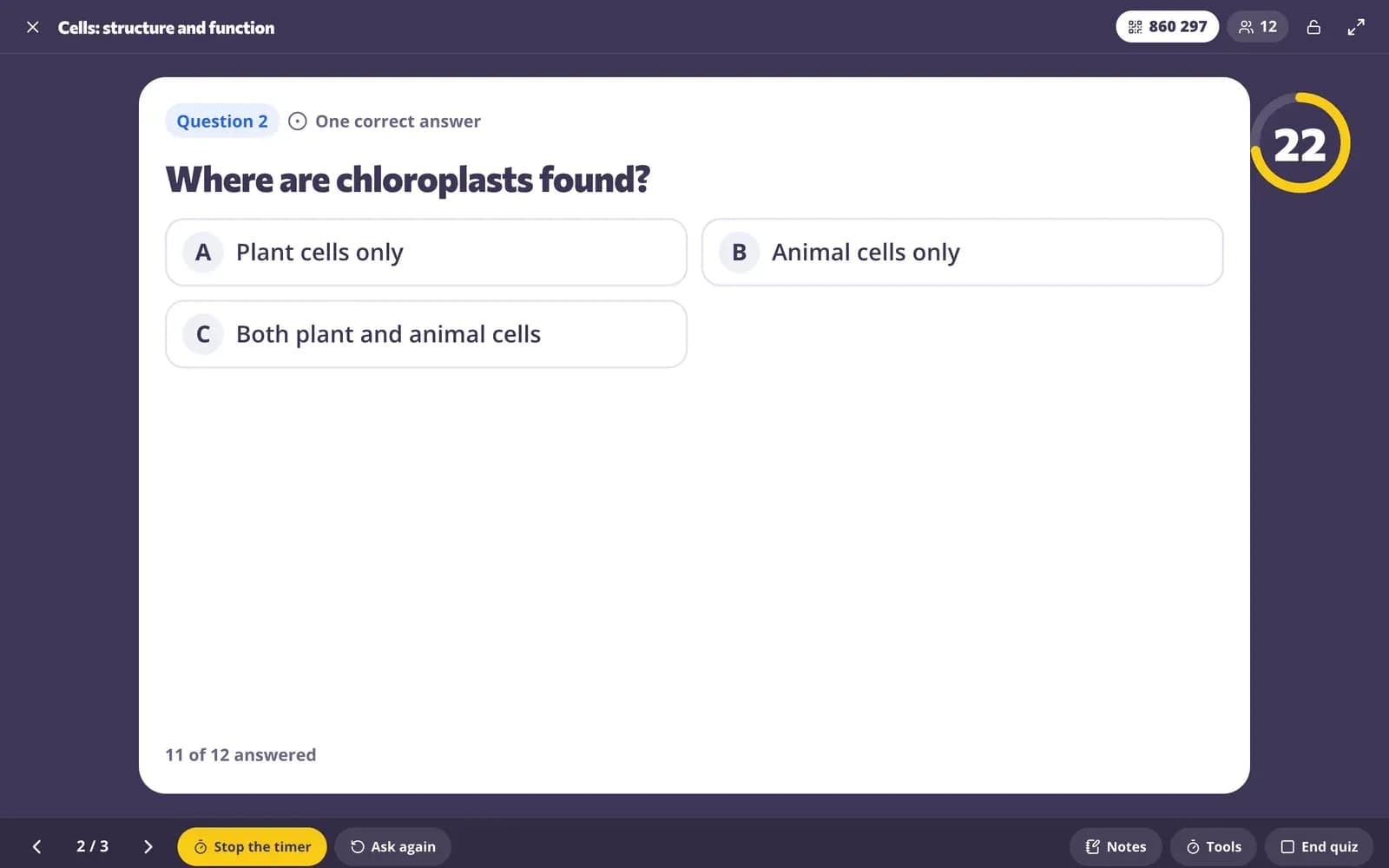
Start a live quiz game
Step 1: Open the ways to use it
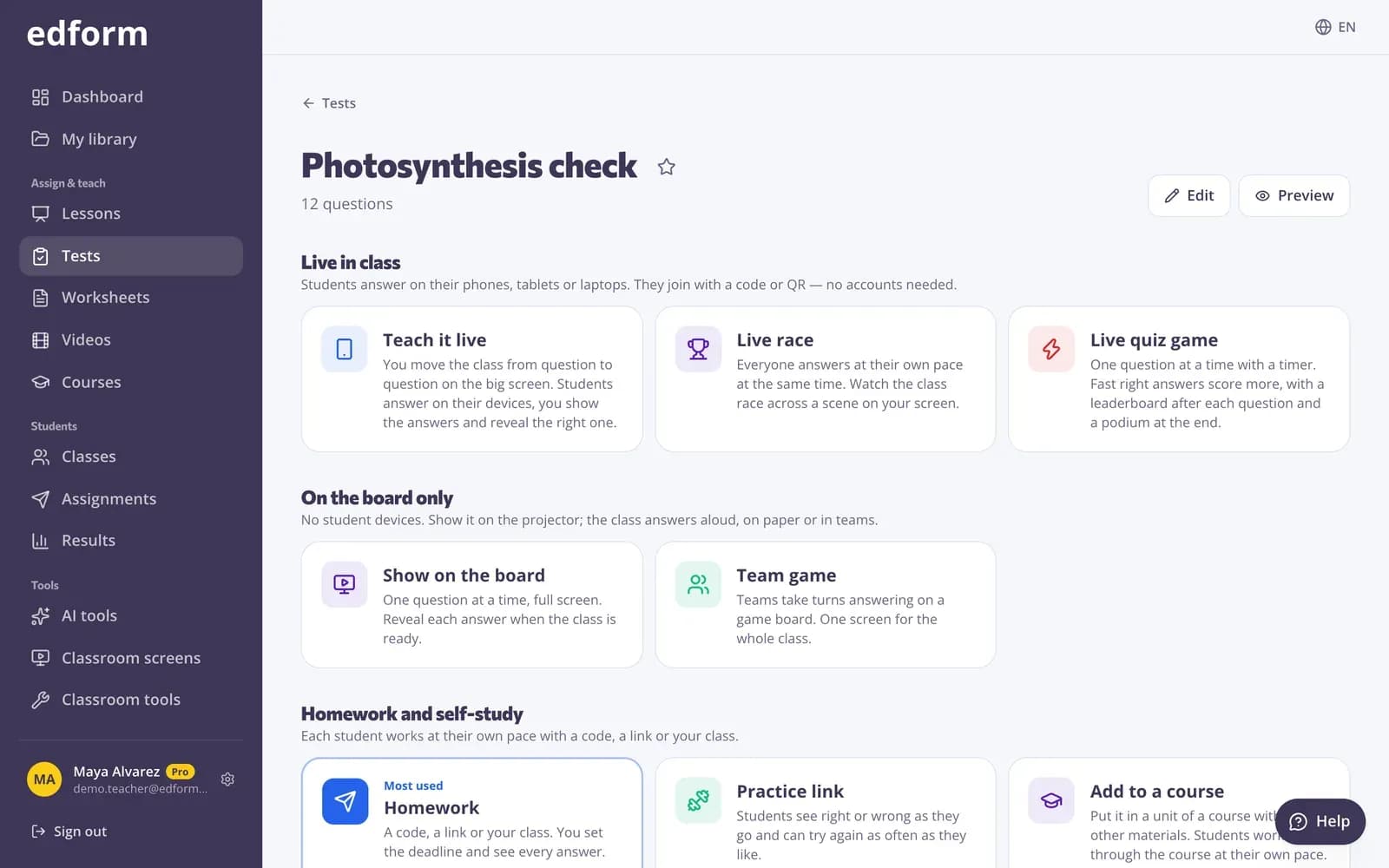
Go to “Tests” or “Worksheets” and click “Use with class”, to “Lessons” and click “Teach”, or to “Videos” and click “Assign”.
Step 2: Choose “Live quiz game”
It's in the “Live in class” group. Lessons and video lessons show it once they have questions.
Step 3: Pick the time for each question
Under “Time for each question” choose 10 s, 20 s, 30 s, 60 s or 120 s. Every question gets the same time; 20 s is chosen for you.
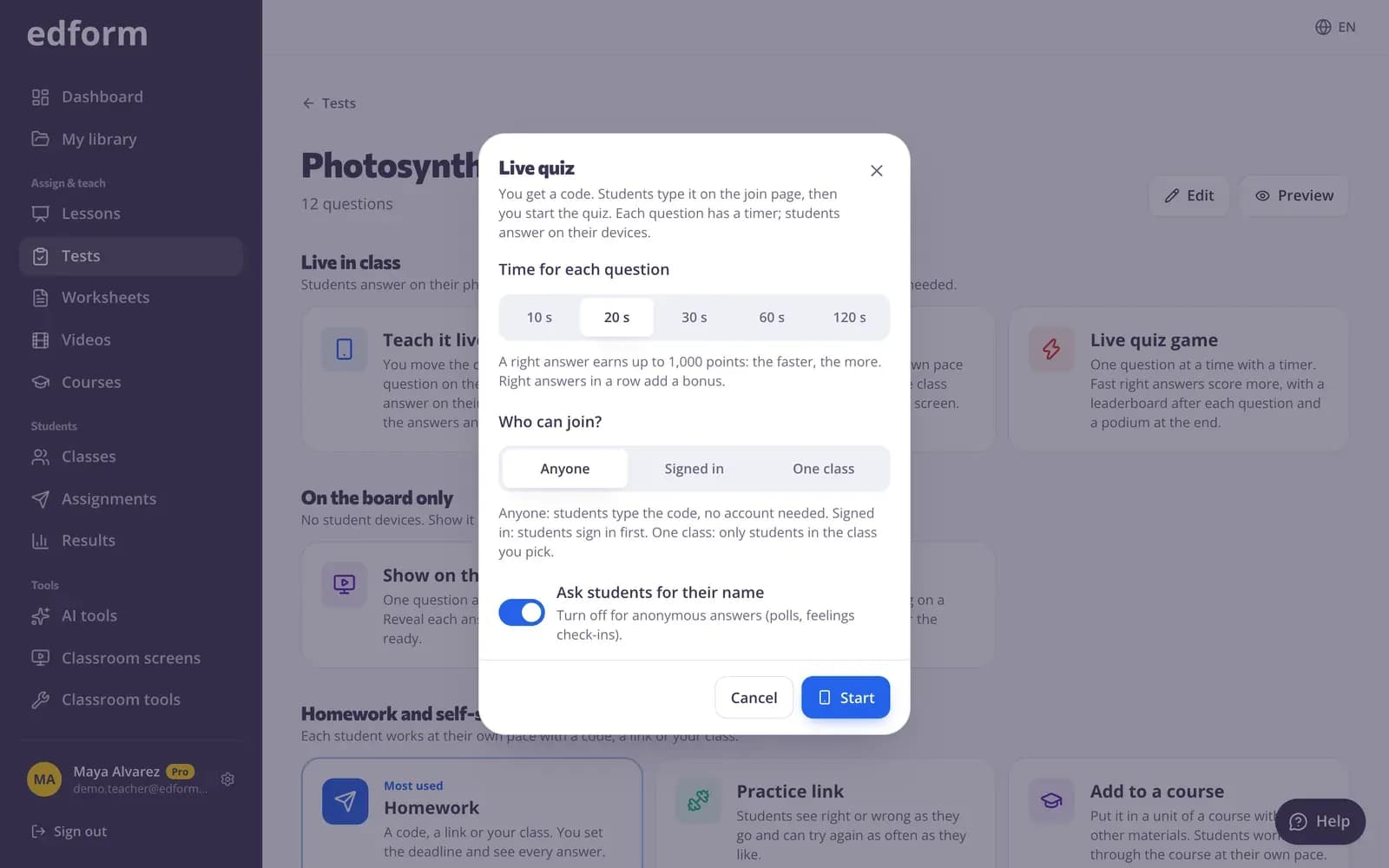
Step 4: Choose who can join
Under “Who can join?” choose “Anyone”, “Signed in” or “One class”. With “Anyone”, keep “Ask students for their name” on so the leaderboard shows names.
Step 5: Click “Start”
Your quiz screen opens with the join card. Put it on the projector.
Let students join with the code or QR code
Step 1: Show the join card
The join card shows the code, a QR code and the link. Students open the join page, type the 6-digit code and their name, or scan the QR code.
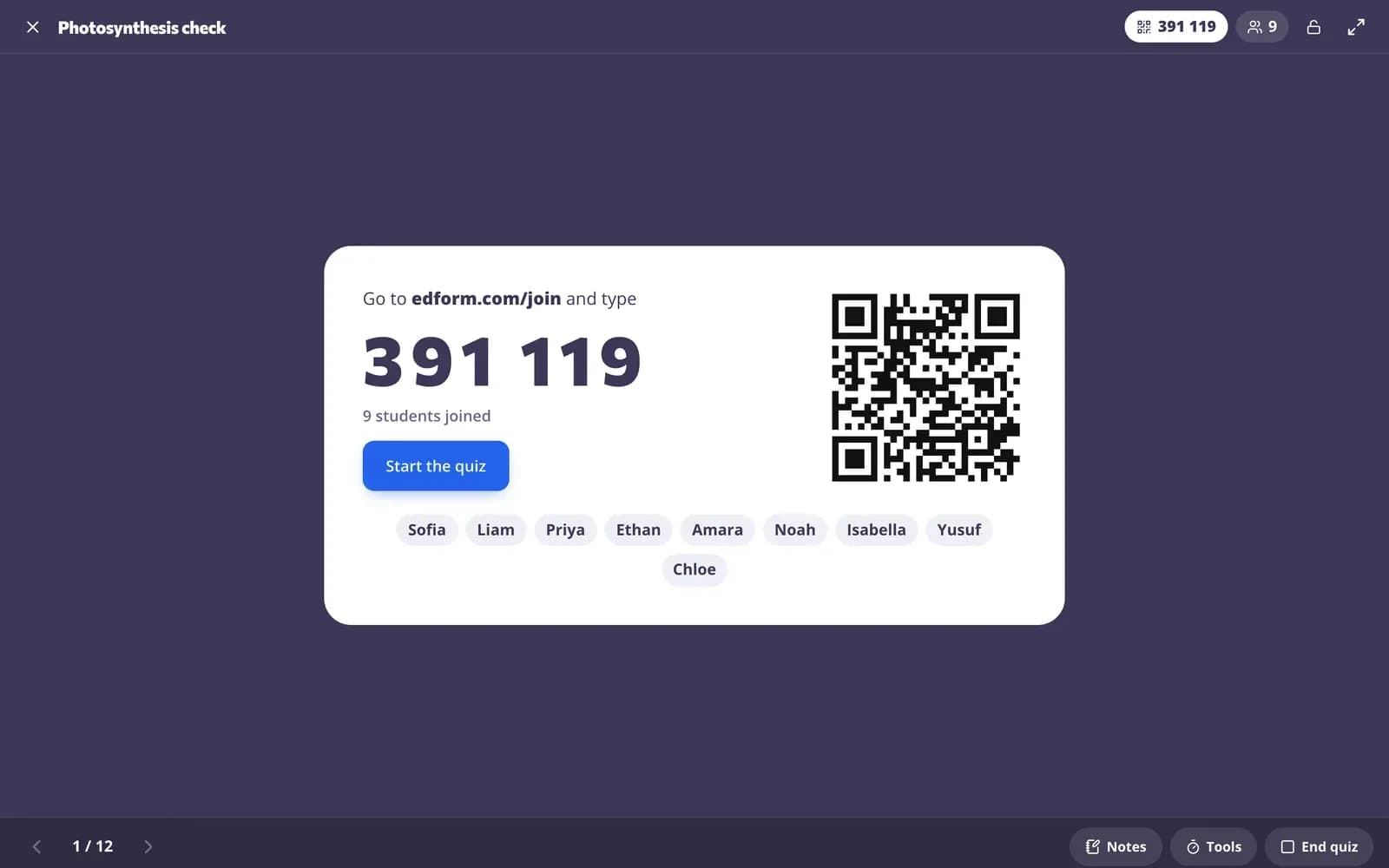
Step 2: Watch the names arrive
Each name appears on the join card as the student joins, and the student's device says “You're in!”.
Step 3: Click “Start the quiz”
The first question appears on your screen and on every device, and its timer starts.
Play question by question
Step 1: Students answer before the timer runs out
A countdown runs on your screen and on every device. One tap on a multiple-choice answer sends it; other questions have a “Send answer” button. The first answer is final: the student sees “Answer locked in!”.
Step 2: The answer is revealed when time is up
When the countdown reaches zero, or as soon as everyone has answered (“Everyone has answered”), the right answer and the class's answers appear. Click “Stop the timer” to reveal it earlier. Answers sent too late get “Time's up!”.
Step 3: Show the leaderboard
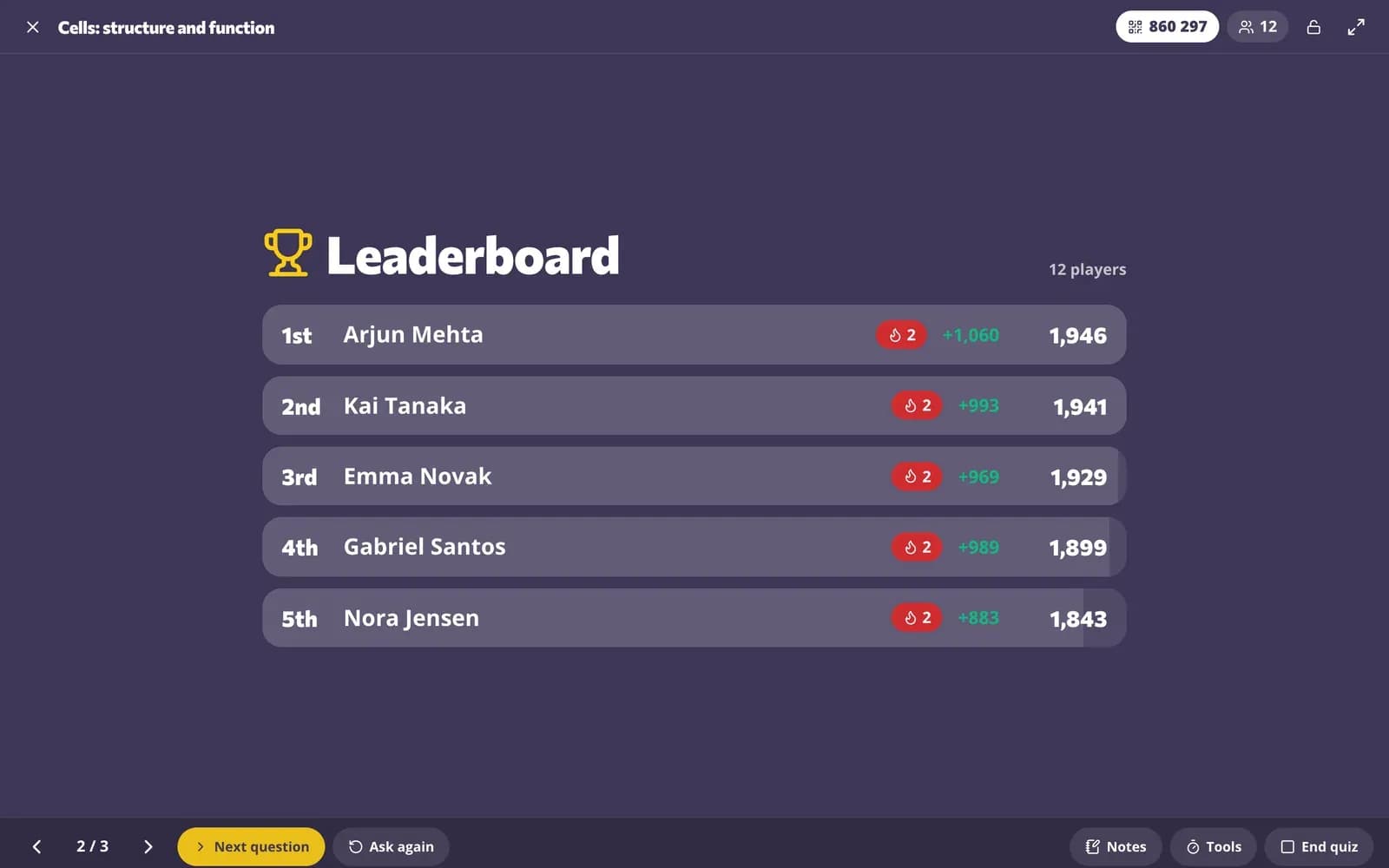
Click “Leaderboard” to show the top five with their points and what they won on this question. Each student's device shows the points they won, their streak and their place.
Step 4: Go to the next question
Click “Next question”. The next question appears and its timer starts.
Finish with the podium and the report
Step 1: Click “Final results”
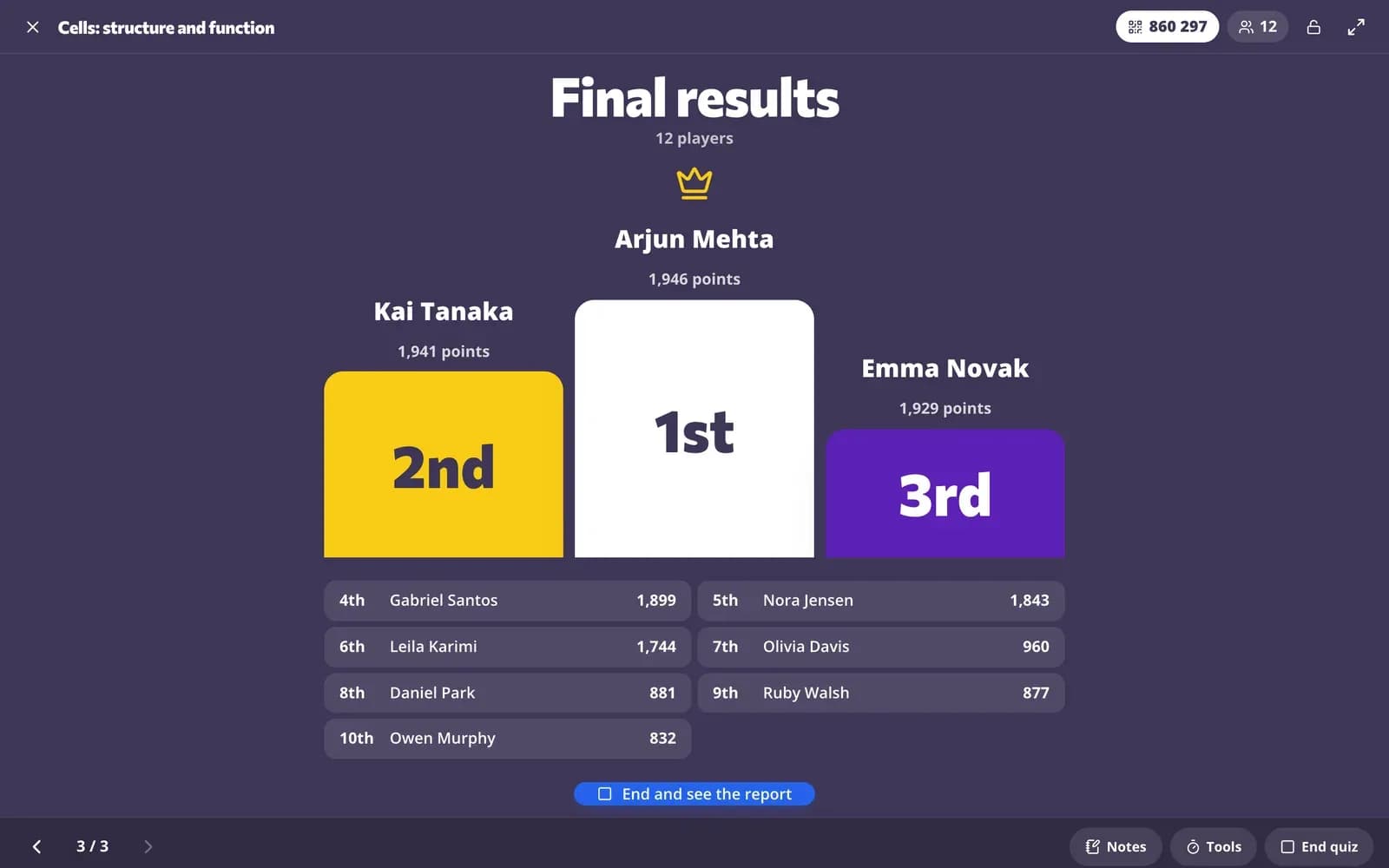
After the last question's leaderboard, the podium shows the top three. Every student's device shows their final place and points.
Step 2: Click “End and see the report”
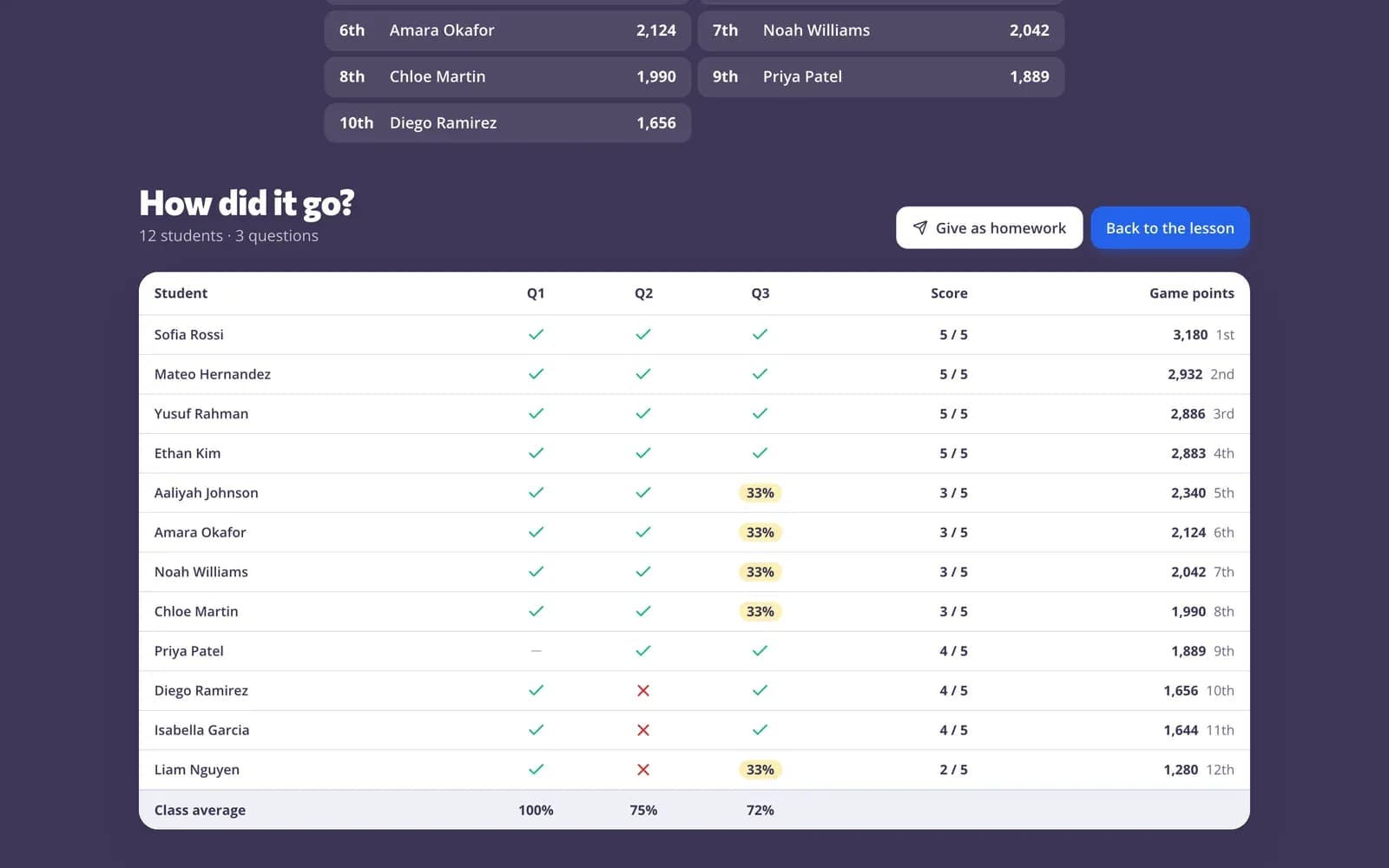
The quiz ends and the report appears under the podium: each student's answer to every question, their score and a “Game points” column with their place.
Step 3: Give it as homework or open it again later
Click “Give as homework” to give the same questions for practice. The quiz is listed as “Live quiz” under “Given before” on the page with the ways to use it; click “Results” to open the report again.
Questions
Can I change the time per question during the quiz?
No. You pick the time when you start, and every question gets the same time. To finish a question early, click “Stop the timer”.
Can students change their answer?
No. In the quiz game the first answer is final, and answers sent after the time is up aren't accepted.
Do students need an account?
No. With “Anyone” students join with the code and their name. Choose “Signed in” or “One class” if you want them to sign in.
What's the difference from the live race?
In the live quiz game everyone answers the same question at the same time and you set the pace. In the live race each student answers at their own pace while your screen shows the class moving through a scene.
Related
- Live quiz gameA timed quiz show with points, a leaderboard and a podium
- Classroom gamesLive quiz, race, team and arcade review games
- Game-based learningGames built from your questions that still count
- Live raceRun a live race: students join with a code and race on your screen at their own pace.
- Homework reportsSee every student's score, each answer and how the class did on each question.