

Otvorite rezultate
Korak 1: Idite na „Zadato kao domaća zadaća”
U bočnoj traci kliknite na „Testovi”, zatim na karticu „Zadato kao domaća zadaća”. Svaka domaća zadaća koju ste zadali prikazana je sa svojim statusom, brojem učenika koji su predali i prosjekom.
Korak 2: Otvorite domaću zadaću
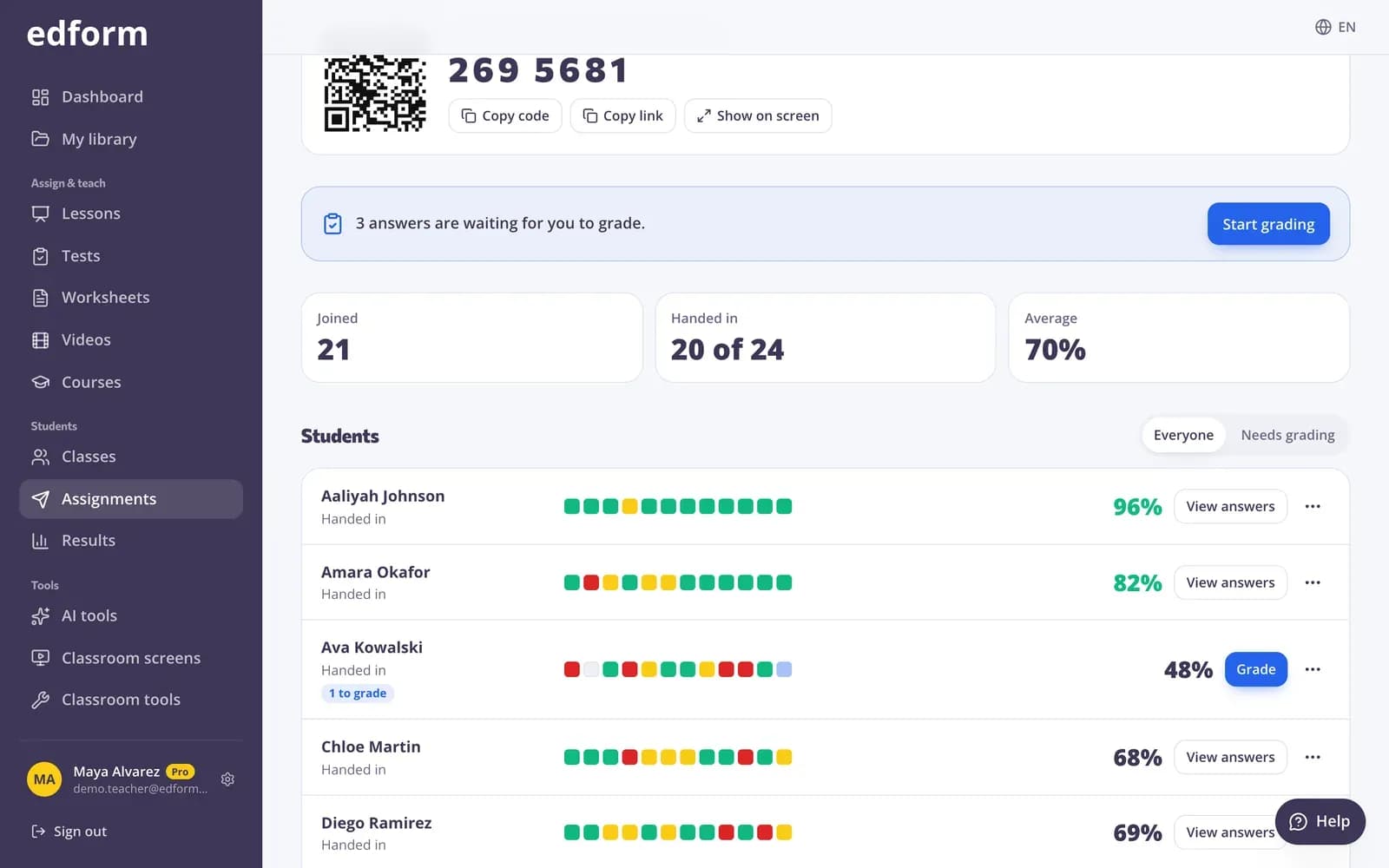
Kliknite na nju da otvorite izvještaj. Na vrhu vidite „Pridruženi”, „Predano” i „Prosjek”; za domaću zadaću razredu, „Predano” prikazuje koliko je učenika iz razreda predalo.
Pogledajte svakog učenika
Korak 1: Pročitajte listu „Učenici”
Svaki red prikazuje status učenika („Radi” ili „Predano”), njegov rezultat i po jedan mali kvadratić za svako pitanje: zeleno je tačno, žuto djelimično tačno, crveno netačno, a sivo nije odgovoreno. Kasna predavanja, dodatni pokušaji i napuštanje stranice bilježe se ispod imena.
Korak 2: Otvorite odgovore učenika
Kliknite „Prikaži odgovore” da vidite svaki odgovor koji je učenik dao, uz tačan odgovor.
Korak 3: Pogledajte ko još nije počeo
Za domaću zadaću zadatu jednom od vaših razreda, „Nije počelo” prikazuje učenike iz tog razreda koji je još nisu otvorili.
Korak 4: Uporedite timove
Ako su učenici igrali u timovima, odjeljak „Timovi” prikazuje prosjek svakog tima.
Pogledajte kako je prošlo svako pitanje
Korak 1: Skrolujte do „Pitanja”
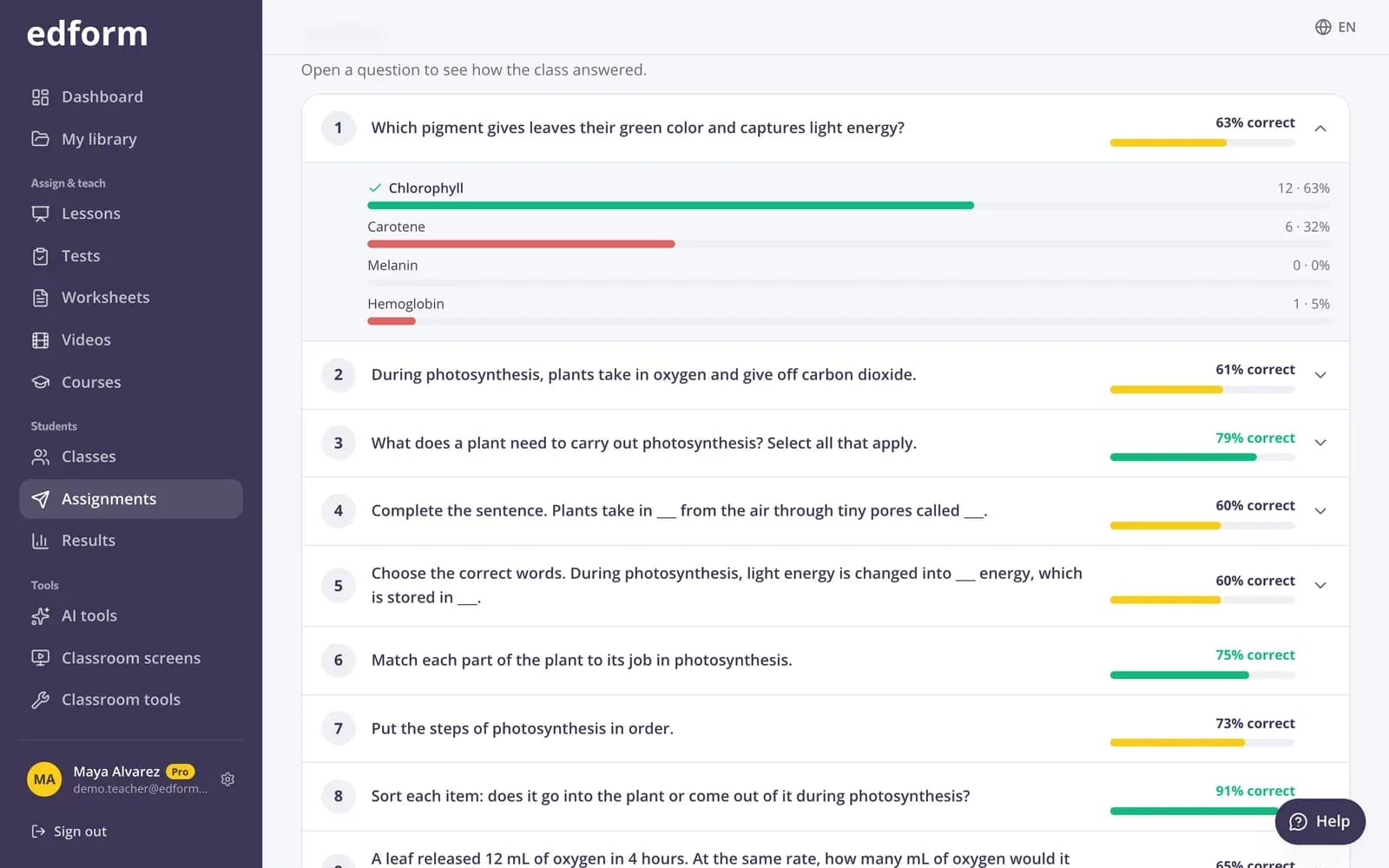
Za svako pitanje prikazan je procenat tačnih odgovora uz obojenu traku, pa se najteža pitanja odmah ističu.
Korak 2: Otvorite pitanje
Kliknite na pitanje da vidite kako je razred odgovorio: koliko je učenika odabralo svaku opciju i koji su najčešći netačni odgovori.
Preuzmite i nastavite dalje
Korak 1: Kliknite „Preuzmi CSV”
Dobit ćete jedan red po učeniku sa statusom, rezultatom, procentom i svakim pitanjem. Otvara se u bilo kojem programu za tabelarne proračune.
Korak 2: Pomozite učenicima kojima je potrebno
Meni pored svakog učenika omogućava da dozvolite još jedan pokušaj, dodijelite dodatno vrijeme, postavite kasniji rok, poništite pokušaj ili uklonite učenika.
Pitanja
Da li se rezultati prikazuju dok učenici još rade?
Da. Učenici se pojavljuju u izvještaju čim počnu. Ponovo učitajte stranicu da vidite najnovije odgovore.
Zašto rezultat kaže da se može promijeniti?
Domaća zadaća ima otvorena pitanja koja još niste ocijenili. Rezultat je konačan kada ih ocijenite.
Dva učenika su upisala isto ime. Kako da ih razlikujem?
Dupla imena se u izvještaju označavaju brojem, na primjer „Anna (2)”. Sljedeći put odaberite „Prijavljeni učenici” ili „Jedan od mojih razreda” kako bi rezultati bili vezani za račune.
Postoji li izvještaj za igru uživo?
Igra uživo prikazuje rangiranje na ekranu igre. Ako koristite „Nastavi kod kuće”, igra postaje domaća zadaća sa standardnim izvještajem.
Povezano
- Izvještaji za kvizRezultati po učeniku, po pitanju i najčešći netačni odgovori
- Automatsko ocjenjivanjeZatvoreni odgovori se provjeravaju čim učenici predaju
- Formativno vrednovanjeProvjerite razumijevanje tokom lekcije, a ne nakon testa
- Ocijeni otvorene odgovoreOcijenite pisane odgovore bodovima, kontrolnom listom i povratnim informacijama, ili promijenite automatski rezultat.
- Zadaj domaću zadaćuZadajte test kao domaću zadaću pomoću koda, linka ili QR koda i postavite rok.