

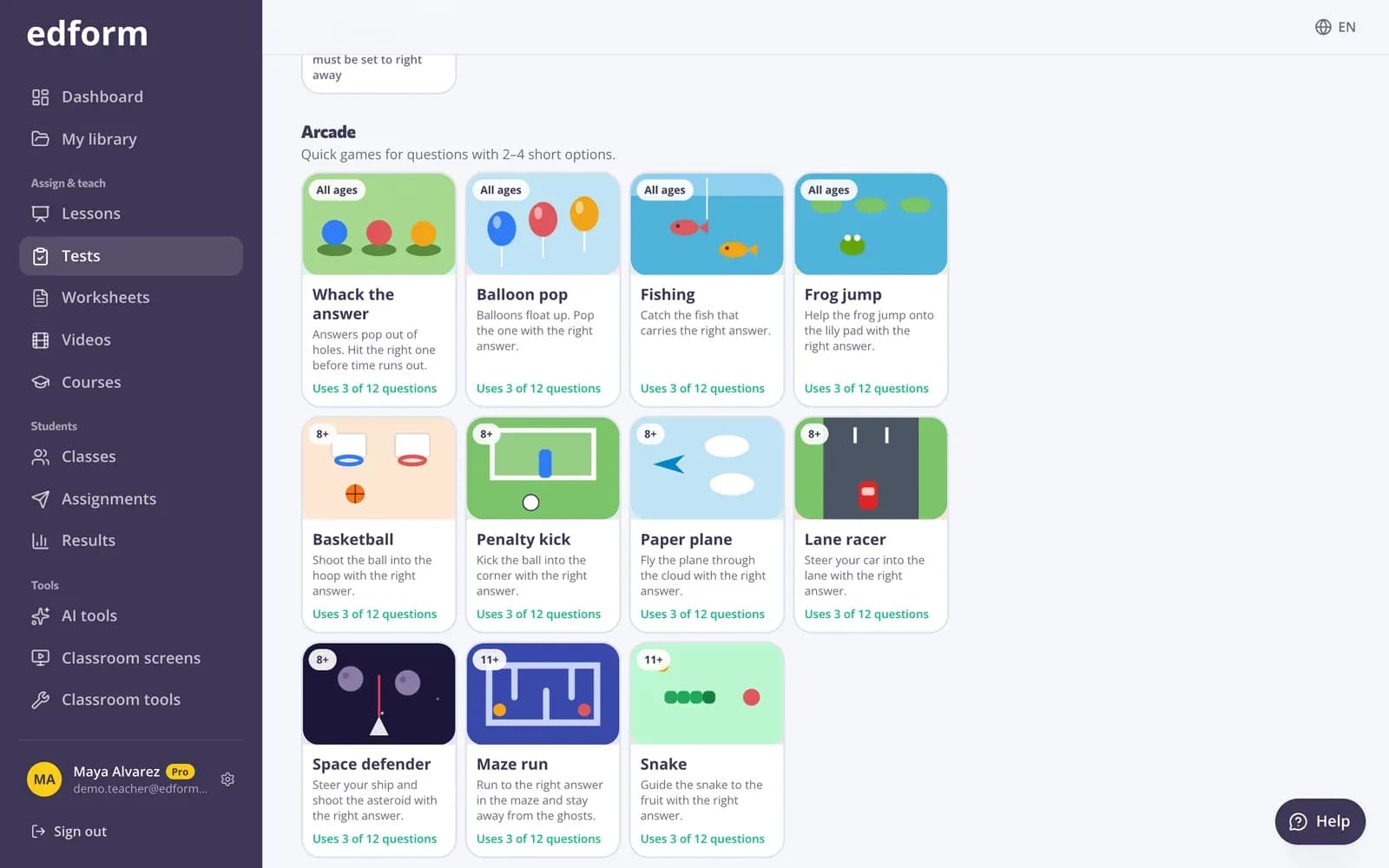
Wybierz tryb gry
Krok 1: Otwórz ustawienia pracy domowej lub gry na żywo
Przejdź do „Testy”, kliknij „Użyj z klasą” i wybierz „Praca domowa” lub „Gra na żywo”.
Krok 2: Wybierz odbiorców innych niż „Studia”
Tryby gry i sceny są dostępne dla poziomów „Najmłodsi”, „Szkoła podstawowa – starsze klasy” i „Szkoła średnia”. „Studia” mają spokojny układ egzaminacyjny bez gier.
Krok 3: Wybierz tryb w sekcji „Jak uczniowie odpowiadają”
Tryby są pogrupowane w „Klasyczne”, „Gry słowne”, „Gry zręcznościowe” i „Plansze i przygody”. Każda karta pokazuje, dla jakiego wieku jest tryb i ile Twoich pytań wykorzystuje.
Krok 4: Sprawdź, które pytania wykorzystuje
Tryb może wykorzystać tylko pasujące do niego pytania, np. z odpowiedziami jednowyrazowymi w krzyżówce. Na pozostałe pytania odpowiada się jak w klasycznym teście. Tryby, które pokazują litery lub odpowiedzi, wymagają ustawienia „Pokazuj poprawne odpowiedzi” na „Od razu po każdym pytaniu”.
Krok 5: Dodaj scenę gry (opcjonalnie)
W sekcji „Scena gry” wybierz obraz, np. wspinaczkę na szczyt lub misję na Księżyc. Każda poprawna odpowiedź przesuwa ucznia dalej; wyniki się nie zmieniają. Wybierz „Bez sceny”, aby mieć prosty pasek postępu.
Krok 6: Zadaj pracę domową lub otwórz grę
Uczniowie grają w wybrany tryb na własnych urządzeniach, a Ty widzisz ich wyniki jak zwykle.
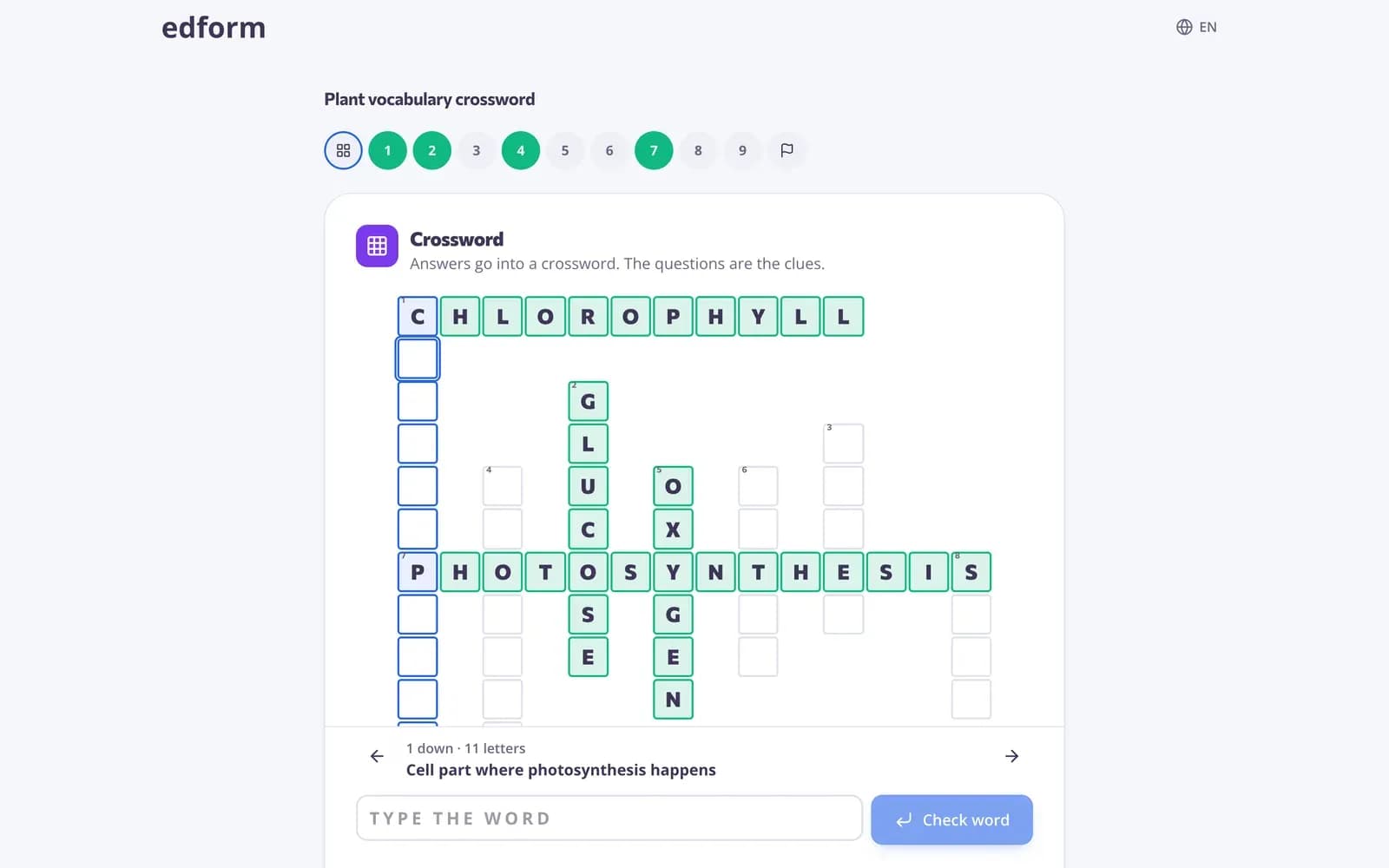
Jakie są tryby
Klasyczne: „Klasyczny test”, „Quiz telewizyjny” (na czas, z dwoma kołami 50:50), „Wyścig na pisanie”. W trybach na czas zegar pytania rusza, gdy uczeń kliknie „Zacznij”. Gry słowne, do odpowiedzi jednowyrazowych: „Zgadnij słowo”, „Anagram”, „Brakujące litery”, „Krzyżówka”, „Wykreślanka”. Arkadowe, do pytań z 2–4 krótkimi odpowiedziami i jedną poprawną: „Uderz w odpowiedź”, „Balony”, „Wędkarstwo”, „Skok żaby”, „Koszykówka”, „Rzut karny”, „Papierowy samolot”, „Wyścig na torze”, „Obrońca kosmosu”, „Bieg przez labirynt”, „Wąż”. Tablice i przygody: „Dopasuj”, „Znajdź parę”, „Bingo”, „Pamięć” oraz przygody obejmujące cały test: „Tablica quizowa” (plansza w stylu Jeopardy: uczniowie wybierają kategorię i wartość), „Escape room”, „Gra planszowa”, „Budowniczy wieży”. Odpowiedzi na pytania w krzyżówce, wykreślance i na tablicy dopasowań wpisujesz bezpośrednio na planszy, a w „Pamięci” zapisywane są tylko dopasowane pary, więc zły obrót nigdy nie kosztuje punktów.
Inne sposoby rozegrania tych samych pytań
Strona testu „Użyj tego testu” oferuje też grę drużynową na jeden ekran, fiszki, pary (dopasowywanie i memory) oraz łamigłówki do druku. Wszystkie korzystają z pytań, które już napisano.
Pytania
Czy tryby gry zmieniają wyniki uczniów?
Nie. Każdy tryb kończy się zwykłą odpowiedzią, która jest oceniana tak samo, więc Twój raport wygląda tak samo niezależnie od tego, w jaki tryb grali uczniowie.
Dlaczego nie mogę wybrać trybu do mojego testu?
Każdy tryb wymaga pytań, które do niego pasują, na przykład odpowiedzi jednowyrazowych albo krótkich opcji z jedną poprawną odpowiedzią. Dodaj pasujące pytania albo wybierz inny tryb.
Czy mogę używać trybów gry w grze na żywo?
Tak. Ustawienia gry na żywo mają ten sam wybór „Jak uczniowie odpowiadają” i te same sceny gry.
Czy jest gra w stylu Jeopardy?
Tak: „Tablica quizu”. Otwórz ustawienia pracy domowej lub gry na żywo („Testy” → „Użyj z klasą”), wybierz odbiorców innych niż „Studia” i w „Jak uczniowie odpowiadają” wybierz „Tablica quizu” w sekcji „Plansze i przygody”. Każde pytanie z testu jest na tablicy.
Powiązane
- Tryby gry27 sposobów na rozegranie tych samych pytań
- Kreator escape roomuZamień quiz w cyfrowy escape room
- Quiz boardPlansza do powtórek z pytaniami i wartością punktową
- Zadawanie pracy domowejZadaj test jako pracę domową z kodem, linkiem lub kodem QR i ustaw termin.
- Wyścig na żywoPoprowadź wyścig na żywo: uczniowie dołączają kodem i ścigają się na Twoim ekranie we własnym tempie.