


Set up the homework for your group
Step 1: Pick the audience level
Under “Who is it for?” choose “Young learners” (big buttons, questions read aloud, friendly feedback), “Middle school”, “High school” (flags and results after handing in) or “College” (a calm exam layout with a review page).
Step 2: Adjust the student screen
Under “Student screen” turn on “Read questions aloud” to add a speaker button that reads the question and answers, and “Flag questions and review before handing in” so students can come back to questions.
Step 3: Keep the pace gentle
Leave “Time limit” on “No time limit”, allow more than one attempt with “Fix your mistakes”, and choose “Right after each question” to show right or wrong straight away.
Give one student more time or another try
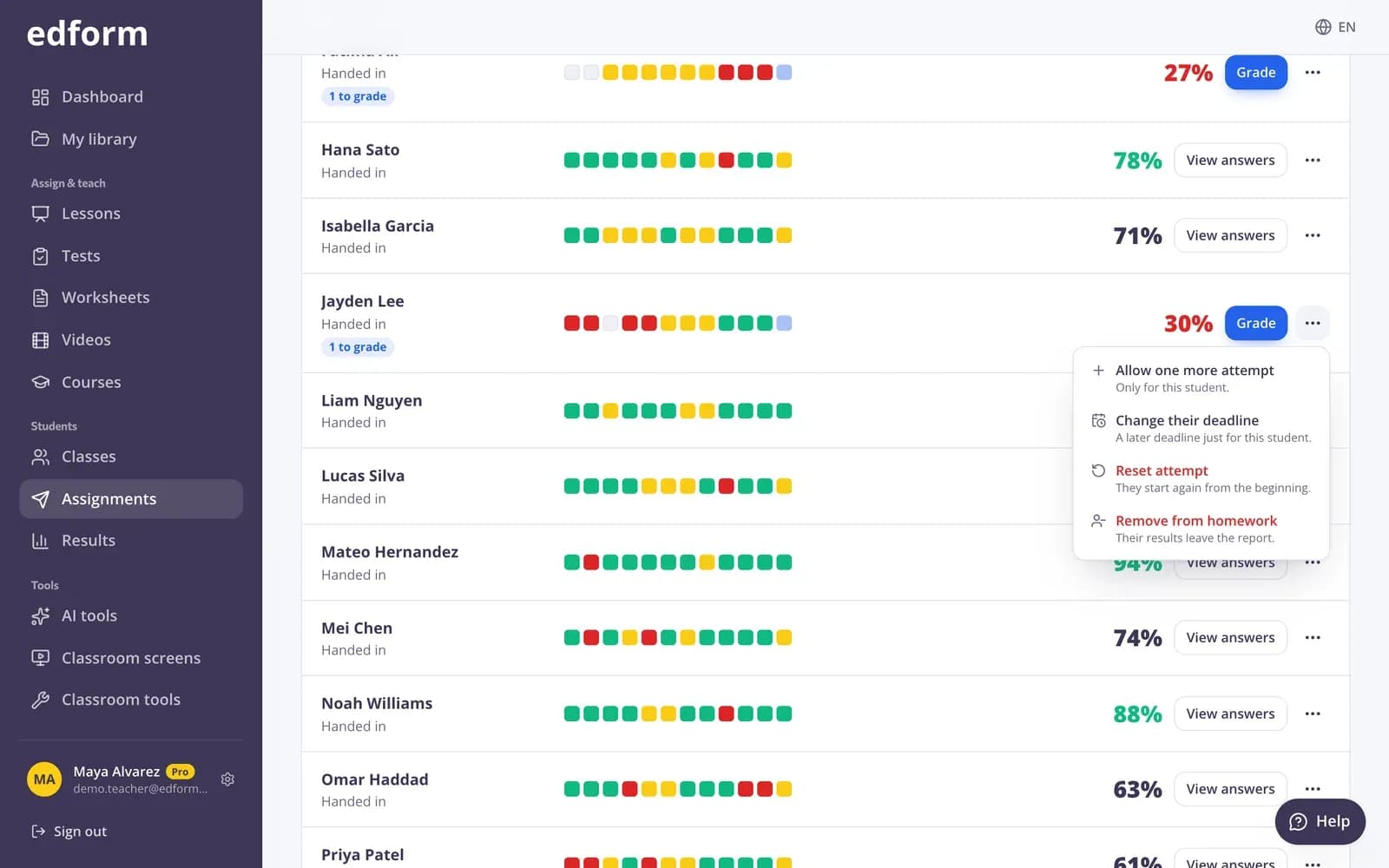
Step 1: Open the student's menu
On the homework report, click the menu button next to the student's name.
Step 2: “Allow one more attempt”
The student can do the homework once more. It applies only to this student.
Step 3: “Extra time”
Choose +25%, +50% or +100%. It's added to the time limit of the student's next attempt and to the clock of each question in timed game modes (TV quiz, arcades, typing race), so it appears only when the homework has a time limit or a timed mode.
Step 4: “Change their deadline”
Set a later “Deadline for this student” and click “Save”. The class keeps the usual deadline; “Use the class deadline” undoes it.
Step 5: Check the labels
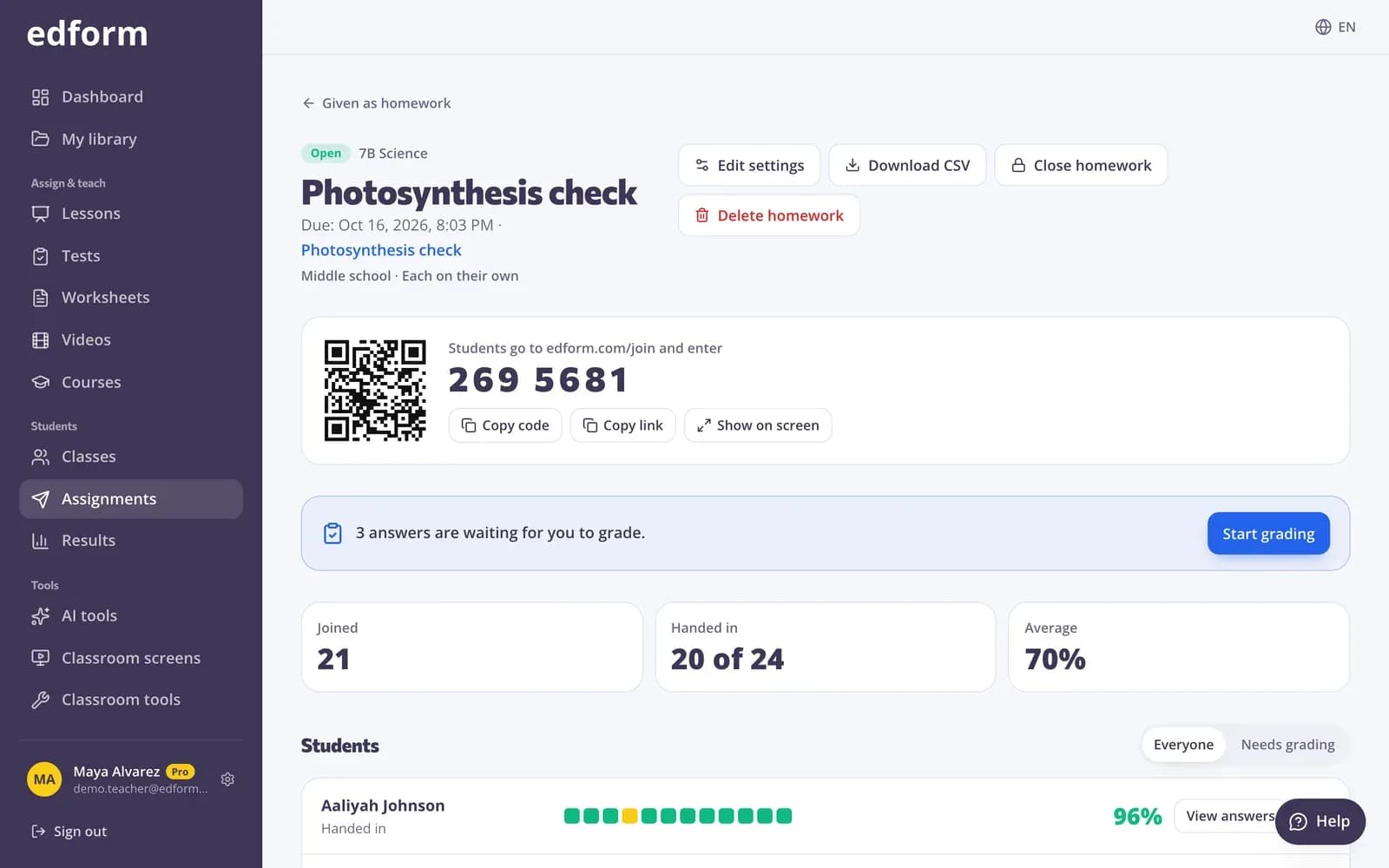
Under the student's name the report shows what you changed, for example “+1 attempt”, “+50% time” or “Own deadline”.
Give a fresh start or remove a student
Step 1: “Reset attempt”
The current attempt is set aside and no longer counts. The student starts again from the beginning.
Step 2: “Remove from homework”
The student's results leave the report, and they can't continue or join again from the same device.
Students without their own device
When you give homework or start a live game, choose “Groups on one device” under “How do students play?”. A group types its name and members' names and shares one result. For a class with no devices at all, play the team game on your screen.
Questions
Do these settings follow the student to other homework?
No. Extra time, extra attempts and personal deadlines apply to one homework. Set them again on the next one if needed.
What does read-aloud need?
Nothing to install. It uses the speech voice built into the student's browser and reads in the test's language, so the voice depends on the device.
Can I change the audience level after giving the homework?
No. “Edit settings” changes the deadline, attempts and results. For a different level, give the test again as new homework.
Can I stop students getting help from others?
Turn on “Ask students to work on their own”: before starting, students confirm they won't get help from people, websites or AI.
Related
- DifferentiationExtra time, deadlines and attempts per student
- Special educationAccommodations, read-aloud and AI help with IEPs and social stories
- Elementary schoolBig buttons, read-aloud and team games for young learners
- Assign homeworkGive a test as homework with a code, link or QR code and set the deadline.
- Homework reportsSee every student's score, each answer and how the class did on each question.