

Open the test you want to give
Step 1: Go to “Tests”
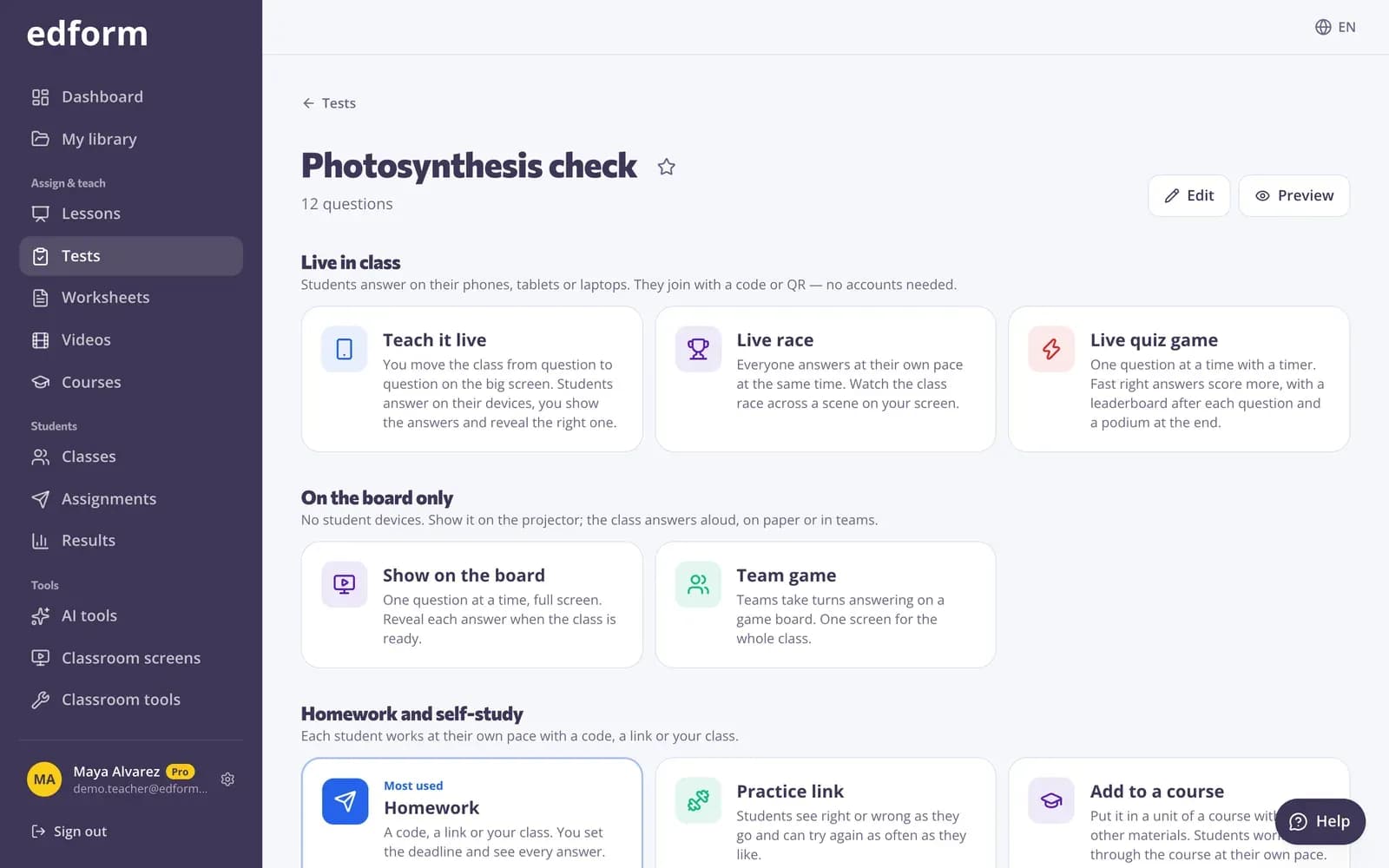
In the sidebar, under “Assign & teach”, click “Tests”. Your tests are listed under “My tests”.
Step 2: Click “Use with class”
You'll find it next to the test in the list, or in the top bar of the test editor. It opens the “Use this test” page with every way to use the questions.
Step 3: Choose “Homework”
This opens the “Give as homework” page. The test needs at least one question first. Until your class has played something, the page starts with “Give students a link”: one click gives the test as homework anyone can join, with no deadline, and opens its code. “Try it as a student” lets you see it first without counting as a lesson.
Choose the settings
The defaults suit most homework, so you can also go straight to the last step.
Step 1: Check the name students see
“Name students see” starts with the test title. Change it if you give the same test to several groups.
Step 2: Pick who it is for
Under “Who is it for?” choose “Young learners”, “Middle school”, “High school” or “College”. Each choice sets sensible options for that age, and you can still change every one.
Step 3: Decide who can join
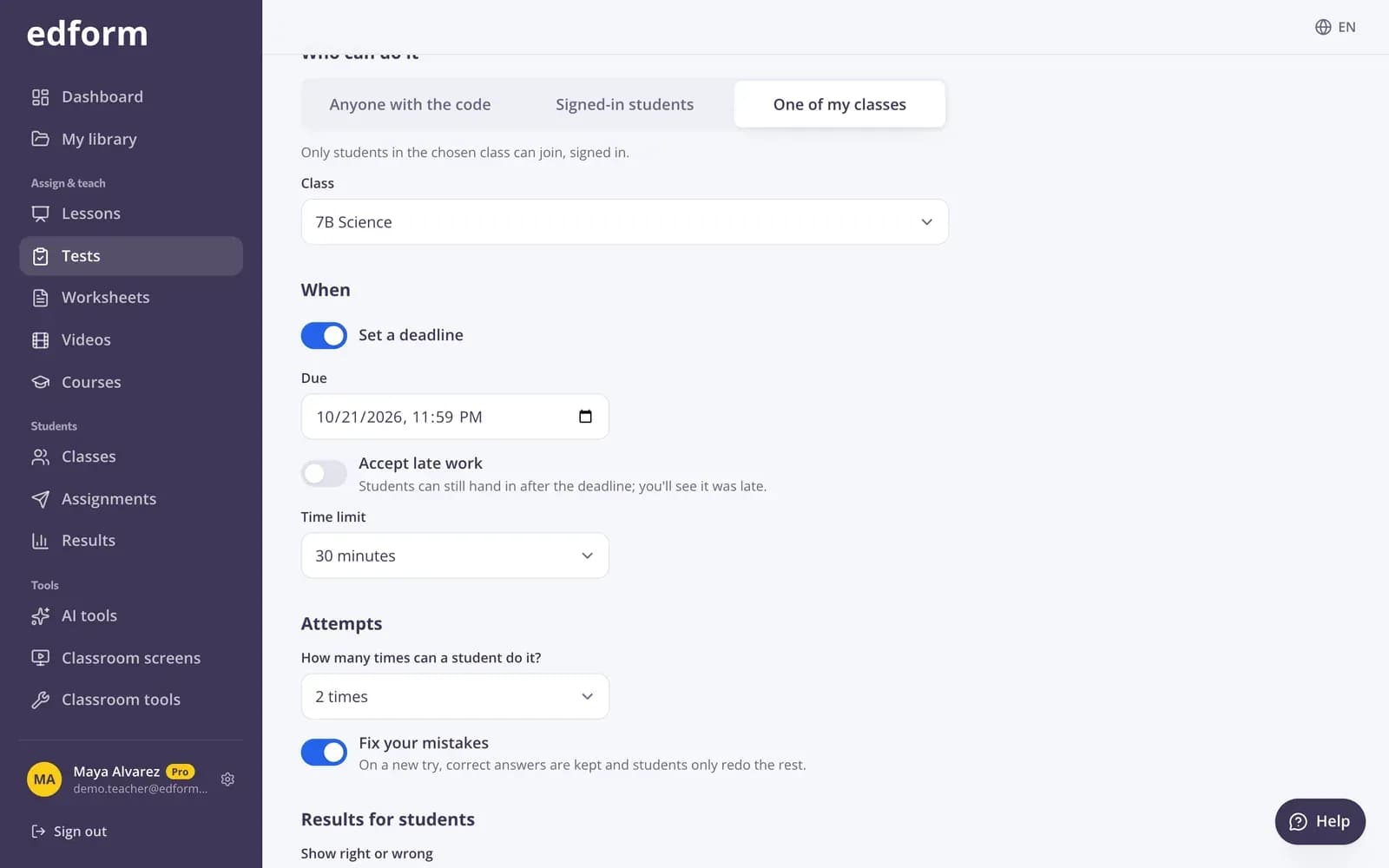
Under “Who can do it” choose “Anyone with the code” (students just type their name), “Signed-in students” or “One of my classes”.
Step 4: Set the deadline and time limit
“Set a deadline” is on and starts one week ahead. Turn on “Accept late work” to allow late hand-ins, and pick a “Time limit” if students should finish within a set time.
Step 5: Choose attempts and results
Pick how many times a student can do it. Under “Results for students” choose when they see “Show right or wrong” and “Show the correct answers”: right after each question, after handing in, after the deadline or never.
Step 6: Click “Give homework”
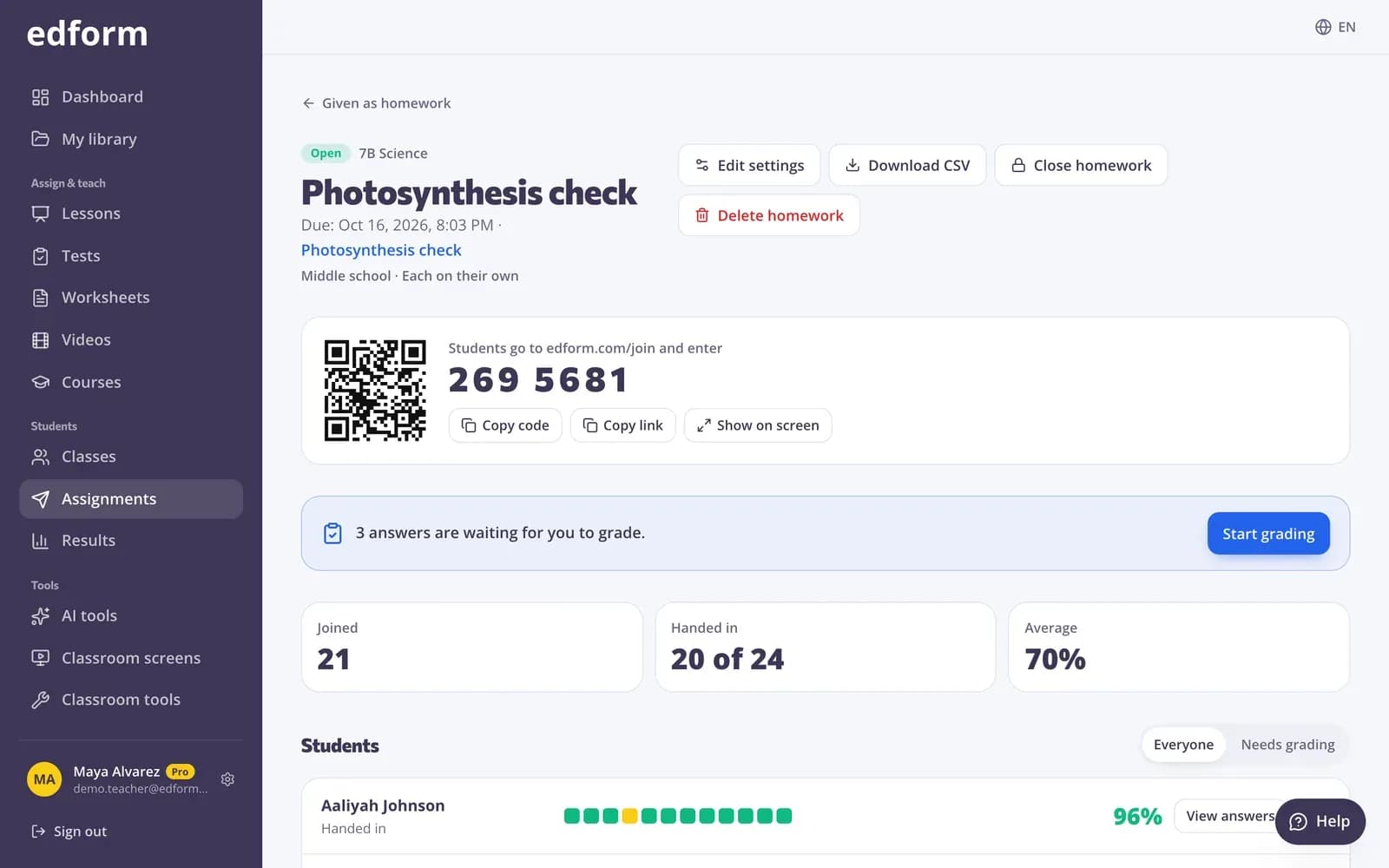
The homework is created and its page opens with the code for your students.
Share it with your students
Step 1: Share the code, link or QR code
The homework page shows a 7-digit code and a QR code. Use “Copy code” or “Copy link”, or click “Show on screen” to project a big QR code and the code. On a phone, “Send to students” opens your phone's share menu (WhatsApp, Telegram, Messages…) with the link and the code ready to send; the QR code, Classroom and Teams are under “More ways”. Until someone joins, the phone also shows the list of questions under the code, so you can check them before sending. Tried it yourself first? The homework stays open, so your class can use the same code in your next lesson.
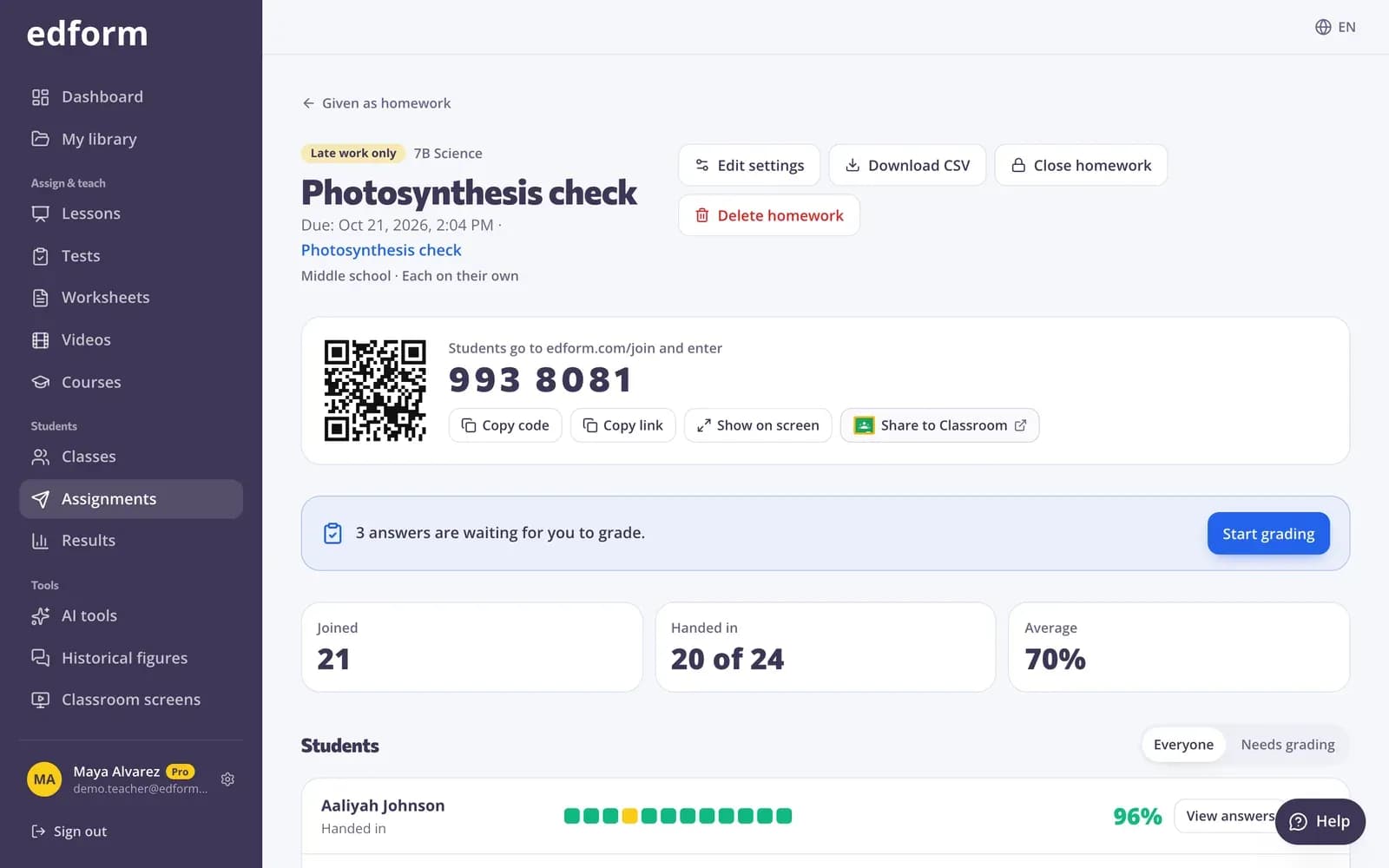
Step 2: Or share it to Google Classroom
Press “Share to Classroom” on the same card. Google Classroom's share window opens with the title, the link and the code filled in; pick the class and post.
Step 3: Students join
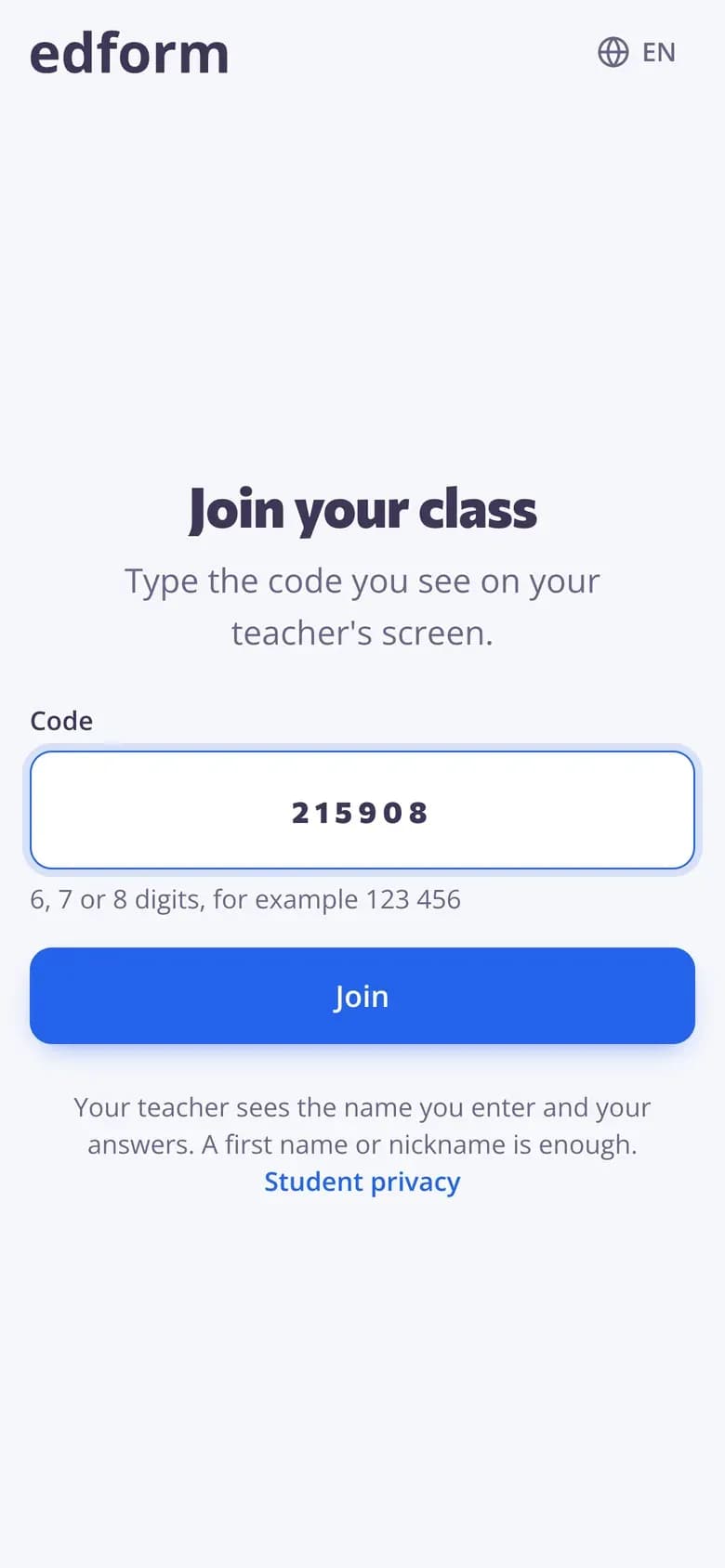
Students open the join address shown next to the code, type the code and press “Join”. With “Anyone with the code” they type their name and press “Start”.
Step 4: Students answer and hand in
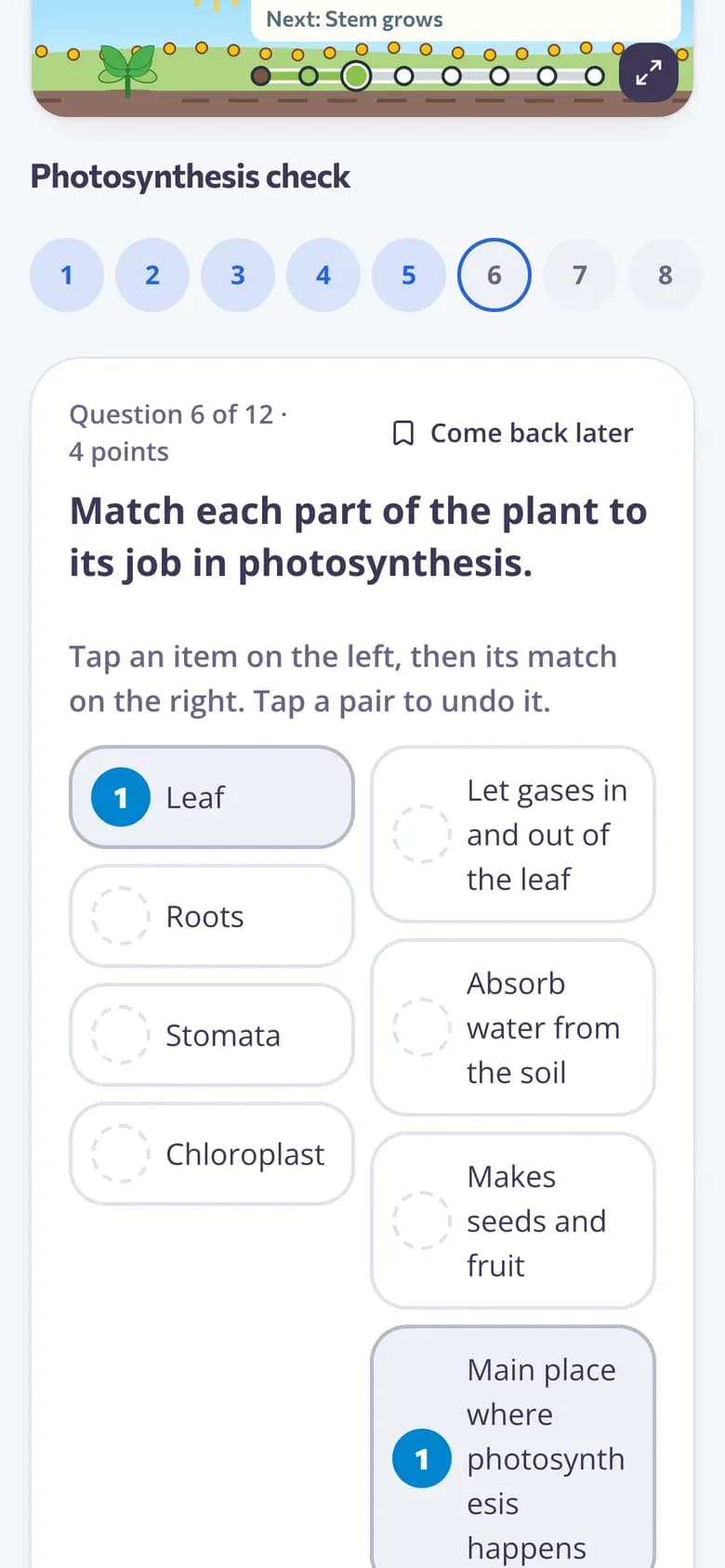
Students see one question per screen and press “Hand in” at the end. Signed-in students also find the homework under “My homework”.
Change or close the homework
Step 1: Click “Edit settings”
On the homework page you can change the name, deadline, late work, attempts and results, or close it automatically on a date. Changes apply to students right away.
Step 2: Close it when you're done
“Close homework” stops students from starting or handing in; “Open again” undoes it. “Delete homework” removes the code and every student answer.
Questions
My students can't open the homework link. What is wrong?
Most often the homework is for “One of my classes” or “Signed-in students”, so the page asks students to sign in before they start. They sign in with the school email you added to the class, or you give the homework again with “Anyone with the code”: then they only type their name. Also check that the homework isn't closed.
How do I let anyone with the link do the homework?
On the “Give as homework” page, choose “Anyone with the code” under “Who can do it”. Everyone who has the link, the code or the QR code can start by typing their name, without an account.
Can I change who can do the homework after I gave it?
No. “Edit settings” changes the name, deadline, attempts and results, but not who can join. Give the test as homework again with the right choice under “Who can do it”, share the new link and close the old homework.
Do my students need an account or an email address?
No. With “Anyone with the code” students only type their name. Choose “Signed-in students” or “One of my classes” when you want results saved to student accounts.
Can I change the questions after giving the homework?
No, so every student is marked on the same test. Edit the test and give it as new homework; the results of the first one stay.
What if one student needs more time or another try?
Use the menu next to the student on the homework page: you can allow one more attempt, add extra time or set a later deadline just for them.
Can I see if a student left the page during the homework?
Yes. The results list shows “left the page” with a count for students who switched away while working.
Where do I get the link to my test for students?
A test gets its link when you give it as homework. Open the test, press “Use with class”, choose “Homework” and press “Give homework”. The homework page then shows the code, a QR code and the “Copy link” button. You find the same page later under Tests → “Given as homework”. The address of the test editor works only for you, so don't send that one to students.
Can I set a time limit for the whole test?
Yes, and it is free. On the “Give as homework” page choose a “Time limit”: 5, 10, 15, 20, 30, 45, 60 or 90 minutes, or leave “No time limit”. It is the time for the whole test, the same for every student, and one student can get more with “Extra time”. The time limit can't be changed after you give the homework: give the test again to change it. For a timer on each question, play a live quiz game instead.
How do I turn off shuffling of the questions or the answers?
On the “Give as homework” page, under “Order”, turn off “Shuffle answer options” and “Shuffle the questions for each student”. Answer options are shuffled unless you turn it off. Questions are shuffled by default for “Middle school”, “High school” and “College”, and kept in your order for “Young learners”. Both are set when you give the homework: to change them later, give the test again.
A student can't see their score or the correct answers. Why?
It depends on “Results for students”. With “After the deadline” the student sees “You'll see your results after the deadline.” after handing in, and with “Never” they see “Your teacher will share the results.” Open the homework, press “Edit settings” and change “Show right or wrong” and “Show the correct answers”: the change applies right away. If the test has open answers, the score is final only after you grade them.
I can't choose a class when I give homework. Why?
“One of my classes” can be chosen only when you have a class. Create one under “Classes” first and let students join with the class code, or choose “Anyone with the code” to give the homework without a class.
Related
- Online homeworkGive homework with a code and a deadline
- Join with a codeStudents type a code — no account needed
- Google ClassroomImport classes from Google Classroom, keep them in sync and share homework to Classroom.
- Homework reportsSee every student's score, each answer and how the class did on each question.
- Student accommodationsRead-aloud, extra time, extra attempts and personal deadlines for students who need them.
- Create a quizMake a test with any mix of question types, preview it and use it with your class.