


Add a question and set its points
Step 1: Pick a type
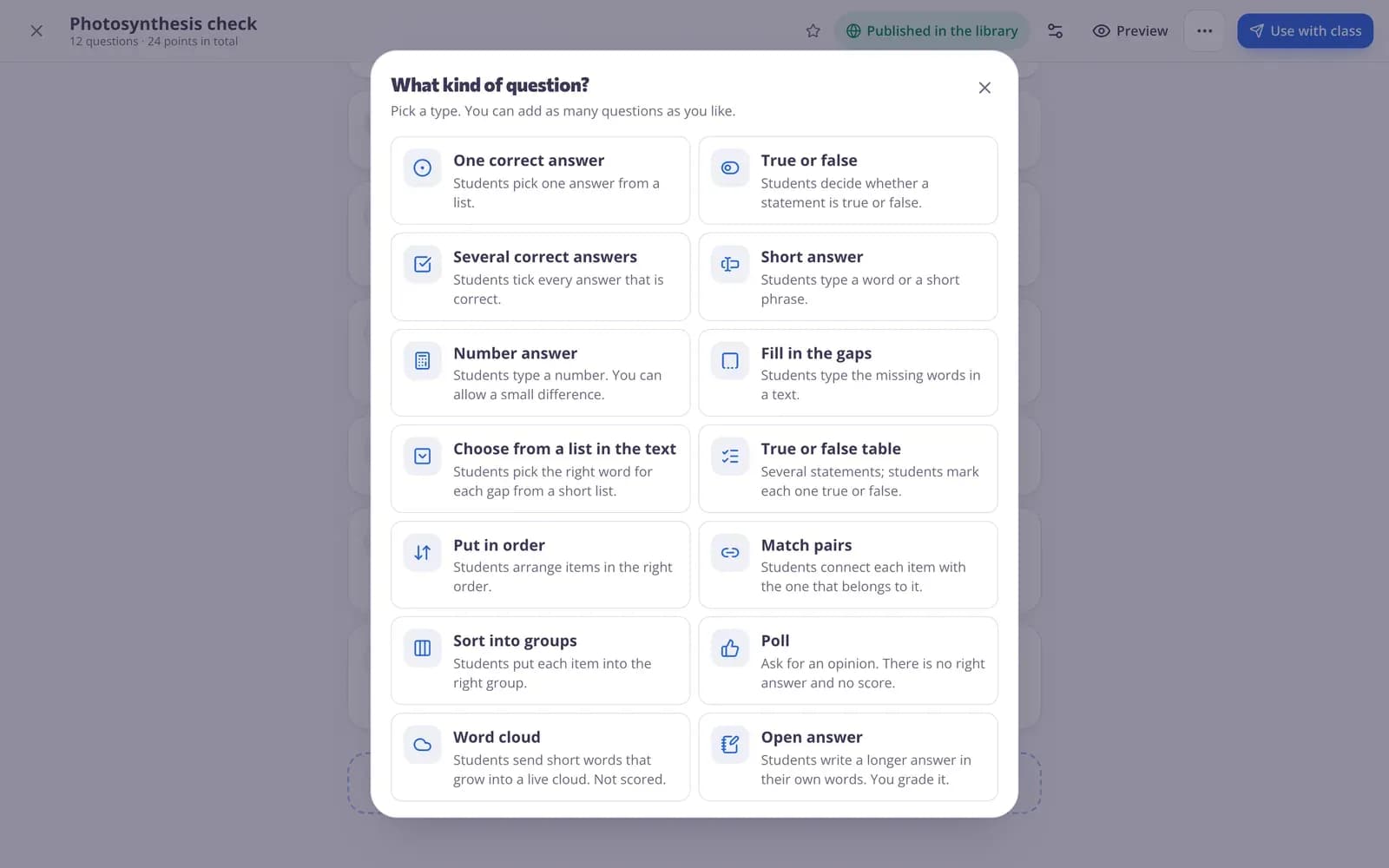
In a test, press “Add a question”. “What kind of question?” lists every type with a one-line description.
Step 2: Set the points
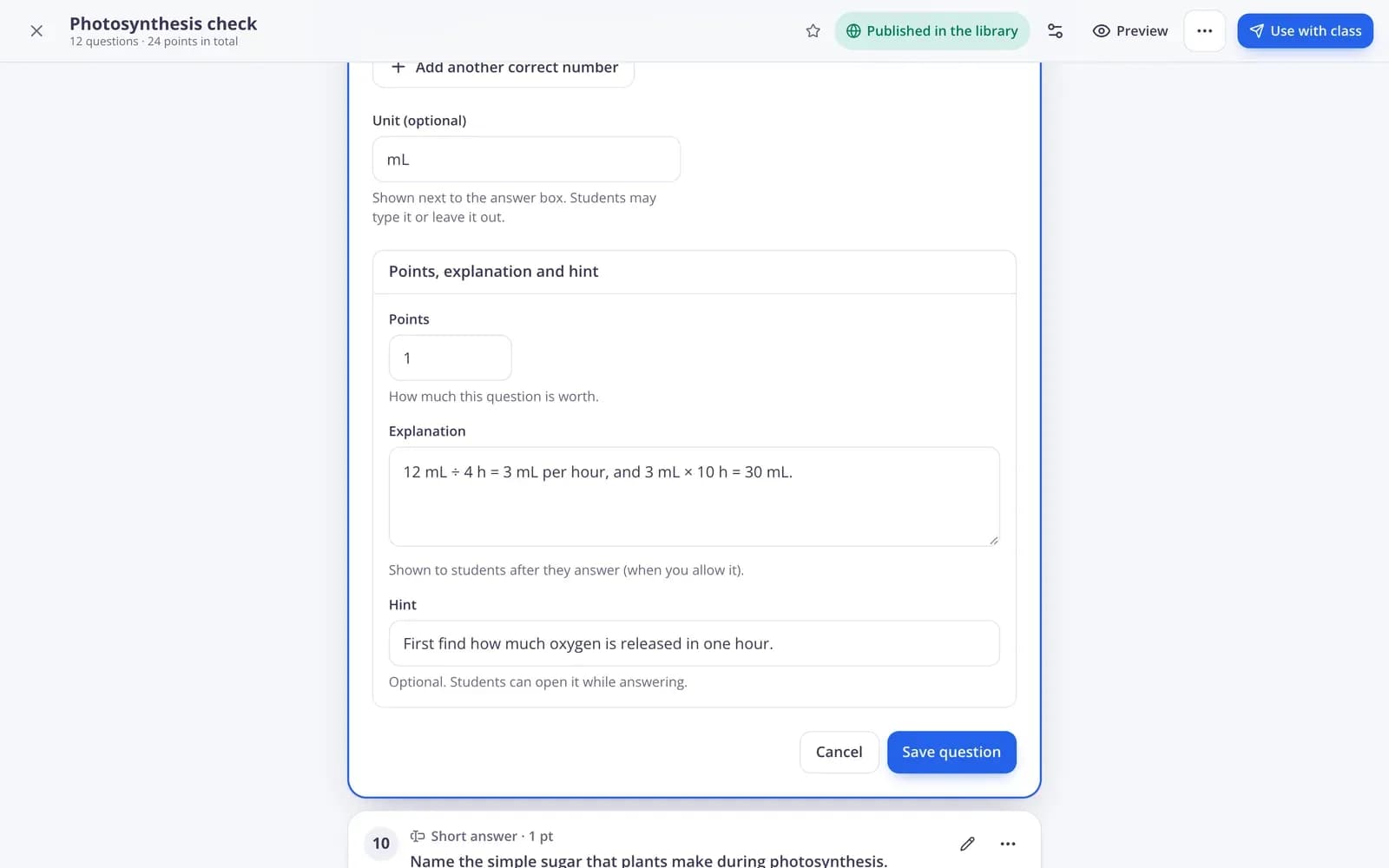
Open “Points, explanation and hint” and set the “Points”. When a type gives partial points, students get the share they answered correctly: with 4 gaps worth 4 points, 3 right gaps earn 3 points.
One correct answer
Students pick one answer from a list of 2 to 8 options. Use it for quick knowledge checks. You tick the correct option; a right answer earns all the points, any other answer earns none.
True or false
Students decide whether a statement is true or false. It always has exactly two answers, which you can rename, for example to Yes and No. It is marked all or nothing.
Several correct answers
Students tick every correct answer, and they aren't told how many there are. Under “How to score”, “Partial points” (the default) gives points for each correct tick and takes them away for each wrong tick, so ticking everything earns nothing. “All or nothing” gives points only when every correct answer and no wrong one is ticked.
Short answer
Students type a word or a short phrase. Capital letters, extra spaces and a full stop at the end don't matter. Add every other spelling that should also count with “Add another spelling”, and turn on “Capital letters matter” only when they should. A matching answer earns all the points.
Number answer
Students type a number: whole numbers, decimals (2.5 or 2,5) or fractions (1/3) are all understood, thousands can be written the way your language writes them (2,000, 2.000 or 2 000), and very big or small numbers can be typed with “e”: 3e5 means 3 × 10⁵ and 2.5e-3 means 0.0025. Students type answers with their usual keyboard; there is no math keyboard for answers. Set an “Allowed difference (±)” to accept answers close to the right one, add more than one correct number if needed, and add an optional “Unit” such as cm. It is marked all or nothing.
Fill in the gaps
Students type the missing words in a text. Put each answer in square brackets, like [Paris], separate other accepted answers with |, or select a word and press “Add a gap”. Each gap is marked on its own, so students get partial points for every gap they get right. “Capital letters matter” works here too.
Choose from a list in the text
Students pick the right word for each gap from a short list. Write the choices in square brackets separated by |, with the correct one first, like [100 | 50 | 200]; students see them shuffled. Each gap earns its share of the points.
True or false table
Several statements that students mark true or false one by one. With “Use my own column names” you can use other labels, such as Fact and Opinion or Agree and Disagree. Every statement marked right earns its share of the points.
Put in order
Students arrange items in the right order, for example the steps of a process or events on a timeline. Write the items from first to last; students see them shuffled. Under “How to score”, the recommended “Points for each step in the right order” costs only a little when one item is out of place, “Points for each item in its exact place” checks each position, and “All or nothing” needs the whole list right.
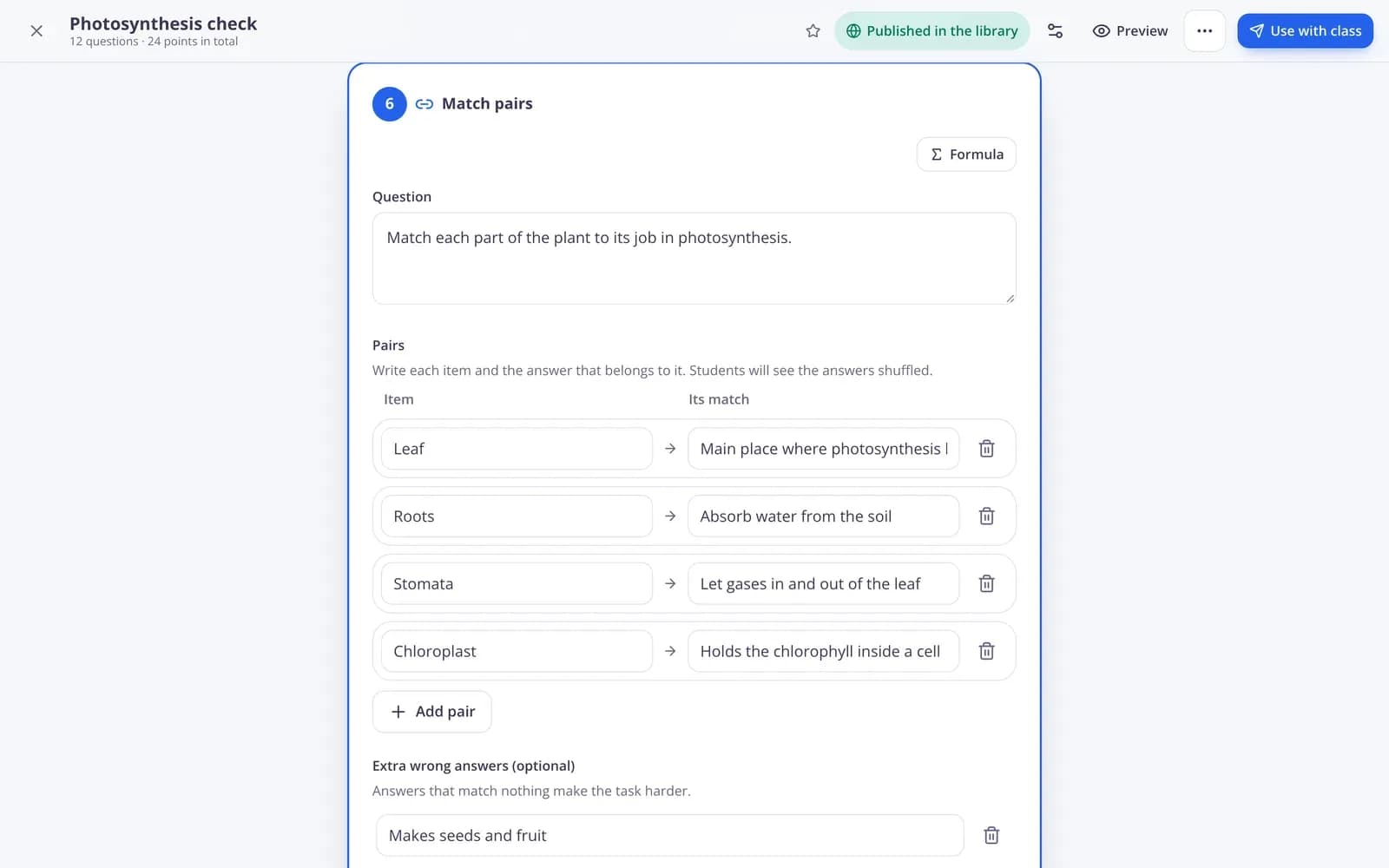
Match pairs
Students connect each item with the one that belongs to it, such as countries and capitals or words and definitions. The answers are shuffled for students, and “Extra wrong answers (optional)” makes it harder. Every correct pair earns its share of the points.
Sort into groups
Students put each item into the right group, for example mammals and birds. You name 2 to 6 groups and add the items that belong in each; students sort them all, shuffled. Every item in the right group earns its share of the points.
Poll
Ask for an opinion: there is no right answer and no score, and students see live results. Choose “My own answers” (with an optional emoji for each) or a ready scale: “Faces from 1 to 5”, “Thumbs up, sideways or down” or “Yes, no or not sure”. With your own answers you can let students pick more than one.
Word cloud
Students send short words that grow into a live cloud, which works well for brainstorms and check-ins. You set the “Words per answer”, “Letters per answer” and “Answers per student”. Word clouds are not scored.
Open answer
Students write a longer answer in their own words and you mark it. You can set the “Fewest words” and “Most words” (students see a live word count), add a “Sample answer” that only you see, and build a “Grading checklist” of up to 10 criteria with points that you tick while marking. Until you mark it, the answer waits under “Needs grading”.
Questions
Can I mix question types in one test?
Yes. Every test, lesson, video lesson and worksheet can use any mix of question types.
Which question types give partial points?
Several correct answers (with “Partial points”), fill in the gaps, choose from a list in the text, true or false table, put in order, match pairs and sort into groups. Open answers get whatever points you give them.
Do polls and word clouds count towards the score?
No. They have no right answer, so they don't add to the total points.
Can I use these question types outside tests?
Yes. Lessons, video lessons and worksheets use the same question editor, so every type works there too.
Related
- Question types13 ways to ask, from matching to open answers
- Create a quizMake a test with any mix of question types, preview it and use it with your class.
- Auto-gradingClosed answers checked the moment students hand in
- Grade open answersGrade written answers with points, a checklist and feedback, or change an automatic score.
- Live polls & word cloudsStudents answer on their devices, results on your screen