

გამოკითხვები და სიტყვების ღრუბლები
პირდაპირი გამოკითხვები და სიტყვების ღრუბლები თქვენი კლასისთვის
დასვით კითხვა, მოსწავლეები დაასკანერებენ კოდს და პასუხობენ ნებისმიერ მოწყობილობაზე, ხოლო შედეგები თქვენს ეკრანზე გამოჩნდება — სურვილის შემთხვევაში ანონიმურადაც. გაკვეთილებზე, თქვენს საკლასო ეკრანზე ან ვიქტორინის შიგნით.
- მოსწავლეები უერთდებიან კოდით ან QR კოდით
- ანონიმური პასუხები, თუ გსურთ
- უფასოა მასწავლებლებისთვის
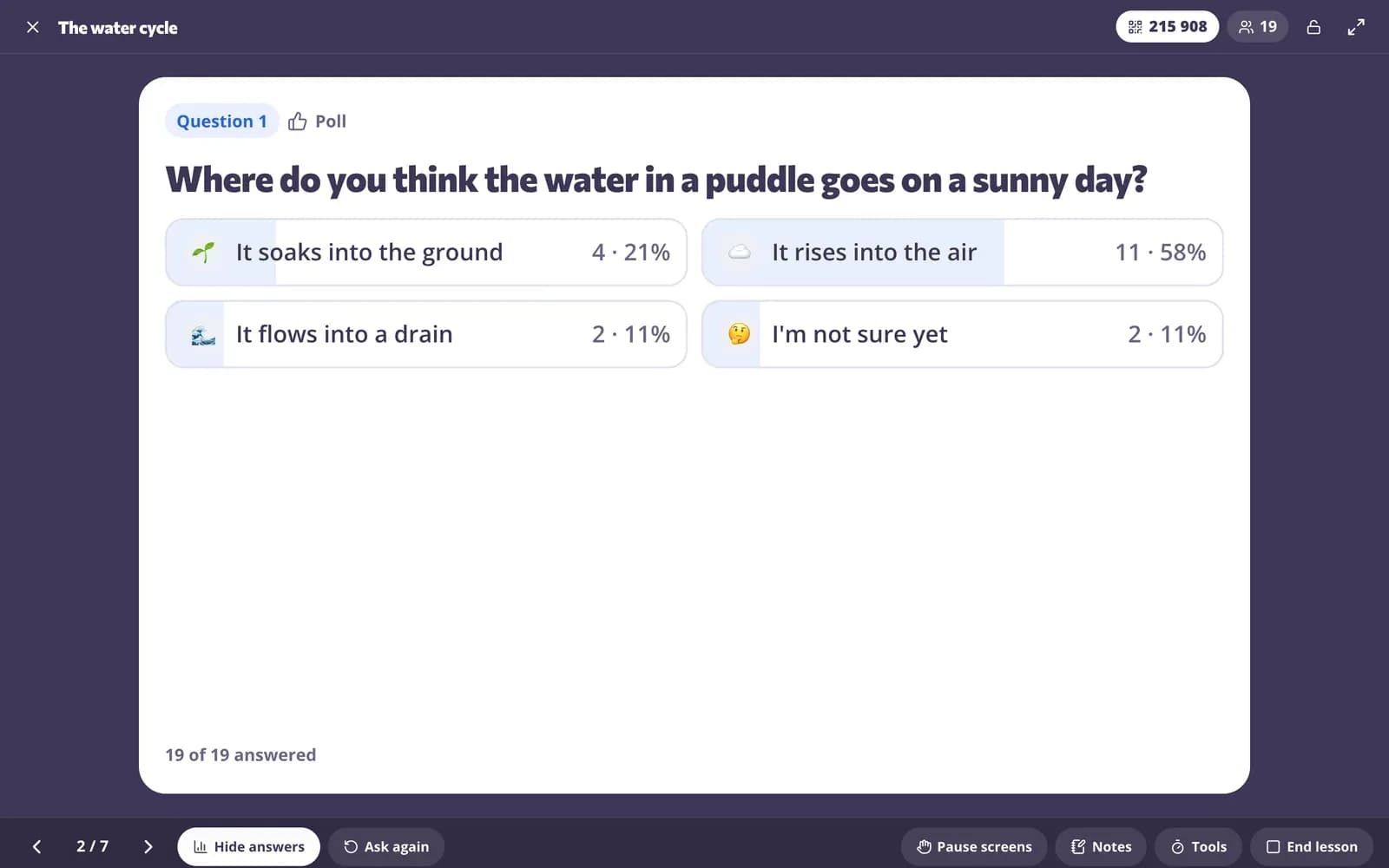
რა არის Edform-ის პირდაპირი გამოკითხვები და სიტყვების ღრუბლები?
Edform-ის პირდაპირი გამოკითხვები და სიტყვების ღრუბლები საშუალებას აძლევს თითოეულ მოსწავლეს ერთდროულად უპასუხოს საკუთარ მოწყობილობაზე. დასვით გამოკითხვა საკუთარი პასუხებით, 1-დან 5-მდე ემოჯიებით, მოწონებით ან დიახ / არა / არ ვარ დარწმუნებული ვარიანტებით, ან შექმენით სიტყვების ღრუბელი, სადაც ყველაზე ხშირად გამოყენებული სიტყვები უფრო დიდი ხდება. მოსწავლეები სკანირებენ QR კოდს ან შეჰყავთ კოდი — ანგარიშის გარეშე — და თქვენ წყვეტთ, როდის გამოჩნდეს შედეგები, რათა ყველამ გულწრფელად უპასუხოს. გამოკითხვები და სიტყვების ღრუბლები მუშაობს როგორც კითხვები პირდაპირ გაკვეთილებში, როგორც ვიჯეტები თქვენს საკლასო ეკრანზე და როგორც შეუფასებელი კითხვები ნებისმიერ ვიქტორინაში.
Edform მოკლედ
- ფასი
- უფასოა მასწავლებლებისთვის: Basic სამუდამოდ უფასოა, საკრედიტო ბარათის გარეშე, და მოიცავს ყველა შესაძლებლობას.
- AI ხელსაწყოები
- AI მასწავლებლის ხელსაწყოები თვეში 5 AI ქულით Basic-ზე და თვეში 300 ქულით Pro-ზე.
- მოსწავლეები
- მოსწავლეები კოდით უერთდებიან. მათ არ სჭირდებათ არც ელფოსტის მისამართი და არც ანგარიში.
- შეფასება
- ვიქტორინები და სამუშაო ფურცლები ავტომატურად ფასდება, შედეგებით თითოეული მოსწავლისა და თითოეული კითხვის მიხედვით.
- მოწყობილობები
- მუშაობს ბრაუზერში ლეპტოპებზე, პლანშეტებზე, ტელეფონებსა და ინტერაქტიულ დაფებზე. არაფრის დაინსტალირება არ არის საჭირო.
- ენები
- ხელმისაწვდომია 32 ენაზე.
- თავსებადია
- Google Classroom, Microsoft Teams, ClassLink და სასწავლო პლატფორმები, რომლებიც LTI 1.3-ს უჭერენ მხარს.
- ბიბლიოთეკა
- უფასო ბიბლიოთეკა მზა ვიქტორინებით, სამუშაო ფურცლებითა და გაკვეთილებით, რომელთა კოპირება და რედაქტირება მასწავლებლებს შეუძლიათ.
როგორ ჩაატაროთ პირდაპირი გამოკითხვა
- 1
დაამატეთ გამოკითხვა ან სიტყვების ღრუბელი
დაამატეთ Poll, Exit ticket ან Word cloud ვიჯეტი საკლასო ეკრანზე, ან ჩასვით გამოკითხვის ან სიტყვების ღრუბლის კითხვა გაკვეთილში.
- 2
მოსწავლეები პასუხობენ თავიანთ მოწყობილობებზე
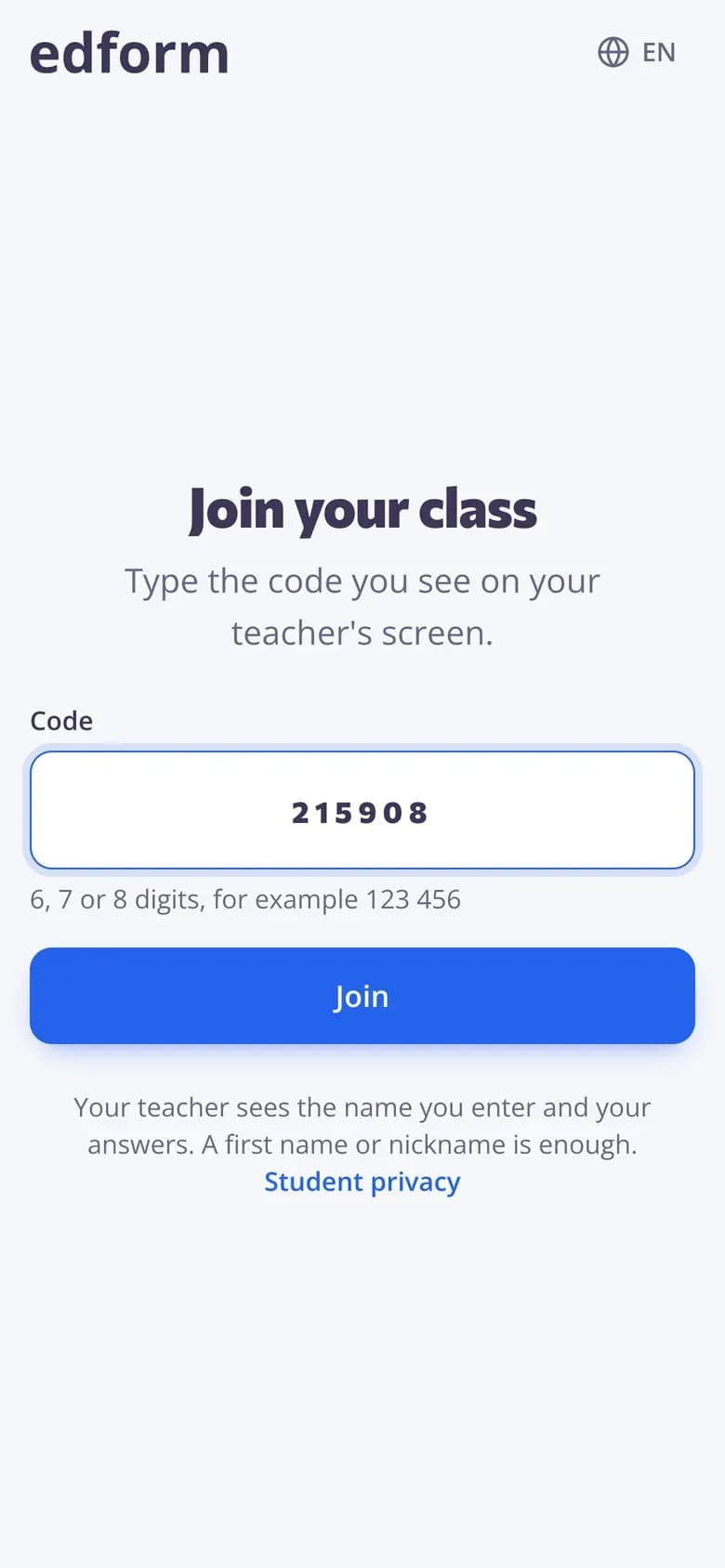
აირჩიეთ On students' devices და აჩვენეთ კოდი. მოსწავლეები დაასკანერებენ მას ან შეიყვანენ join page-ზე.
- 3
აჩვენეთ შედეგები
პასუხები მოდის, როგორც კი მოსწავლეები აგზავნიან. აჩვენეთ შედეგები, როცა მზად იქნებით, დაიწყეთ ახალი რაუნდი ან დაასრულეთ.
სცადეთ თავად
შეუერთდით ცოცხალ გაკვეთილს
თქვენ ხართ მოსწავლე პირდაპირ გაკვეთილში. უპასუხეთ კითხვას და ნახეთ, რა თქვა კლასმა.
პასუხს წამები სჭირდება
მოსწავლეები აკრეფენ კოდს, სახელს მხოლოდ მაშინ დაამატებენ, თუ ამას სთხოვთ, და შეეხებიან პასუხს. მათ შეუძლიათ მისი შეცვლა მანამ, სანამ პასუხს აჩვენებთ.
- ანგარიშის ან ელფოსტის გარეშე
- ტელეფონებზე, პლანშეტებსა და ლეპტოპებზე
- ანონიმური, თუ სახელებს არ მოითხოვთ
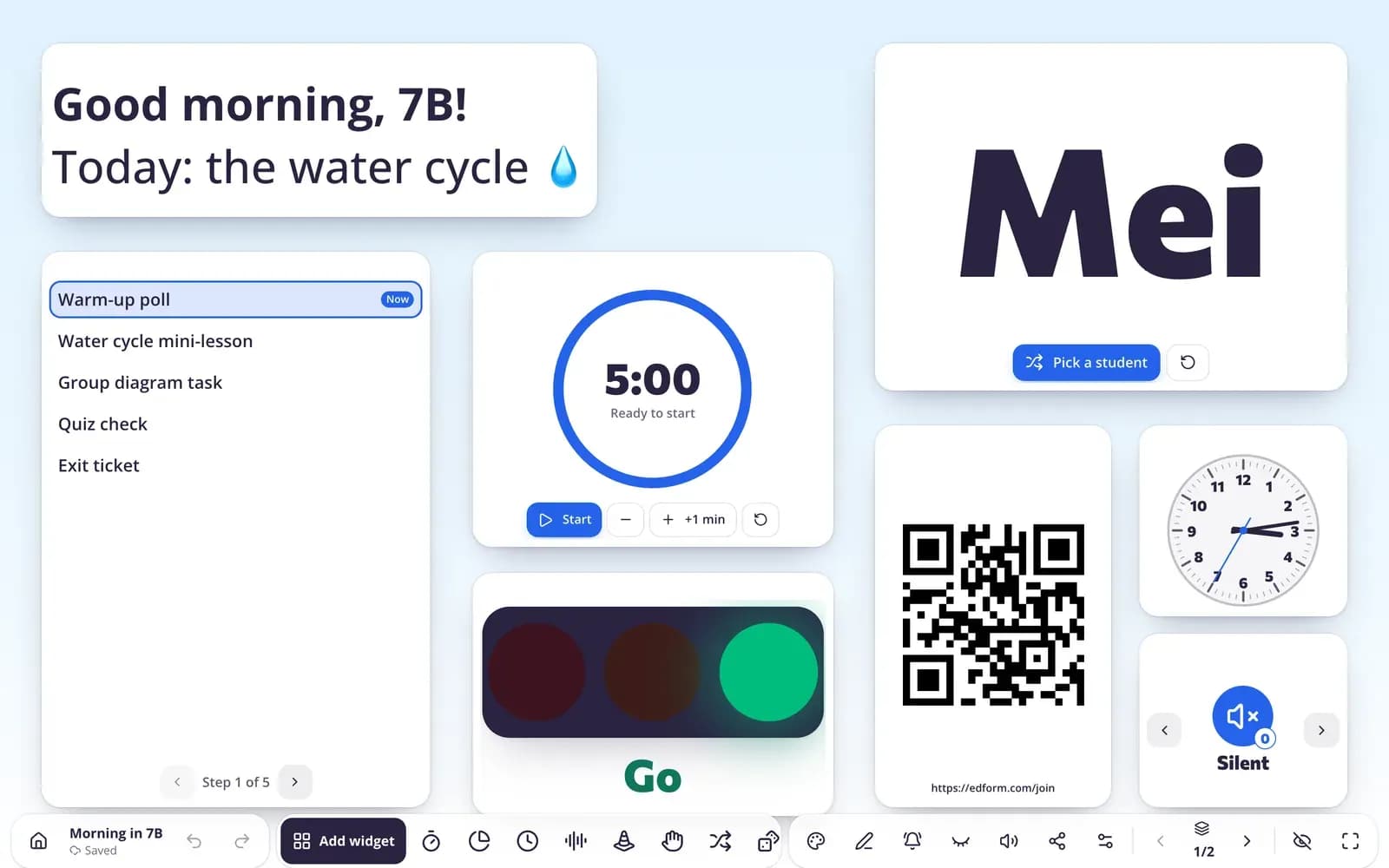
ზუსტად თქვენს საკლასო ეკრანზე
გამოკითხვის, გასასვლელი ბილეთისა და სიტყვების ღრუბლის ვიჯეტები ტაიმერისა და სახელების არჩევანთან გვერდიგვერდ დგას. დაითვალეთ ოთახში აწეული ხელები ან გადაიყვანეთ მოსწავლეთა მოწყობილობებზე.
- ოთახში ან მოსწავლეთა მოწყობილობებზე
- შედეგები დამალულია, სანამ თქვენ არ აჩვენებთ
- პასუხების შეჩერება და ახალი რაუნდის დაწყება
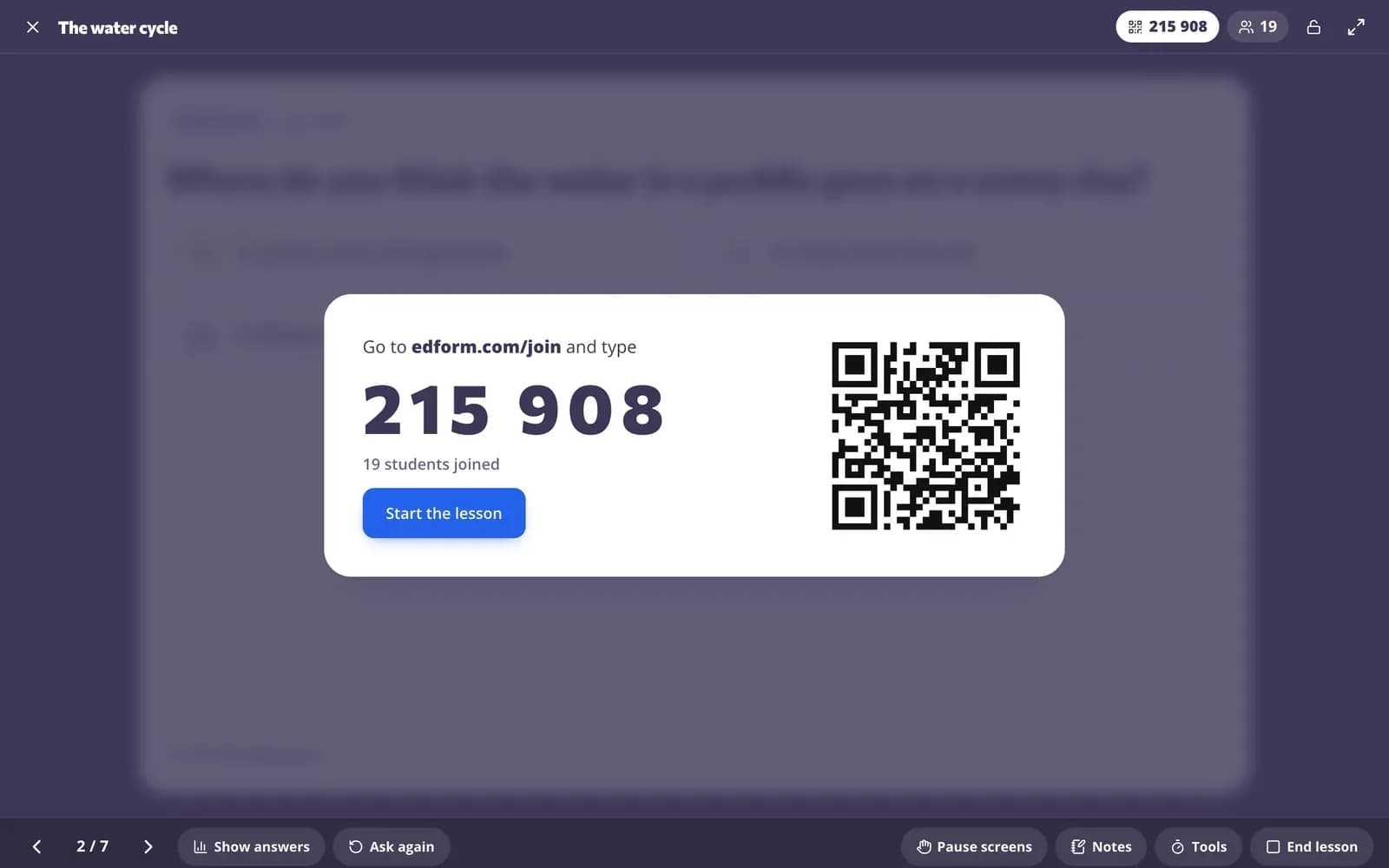
თქვენს პირდაპირ გაკვეთილებში
დაამატეთ გამოკითხვა ან სიტყვების ღრუბელი გაკვეთილში. როცა მას წარადგენთ, მოსწავლეები უპასუხებენ თავიანთ მოწყობილობებზე და თქვენ პასუხებს კლასთან აჩვენებთ მაშინ, როცა მზად იქნებით.
- თქვენ სლაიდებს წინ წაწევთ, მოსწავლეები მიჰყვებიან
- პასუხების ჩვენება ან დამალვა
- პასუხები შენახულია გაკვეთილის შედეგებში
ყველაფერი, რაც გჭირდებათ, რომ ყველა მოსწავლე მოისმინოთ
გამოკითხვის ოთხი სტილი
თქვენი საკუთარი პასუხები თითო ემოჯით, სახეებით 1-დან 5-მდე, „მოწონება“/„არ მომწონს“ ნიშნებით, ან დიახ / არა / არ ვიცი. სურვილის შემთხვევაში რამდენიმე პასუხიც დაუშვით.
სიტყვების ღრუბლები, რომლებიც პასუხებს აჯგუფებს
ერთი და იგივე სიტყვა აერთიანდება, რა კაპიტალური ასოებითაც არ უნდა იყოს დაწერილი, და ნაჩვენებია ყველაზე გავრცელებული მართლწერა.
თქვენ მიერ დაწესებული ლიმიტები
აირჩიეთ თითო პასუხზე 1-დან 3-მდე სიტყვა, თითო პასუხზე ასოების რაოდენობა და თითო მოსწავლეზე მაქსიმუმ 5 პასუხი.
ანონიმურად ან სახელით
სახელები ჩართეთ, როცა გჭირდებათ იცოდეთ, ვინ უპასუხა, და გამორთეთ გულწრფელი შემოწმებებისთვის.
გასვლის ბილეთები
სახეები, „მოწონება“/„არ მომწონს“ ან დიახ / არა / არ ვიცი გაკვეთილის ბოლოს, ერთი შეხებით.
არ ფასდება
გამოკითხვებსა და სიტყვების ღრუბლებს სწორი პასუხი არ აქვს, ამიტომ ისინი არასდროს მოქმედებს ნიშანზე — ვიქტორინის შიგნითაც კი.
მასწავლებლები იყენებენ მას
- 01
გაკვეთილის გახსნა
ახალ თემაზე შექმნილი სიტყვების ღრუბელი აჩვენებს, რა იციან უკვე მოსწავლეებმა.
- 02
გაგების შემოწმება
მოწონება, გვერდულად ან არ მომწონს — სანამ გააგრძელებთ.
- 03
კლასის გადაწყვეტილებები
მიეცით კლასთან ხმა მისცეს შემდეგ წიგნს ან კლასის ექსკურსიას.
- 04
გასვლის ბილეთები
როგორ ჩაიარა დღემ? გამოსვლისას სახეები 1-დან 5-მდე.
გაეცანით მეტს
- საკლასო ეკრანიტაიმერები, სახელების ამომრჩევები და სხვა დაფაზე
- საკლასო გამოკითხვის ვიჯეტიმოსწავლეები ხმას აძლევენ საკუთარ მოწყობილობებზე
- სიტყვების ღრუბლის ვიჯეტიშეაგროვეთ იდეები ცოცხალ სიტყვების ღრუბლად
- ინტერაქტიული გაკვეთილებისლაიდები პირდაპირი კითხვებითა და გამოკითხვებით
- გასასვლელი ბარათებიციფრული გასასვლელი ბილეთები, რომლებსაც მოსწავლეები ერთ წუთში პასუხობენ
- სიტყვების ღრუბელითემის საკვანძო სიტყვები სიტყვების ღრუბლის სახით, მნიშვნელობის მიხედვით ზომით.
- რომელს აირჩევდითბავშვებისთვის განკუთვნილი „რომელს აირჩევდით“ კითხვები დაფაზე: ორი დიდი არჩევანი, სწრაფი საკლასო კენჭისყრა პროცენტებით და შემდეგ საუბარი მიზეზებზე.
ხშირად დასმული კითხვები
საჭიროა თუ არა მოსწავლეებს ანგარიში პასუხისთვის?
არა. ისინი სკანირებენ QR კოდს ან შეჰყავთ კოდი შეერთების გვერდზე. თქვენ წყვეტთ, შეიყვანენ თუ არა ასევე თავიანთ სახელს.
შემიძლია დავმალო შედეგები, სანამ ყველა უპასუხებს?
დიახ. გამორთეთ „აჩვენეთ შედეგები, სანამ მოსწავლეები პასუხობენ“, შემდეგ აჩვენეთ ისინი მაშინ, როცა მზად იქნებით.
შემიძლია გამოვიყენო გამოკითხვა მოსწავლეთა მოწყობილობების გარეშე?
დიახ. საკლასო ეკრანზე აირჩიეთ „ოთახში“ და ხმები ან სიტყვები თავად დაამატეთ, როცა მოსწავლეები ხელს სწევენ.
შედეგები პირდაპირ განახლდება?
დიახ. ახალი პასუხები თქვენს ეკრანზე რამდენიმე წამში გამოჩნდება, თან მითითებული იქნება, რამდენმა მოსწავლემ უპასუხა.
შემიძლია ვიქტორინაში გამოკითხვის დამატება?
დიახ. გამოკითხვა და სიტყვების ღრუბელი კითხვის ტიპებია, ამიტომ ისინი შეიძლება დაემატოს ქულიან კითხვებს შორის. მათ სწორი პასუხი და ქულა არ აქვთ.
პირდაპირი გამოკითხვები უფასოა?
დიახ. გამოკითხვები, სიტყვების ღრუბლები და exit tickets მასწავლებლებისთვის უფასოა.
დაუსვით თქვენს კლასს კითხვა დღესვე
მასწავლებლებისთვის უფასოა. მოსწავლეები პასუხობენ კოდით — ანგარიშების და ინსტალაციის გარეშე.
- მასწავლებლებისთვის უფასოა
- საკრედიტო ბარათი არ არის საჭირო
- მუშაობს ნებისმიერ მოწყობილობაზე