


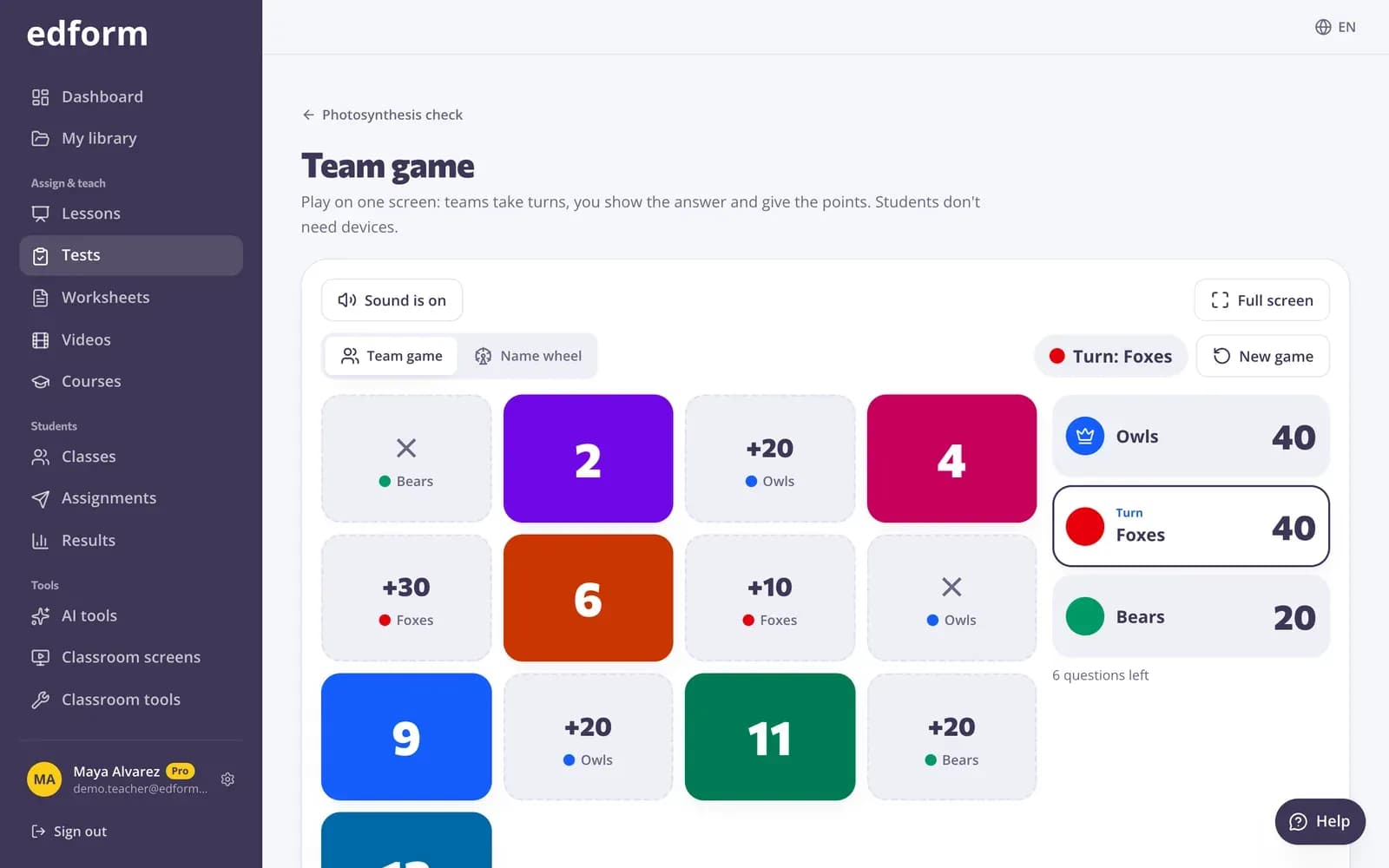
Set up the board
Step 1: Open “Team game”
Go to “Tests”, click “Use with class” next to a test and choose “Team game”.
Step 2: Pick a board
Under “Board” choose “Tiles”, “Chests”, “Wheel”, “Connect Four” or “Tic-tac-toe”. Connect Four and tic-tac-toe are for two teams.
Step 3: Name your teams
Under “Teams” choose from 2 to 6 teams and give each a name and a colour.
Step 4: Choose the options
Pick how many tiles to play (or all questions) and the “Time per question”. Turn on “Surprises” for double points, steals and swaps, and turn off “Show the answer options” to let teams answer in their own words.
Step 5: Click “Start the game”
The board appears with the scores and whose turn it is.
Play
Step 1: Let the team choose
The top of the screen shows whose turn it is. Click the tile or chest the team picks. On the wheel click “Spin”; on Connect Four and tic-tac-toe click “Show the question”.
Step 2: Read the question together
The question opens big on the screen, with a countdown if you set a time. The team answers out loud.
Step 3: Click “Show the answer”, then mark it
Click “Right” or “Wrong”. Points are added and the next team plays. On a keyboard, Space shows the answer and 1 or 2 marks it.
Step 4: Finish and celebrate
When the questions run out the winning team is shown. “New game” clears the scores; “Back to the test” returns to the test's page.
Pick students with the name wheel
Step 1: Switch to “Name wheel”
At the top of the page, under “What to show”, choose “Name wheel”.
Step 2: Choose your class list
Pick one of your Edform classes or paste a list of names. Mark who is absent today and they are left out.
Step 3: Spin
Tap the middle of the wheel. Turn on “Don't pick the same student twice” so picked names leave the wheel.
Questions
Do students need phones or computers?
No. Everything happens on your screen. Students answer out loud and you mark the answer.
Which questions can I play?
Questions with a right answer. Polls and word clouds are skipped because they have no right answer.
Are team game scores saved in my reports?
No. Scores stay on your screen for the game. Use homework or a live game when you want results for each student.
Can I play without a timer?
Yes. Choose “No timer” under “Time per question”.
Related
- Team quiz gameOne screen, no student devices, 2–6 teams
- No-device classroomGames, lessons and printables with one projector
- Live raceRun a live race: students join with a code and race on your screen at their own pace.
- Classroom toolsUse the timer, name picker, noise meter and printable makers in class.
- Classroom gamesLive quiz, race, team and arcade review games