


Join with a code
Students join with a code. That's it.
No accounts to create, no emails, no apps. Students type a short code, scan a QR code or open a link, type their name and start.
- 6-, 7- or 8-digit codes, QR codes and links
- No account or email needed
- Free for teachers
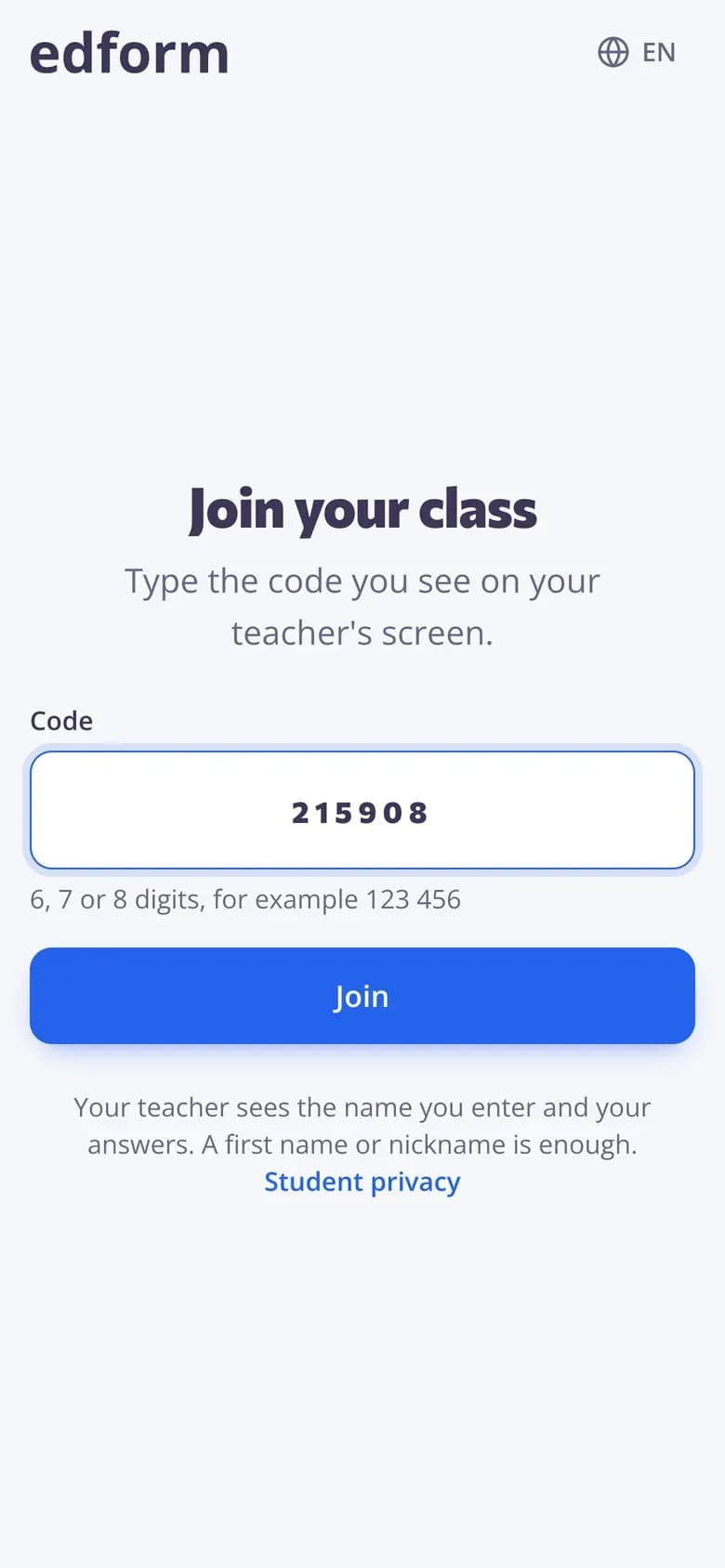
How do students join with a code?
Every homework, live game, live poll and course in Edform has its own code. Homework gets a 7-digit code, live games and polls get a 6-digit PIN, and a course shared by its open link gets an 8-digit code. Students type it on the join page, scan the QR code on your screen or open the link you shared, then type their name — no account and no email needed. Their device remembers them, so they can come back and carry on. When results should be saved to accounts, you can ask students to sign in or limit it to one of your classes, which students join once with a 6-character class code.
Edform at a glance
- Price
- Free for teachers: Basic is free forever, with no credit card, and includes every feature.
- AI tools
- AI teacher tools with 5 AI points a month on Basic and 300 a month on Pro.
- Students
- Students join with a code. They need no email address and no account.
- Grading
- Quizzes and worksheets are graded automatically, with results per student and per question.
- Devices
- Runs in the browser on laptops, tablets, phones and interactive boards. Nothing to install.
- Languages
- Available in 32 languages.
- Works with
- Google Classroom, Microsoft Teams, ClassLink and learning platforms that support LTI 1.3.
- Library
- A free library of ready-made quizzes, worksheets and lessons that teachers can copy and edit.
How students join
- 1
Share the code
Give homework or open a live game, then show the code, the QR code or the link. Show on screen makes it big enough for the back row.
- 2
Students type it
They open the join page, type the code or scan the QR code, and type their name.
- 3
They're in
Students start the homework or wait in the game's lobby. You see each name arrive.
Try it yourself
No sign-up needed — try it as a student
This is the real Edform player. Answer the questions and see how they're checked.
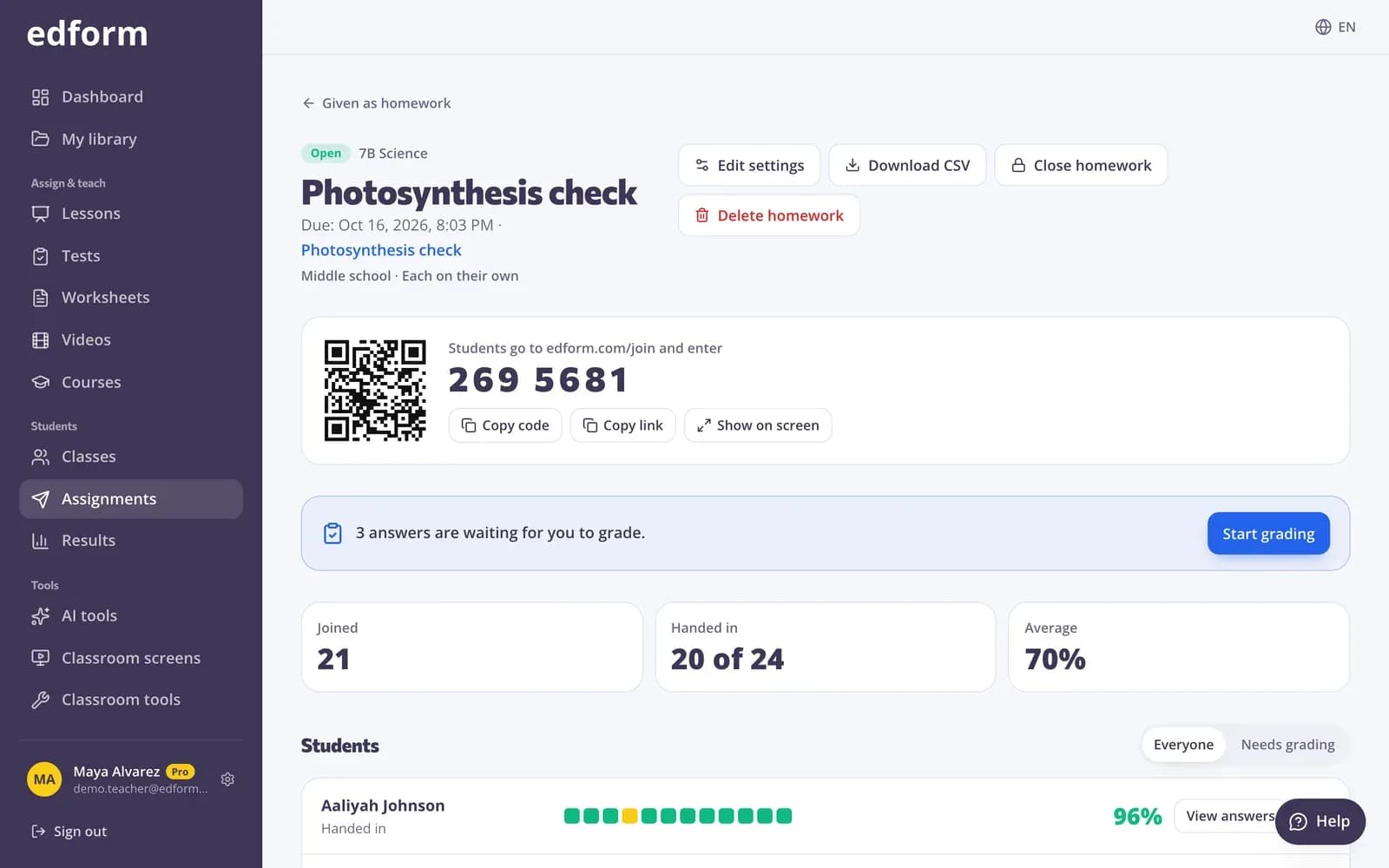
A code for every homework
As soon as you give homework, you get a 7-digit code, a link and a QR code to copy, post or show on your screen.
- Copy the code or the link
- QR code to scan
- Show it big on screen
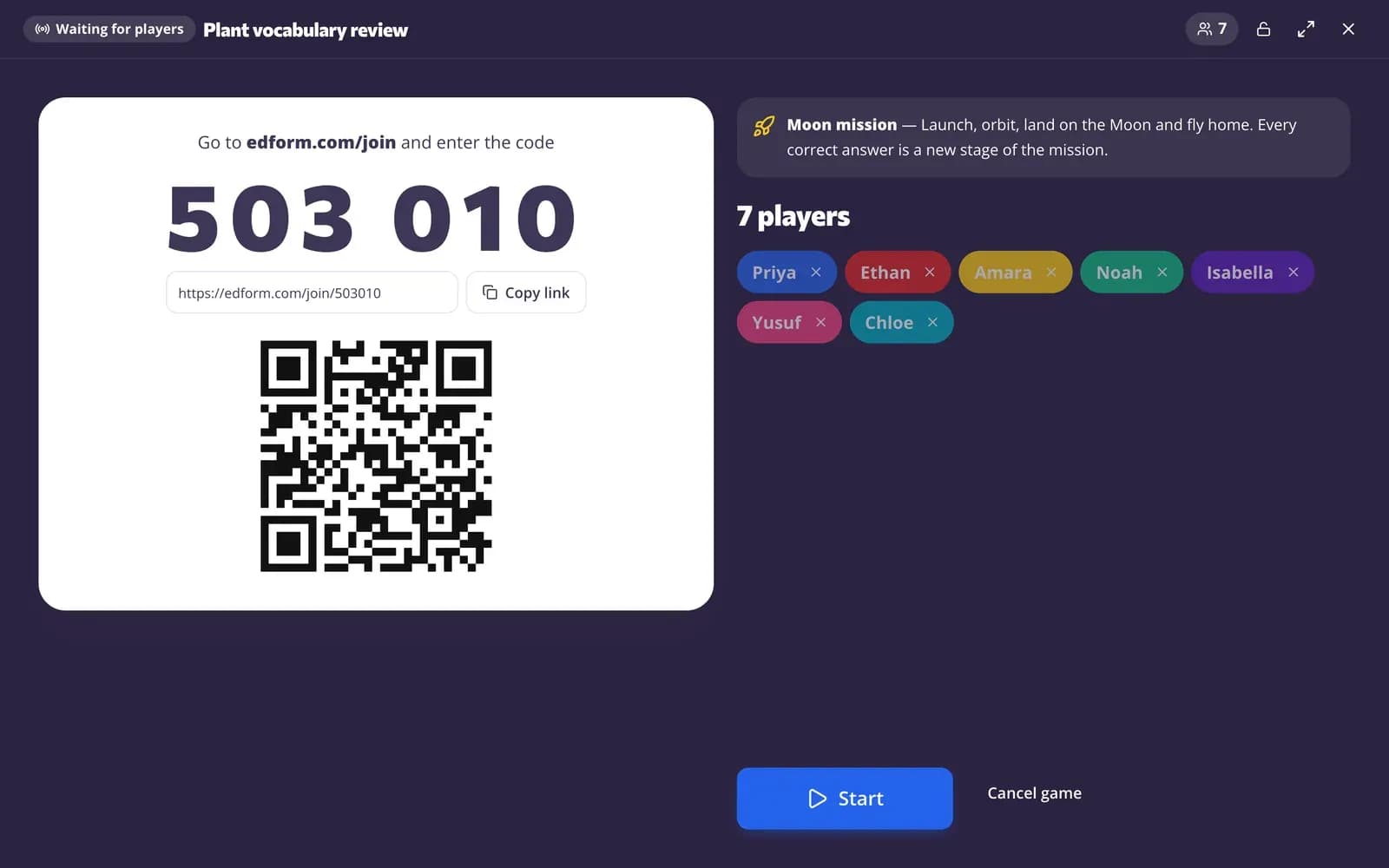
A PIN for live games
Live games show a 6-digit PIN, a QR code and a link on the projector. Students can join even after the start and go straight to the questions.
- 6-digit PIN
- Join after the start
- Close to new players
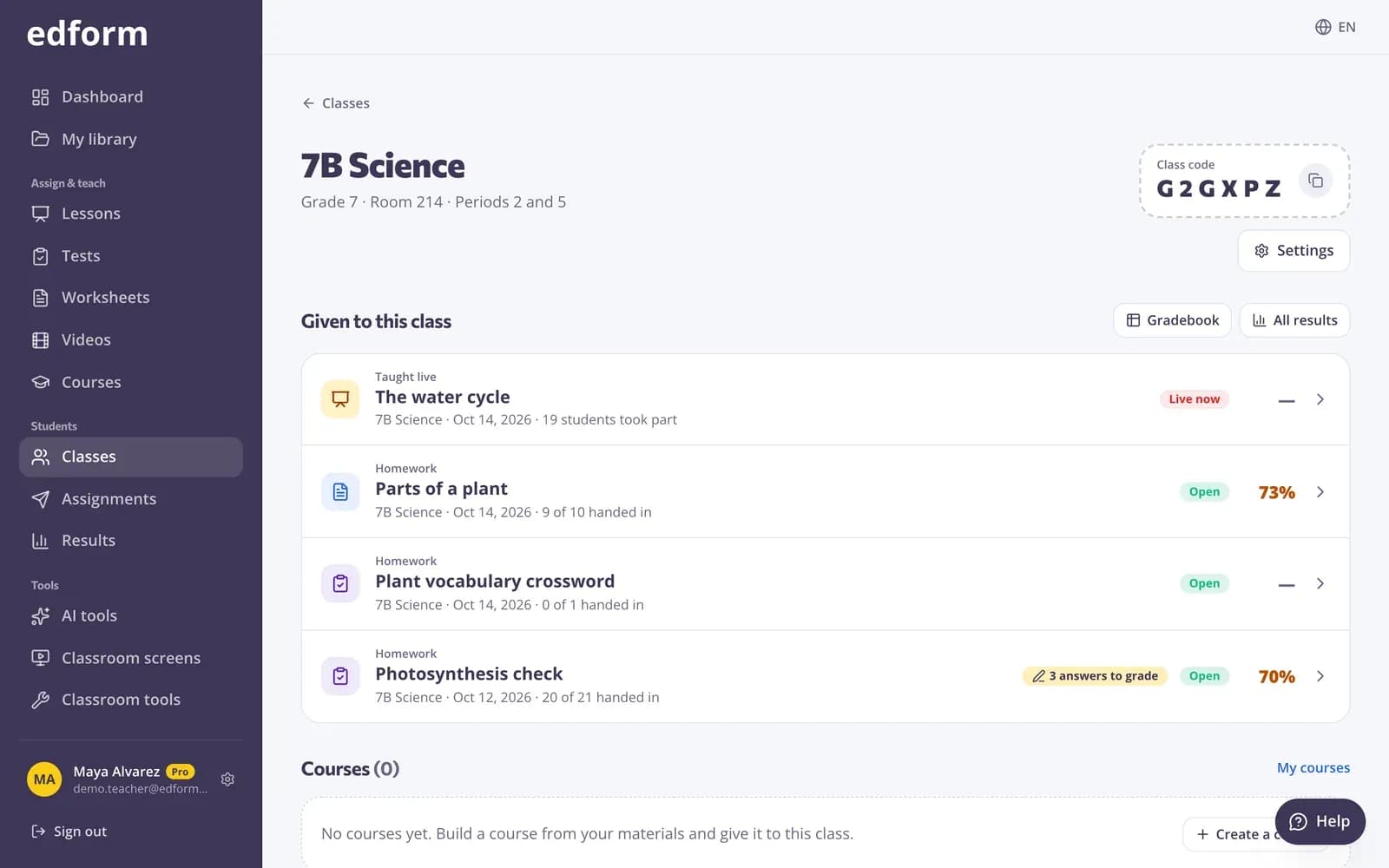
A class code for your classes
Every class has a 6-character code. Signed-in students enter it once to join, and from then on their homework appears on My homework.
- Join a class once
- Homework appears by itself
- Results saved to their account
Joining made simple
Short codes
6 digits for live games and polls, 7 for homework, 8 for courses, shown with a space so they're easy to read.
QR codes
Students scan the code on your screen and land right on the activity.
Links
Paste the link into your class chat, website or learning platform.
Just a name
Students type their name; duplicate names are numbered so results never mix up.
You choose who joins
Anyone with the code, signed-in students only, or one of your classes.
Come back later
The device remembers the student, so they can reopen the code and carry on.
Teachers use it for
- 01
Young students
No passwords to forget — a code and a first name.
- 02
New groups
Clubs, workshops and substitute lessons where nobody has an account yet.
- 03
Shared devices
Class sets of tablets where students simply type the code each time.
- 04
Polls and exit tickets
Scan, tap, done — answers in seconds.
Explore more
- Google ClassroomImport classes and share homework to Classroom
- ClassLinkSign in with ClassLink and import classes from your roster
- Student logins without emailUsernames and passwords for students without email
- Online homeworkGive homework with a code and a deadline
- Live quiz gameA timed quiz show with points, a leaderboard and a podium
- Elementary schoolBig buttons, read-aloud and team games for young learners
- QR code generatorTurn a link to a quiz, video or form into a QR code to project or print.
Frequently asked questions
Do students need an account or an email?
No. With Anyone with the code, students only type their name. Accounts are needed only if you limit an activity to signed-in students or a class.
Where do students type the code?
On Edform's join page, which your screen shows next to the code. Scanning the QR code or opening the link skips typing altogether.
What's the difference between the codes?
Homework has a 7-digit code, live games and polls a 6-digit PIN, and courses an 8-digit code. Classes have a 6-character class code that signed-in students use once to join the class.
Can I stop people from joining?
Yes. Close a live game to new players, remove a player, or close the homework. You can also allow only signed-in students or your class.
What if two students have the same name?
Edform numbers them, for example Anna (2), so their results stay separate.
Can students join from Google Classroom?
Yes. Press Share to Classroom next to the code and students open the homework straight from their Classroom stream. You can also import a Google Classroom class, so students join it by signing in with their school Google account.
Google Classroom is a trademark of Google LLC. Microsoft and Microsoft Teams are trademarks of the Microsoft group of companies.
Get your class in with one code
Free for teachers. No accounts, no emails, no installs for students.
- Free for teachers
- No credit card
- Works on any device