


Flipped classroom
Flip your classroom and know who did the prep
Students watch a video or go through a lesson at home and answer questions along the way. You see who watched and what confused them before class starts.
- Video homework with no skipping ahead
- Watched % and answers per student
- Free for teachers
What is a flipped classroom?
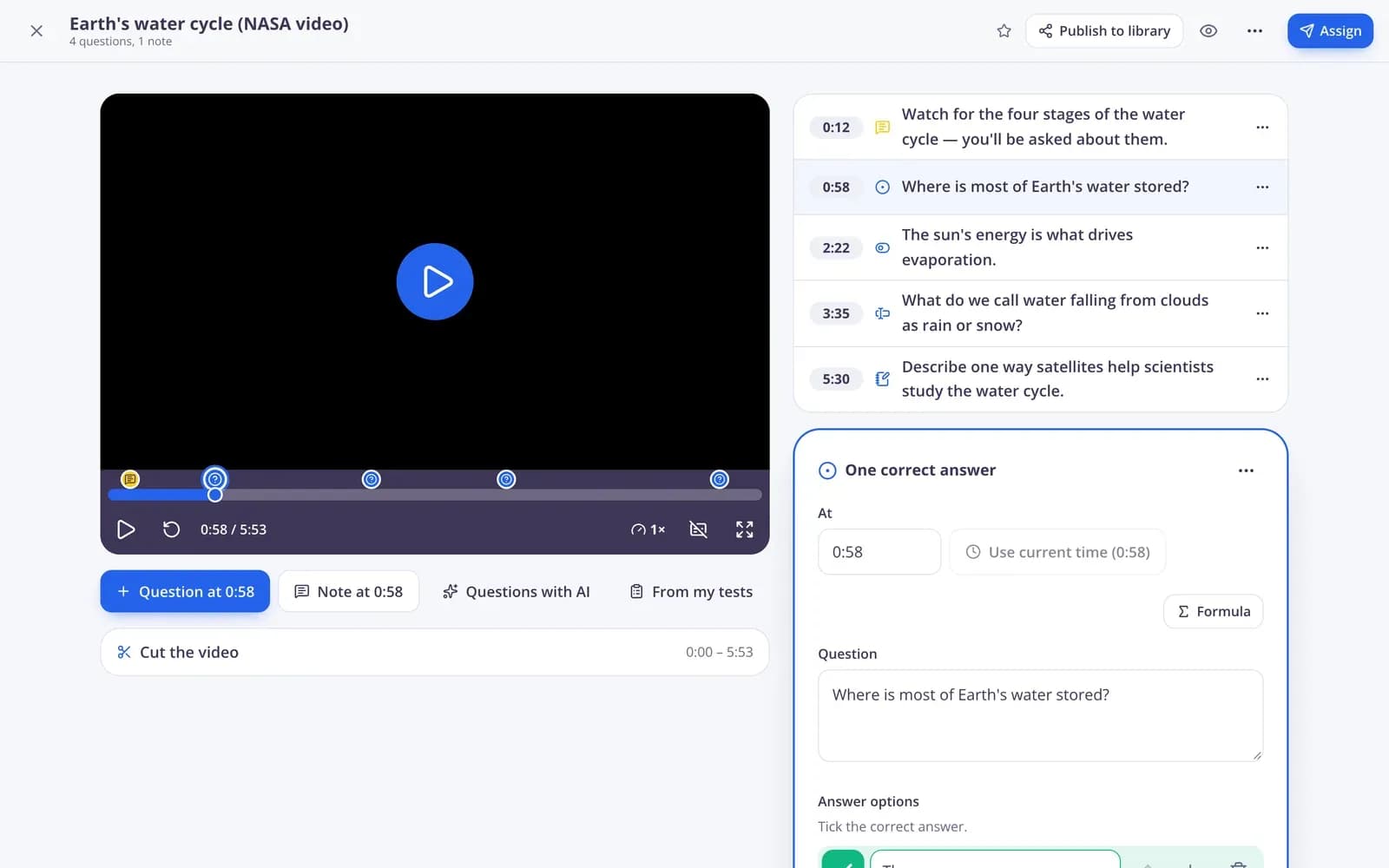
A flipped classroom moves first contact with new material to home, usually through a short video, and uses class time for practice, discussion and help. Edform covers both halves. Give a video lesson with questions pinned to key moments, or a self-paced slide lesson, as homework with a deadline. Students can't skip ahead in the video, and the report shows how much each student watched and how they answered. In class, use the same questions for a live game, a team challenge or a discussion of the answers most students missed.
Edform at a glance
- Price
- Free for teachers: Basic is free forever, with no credit card, and includes every feature.
- AI tools
- AI teacher tools with 5 AI points a month on Basic and 300 a month on Pro.
- Students
- Students join with a code. They need no email address and no account.
- Grading
- Quizzes and worksheets are graded automatically, with results per student and per question.
- Devices
- Runs in the browser on laptops, tablets, phones and interactive boards. Nothing to install.
- Languages
- Available in 32 languages.
- Works with
- Google Classroom, Microsoft Teams, ClassLink and learning platforms that support LTI 1.3.
- Library
- A free library of ready-made quizzes, worksheets and lessons that teachers can copy and edit.
How to flip your classroom with Edform
- 1
Prepare the home part
Pick a video and pin questions to it, or build a short slide lesson with questions.
- 2
Give it before class
Share it as homework with a deadline. Students join with a code or a link, or find it in their homework list.
- 3
Use class time well
Check watched % and answers, then start with what students found hardest.
Try it yourself
Join a live lesson
You're a student in a live lesson. Answer the question and see what the class said.
Homework students can find
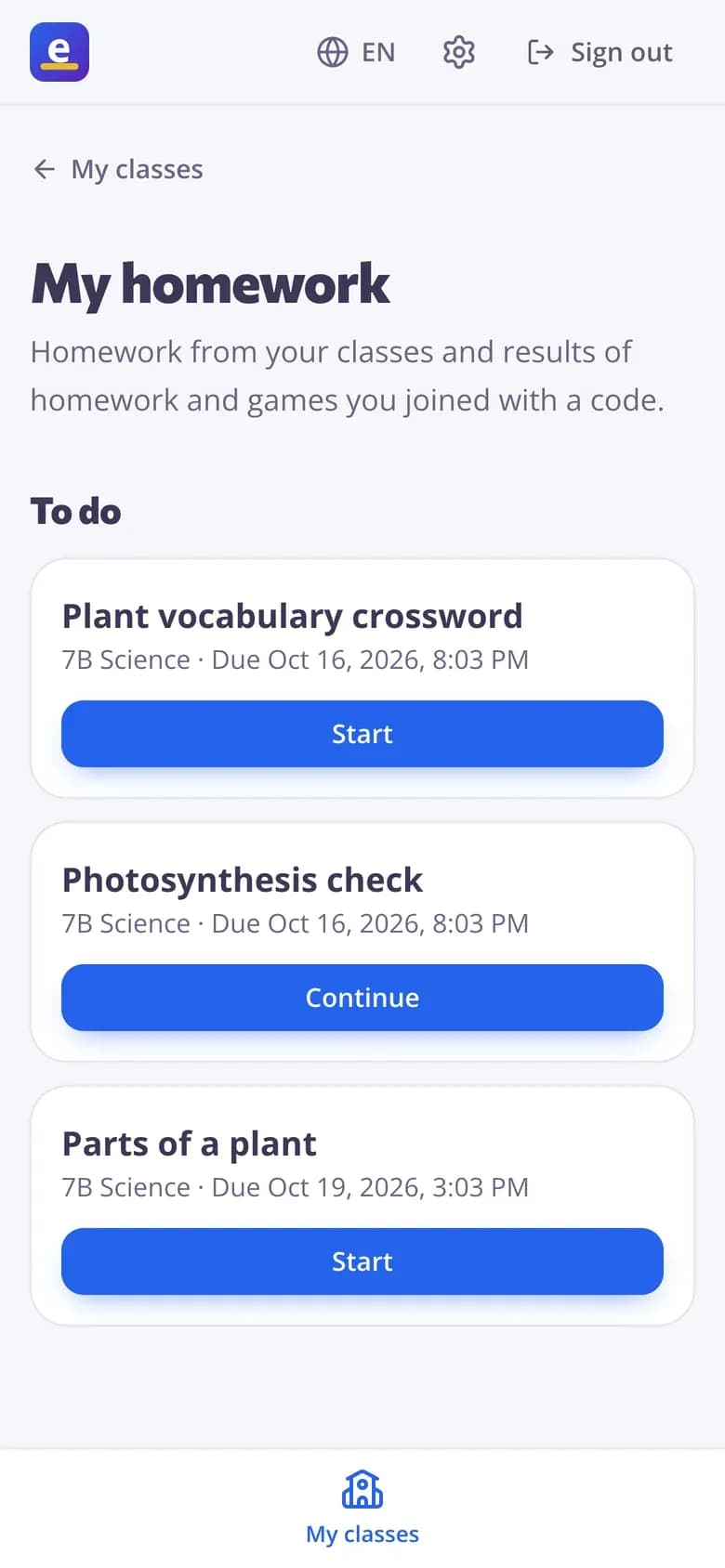
Signed-in students see “My homework”: what's due and when, what they've finished and their best score once you show results. Videos resume where they stopped.
- Everything due in one list
- Resume where they stopped
- Works on phones
See who did the prep
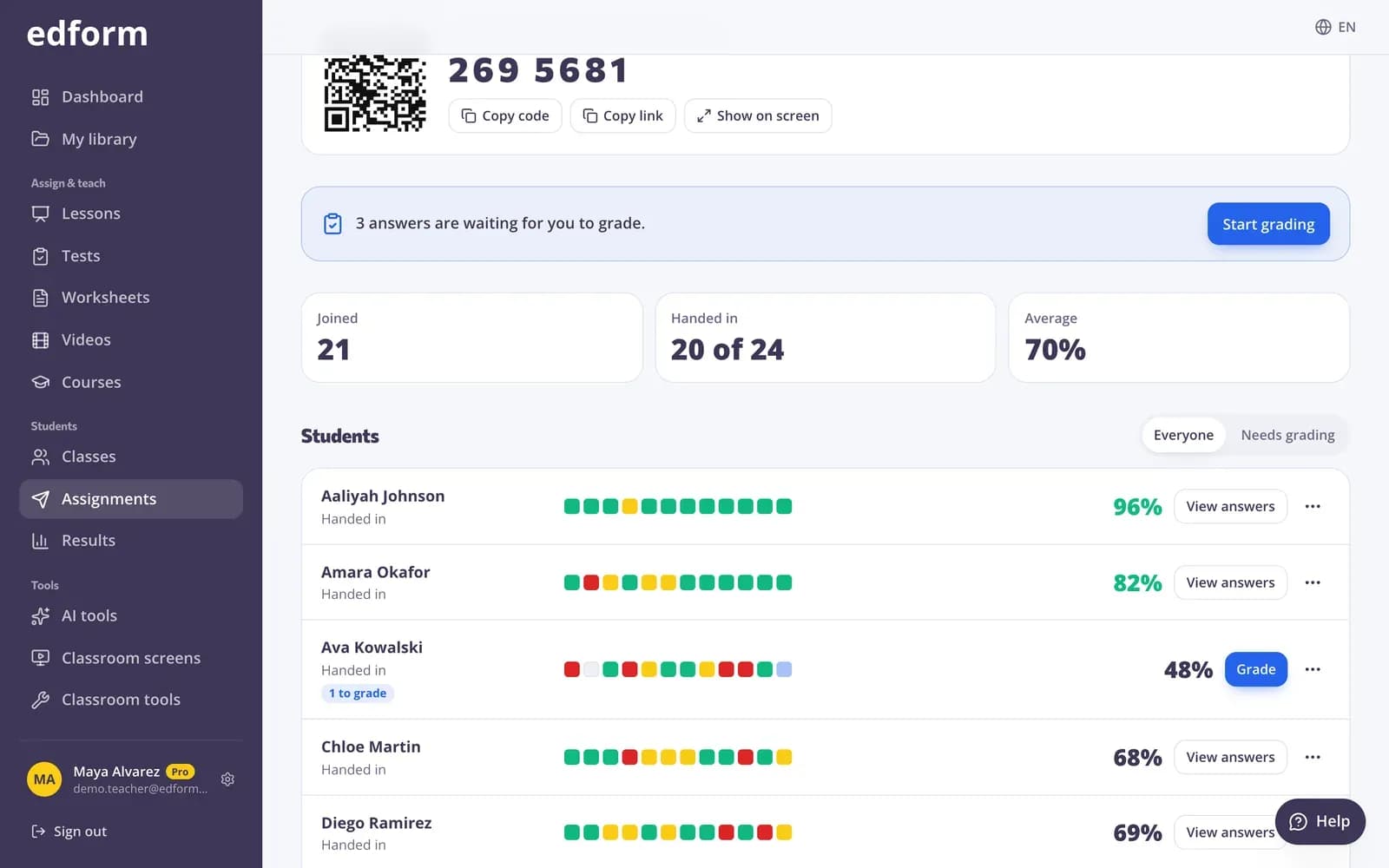
The report shows each student's answers and how much of the video they watched, so you know who is ready before the lesson begins.
- Watched % per student
- Answers per question
- Who hasn't started
Bring it to life in class
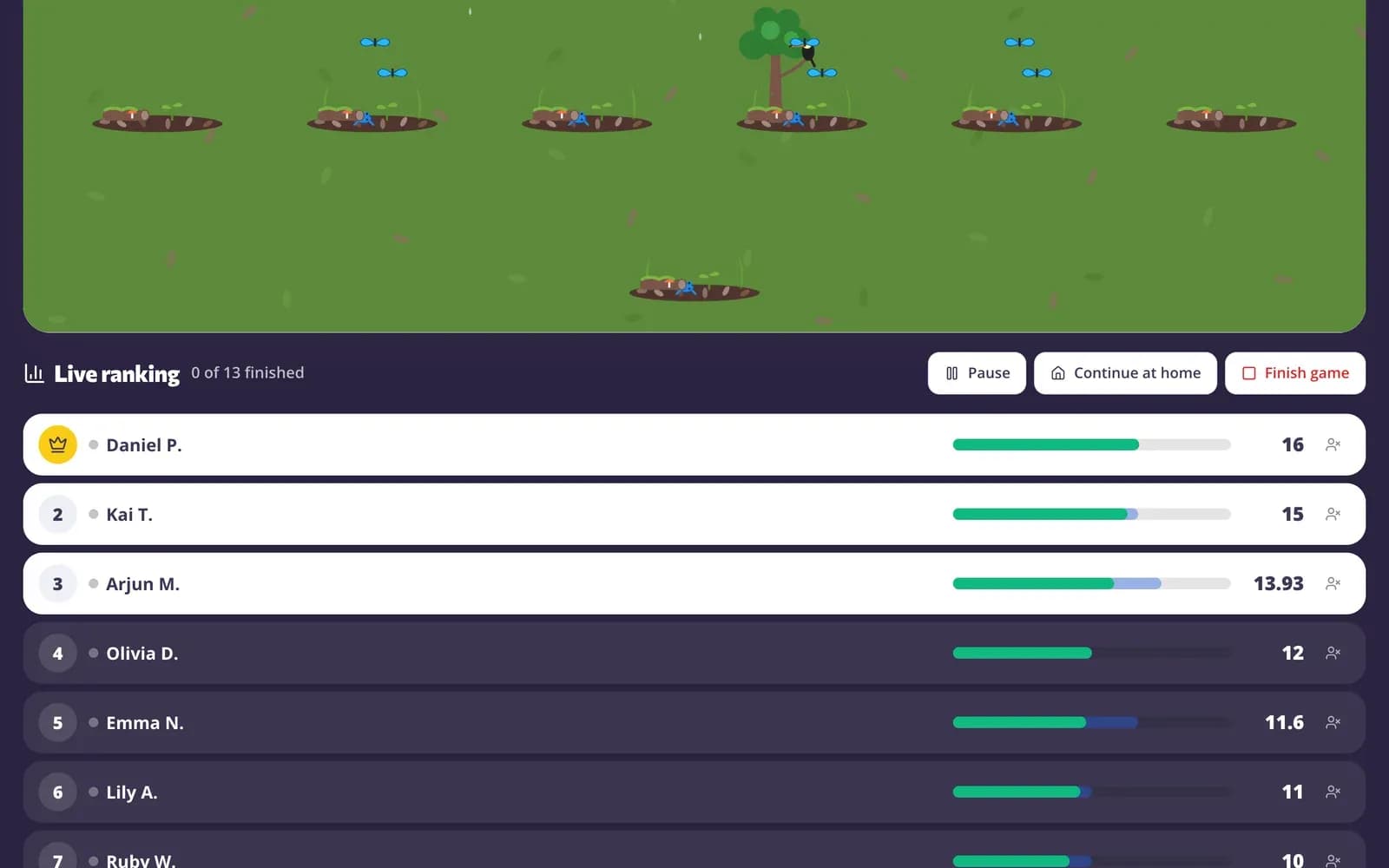
Play the same questions as a live game, or watch the video together on the projector while students answer on their devices.
- Live game from the same questions
- Watch together, answer on devices
- Reveal answers and ask again
Both halves of the flipped classroom
Video lessons
YouTube, Vimeo or your own videos with questions and notes at key moments.
Self-paced lessons
Slides and questions students work through at home.
Watched % and answers
See who watched, how much and how they answered.
Record your own explanation
Record your screen or camera in the browser for up to 15 minutes.
In-class games
Turn the homework questions into a live race or team game.
AI questions from captions
Questions written from the video's captions and placed at the right moment.
Teachers flip lessons for
- 01
Introducing new content
A short video at home, so class time goes to practice.
- 02
Worked examples
Record yourself solving a problem and add a question after each step.
- 03
Catching up
Absent students watch the lesson and answer the same questions.
- 04
Discussion starters
Open questions at home, a class discussion of the answers the next day.
Explore more
- Google ClassroomImport classes and share homework to Classroom
- Video lessonsQuestions inside any video
- Interactive lessonsSlides with live questions and polls
- Online homeworkGive homework with a code and a deadline
- Live quiz gameA timed quiz show with points, a leaderboard and a podium
- PresentationLesson slides from any topic or material, ready to show full screen or download.
- Distance learningHomework, video and live lessons for students learning from home
Step-by-step guides
- Video lessonsAdd questions and notes to any video and see who watched and how they answered.
- Interactive lessonsBuild slides with questions in between and teach them live on students' devices.
- Assign homeworkGive a test as homework with a code, link or QR code and set the deadline.
- Homework reportsSee every student's score, each answer and how the class did on each question.
Frequently asked questions
What if students don't watch the video?
You'll know. The report shows how much of the video each student watched and who hasn't started, and with “No skipping ahead” students meet every question.
Can I record my own videos?
Yes. Record your screen with your microphone, or your camera, in the browser for up to 15 minutes, or upload a video file.
Do students need accounts?
No. They can join with a code and their name. Signed-in students also see the work in their “My homework” list.
Can I use YouTube videos?
Yes. Search YouTube, including educational channels, or paste a link. Cut the video to the part you need and pin questions to moments.
What should I do in class after the video?
Start with the questions most students missed, then practise: play the same questions as a live game or team game, or work through harder problems together.
What are the benefits and challenges of a flipped classroom?
Students meet new material at their own pace and can rewatch it, and class time goes to practice with you in the room. The usual challenges are students who skip the prep and students without internet at home. In Edform you see who watched before class, videos work on phones, and students without access can watch at the start of the lesson.
How long should a flipped classroom video be?
Short: about 5 to 10 minutes per idea. Cut a longer video to the part you need, and pin a question every few minutes so students keep thinking instead of just watching.
Can I combine flipping with mastery learning?
Yes. Allow several attempts with “Fix your mistakes”, so students keep correct answers and redo only the rest, and use the per-question results to decide who moves on and who gets help in class.
Is it free?
Yes. Every feature is free for teachers.
Can I post the flipped lesson to Google Classroom?
Yes. Give the video lesson as homework and press Share to Classroom: Google Classroom's share window opens with the title, the link and the join code filled in, so you pick the class and post. Students watch it at home and you see who watched before class.
Google Classroom is a trademark of Google LLC. Microsoft and Microsoft Teams are trademarks of the Microsoft group of companies.
Flip your next lesson
Free for teachers. Students join with a code, with no accounts needed.
- Free for teachers
- No credit card
- Works on any device