
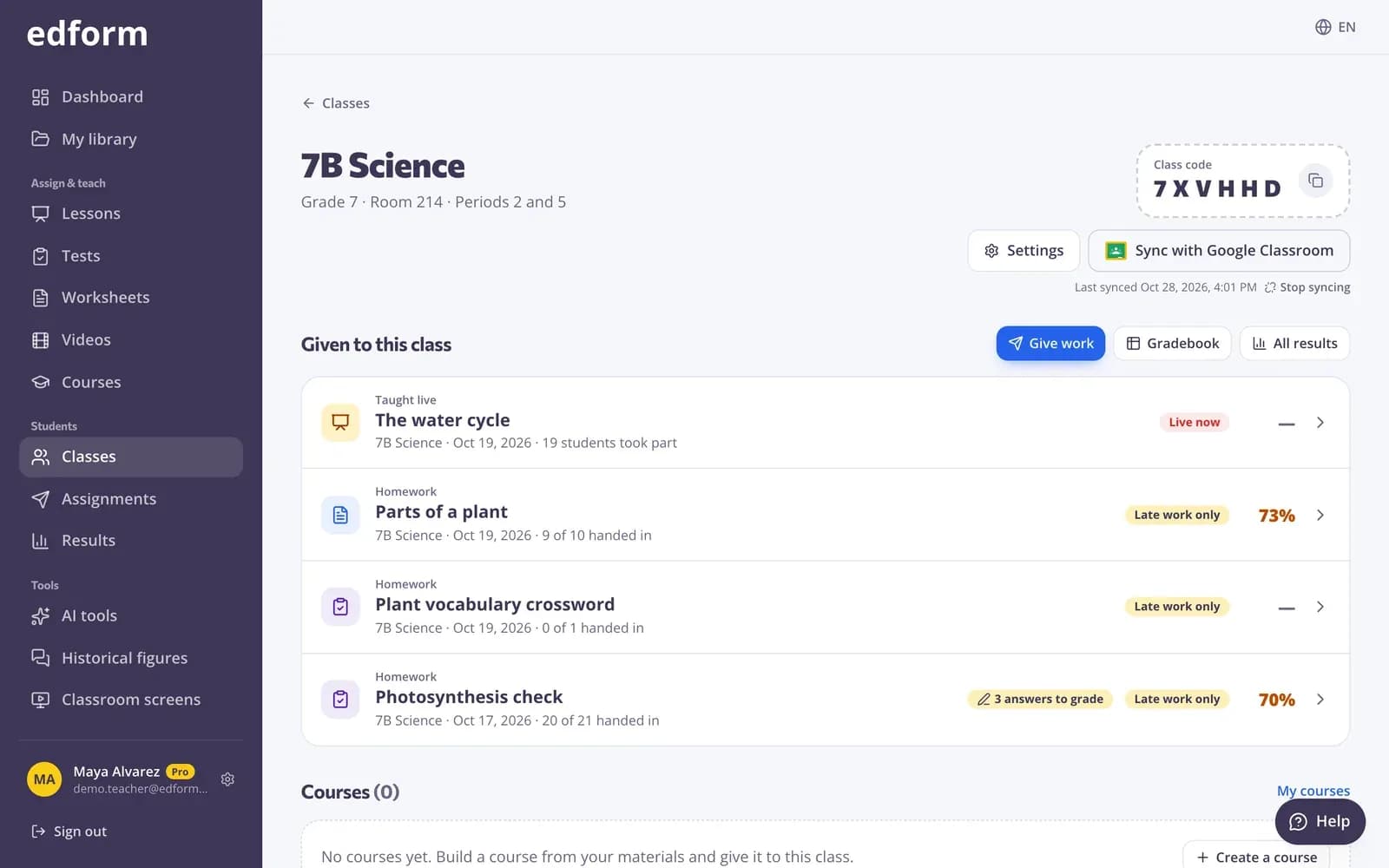
Import a class from Google Classroom
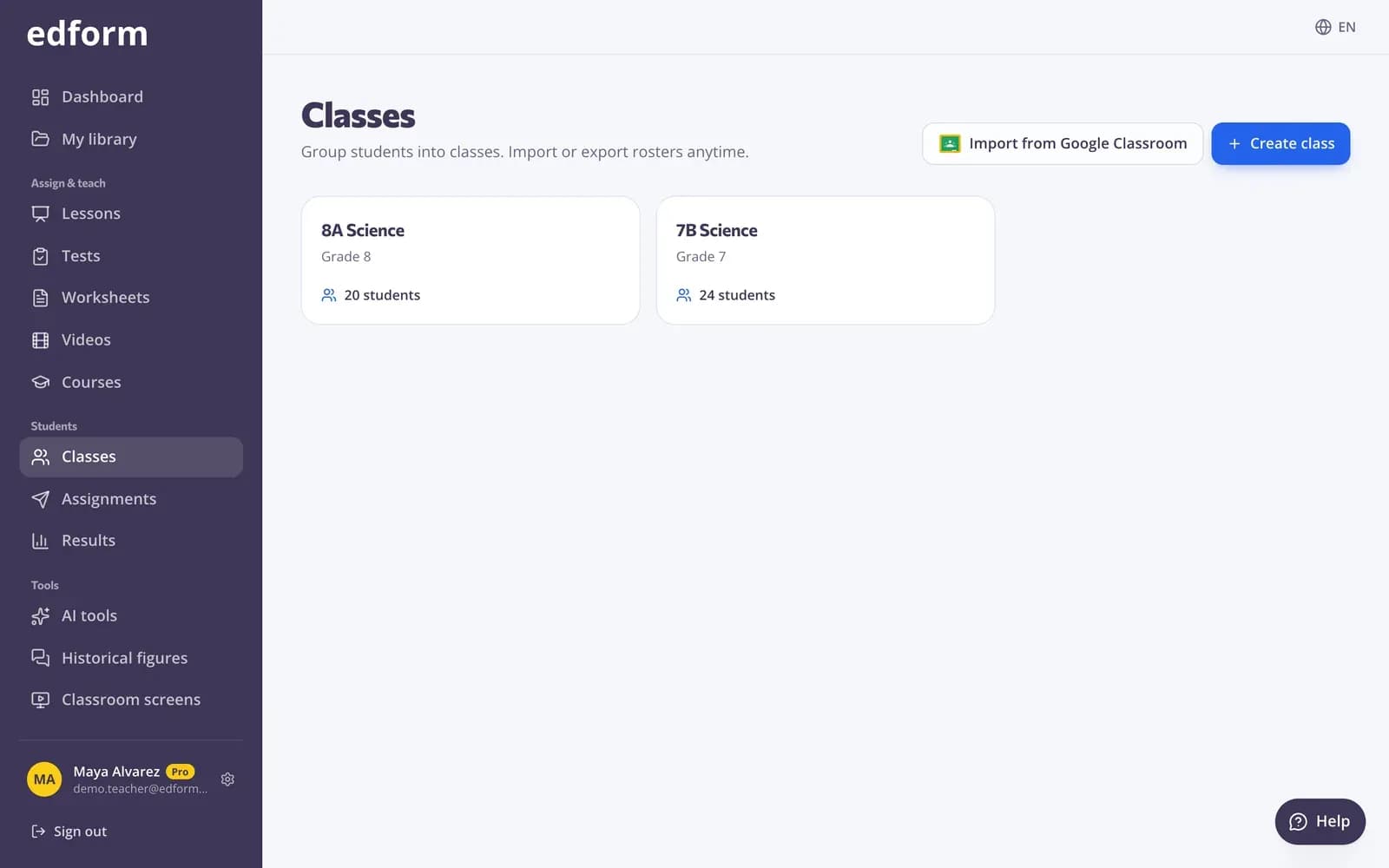
Step 1: Open “Classes”
Go to Classes in the menu on the left.
Step 2: Press “Import from Google Classroom”
The button with the Google Classroom logo is next to “Create class”.
Step 3: Allow Edform to read your classes
The first time, Google asks you to choose the account you use for Classroom and to allow Edform to see your classes and your students' names and emails. Keep every box ticked. You come back to the same page.
Step 4: Choose a grade and press “Import”
Pick the grade level for the new class, then press Import next to a Classroom class. Edform creates the class with all its students and opens it. A class you imported before shows “Open class” instead, so it is never made twice.
Bring Classroom students into a class you already have
Step 1: Open the class
Go to Classes and open the class.
Step 2: Press “Import from Google Classroom”
It's next to Settings at the top of the class page.
Step 3: Press “Import students” next to a Classroom class
Its students are added and the class is linked to that Classroom class. Students already in the class — from a list, a CSV file or the class code — are matched by email and not added twice.
Keep the class in sync
Step 1: Press “Sync with Google Classroom”
A linked class shows this button at the top, with the time of the last sync. It adds new students and updates changed names and emails.
Step 2: Stop syncing if you need to
Press “Stop syncing” under the button. The students stay in the class; Edform just stops reading that Classroom class.
Invite students by email
Imported students show as “Invited” until they sign in to Edform with the school email from Classroom.
Step 1: Press “Email invitations”
It's above the list of members and shows how many students can get an invitation.
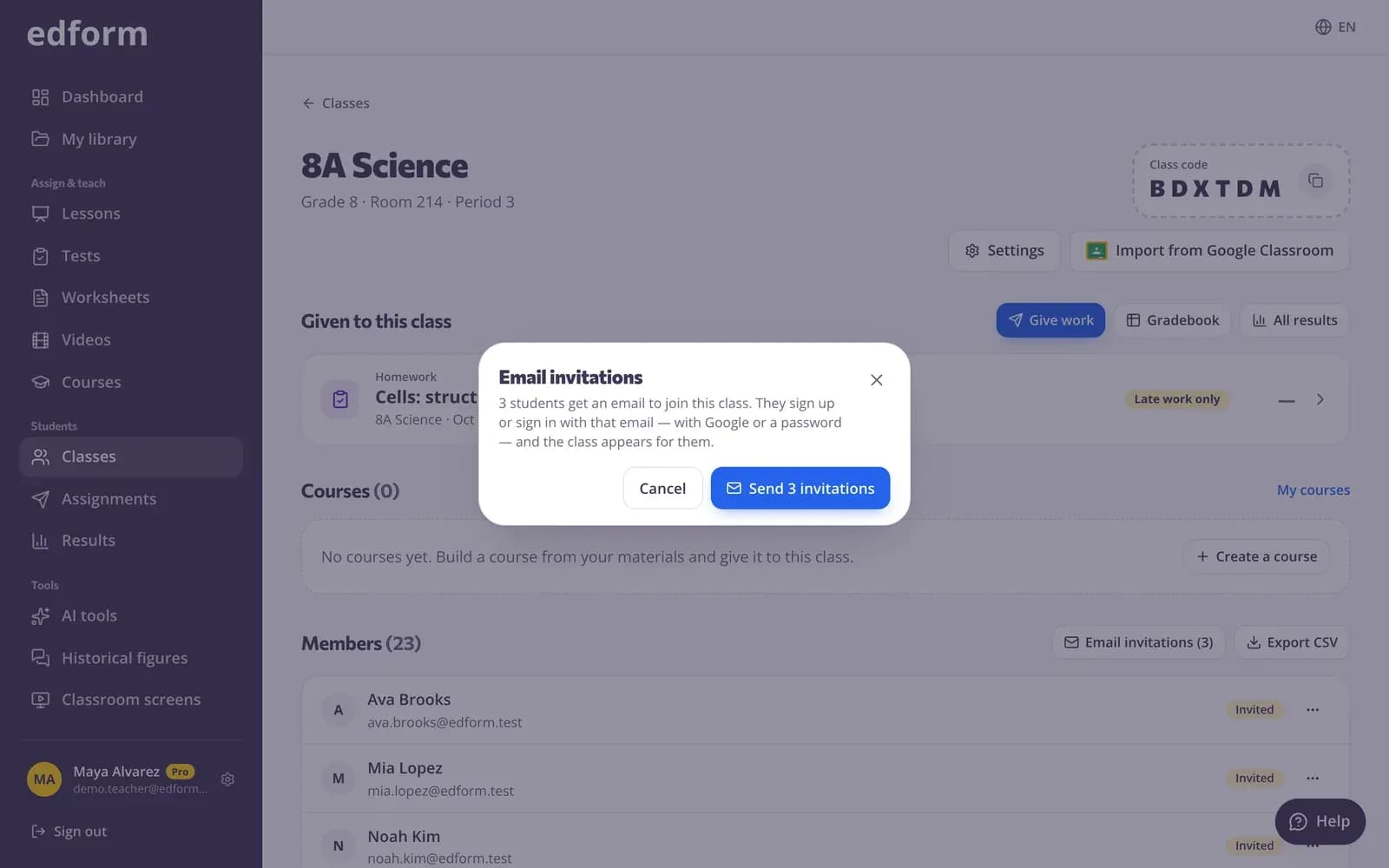
Step 2: Press “Send invitations”
Each student gets an email telling them to sign in with Google using that address. Their place changes to a student account as soon as they do.
Share homework to Google Classroom
Step 1: Give the homework
Open a test, worksheet, lesson or video and give it as homework, or open a course link.
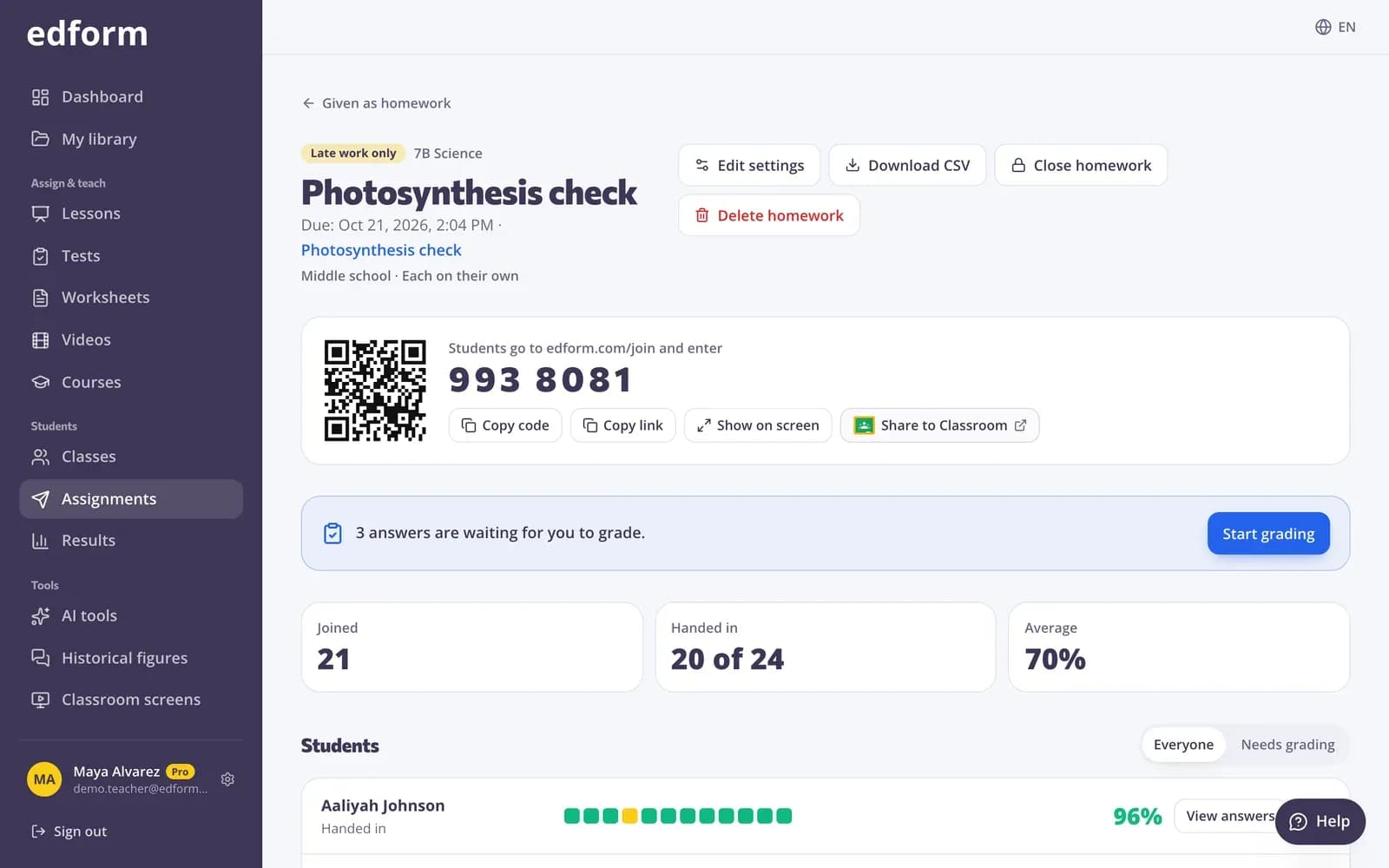
Step 2: Press “Share to Classroom”
It's on the card with the code, link and QR code. Google Classroom's share window opens with the title, the link and the join code filled in.
Step 3: Pick the class and post
Choose the Classroom class, add a due date in Classroom if you like, and post. Students open the homework from their Classroom stream.
Questions
Does Edform change anything in my Google Classroom?
No. Edform only reads your classes and students' names and emails. Posting to Classroom is always your own click in Classroom's share window.
Google says access is blocked by my school. What now?
Your school allows only approved apps to read Google Classroom. Ask your Google Workspace administrator to allow Edform, or use another Google account that teaches the class.
How do I remove Edform's access to Classroom?
In your Google account, open Security → Third-party apps with account access and remove Edform. Your imported classes and students stay in Edform.