


Open Settings
Step 1: Click your name
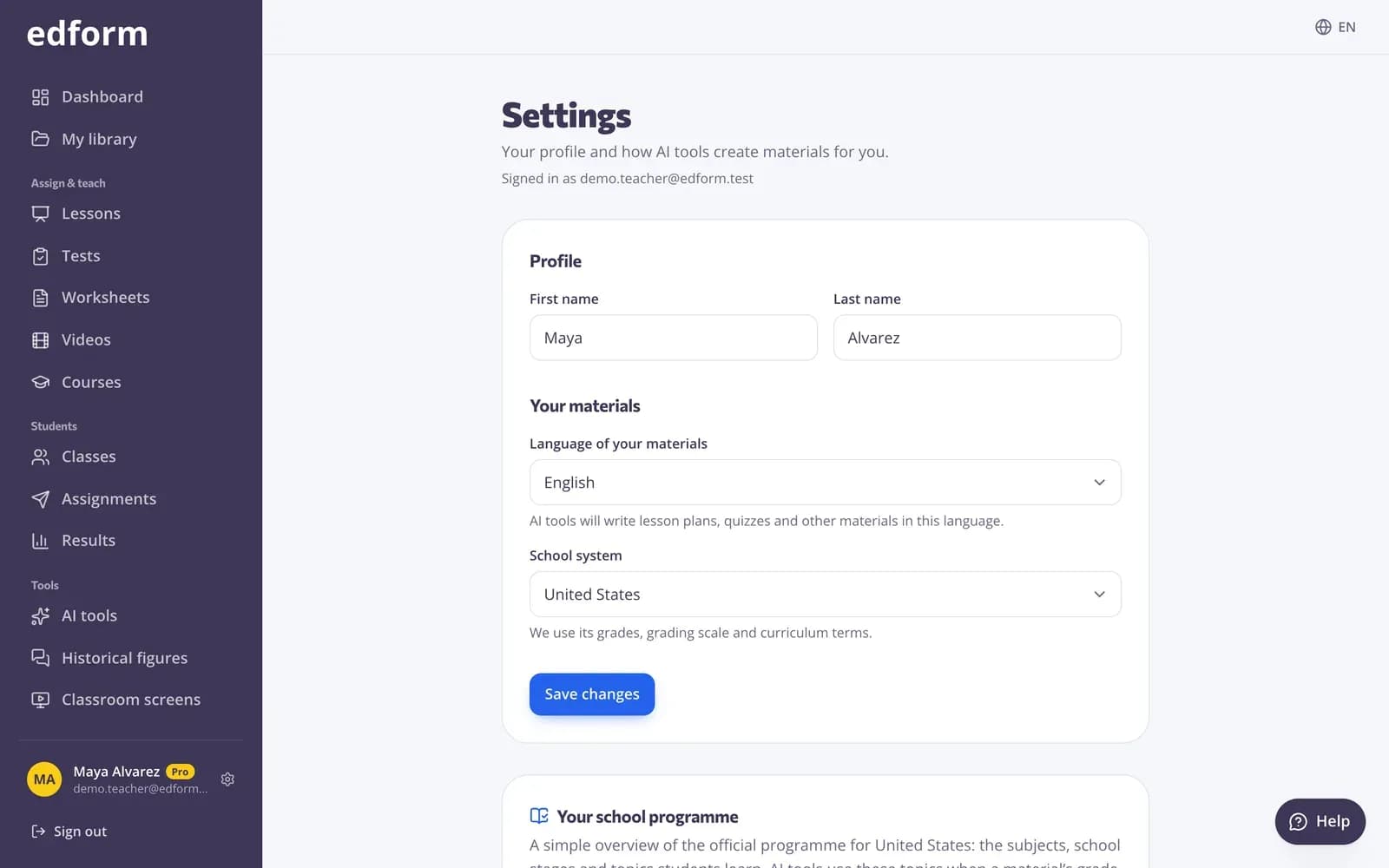
Click your name at the bottom of the sidebar. On a phone, tap the gear icon at the top. The page shows which account you're signed in with.
Your profile and materials
Step 1: Change your name
Under “Profile”, change your “First name” and “Last name”. Students see this name on homework and in live games.
Step 2: Choose the language of your materials
“Language of your materials” is the language AI tools write lesson plans, quizzes and other materials in. It can differ from the language of Edform's screens, which you change with the language menu at the top of the page.
Step 3: Choose your school system
“School system” sets the grades, grading scale and curriculum terms AI tools use. Below it you see an overview of that school system's programme. Press “Save changes”.
Emails and notifications
Step 1: Choose your emails
Under “Emails”, tick what you want: “Updates about your classes”, “Tips for using Edform” and “Offers”, then press “Save”. Password resets and account emails always come.
Step 2: Turn on browser notifications
Under “Browser notifications”, press “Turn on here” to get short alerts on this computer or phone, even when Edform isn't open: new hand-ins, results after a deadline and answers to grade. Press “Send a test” to check it works.
Privacy and your data
Step 1: Download your data
Under “Privacy and your data”, press “Download” to get your profile, classes, materials, answers and settings in one file.
Step 2: Change cookie settings
Press “Cookie settings” to choose whether videos and pages from other services, like YouTube, load automatically.
Step 3: Clear a shared computer
Press “Clear” under “Clear this device” to remove class lists, timers and other tool settings saved in this browser.
Step 4: Delete your account
“Delete account” erases your account and everything in it for good: classes, materials, uploads, answers and results. Download your data first if you want a copy.
Questions
How do I change my password?
Sign out, press “Forgot password?” on the sign-in page and follow the link we email you. If you sign in with Google, your password is managed by Google.
Can I change the email address of my account?
Not in Settings. Write to support@edform.com from your current address and tell us the new one.
Why are AI materials in the wrong language?
AI tools write in the “Language of your materials” from Settings. Change it there, or pick another language in the tool's form before you create.