

Cipta akaun guru percuma anda
Langkah 1: Buka halaman daftar
Pergi ke edform.com dan tekan “Mula secara percuma” di bahagian atas halaman.
Langkah 2: Pilih “Saya seorang guru”
Halaman akan bertanya “Siapakah anda?”. Pilih “Saya seorang guru” untuk mendapatkan alatan guru: pelajaran, ujian, Kelas dan Keputusan.
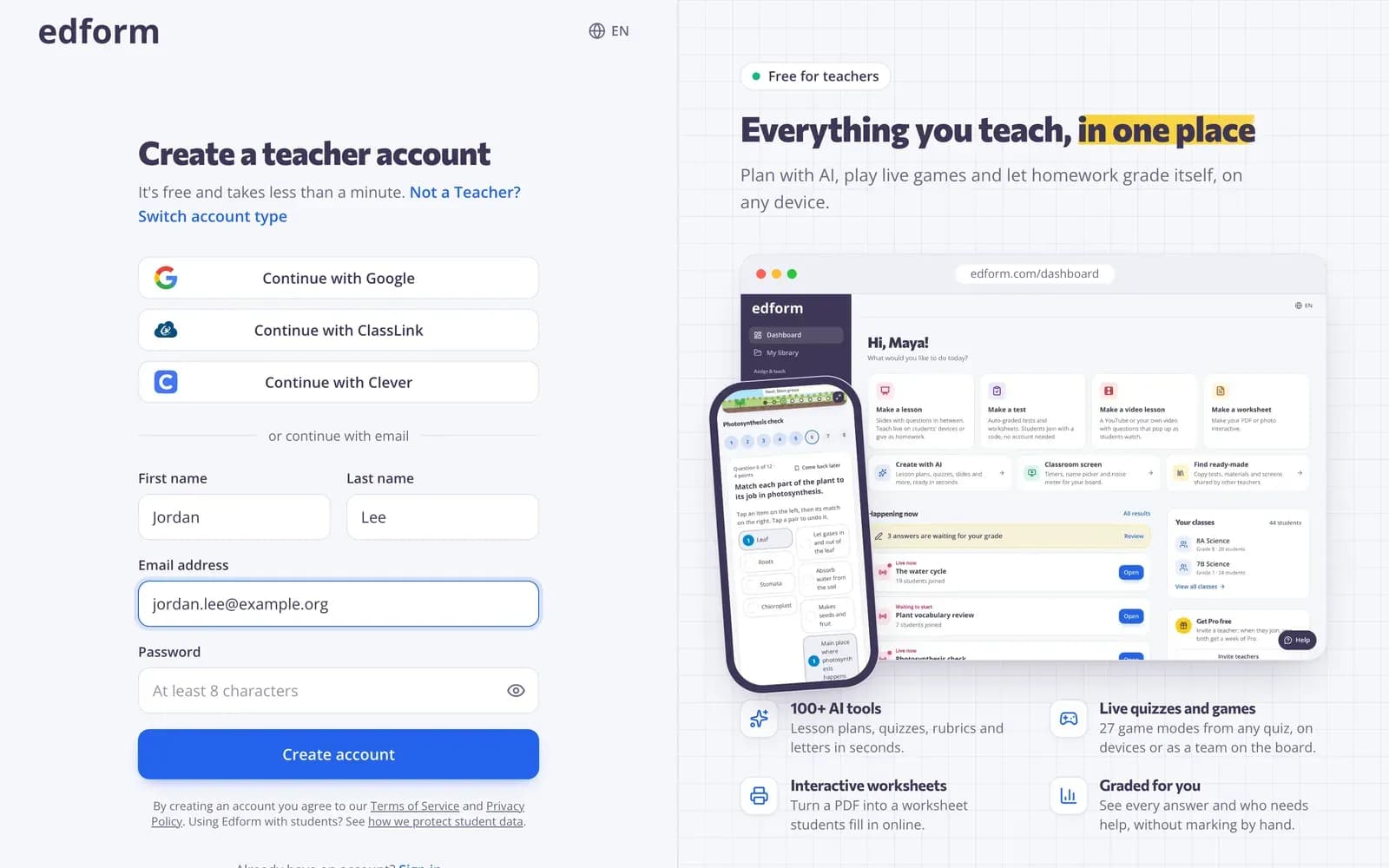
Langkah 3: Daftar dengan akaun sekolah anda atau e-mel
Tekan “Continue with Google” untuk menggunakan akaun sekolah anda. Atau taip “Nama pertama”, “Nama keluarga”, “Alamat e-mel” dan “Kata laluan” sekurang-kurangnya 8 aksara, kemudian tekan “Cipta akaun”.
Langkah 4: Sahkan alamat e-mel anda
Jika anda mendaftar dengan alamat e-mel, sepanduk di bahagian atas akan meminta anda mengesahkannya. Buka pautan dalam e-mel yang kami hantar kepada anda, atau tekan “Hantar semula pautan” jika anda belum menerimanya.
Jawab dua soalan ringkas
Langkah 1: Pilih bahasa bahan anda
Dalam “Selamat datang ke Edform!”, pilih “Bahasa bahan anda”. Alatan AI menulis rancangan pelajaran, kuiz dan bahan lain dalam bahasa ini.
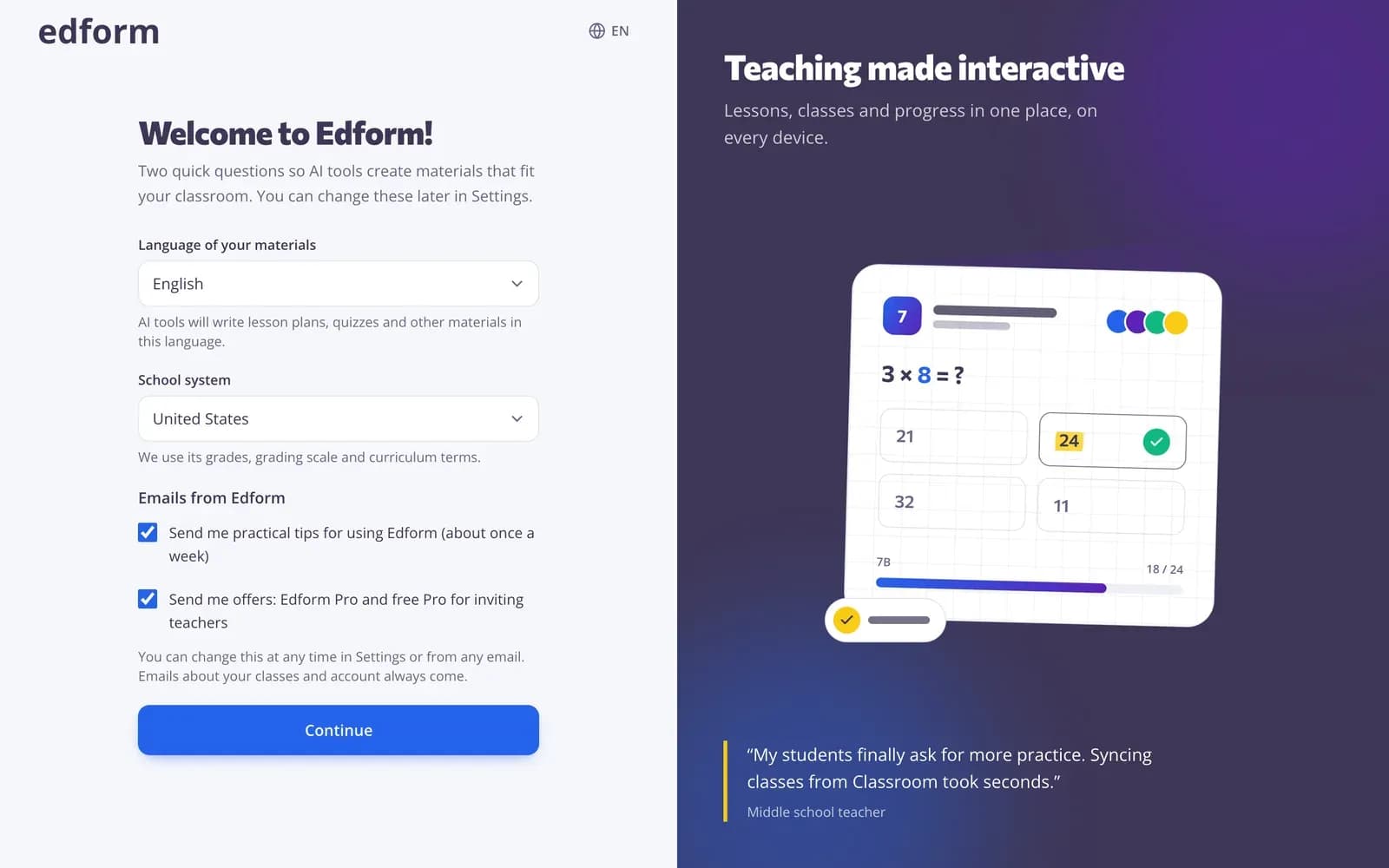
Langkah 2: Pilih sistem sekolah anda dan tekan “Teruskan”
Pilih “Sistem sekolah” anda supaya bahan menggunakan tahun persekolahan, skala penilaian dan istilah kurikulum yang betul. Di bawah “E-mel daripada Edform”, tandakan e-mel yang anda mahu: petua praktikal kira-kira sekali seminggu dan tawaran seperti Pro percuma untuk menjemput guru. Anda boleh menukar ini pada bila-bila masa di Tetapan → E-mel. Tekan “Teruskan” untuk membuka papan pemuka anda.
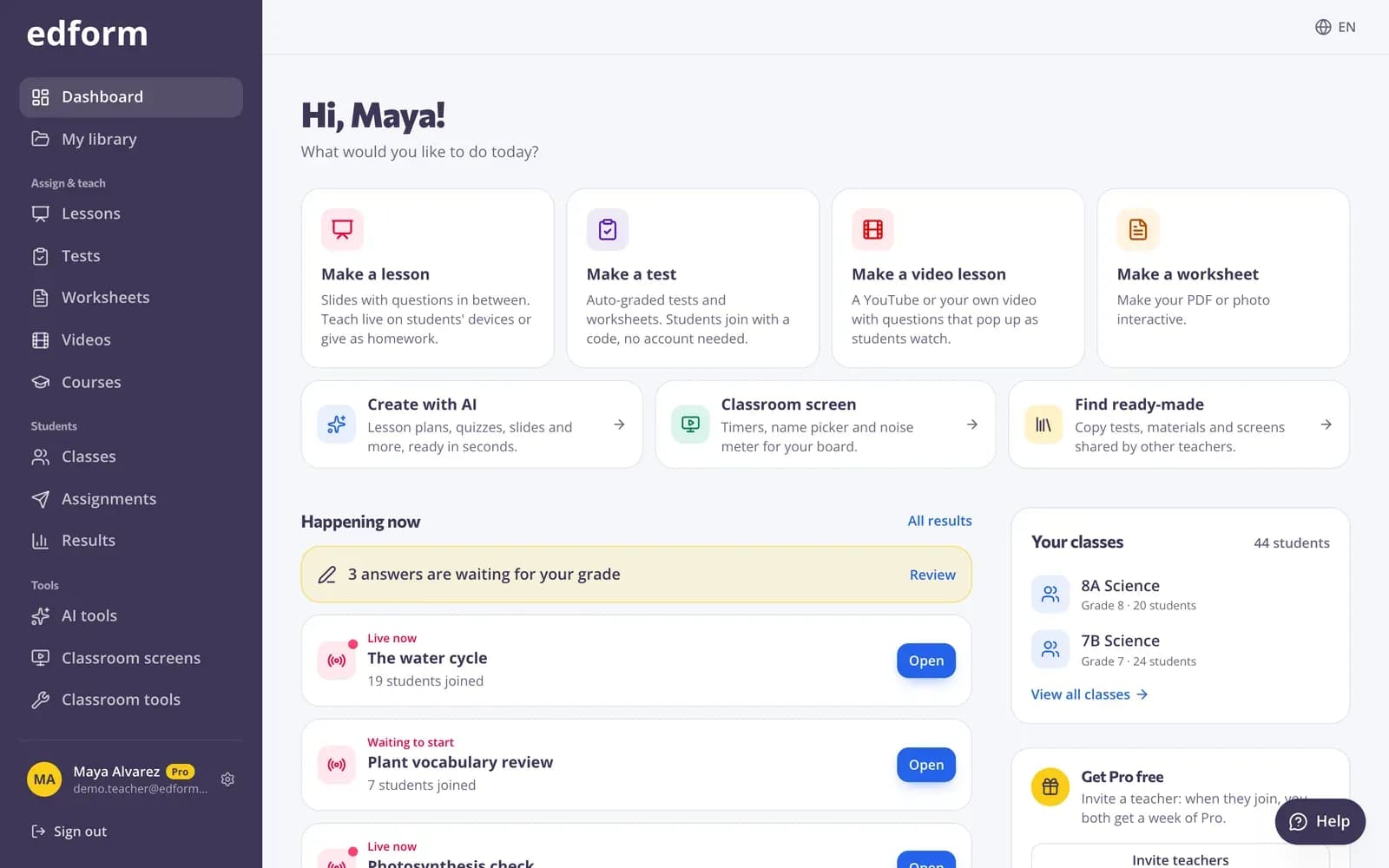
Kenali papan pemuka
Langkah 1: Mulakan sesuatu yang baharu
Kad di bahagian atas memulakan perkara utama yang anda buat: “Buat pelajaran”, “Buat ujian”, “Buat pelajaran video” dan “Buat lembaran kerja”. Di bawahnya ada “Cipta dengan AI”, “Skrin bilik darjah” dan “Cari bahan sedia ada” untuk bahan yang dikongsi oleh guru lain.
Langkah 2: Ikut senarai semak “Bermula”
Di sebelah kanan, “Bermula” menyenaraikan perkara pertama untuk dicuba: “Tambah kelas anda”, “Buat ujian pertama anda”, “Cuba alat AI”, “Buka skrin bilik darjah”, “Berikan ujian kepada murid” dan “Kongsi sesuatu dalam pustaka”. Setiap item ialah pautan, dan ia akan ditanda apabila anda selesai melakukannya.
Langkah 3: Gunakan menu
Menu di sebelah kiri mempunyai “Papan pemuka” dan “Pustaka saya” di bahagian atas, kemudian “Tugaskan & ajar” (Pelajaran, Ujian, Lembaran kerja, Video, Kursus), “Murid” (Kelas, Tugasan, Keputusan), “Alatan” (Alatan AI, Skrin bilik darjah, Alatan bilik darjah) dan “Sekolah & komuniti” (Pustaka komuniti, Risalah, Jemput guru). Pada telefon, bahagian utama ialah tab di bahagian bawah skrin.
Sepuluh minit pertama anda
Langkah 1: Tambah kelas anda
Di bawah “Kelas anda”, tekan “Cipta kelas” untuk membuat kelas.
Langkah 2: Buat ujian pertama anda
Tekan “Buat ujian”, kemudian “Ujian baharu”, beri tajuk dan tambah beberapa soalan.
Langkah 3: Berikannya kepada murid anda
Dalam ujian, tekan “Gunakan dengan kelas” dan pilih “Kerja rumah”. Murid menyertai dengan kod, pautan atau kod QR — tiada e-mel diperlukan.
Soalan
Adakah Edform percuma untuk guru?
Ya. Mencipta akaun dan semua yang diterangkan dalam panduan ini adalah percuma untuk guru.
Adakah murid saya perlu mendaftar?
Tidak untuk kerja rumah yang anda berikan dengan kod: murid memasukkan kod dan nama mereka. Murid boleh mencipta akaun sendiri dengan “Saya seorang murid”, atau anda boleh mencipta log masuk nama pengguna untuk mereka dalam kelas.
Saya terlupa kata laluan saya. Apa yang perlu saya lakukan?
Pada halaman log masuk, tekan “Lupa kata laluan?”, masukkan alamat e-mel anda dan tekan “Hantar pautan tetapan semula”. Jika anda log masuk dengan Google, gunakan butang itu sebaliknya.
Bolehkah saya menukar bahasa atau sistem persekolahan saya kemudian?
Ya. Buka “Tetapan” dan tukarkannya di bawah “Bahan anda”, kemudian tekan “Simpan perubahan”.
Berkaitan
- Cipta kelasCipta kelas, kongsi kod kelas dan tambah murid daripada senarai.
- Cipta kuizBuat ujian dengan apa-apa gabungan jenis soalan, pratonton dan gunakan bersama kelas anda.
- Tugaskan kerja rumahBerikan ujian sebagai kerja rumah dengan kod, pautan atau kod QR dan tetapkan tarikh akhir.
- Untuk guruKuiz, permainan, pelajaran, KI dan alatan bilik darjah di satu tempat
- Pembuat kuizKuiz, ujian dan kerja rumah dinilai secara automatik