

 ClassLink integration
Edform works with ClassLink
Students and teachers open Edform from their ClassLink LaunchPad and are signed in. Teachers import their classes from the school's roster, and every class stays in sync on its own.
- One-click sign-in from LaunchPad
- Classes imported from Roster Server
- Students land in their class
How does Edform work with ClassLink?
ClassLink is the single sign-on and rostering platform many US school systems use: students and staff sign in once and open their apps from LaunchPad, and Roster Server shares class lists with the apps the district approves. Edform uses both. Sign-in: Edform is an app in LaunchPad and a Continue with ClassLink button on Edform's sign-in page, and ClassLink tells Edform whether someone is a teacher or a student, so there is nothing to choose and no password to remember. Rosters: a teacher presses Import from ClassLink and picks a class they teach; Edform creates it with every student. Each imported class syncs every night, and a student who opens Edform from ClassLink lands in their class without a join code or an email address. Edform only reads rosters and never changes anything in ClassLink.
Edform at a glance
- Price
- Free for teachers: Basic is free forever, with no credit card, and includes every feature.
- AI tools
- AI teacher tools with 5 AI points a month on Basic and 300 a month on Pro.
- Students
- Students join with a code. They need no email address and no account.
- Grading
- Quizzes and worksheets are graded automatically, with results per student and per question.
- Devices
- Runs in the browser on laptops, tablets, phones and interactive boards. Nothing to install.
- Languages
- Available in 32 languages.
- Works with
- Google Classroom, Microsoft Teams, ClassLink and learning platforms that support LTI 1.3.
- Library
- A free library of ready-made quizzes, worksheets and lessons that teachers can copy and edit.
How to use Edform with ClassLink
- 1
Turn on Edform in ClassLink
Your ClassLink administrator adds Edform to LaunchPad and shares classes, teachers, students and enrollments with Edform in Roster Server.
- 2
Import your classes
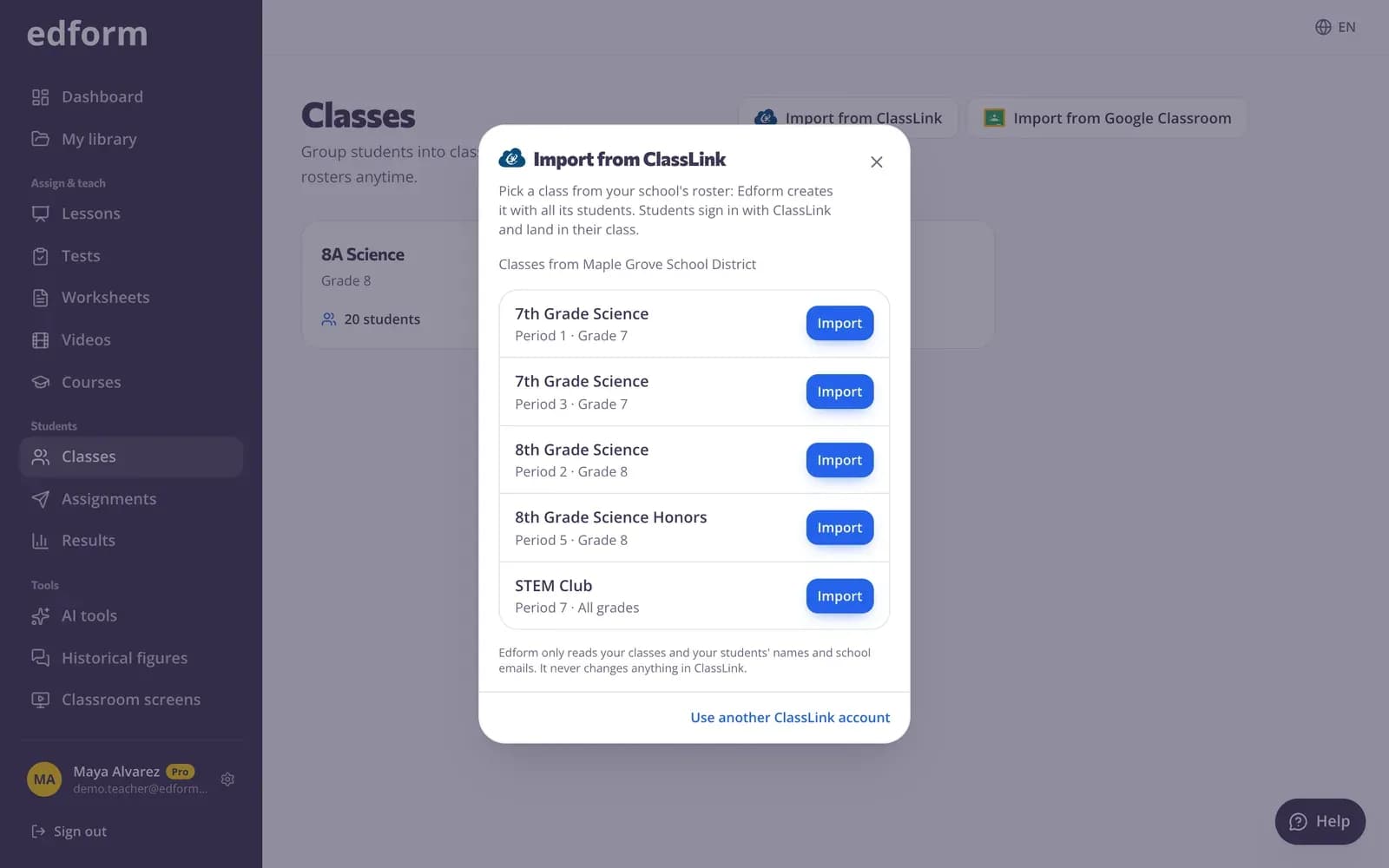
On Classes, press Import from ClassLink and press Import next to a class. Its students are added at once, with the grade and period from the roster.
- 3
Students open Edform from ClassLink
Students click Edform in LaunchPad and land in their class, ready for the homework, games and lessons you give.
Try it yourself
No sign-up needed — try it as a student
This is the real Edform player. Answer the questions and see how they're checked.
Sign in with ClassLink
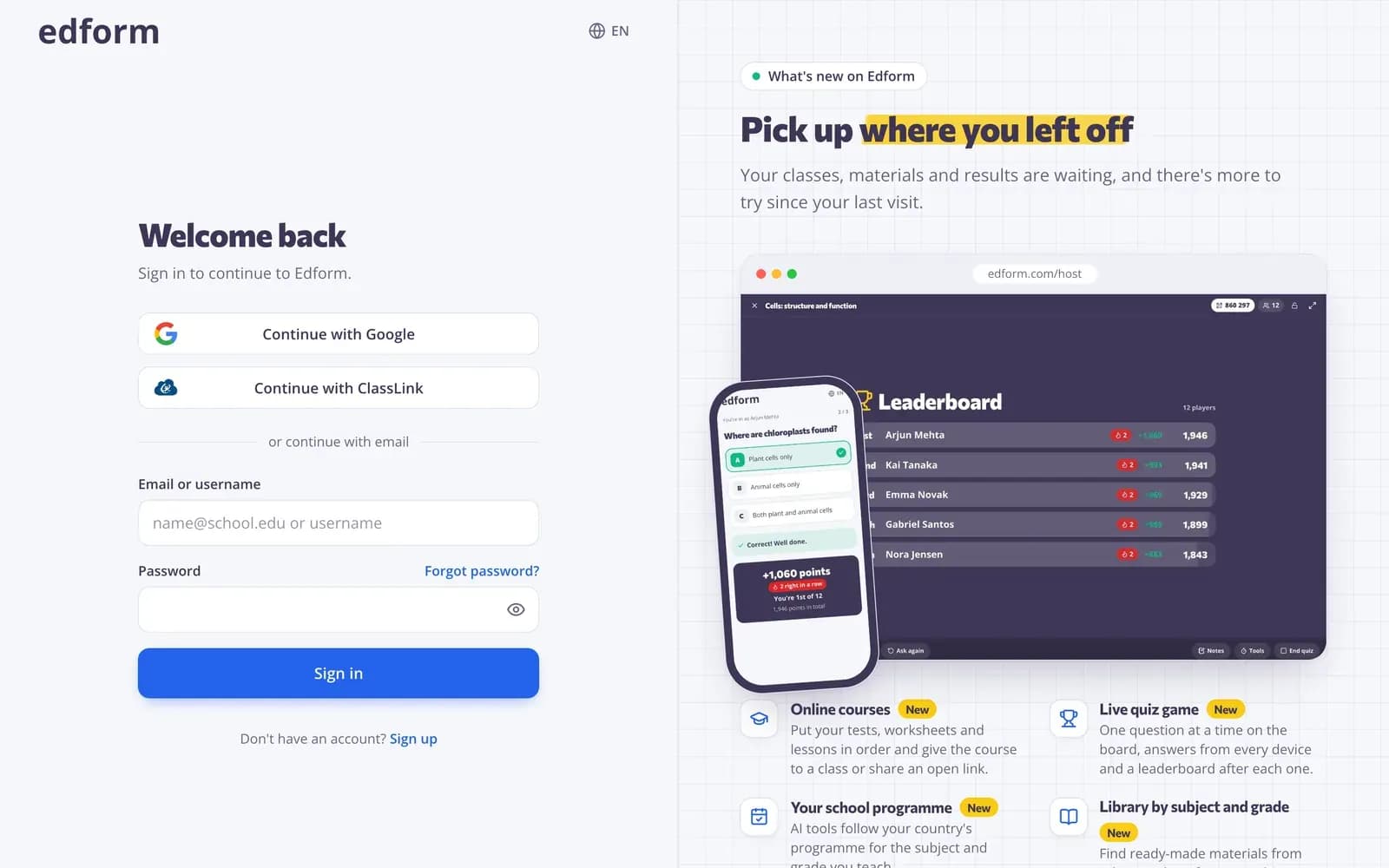
Edform's sign-in page has a Continue with ClassLink button, and the Edform app in LaunchPad signs people in with one click. ClassLink says who is a teacher and who is a student, so a new account is ready at once. A teacher who already has an Edform account with the same school email keeps it.
- One click from LaunchPad
- Teacher or student set by ClassLink
- Students without email too
Classes that keep themselves up to date
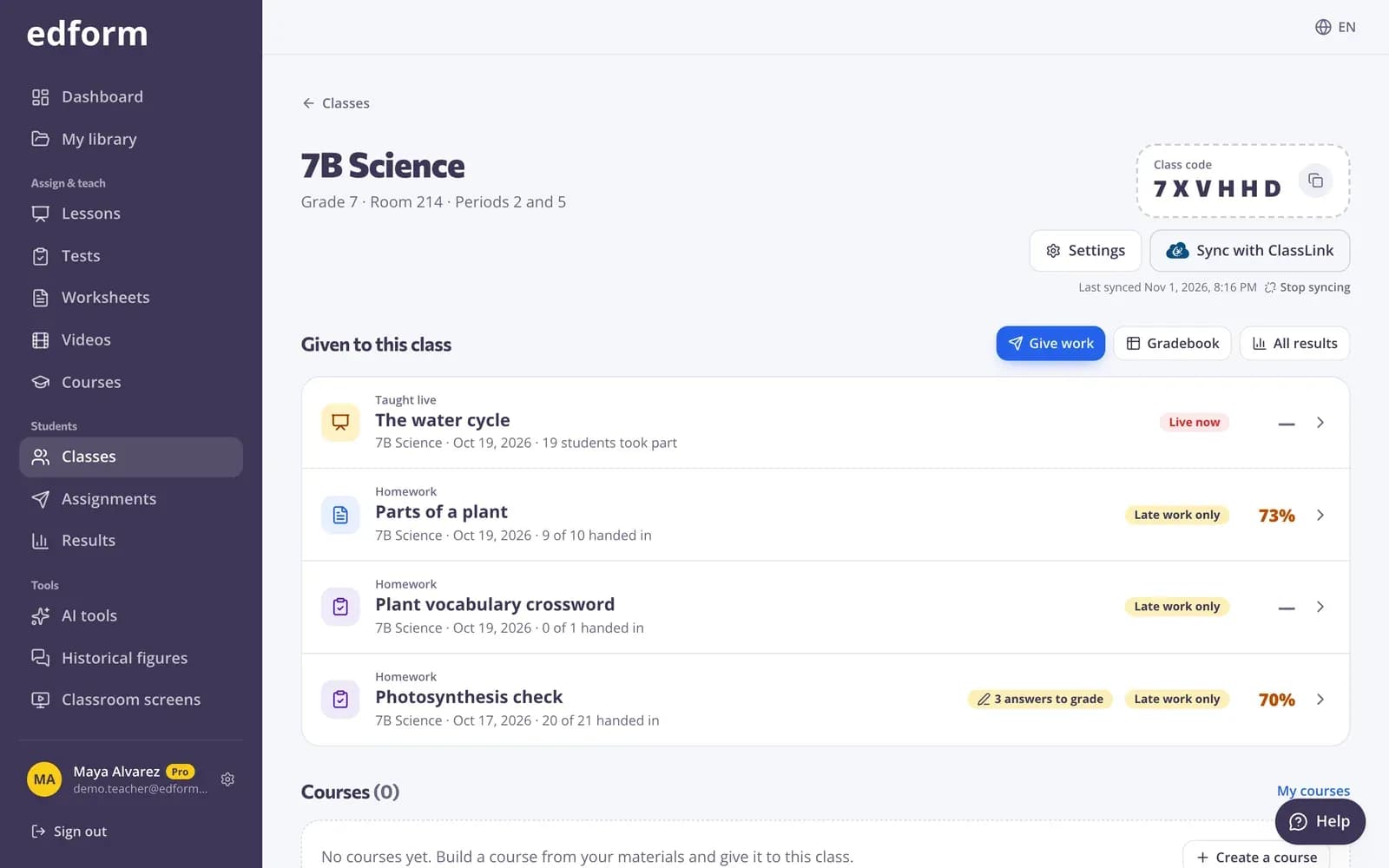
A class imported from ClassLink checks the school's roster every night: new students are added and changed names are updated. Press Sync with ClassLink to do it right away. Students who left stay in Edform with their results until you remove them.
- Nightly sync
- Sync now with one button
- Never removes anyone on its own
No codes and no emails for students
Every imported student has a place in the class. When they open Edform from ClassLink, Edform recognizes them from the roster and puts them in their class, even if the school gives them no email address. Students who joined with the class code earlier are matched, so nobody appears twice.
- Matched by the school's roster
- No join code needed
- Nobody added twice
Everything a ClassLink school needs
LaunchPad sign-in
Students and teachers open Edform from ClassLink LaunchPad and are signed in with one click.
Class import
Import from ClassLink lists the active classes you teach in your school's roster. Pick one and Edform creates it with every student.
Nightly roster sync
Imported classes follow the roster every night, and Sync with ClassLink updates them right away.
Students land in their class
A student's first ClassLink sign-in takes the place reserved for them, matched by the school's roster, not by email.
Works without student email
Students whose school gives them no email address sign in with ClassLink and get the same class, homework and results.
Read-only roster access
Edform reads names, school emails, roles, classes and enrollments. It never writes anything back to ClassLink.
Schools use it to
- 01
Start the school year in minutes
Teachers import every class they teach instead of typing names or handing out codes.
- 02
Keep one roster
The student information system stays the source of truth; Edform follows it every night.
- 03
Make sign-in easy for young students
No passwords and no codes: students click Edform in LaunchPad and they're in their class.
- 04
Give every teacher the same start
One switch in Roster Server lets every teacher in the district import their own classes.
Explore more
- IntegrationsGoogle Classroom, Microsoft Teams, LMS (LTI)
- Google ClassroomImport classes and share homework to Classroom
- Microsoft TeamsSign in with Microsoft, import Teams classes and assign in Teams
- Student logins without emailUsernames and passwords for students without email
- Join with a codeStudents type a code — no account needed
- For schoolsTeacher seats, student sign-in and flyers for families
Frequently asked questions
Is the ClassLink integration free?
Yes. Signing in with ClassLink, importing classes and the nightly roster sync are free for teachers and schools, like every Edform feature.
What does our ClassLink administrator need to do?
Add Edform to LaunchPad for the teachers and students who should see it, and share classes, teachers, students and enrollments with Edform in Roster Server. Teachers can import their classes a few minutes later. Our ClassLink guide has the details.
What data does Edform read from ClassLink?
For sign-in: the person's name, school email, role and school system. For rosters: the classes a teacher teaches with their title, period and grade, and the students' names and school emails. Edform never changes anything in ClassLink.
Do students need an email address?
No. Students sign in with ClassLink and Edform recognizes them from the school's roster, so they land in their class without an email address or a join code.
What happens when students join or leave a class in ClassLink?
Every night Edform adds new students and updates changed names. Students who left stay in Edform with their results, so you decide whether to remove them. Press Sync with ClassLink to update a class right away.
Can I use ClassLink and Google Classroom together?
Yes. Each Edform class follows one roster: some classes can come from ClassLink and others from Google Classroom, and you can still add students with a class code or a pasted list.
Google Classroom is a trademark of Google LLC. Microsoft and Microsoft Teams are trademarks of the Microsoft group of companies. ClassLink is a trademark of ClassLink, Inc.
Bring your ClassLink classes to Edform
Sign in with ClassLink and import your first class in a minute. Free for teachers.
- Free for teachers
- No credit card
- Works on any device