


Sign in with ClassLink
Step 1: Open Edform from ClassLink
Click the Edform app in your ClassLink LaunchPad. You're signed in to Edform right away, as a teacher or a student, as your school set you up.
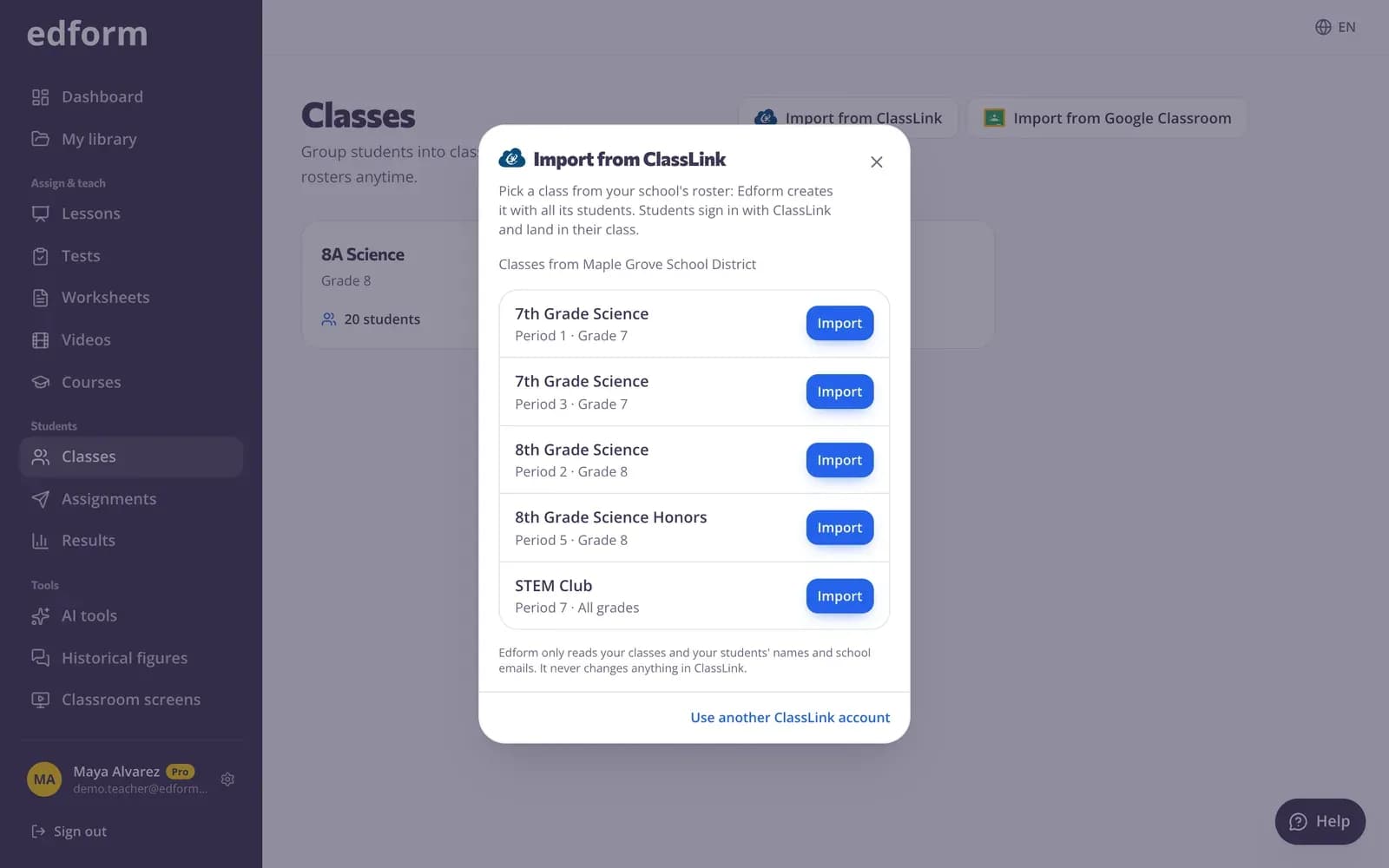
Step 2: Or press “Continue with ClassLink”
On Edform's sign-in page, press Continue with ClassLink and find your school on the ClassLink page that opens. You come back to Edform signed in.
Import a class from ClassLink
Step 1: Open “Classes”
Go to Classes in the menu on the left.
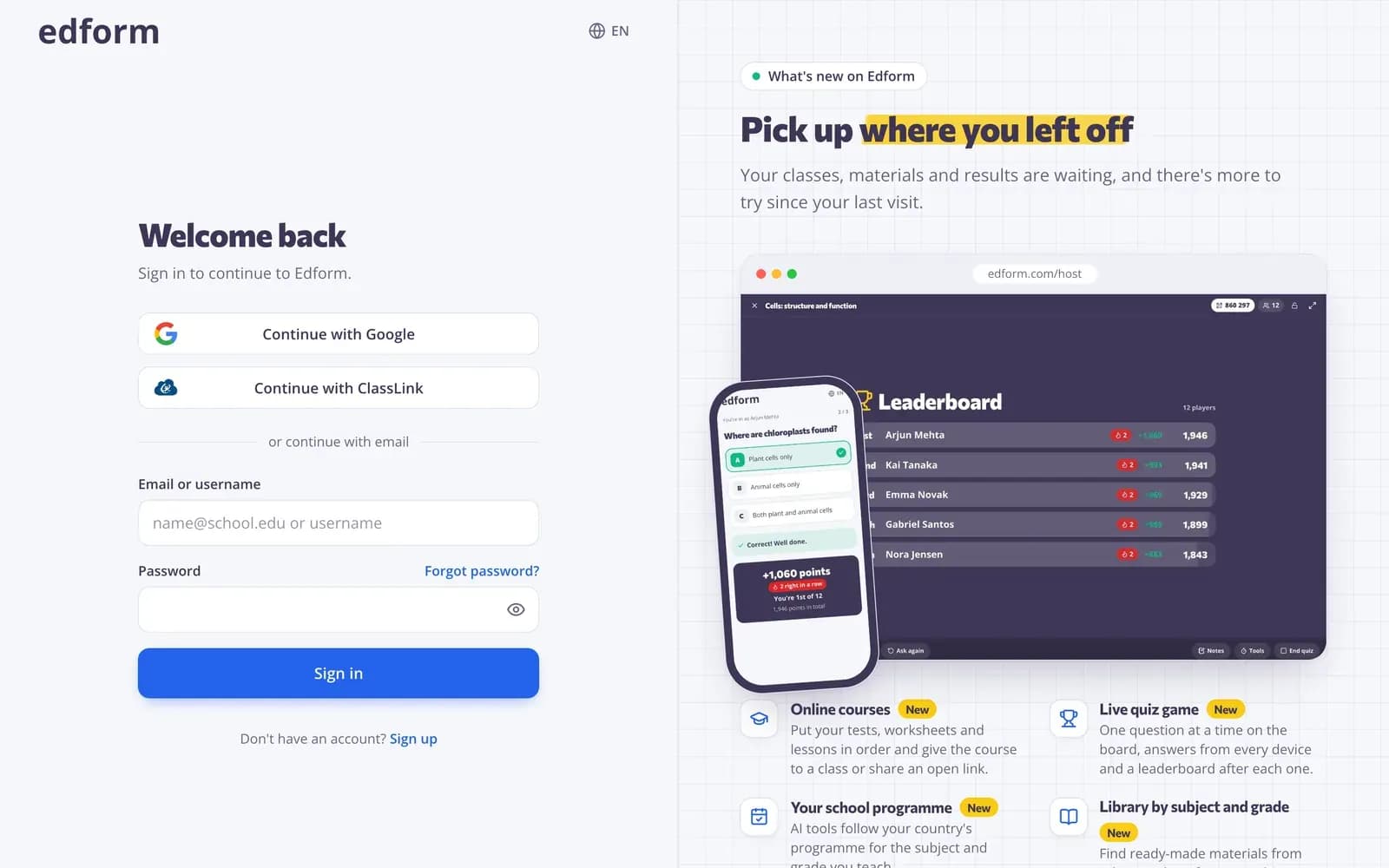
Step 2: Press “Import from ClassLink”
The button with the ClassLink logo is next to “Create class”. If you signed in to Edform another way, ClassLink asks you to sign in once, then you come back to the same page.
Step 3: Press “Import” next to a class
You see the classes you teach in your school's roster, with their period and grade. Edform creates the class with all its students and opens it. A class you imported before shows “Open class” instead, so it is never made twice.
Keep the class in sync
Step 1: Let it sync every night
A class imported from ClassLink checks your school's roster every night: new students are added and changed names are updated.
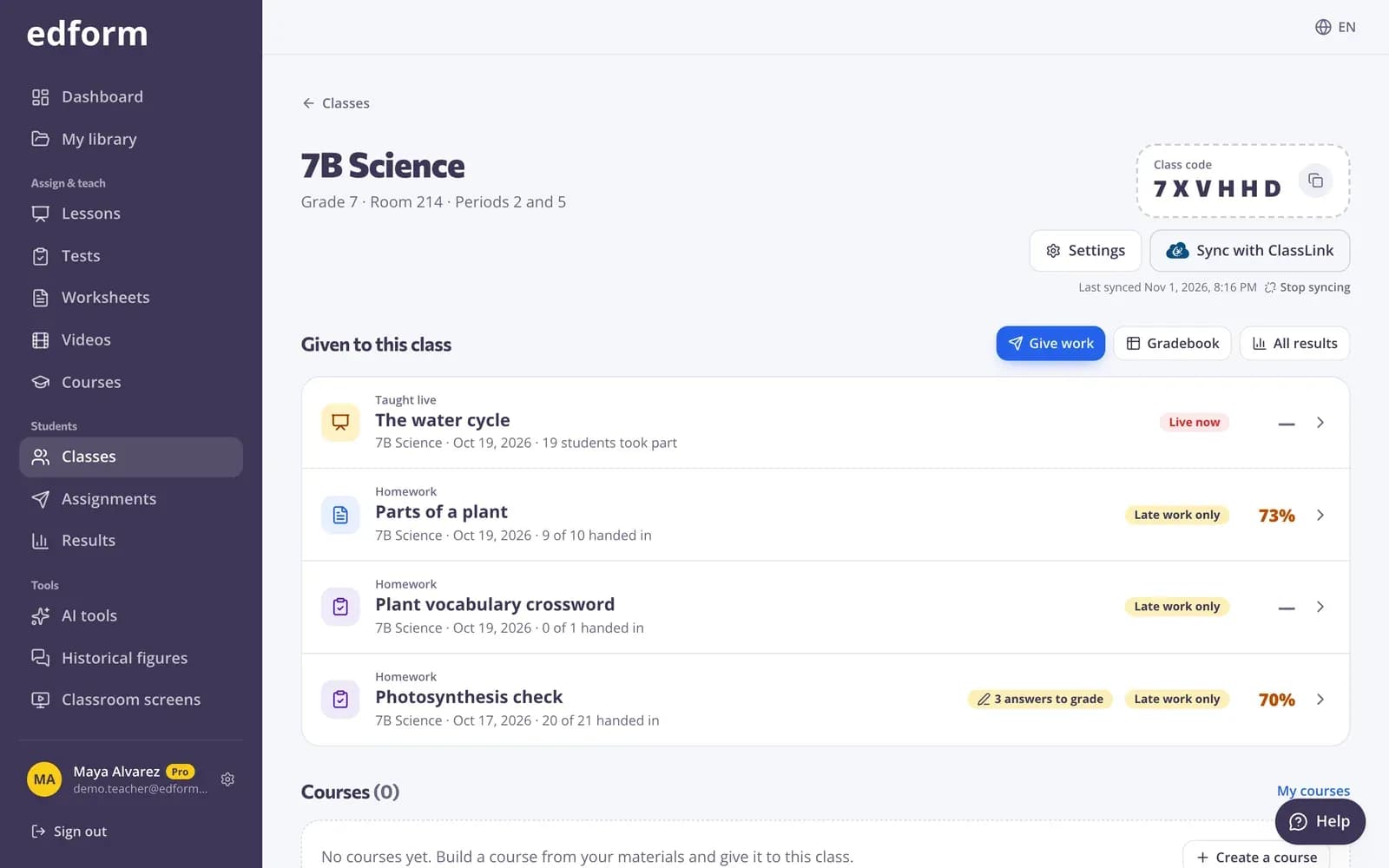
Step 2: Or press “Sync with ClassLink”
The button at the top of the class syncs right away and shows when the class was last synced.
Students land in their class
Imported students show as “Invited” until they first sign in. When a student opens Edform from ClassLink, Edform recognizes them from the school's roster and puts them in the class: no code and no email needed.
Step 1: Give homework as usual
Homework you give the class shows up for each student as soon as they sign in with ClassLink.
For ClassLink administrators
Two switches in ClassLink turn this on for the whole school system.
Step 1: Add Edform to LaunchPad
In ClassLink Management Console, add Edform from the App Library and assign it to the teachers and students who should see it.
Step 2: Share rosters with Edform
In Roster Server, open Applications, add Edform and share the schools, classes, teachers, students and enrollments that Edform may read. Teachers can import their classes a few minutes later.
Questions
Does Edform change anything in ClassLink?
No. Edform only reads your classes and students' names and school emails from your school's roster.
Import says my school system hasn't turned on Edform rostering. What now?
Your ClassLink administrator needs to share rosters with Edform in Roster Server. Until then you can sign in with ClassLink and add students with a class code or a pasted list.
Can a student be in a ClassLink class and join with a code too?
Yes. Edform matches the student by their roster record, so they are never in the class twice.
Related
- ClassLinkSign in with ClassLink and import classes from your roster
- Google ClassroomImport classes from Google Classroom, keep them in sync and share homework to Classroom.
- Create a classMake a class, share the class code and add students from a list.
- Student loginsCreate usernames and passwords for students without email and help them sign in.