


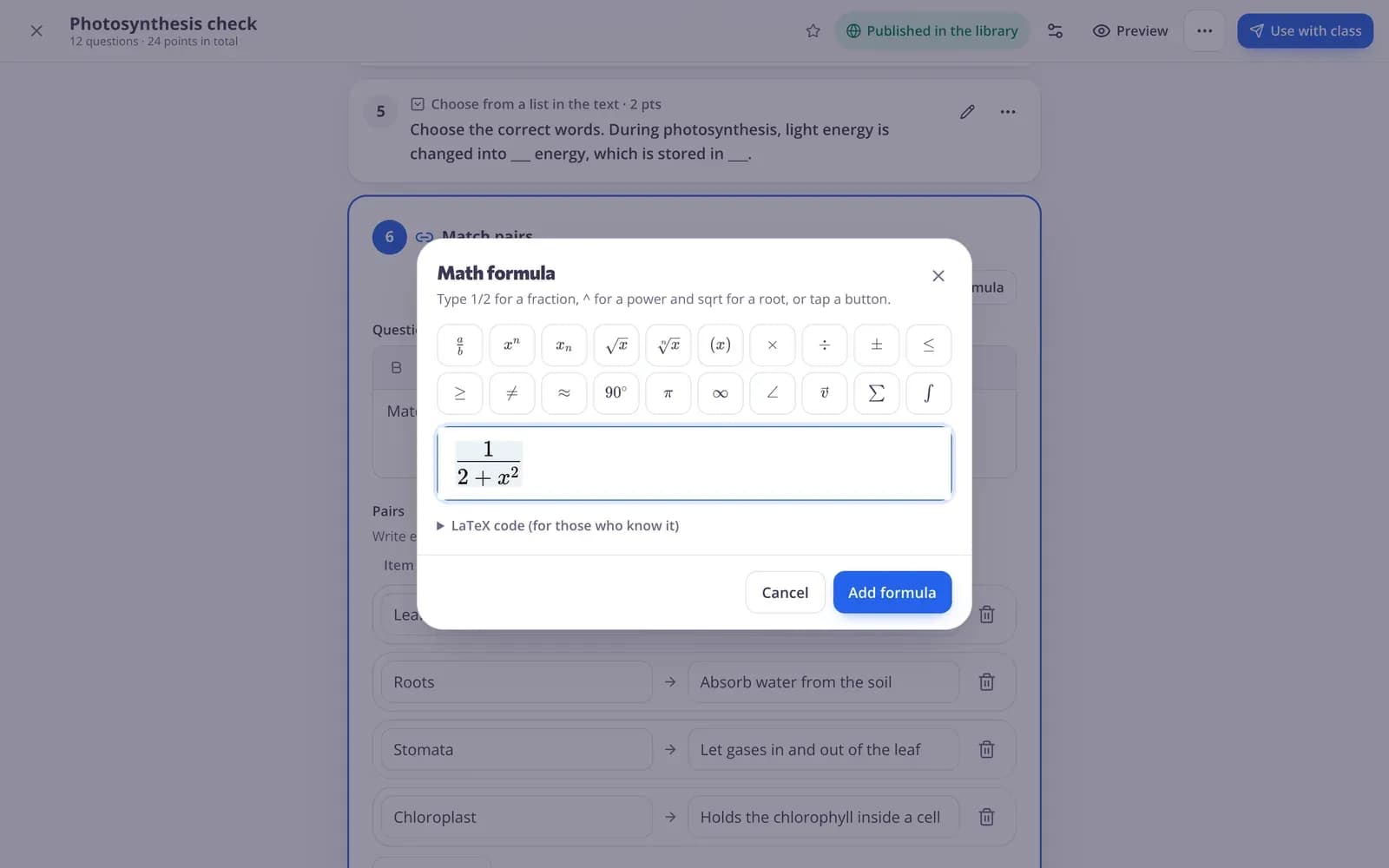
Add a formula
Step 1: Click where the formula goes
Put the cursor in the text box where you want the formula, for example the question or one of its answers.
Step 2: Press “Formula”
Press “Formula” in the text formatting buttons (in a test question there is also one above the question). The “Math formula” window opens.
Step 3: Type the formula
Type 1/2 for a fraction, ^ for a power and sqrt for a root, or tap a button under “Math symbols”: fraction, power, subscript, square root, brackets, ×, ÷, ±, ≤, ≥, ≠, ≈, degrees, π, infinity, angle, vector, sum and integral.
Step 4: Press “Add formula”
The formula appears in your text the way students will see it.
Change or remove a formula
Step 1: Click the formula
Click the formula in your text and press “Formula” again. Change it and press “Update formula”, or press “Remove formula”.
Math answers from students
Step 1: Use “Number answer” for results
Students type numbers with their usual keyboard: whole numbers, decimals, fractions like 1/3, and powers of ten with “e” (3e5 means 3 × 10⁵). Add an “Allowed difference (±)” to accept answers close to the right one.
Step 2: Use choices for expressions
To ask for an expression or equation, put formulas in the answers of a choice question. Students don't need to type the math.
Questions
Is there a math keyboard for students?
Not for answers. Students type numbers with their usual keyboard, or pick an answer that contains a formula.
Related
- Math equation editorFractions, powers and roots in questions and worksheets
- Math teachersNumber answers, math drills and word problems
- Question typesEvery question type in Edform, when to use it and how it is marked.
- Create a quizMake a test with any mix of question types, preview it and use it with your class.