

Screen recorder
Record a lesson, then make students answer it
Record your screen and voice — a slide deck, a worked problem, a website — or yourself on camera. Cut the start and end, add questions at the right moments, and see who watched and what they understood.
- Screen or camera, with your voice
- Questions inside the recording
- Free for teachers
What is the Edform screen recorder?
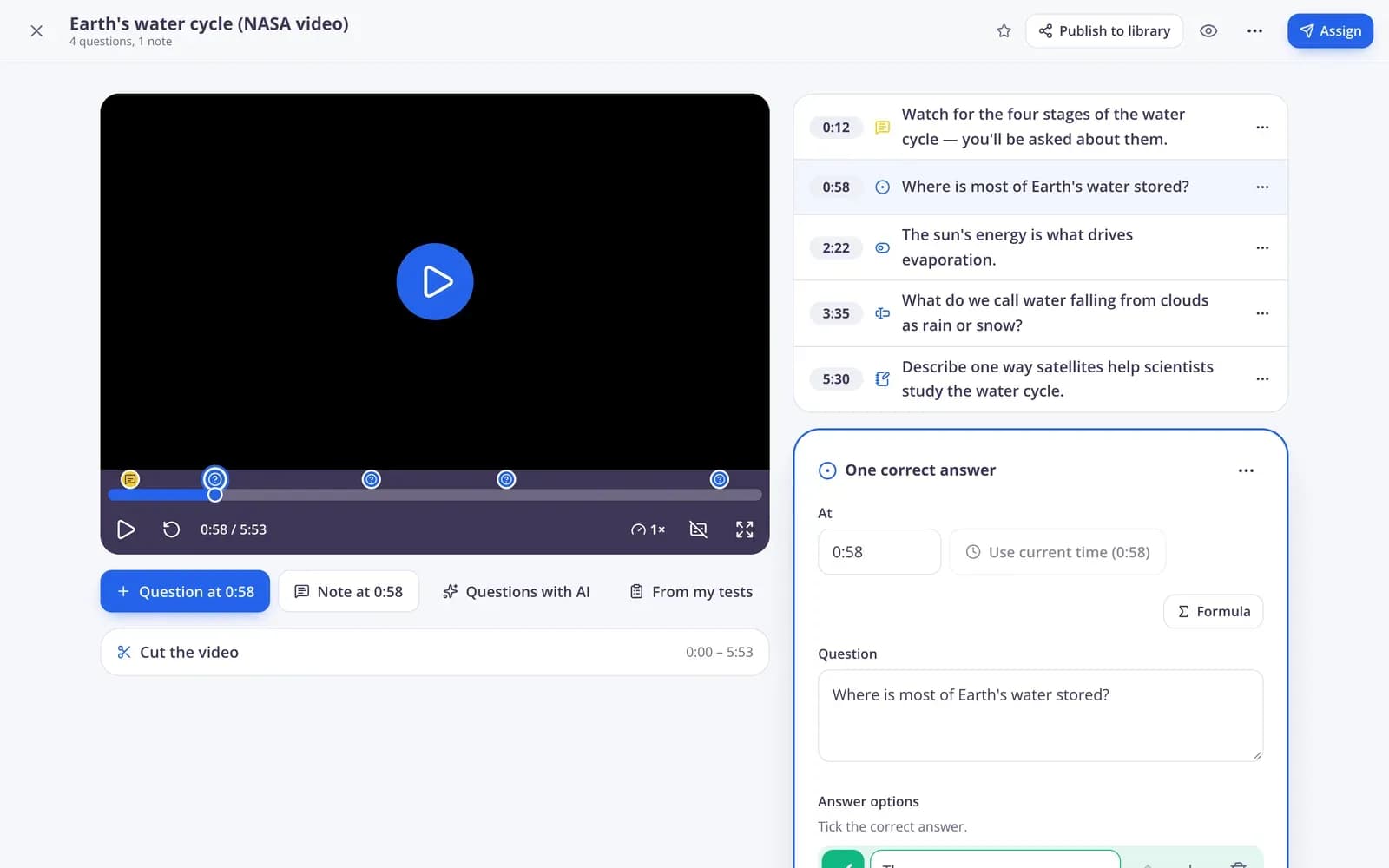
The screen recorder is part of Edform's video lessons. When you start a new video lesson, choose Record and pick Screen + microphone or Camera + microphone; the recording happens in your browser and is saved to your account, with nothing to install. Then it becomes a normal video lesson: cut the start and end, add questions of any type and notes at any moment, and give it to students. The video stops at every question, skipping ahead can be turned off, and the report shows each student's answers and how much of the video they watched.
Edform at a glance
- Price
- Free for teachers: Basic is free forever, with no credit card, and includes every feature.
- AI tools
- AI teacher tools with 5 AI points a month on Basic and 300 a month on Pro.
- Students
- Students join with a code. They need no email address and no account.
- Grading
- Quizzes and worksheets are graded automatically, with results per student and per question.
- Devices
- Runs in the browser on laptops, tablets, phones and interactive boards. Nothing to install.
- Languages
- Available in 32 languages.
- Works with
- Google Classroom, Microsoft Teams, ClassLink and learning platforms that support LTI 1.3.
- Library
- A free library of ready-made quizzes, worksheets and lessons that teachers can copy and edit.
How to record a video lesson
- 1
Start recording
Open Videos, start a new video lesson and choose Record: Screen + microphone or Camera + microphone, then Start recording.
- 2
Add questions
Stop and use the recording, cut the start and end, and place questions and notes at the moments that matter.
- 3
Give it to students
Assign it as homework or watch it together live. The report shows answers and how much each student watched.
Try it yourself
Join a live lesson
You're a student in a live lesson. Answer the question and see what the class said.
Questions at the right moment
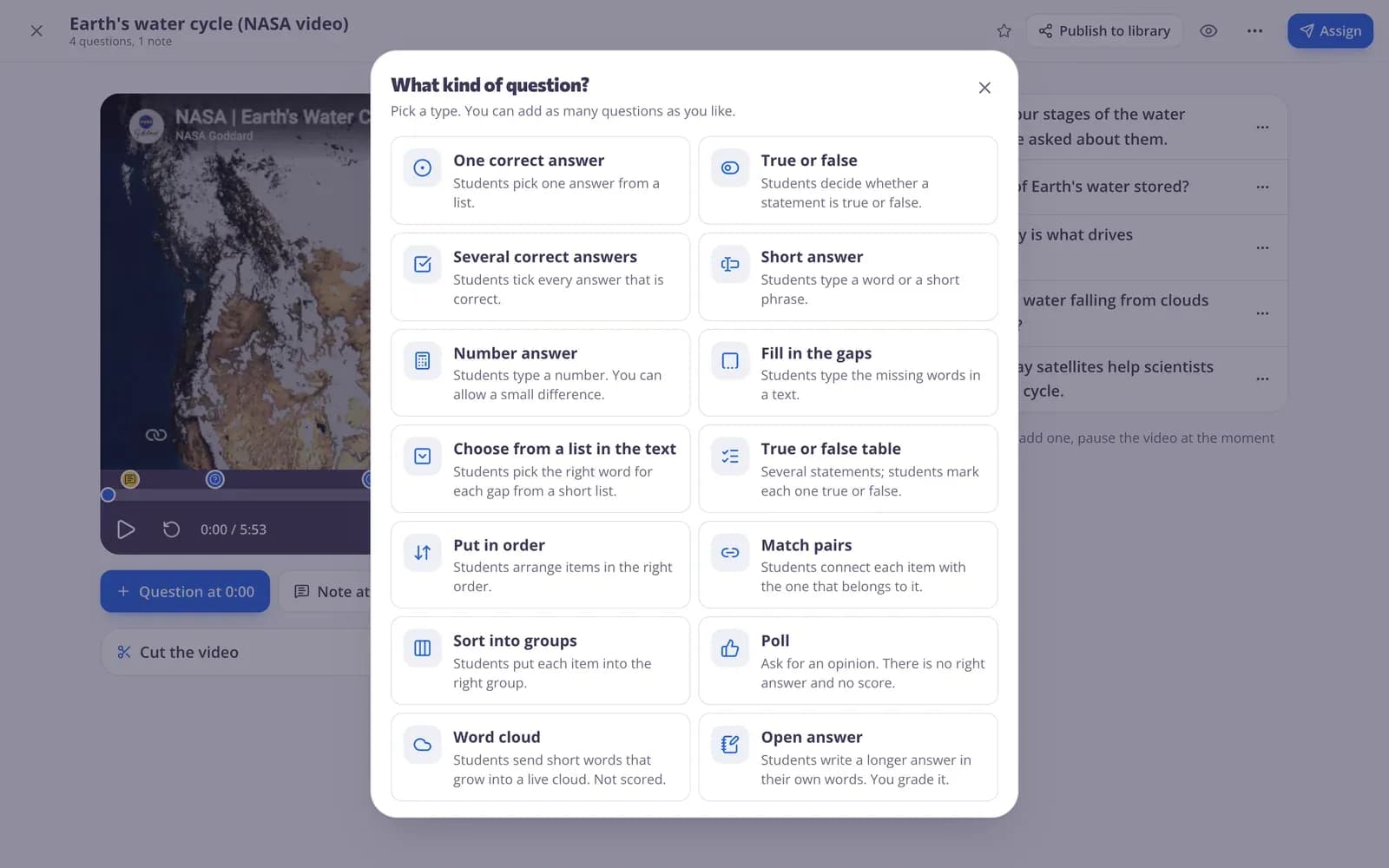
Pause the recording where you want to check understanding and add a question of any type, or a note with a picture or a voice message.
- Every question type
- Notes with pictures and voice
- Video stops for each one
See who watched and understood
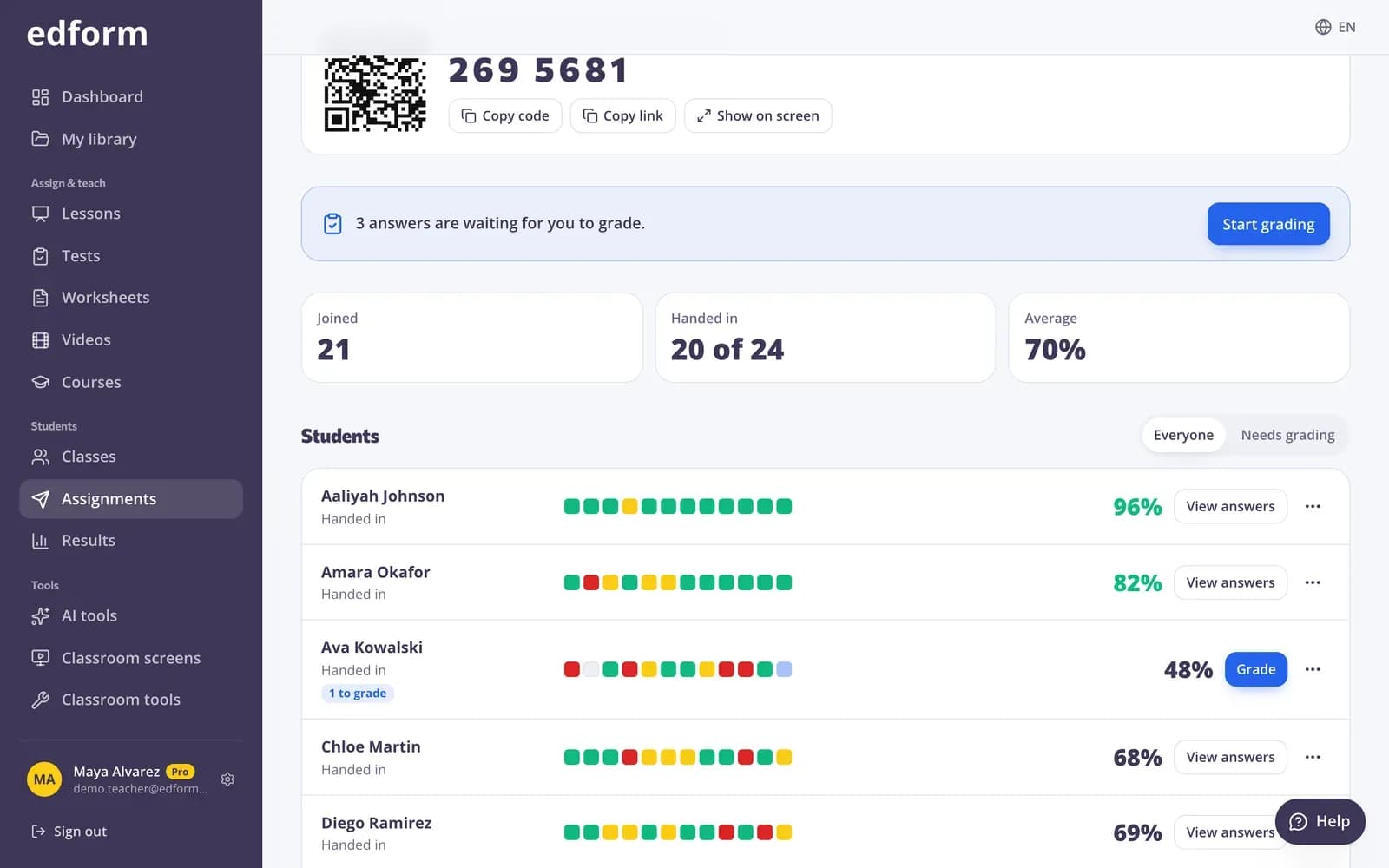
The homework report shows each student's score and how much of the video they watched, so you know who skipped it.
- Watched percent per student
- Score per question
- Download as CSV
Record, edit and teach
Screen + microphone
Explain slides, solve a problem or walk through a website while you talk.
Camera + microphone
Record yourself for a welcome message, a demo or instructions.
Your voice on top
Recordings keep your narration, so students hear the explanation as they watch.
Cut start and end
Trim the first and last seconds without any video editor.
Questions inside
Every question type, graded as students answer.
Watch reports
Watched percent and answers for every student.
Teachers record lessons for
- 01
Flipped classroom
Record the explanation once, use class time for practice.
- 02
Absent students
A recorded lesson with questions they can catch up on.
- 03
Worked examples
Solve a problem step by step and check they followed.
- 04
Software how-tos
Walk students through a website or app on your screen.
Explore more
- Video lessonsQuestions inside any video
- Flipped classroomVideo and lessons at home, practice and games in class
- Distance learningHomework, video and live lessons for students learning from home
- Online coursesUnits of your materials, given to a class or by one link
- Online homeworkGive homework with a code and a deadline
- Interactive lessonsSlides with live questions and polls
Frequently asked questions
Do I need to install anything to record?
No. Recording runs in your browser. The browser asks once for permission to use your screen, camera or microphone.
Can I record my screen and my voice at the same time?
Yes. Choose Screen + microphone. Choose Camera + microphone to record yourself instead.
Can I add questions to a recording?
Yes. A recording becomes a normal video lesson: add questions and notes at any moment, and the video stops for each one.
Can I also use YouTube videos?
Yes. Video lessons work with YouTube and Vimeo links, uploaded videos and screen recordings.
Can students skip ahead?
You can turn skipping ahead off, so students have to watch up to each question before they answer it.
Is it free?
Yes. Recording and video lessons are on the free Basic plan.
Record your first video lesson
Free for teachers. Record, add questions, assign.
- Free for teachers
- No credit card
- Works on any device