


Exit tickets
Exit tickets that sort themselves
End the lesson with a quick check students answer on their devices by QR code. Answers are counted for you, so you know who's ready and who needs a hand tomorrow.
- Students answer by QR code in a minute
- Answers counted for you
- Free for teachers
What is an exit ticket?
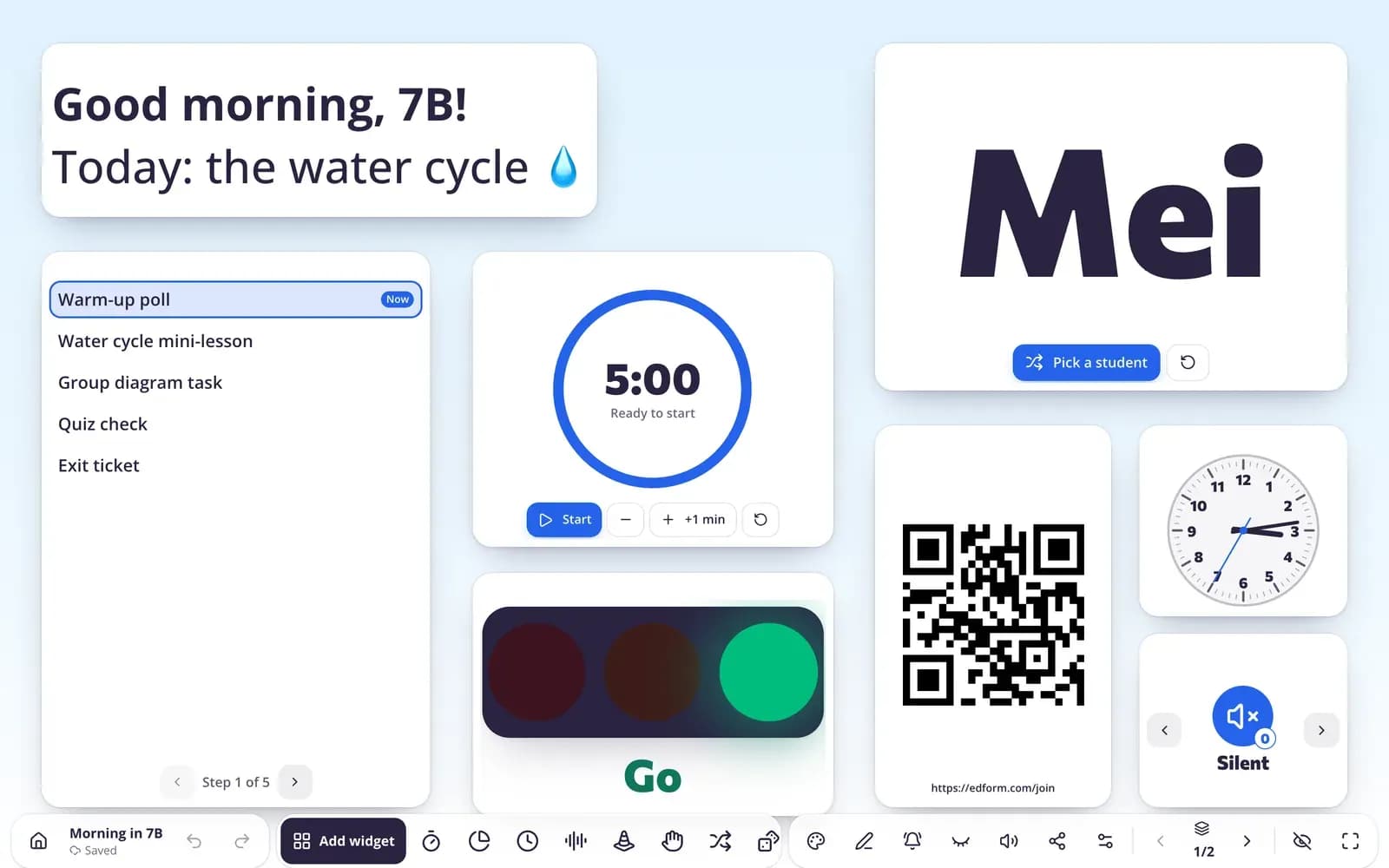
An exit ticket is one to three short questions students answer at the end of a lesson. A digital exit ticket collects and counts those answers for you, so you see what stuck before you plan the next lesson. In Edform you can run one three ways: the exit ticket widget on your classroom screen, where students rate their understanding with faces, thumbs or yes, no and not sure; a short quiz shared with a code that grades itself; or the last questions of an interactive lesson. Students answer by QR code on any device, or you count raised hands in the room.
Edform at a glance
- Price
- Free for teachers: Basic is free forever, with no credit card, and includes every feature.
- AI tools
- AI teacher tools with 5 AI points a month on Basic and 300 a month on Pro.
- Students
- Students join with a code. They need no email address and no account.
- Grading
- Quizzes and worksheets are graded automatically, with results per student and per question.
- Devices
- Runs in the browser on laptops, tablets, phones and interactive boards. Nothing to install.
- Languages
- Available in 32 languages.
- Works with
- Google Classroom, Microsoft Teams, ClassLink and learning platforms that support LTI 1.3.
- Library
- A free library of ready-made quizzes, worksheets and lessons that teachers can copy and edit.
How to run a digital exit ticket
- 1
Write one to three questions
Use the exit ticket widget or a short quiz, or ask AI for an exit ticket on today's objective.
- 2
Show the QR code
In the last minutes of class, students scan the code or type it on the join page. No accounts needed.
- 3
Sort for tomorrow
See who got it, who partly got it and who didn't, and plan groups for the next lesson.
Try it yourself
No sign-up needed — try it as a student
This is the real Edform player. Answer the questions and see how they're checked.
Join in seconds on any phone
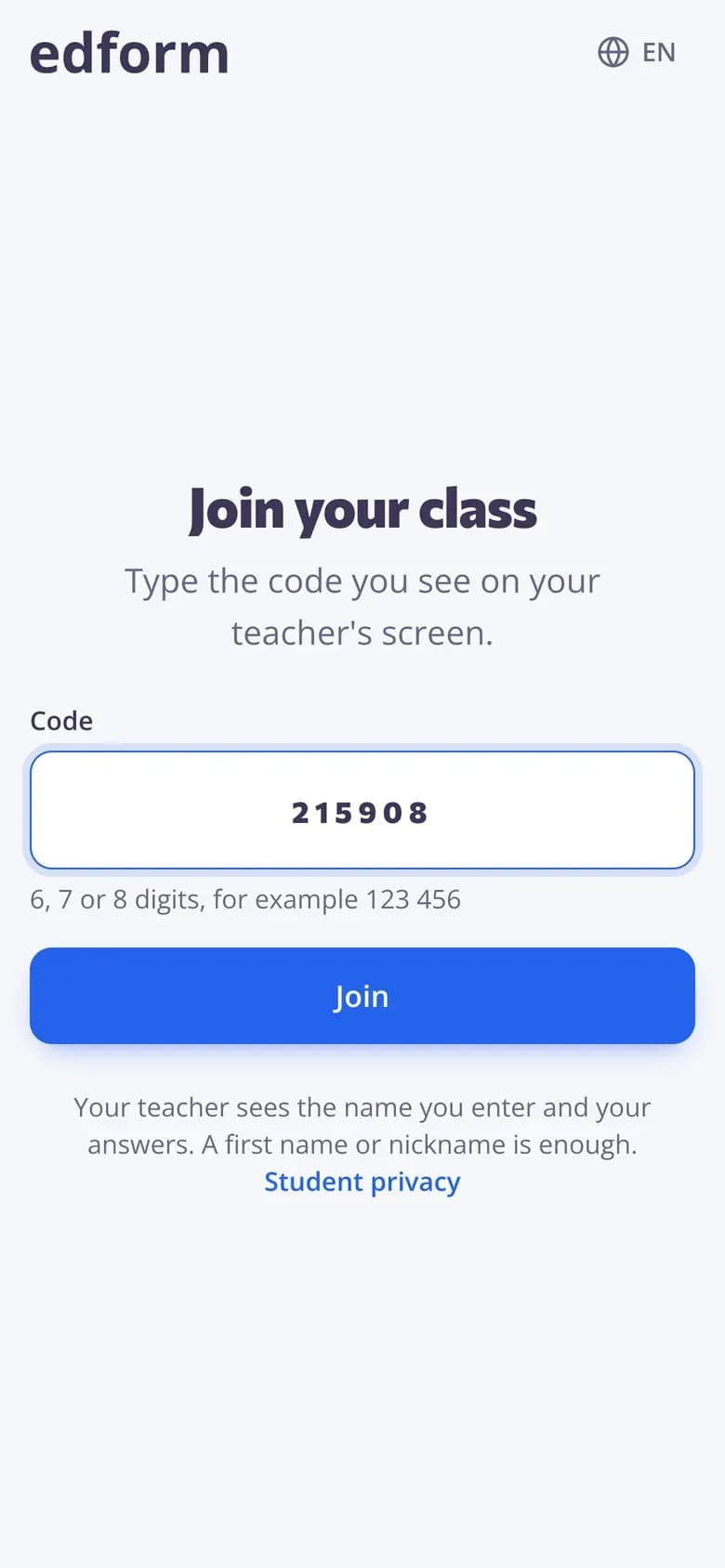
Students scan the QR code or type a short code, enter their name and answer. No app to install and no account to create.
- QR code, link or code
- Phones, tablets and laptops
- Guests or signed-in students
Results you can act on
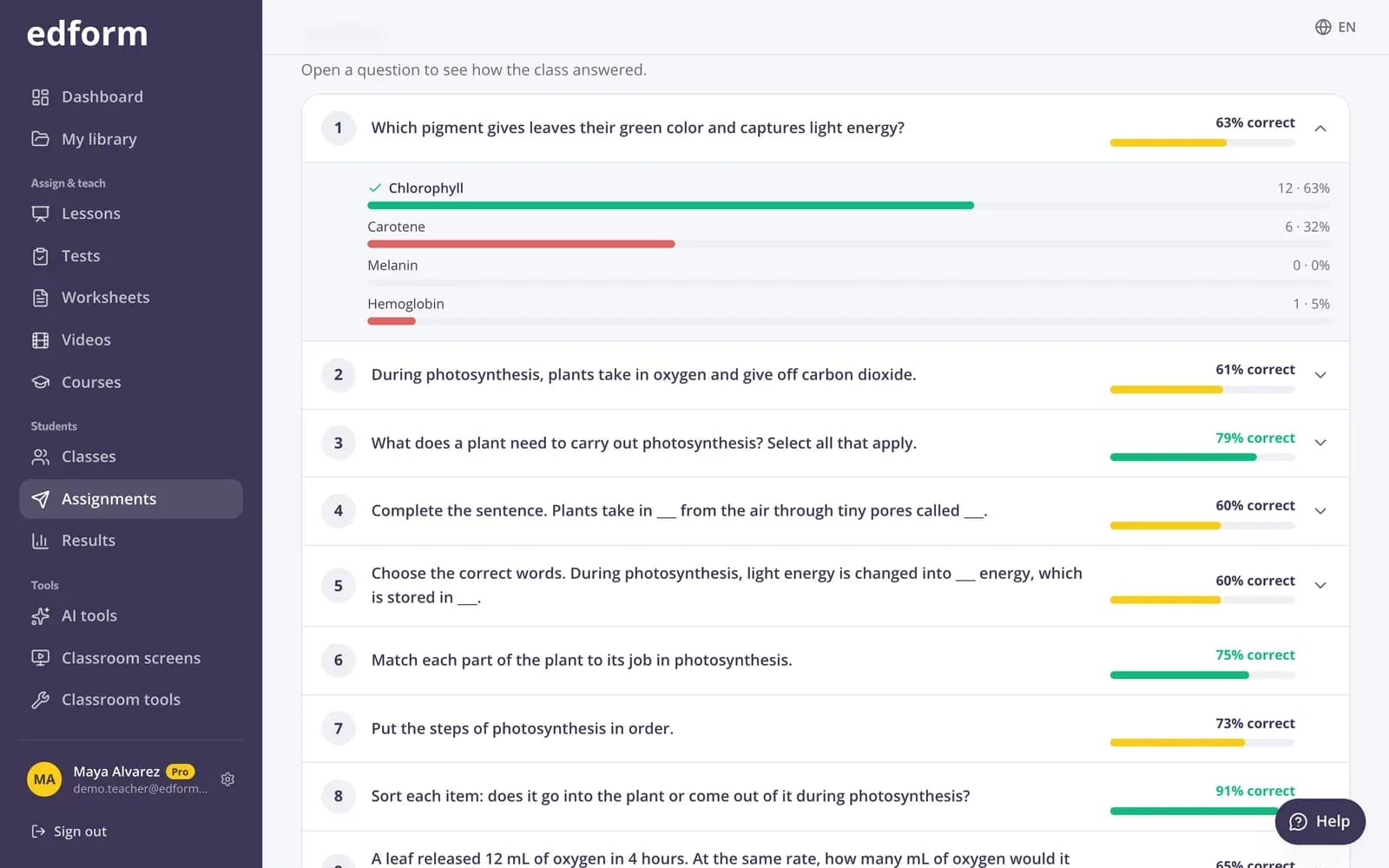
For quiz exit tickets, answer analysis shows how many students chose each option and the most common wrong answers, so tomorrow's warm-up writes itself.
- Percentage correct per question
- Most common wrong answers
- Each student's answers
Everything for a one-minute check
Answer by QR code
Students scan and answer; no accounts, no app.
Any question type
Multiple choice, short answers, number answers or a sentence in their own words.
AI exit tickets
Questions, an answer key and next steps for each group from your lesson objective.
Emoji exit tickets
Classroom screen templates for young classes with simple emoji answers.
End of an interactive lesson
Finish your slides with two questions every student answers live.
Answer analysis
See who's ready and what to revisit, question by question.
Teachers use exit tickets to
- 01
Check the lesson objective
One question that shows whether students can do today's skill.
- 02
Plan tomorrow's groups
Group students by how they answered, not by guesswork.
- 03
Hear how students feel
A poll on how confident they are, or a word cloud of one word about the lesson.
- 04
Pick the next warm-up
Start tomorrow with the question most students missed.
Explore more
- Exit ticketA quick end-of-lesson check with an answer key and next steps for each group.
- Exit ticket screenCollect exit tickets from the board
- Formative assessmentCheck understanding during the lesson, not after the test
- Join with a codeStudents type a code — no account needed
- Live polls & word cloudsStudents answer on their devices, results on your screen
- Quiz makerAuto-graded quizzes, tests and homework
Frequently asked questions
What makes a good exit ticket question?
Ask about the one thing students should be able to do after the lesson, in a form you can read at a glance: a multiple-choice question with tempting wrong answers, a number answer or one sentence in their own words.
How long should an exit ticket take?
One to three minutes. Keep it to one to three questions so students finish before the bell and you can read the results quickly.
Do students need accounts?
No. Students scan the QR code or type the code and their name. If you want results saved to student accounts, limit the quiz to your class.
Can I run exit tickets without student devices?
Yes. The exit ticket widget can count answers in the room: read the options aloud and tally raised hands on the board.
Can AI write exit tickets for me?
Yes. The AI exit ticket tool writes questions with an answer key and suggested next steps for each group from your topic or lesson objective.
What are some exit ticket examples?
Rate your understanding from 1 to 5 on the faces scale. Answer one multiple-choice question on today's skill. Solve one problem like today's with a number answer. Write one thing you learned and one question you still have. Or give one word about the lesson for a word cloud.
How do I use exit ticket results?
Sort students into got it, partly and not yet. Start tomorrow with the question most students missed, work with the not-yet group while the others move on, and give a retake where students fix only their mistakes. For a bigger picture, paste the scores, with initials instead of names, into the AI class results analysis tool.
Can exit tickets help students reflect on their learning?
Yes. Ask students how well they understood with faces or thumbs, then compare it with how they did on a question. Answers can be anonymous, and results stay hidden until you show them, so everyone answers honestly.
Is it free?
Yes. Every feature is free for teachers.
End your next lesson with an exit ticket
Free for teachers. Students answer by QR code in a minute.
- Free for teachers
- No credit card
- Works on any device