


Interactive lessons
Lessons where every student answers
Build slides with questions and polls between them, present live while students answer on their own devices, and see every response before you move on. Or let students go through the lesson at their own pace.
- Present live or assign self-paced
- Questions, polls and word clouds on slides
- Free for teachers
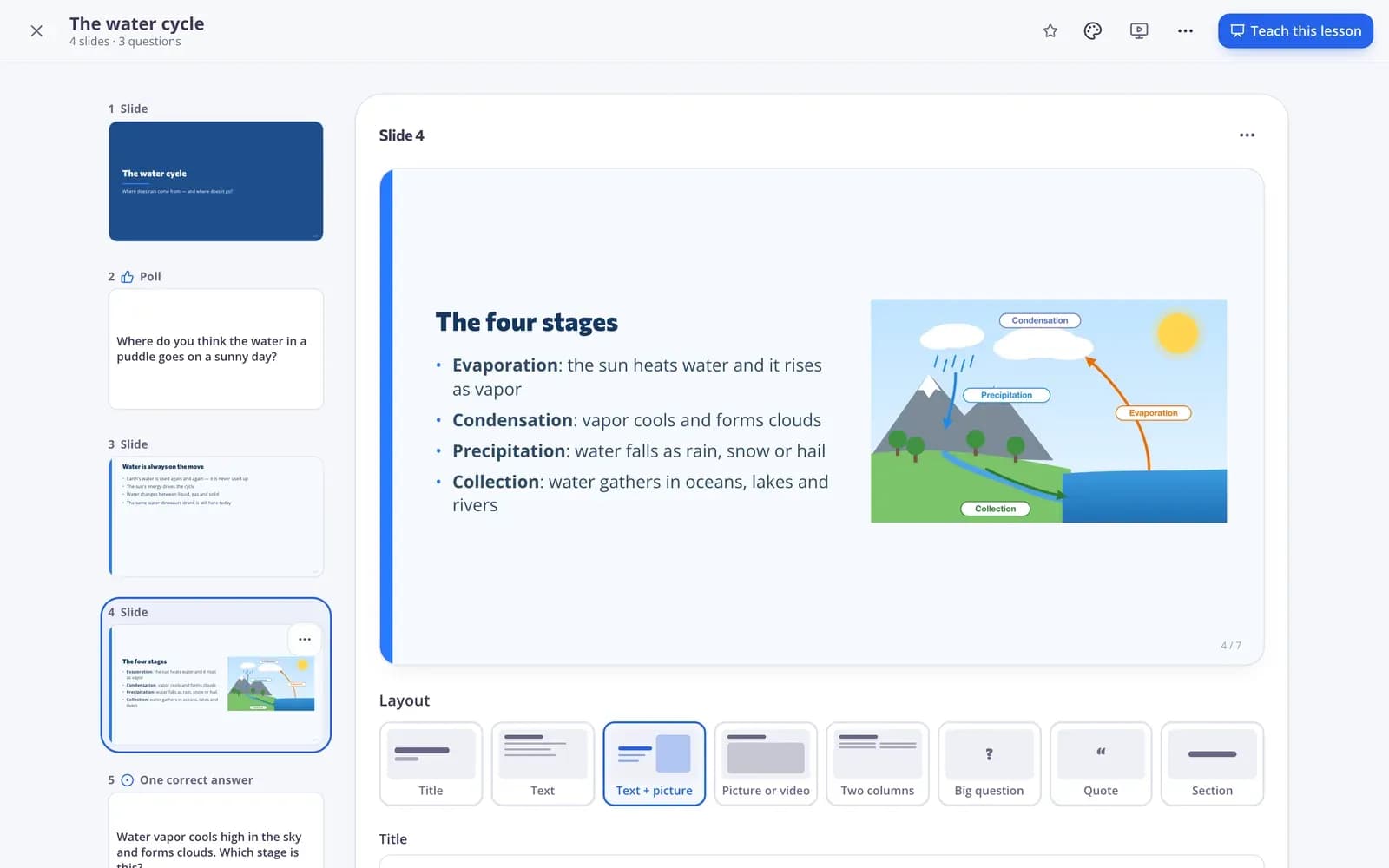
What is an interactive lesson?
An interactive lesson is a slide deck with questions built in, so every student answers — not only the ones who raise a hand. In Edform you create slides with text, images and videos, and add questions, polls and word clouds between them. When you present, students join with a code and answer on their own devices while you see every response, reveal the right answer and decide when to move on. You can also assign the same lesson as self-paced homework, and every answer goes into a report.
Edform at a glance
- Price
- Free for teachers: Basic is free forever, with no credit card, and includes every feature.
- AI tools
- AI teacher tools with 5 AI points a month on Basic and 300 a month on Pro.
- Students
- Students join with a code. They need no email address and no account.
- Grading
- Quizzes and worksheets are graded automatically, with results per student and per question.
- Devices
- Runs in the browser on laptops, tablets, phones and interactive boards. Nothing to install.
- Languages
- Available in 32 languages.
- Works with
- Google Classroom, Microsoft Teams, ClassLink and learning platforms that support LTI 1.3.
- Library
- A free library of ready-made quizzes, worksheets and lessons that teachers can copy and edit.
How to run an interactive lesson
- 1
Build your slides
Pick a layout, add text, pictures or a video, and drop questions from your quizzes between slides — or let AI write the whole deck.
- 2
Present it live
Start the lesson; students join with a code or QR. You control what's on every screen.
- 3
See every answer
Watch responses come in, reveal the answer, ask again, and check the report afterwards.
Try it yourself
Join a live lesson
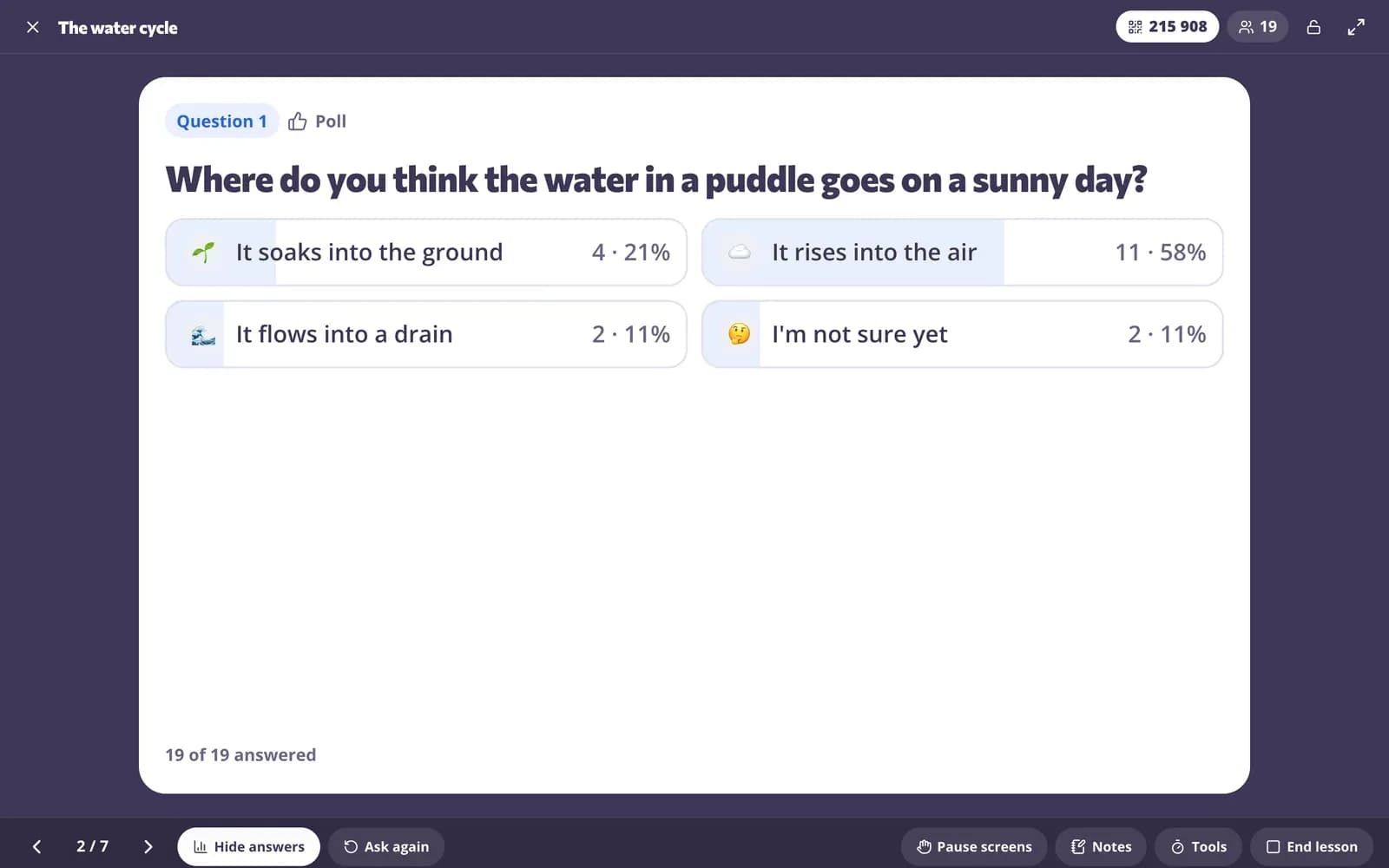
You're a student in a live lesson. Answer the question and see what the class said.
You lead, every screen follows
Present from your computer while students follow on theirs. Show responses, reveal the right answer, ask again, pause all screens when you need attention, and use a timer or name picker without leaving the lesson.
- Join card with code and QR
- Show responses and reveal answers
- Pause screens and lock the lesson
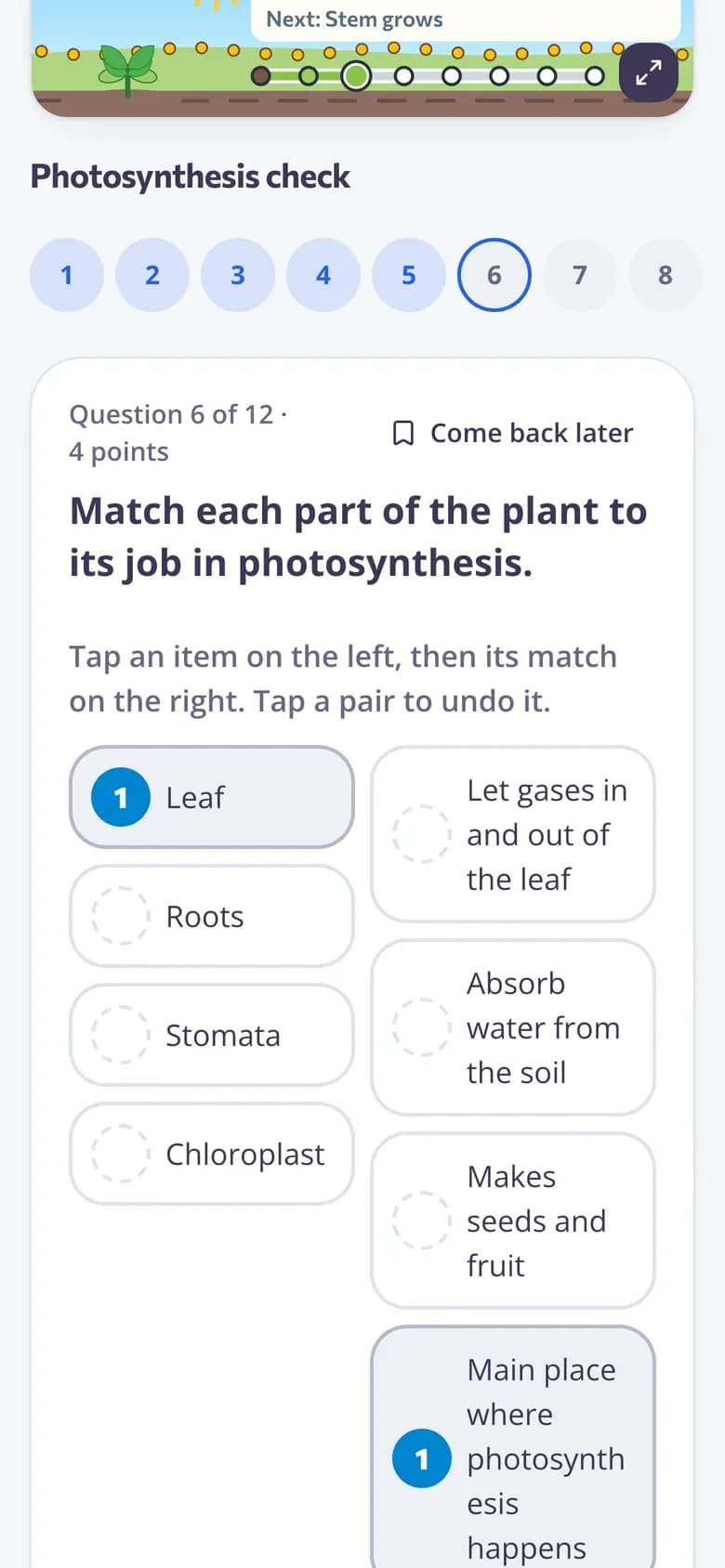
Or let students go at their own pace
Assign the same lesson as homework. Students move through the slides and answer the questions in their own time — perfect for flipped classrooms and students who missed class.
- Self-paced on any device
- Answers saved as they go
- Same lesson, no copying
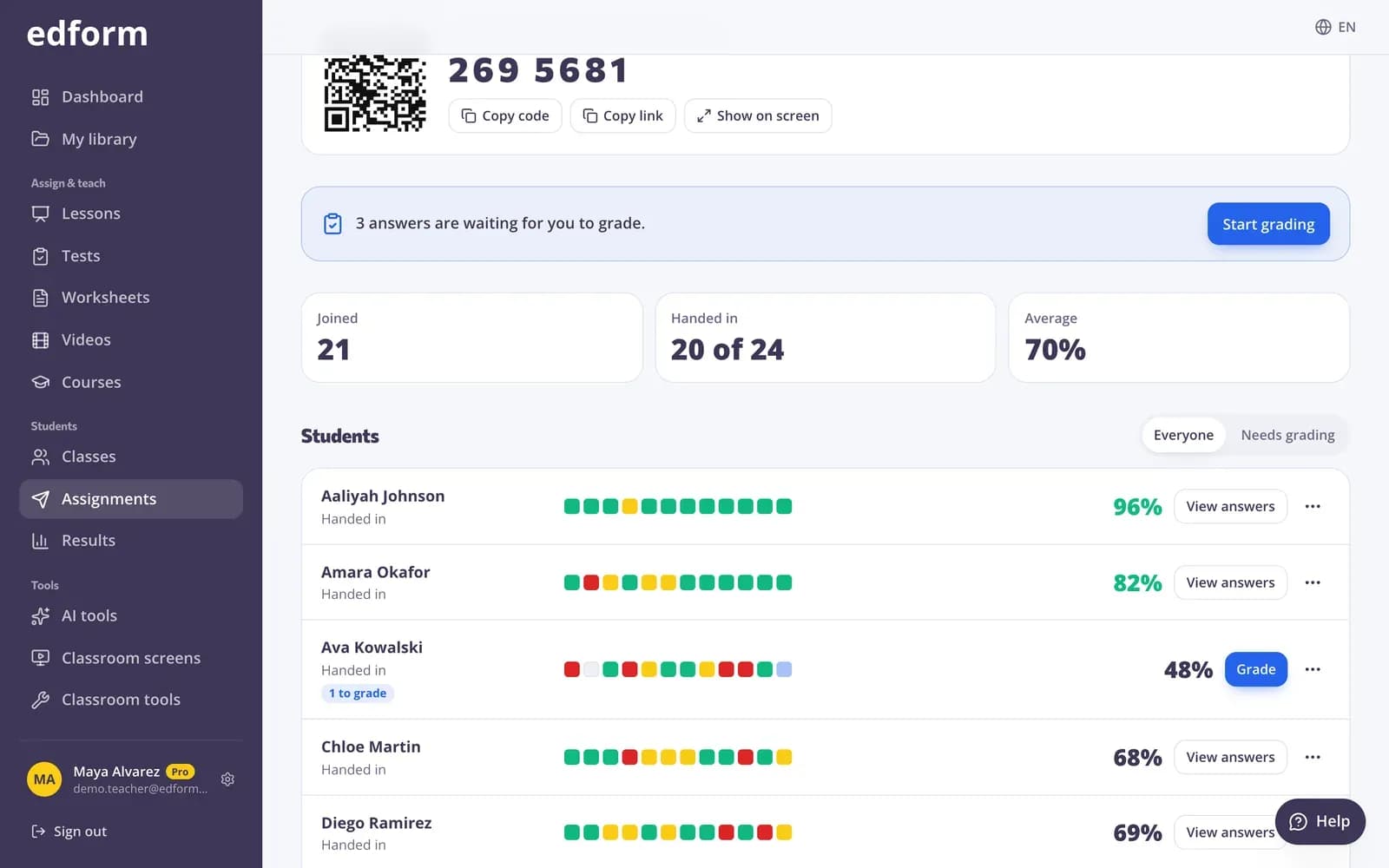
A report for every lesson
See who joined, what each student answered and how the class did on every question — live during the lesson and afterwards.
- Live dashboard while you teach
- Per-student answers
- Results next to your other reports
Everything you need to teach with slides
Slide layouts and themes
Nine layouts (including a historical figure students chat with), ready-made themes, pictures, YouTube or Vimeo videos and speaker notes.
AI writes the deck
Describe the lesson and AI drafts the slides for you to edit — in the language you teach in.
Polls and word clouds
Ask how confident students feel or collect ideas in a word cloud, right inside the lesson.
Reveal and ask again
Show the class's answers, reveal the right one and ask the question again if they need another go.
Pause and lock screens
Freeze every student screen when you need their eyes on you, and lock the lesson when it's over.
Self-paced homework
Assign the lesson to do at home; questions are graded just like in a quiz.
Teachers use interactive lessons for
- 01
Introducing a new topic
Mix explanation with quick checks so you know who's following before moving on.
- 02
Flipped classroom
Students go through the lesson at home; class time goes to practice and questions.
- 03
Students who missed class
Share the same lesson self-paced so absent students catch up.
- 04
Discussions
Open with a poll or word cloud and build the discussion on real answers.
Explore more
- Live polls & word cloudsStudents answer on their devices, results on your screen
- PresentationLesson slides from any topic or material, ready to show full screen or download.
- Video lessonsQuestions inside any video
- Flipped classroomVideo and lessons at home, practice and games in class
- Classroom screenTimers, name pickers and more on the board
- Lesson planA full lesson plan with aims, timed stages, activities, assessment and homework.
Frequently asked questions
How do students join an interactive lesson?
Start the lesson and show the join card. Students type the code or scan the QR code on any device and type their name — no account needed.
Can I use questions I already made?
Yes. Add questions from your quizzes to any lesson, or turn a whole quiz into a lesson with one click.
Can AI create the slides?
Yes. Use “Create with AI” in the lesson builder or the AI presentation tool, then edit the slides like any others.
Are there ready-made interactive lessons?
Yes. Teachers share lessons in the community library. Filter by subject and grade, preview a lesson and press Use this to copy it into your account, then change the slides and questions to fit your class.
Can I present without students joining?
Yes. Present the lesson on the projector only, like a normal slide deck.
Can students do the lesson on their own?
Yes. Assign it as homework and students go through it at their own pace.
Do interactive lessons work for every grade?
Yes. For younger students, keep slides short and use pictures, polls and one-tap questions. For older students, add open answers, ordering or matching and use the answers to start a discussion. Every question type you use in quizzes works in a lesson.
Is it free?
Yes, interactive lessons are free for teachers.
Can students do a lesson from Google Classroom?
Yes. Give the lesson as homework so students go through it at their own pace, then press Share to Classroom: Google Classroom's share window opens with the title, the link and the join code filled in, so you pick the class and post.
Google Classroom is a trademark of Google LLC. Microsoft and Microsoft Teams are trademarks of the Microsoft group of companies.
Teach your next lesson interactively
Build it in minutes or let AI draft it — free for teachers.
- Free for teachers
- No credit card
- Works on any device