


Create a lesson
Step 1: Press “New lesson”
Choose “Lessons” in the menu, or “Make a lesson” on the dashboard. Press “New lesson” and type the “Lesson name”.
Step 2: Choose “Create with AI” or “Start empty”
With “Create with AI”, describe the “Topic or material”, choose how many “Slides” and “Questions” and the “Kinds of questions”, then press “Create”. It takes about a minute. “Start empty” opens an empty lesson.
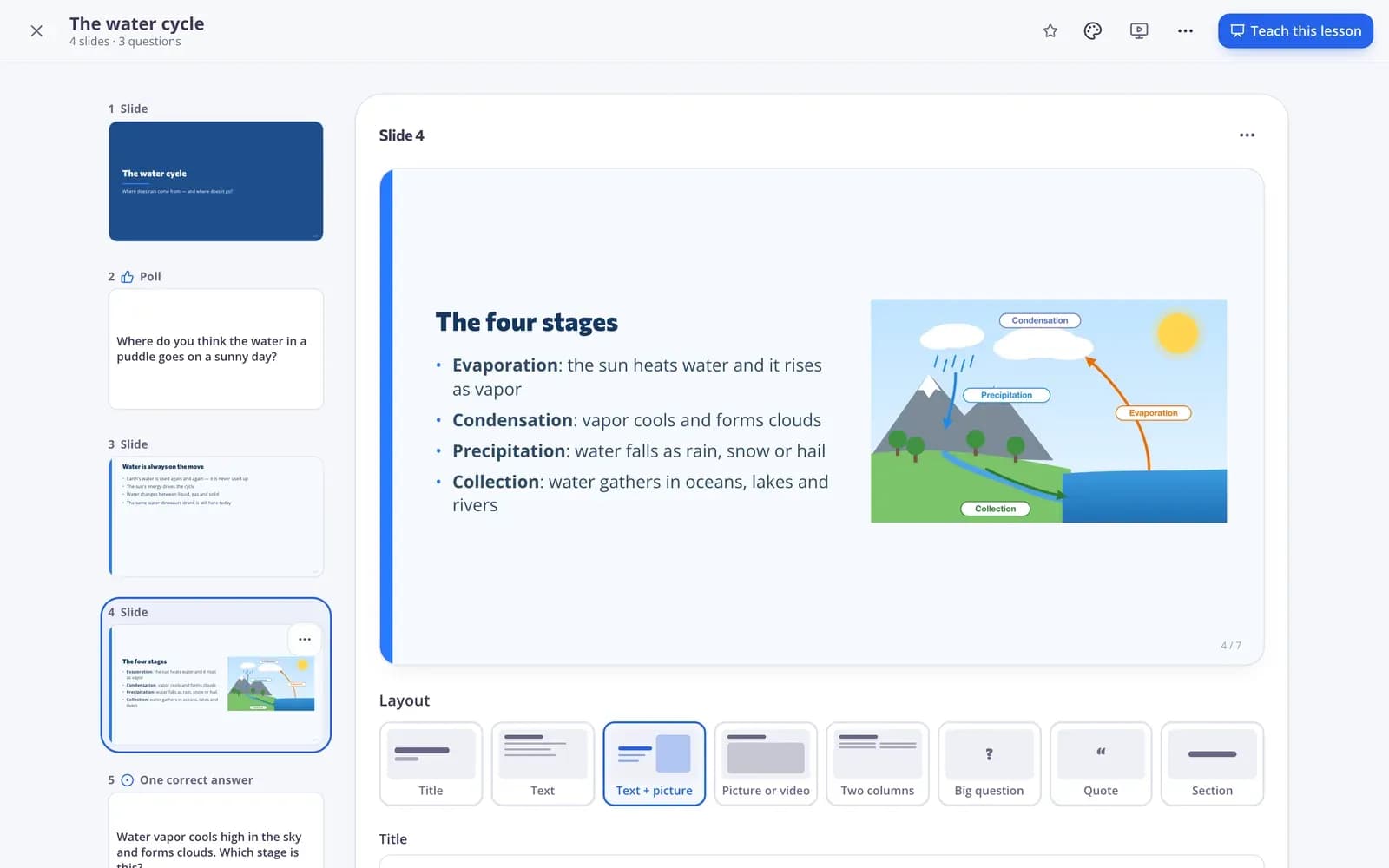
Add slides and questions
Step 1: Open the “Add” menu
Choose “Add slide” for text, a picture or a video, “Add question” for a quiz question, poll, word cloud and more, “Create with AI” for more slides and questions, or “Questions I already made” to copy questions from your tests, worksheets, lessons and videos.
Step 2: Fill in the slide
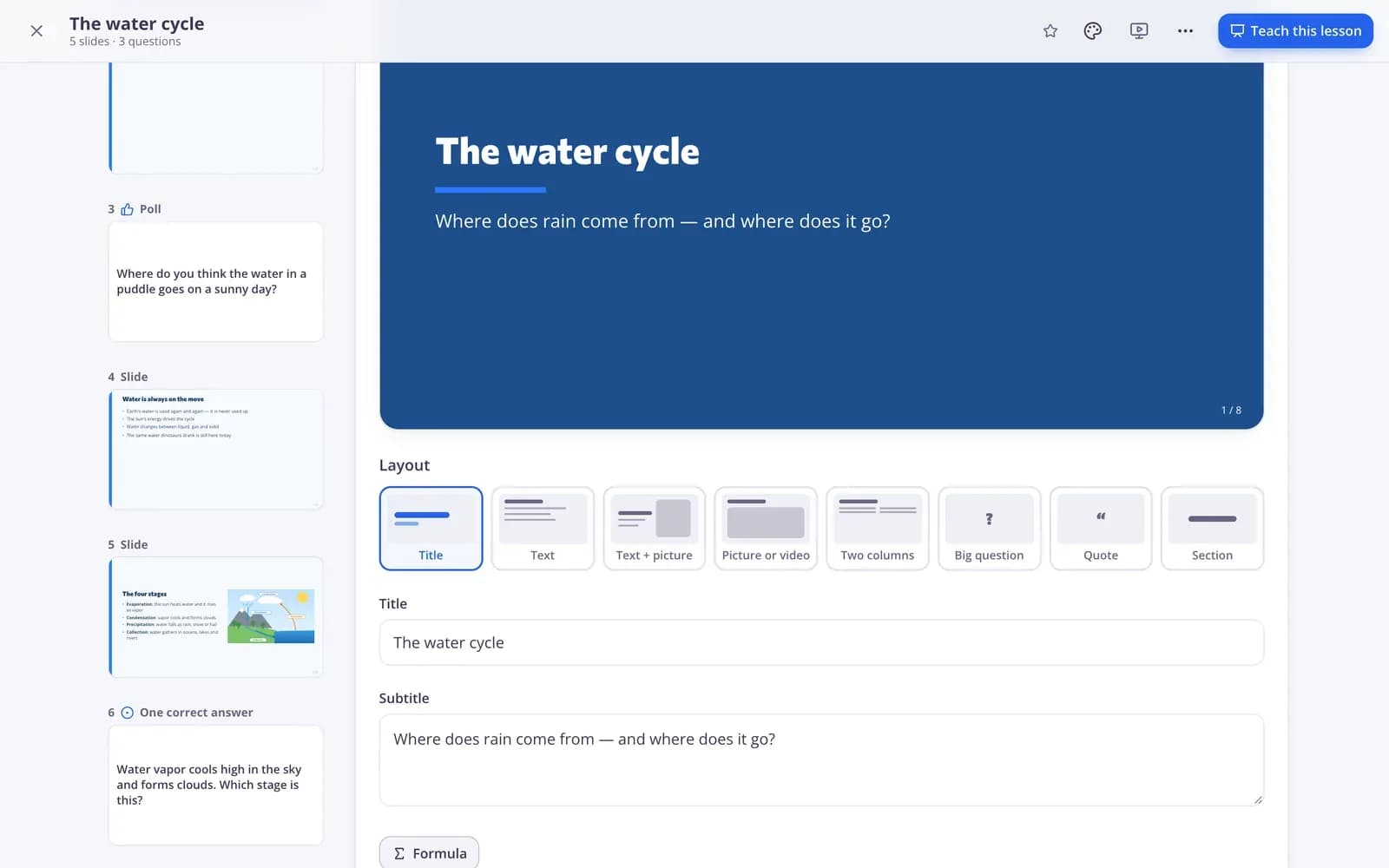
Pick a “Layout”, such as “Title”, “Text”, “Text + picture” or “Picture or video”, and type the “Title” and “Text”. Add a picture with “Upload picture” or “Use a link”, or paste a “YouTube or Vimeo link” on a “Picture or video” slide. On a “Historical figure” slide, press “Choose a figure” and write a “Task for students”: students chat with the figure right on the slide. “Your notes” are only for you while teaching. For math, click in the title or text and press “Formula” to build a fraction, power or root; it shows typeset on the slide.
Step 3: Write a question
Pick the question type, write the question and answers and press “Save question”. The “Explanation” is shown to students when you reveal the answer.
Step 4: Arrange the lesson and pick a design
Use the “…” menu next to a slide or question to move, duplicate or delete it. Choose a look under “Design”, such as “Classic”, “Chalkboard” or “Minimal”. Slides save by themselves.
Teach the lesson live
Step 1: Press “Teach”
“Teach this lesson” shows the ways to use it. Choose “Live, on students' devices”.
Step 2: Choose who can join and press “Start”
Under “Who can join?”, choose “Anyone” (no accounts needed), “Signed in” or “One class”. With “Anyone”, turn off “Ask students for their name” for anonymous answers.
Step 3: Show the code and start
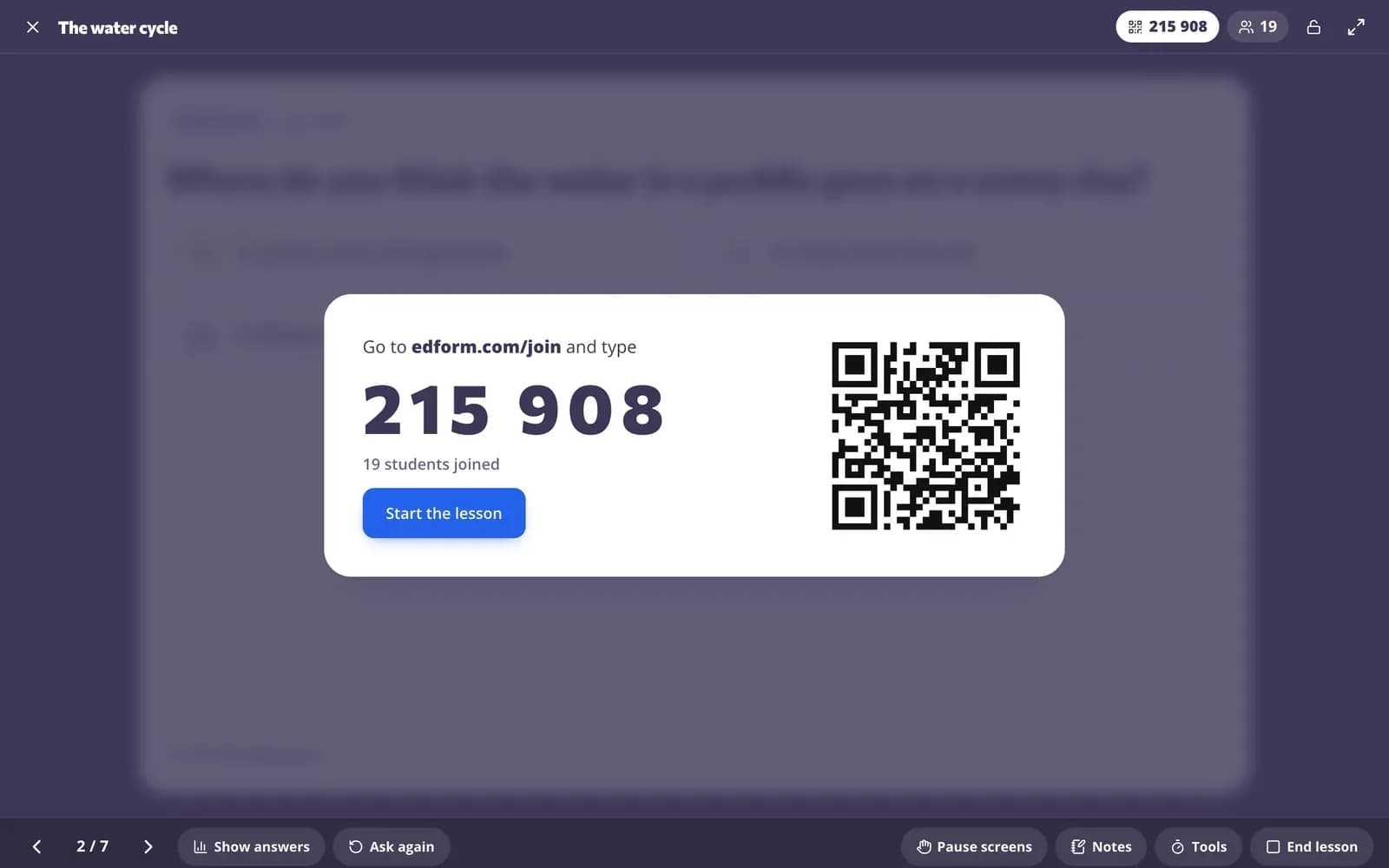
Students go to the join page and type the code shown on your screen, or scan the QR code. When they have joined, press “Start the lesson”.
Step 4: Move through the slides and questions
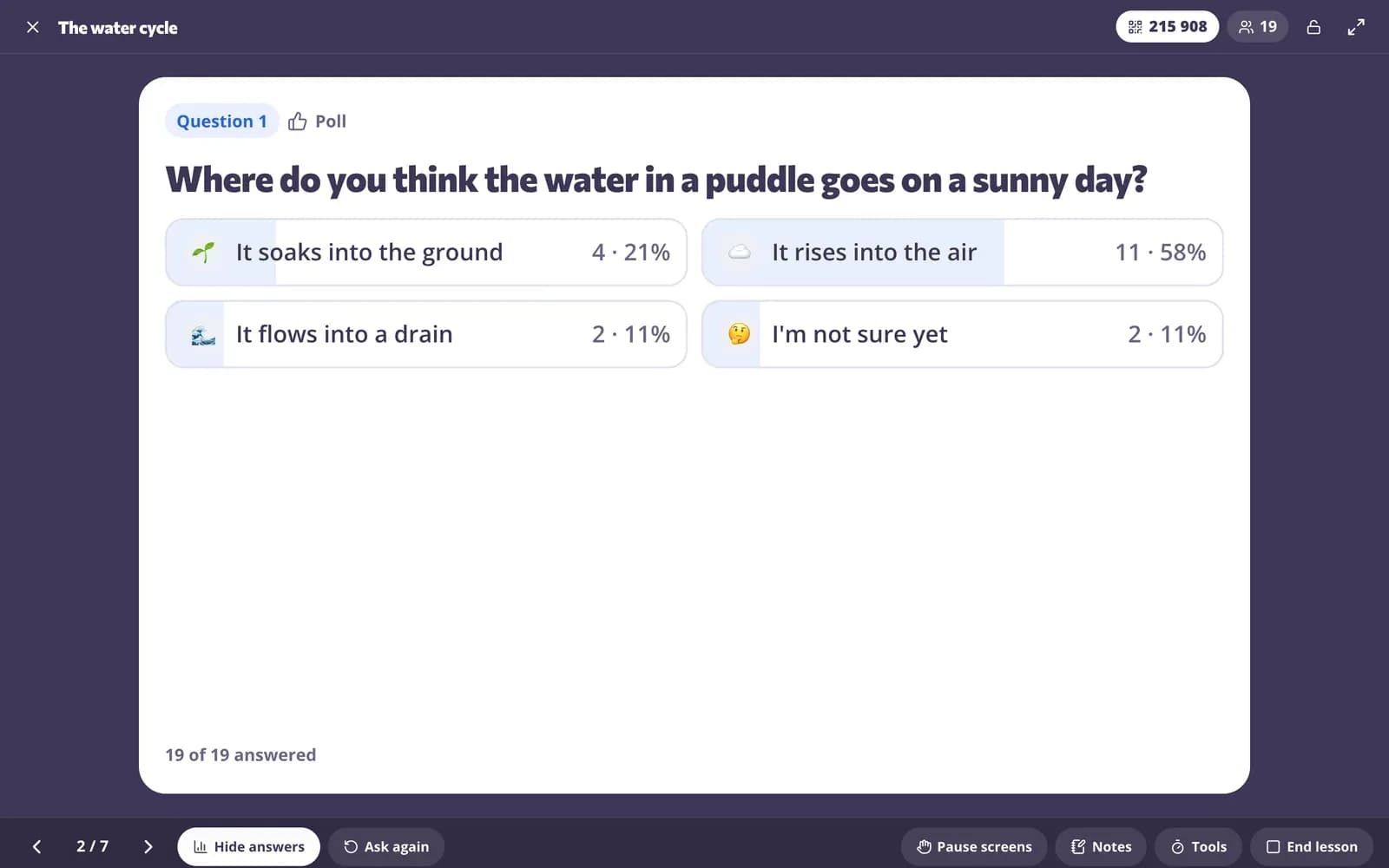
Press “Next” to move on. On a question you see how many students answered; press “Show answers” and “Reveal correct answer”, or “Ask again”. “Pause screens” gets everyone's eyes back on you, and “Notes” and “Tools” (timer and name picker) are always at hand.
Step 5: End the lesson
Press “End lesson”. “How did it go?” shows every student's answers, and you can give the lesson as homework from there.
Other ways to use a lesson
Step 1: Show it on the board
“Show on the board” presents the slides and questions full screen without student devices, and you reveal the answers yourself.
Step 2: Give it as homework
“Homework, at their own pace” lets students go through the slides and questions with a code or link. You set the deadline and see the results.
Step 3: Print it
“Print” puts the slides and questions on paper. Choose “Add my notes”, “Add the answers” and how many slides per page.
Questions
Can I turn a test into a lesson?
Yes. Open the test, press “Use with class” and choose “Make it a lesson”. Its questions are copied into a new lesson where you add slides between them.
Do students need accounts for a live lesson?
No. With “Anyone”, students only type the code on the join page. Choose “Signed in” or “One class” if you want answers saved to their accounts.
Can I stop new students from joining?
Yes. While teaching, use “Close the lesson to new students”. You can also remove a student from the lesson.
Can I play a lesson's questions as a game?
Yes. Under “Play the questions as a game” on the “Teach this lesson” page, its questions work in every game, just like a test.
Related
- Interactive lessonsSlides with live questions and polls
- Live raceRun a live race: students join with a code and race on your screen at their own pace.
- Live polls & word cloudsStudents answer on their devices, results on your screen
- PresentationLesson slides from any topic or material, ready to show full screen or download.
- Flipped classroomVideo and lessons at home, practice and games in class