Online gradebook
A gradebook that fills itself in
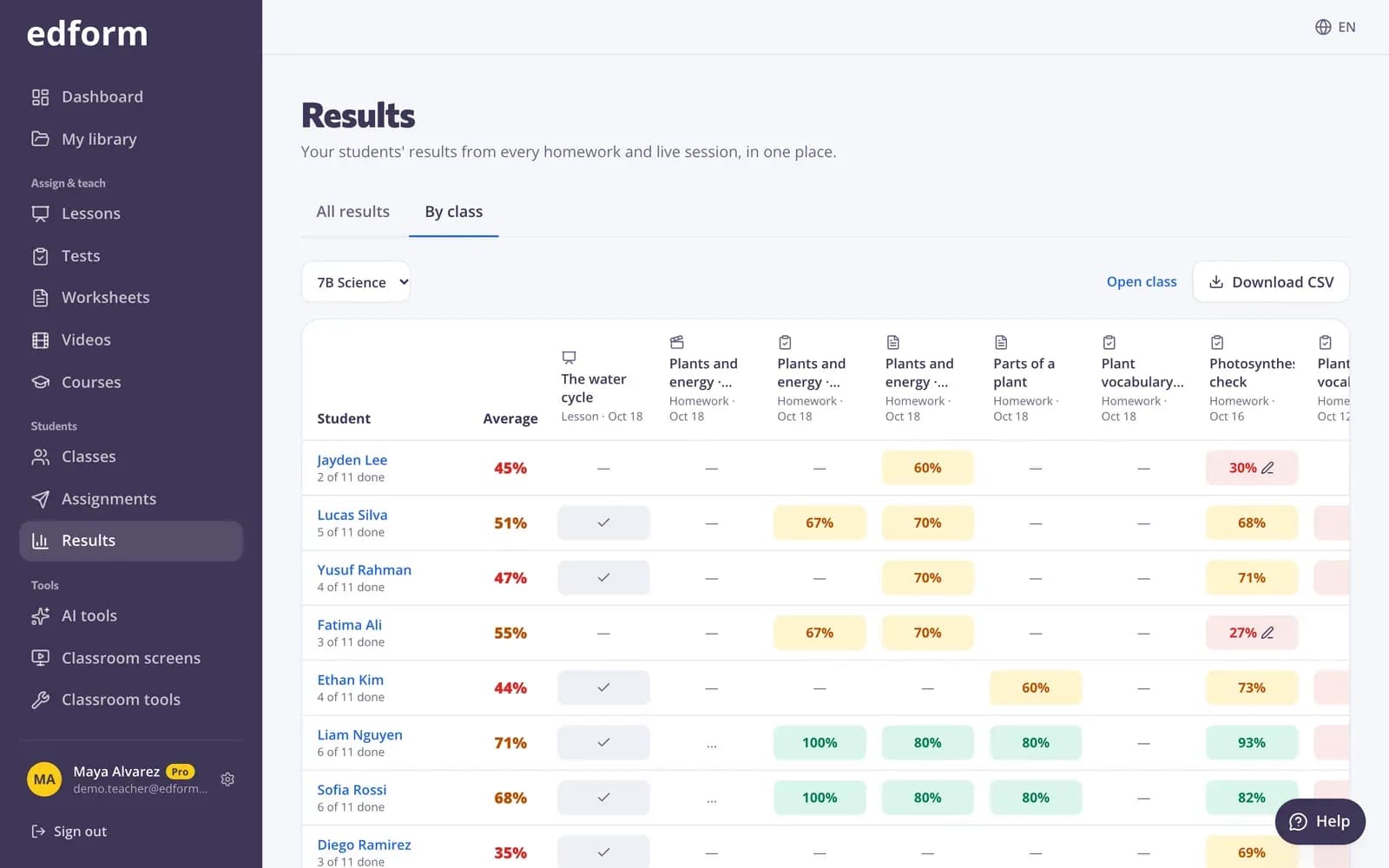
Every quiz, worksheet, lesson and video you give lands in one place. See each class as students × assignments, open any student's full history, and download it all as CSV.
- Scores filled in automatically
- Homework and live sessions together
- Free for teachers
What is the Edform gradebook?
The gradebook is the By class view of Results. Each row is a student of the class and each column is a homework or live session you gave that class: tests, worksheets, lessons, video lessons, course homework, live races, taught lessons and team games. A cell shows the student's best score in percent, or that they started, haven't started yet or are waiting for your grading. Edform fills it in as students hand in — auto-graded answers right away, open answers once you grade them. Click a student to see every result they have, and download the gradebook as CSV.
How to use the gradebook
- 1
Give work to a class
Choose one of your classes when you assign homework, start a live session or give a course.
- 2
Open Results → By class
Pick the class. Students appear in rows and everything you gave them in columns, newest first.
- 3
Drill down or download
Open a student's page for their full history, a column for its report, or download the gradebook as CSV.
Try it yourself
No sign-up needed — try it as a student
This is the real Edform player. Answer the questions and see how they're checked.
One page per student
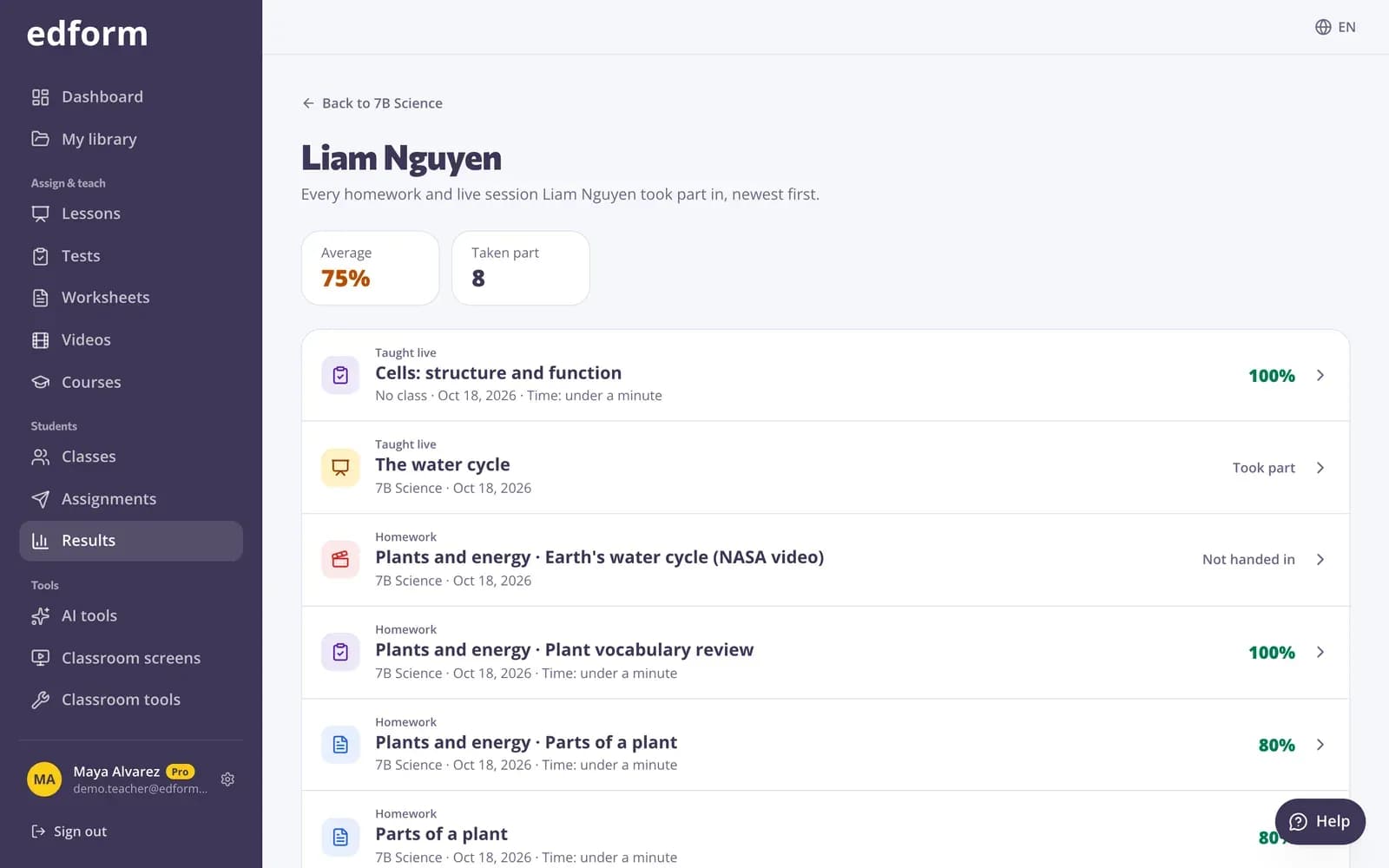
Every homework and live session a student took part in, newest first, with average score, attempts, time spent and answers still to grade.
- Average and number taken part
- Attempts and time per task
- Open answers or the report
Grading in the same flow
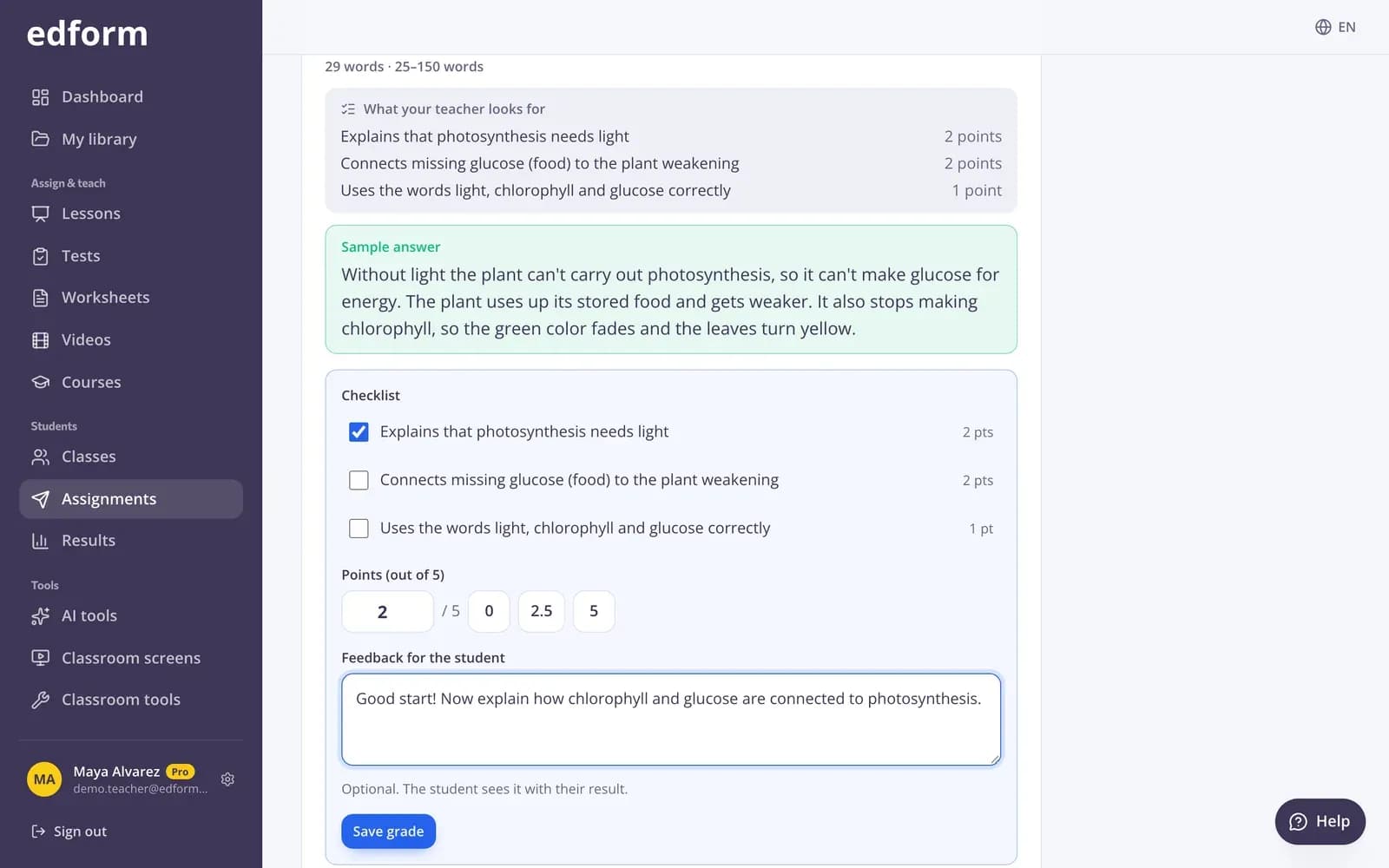
Cells waiting for your grading are marked. Grade open answers with a rubric checklist and feedback, and the gradebook updates.
- To grade filter in Results
- Rubric and feedback
- Score updates at once
Courses included
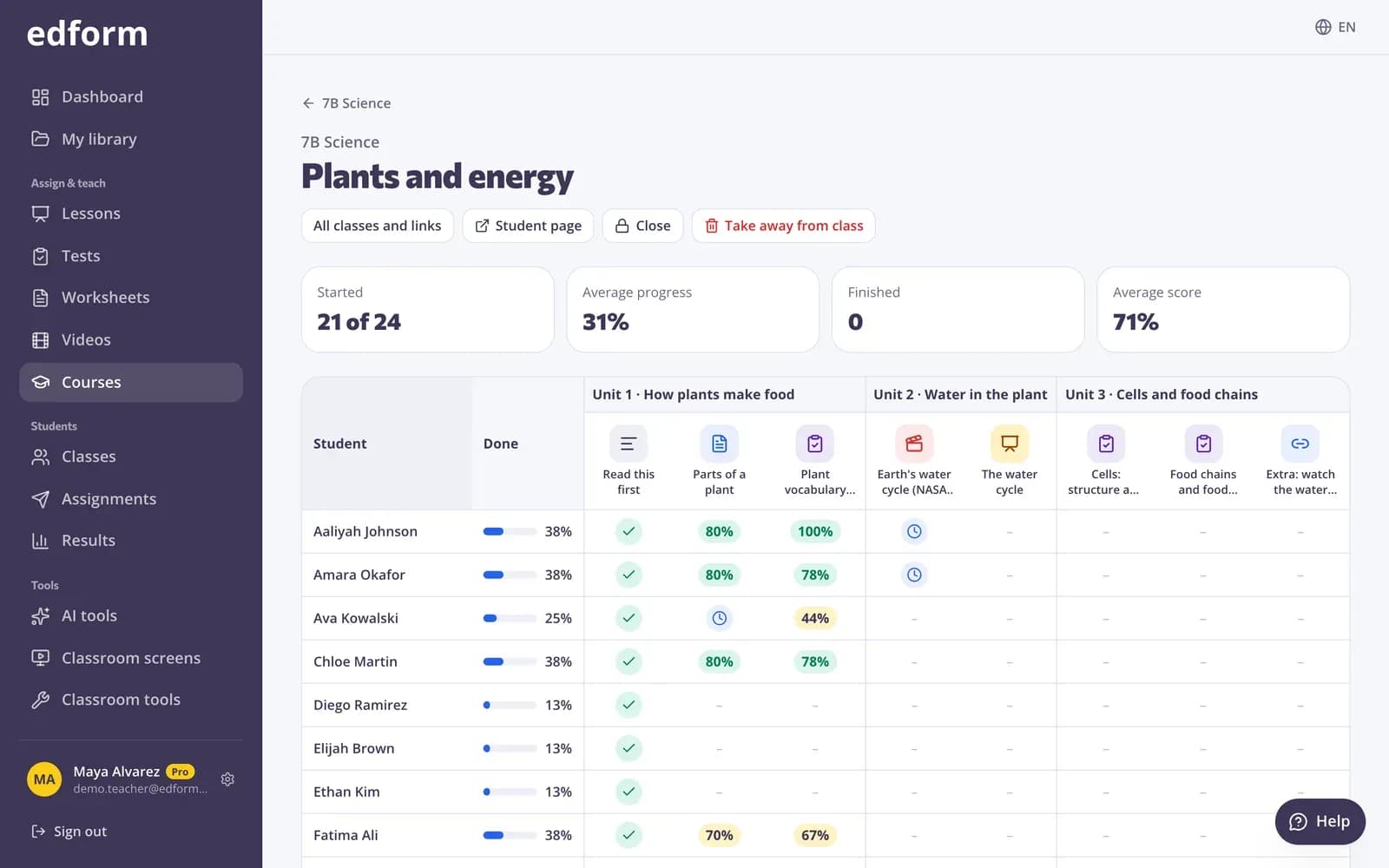
Quizzes inside an online course are ordinary homework, so they show up in the gradebook, and the course has its own progress table too.
- Course homework in the gradebook
- Progress per unit
- Best score per quiz
What's in the gradebook
Students × assignments
Best score in percent for every student and every homework or live session of the class.
Student pages
Everything one student did, with average, attempts and time — handy for parent meetings.
Waiting for grading
See which answers still need you, and filter Results to what's left to grade.
Live sessions too
Live races, taught lessons, live quizzes and team games count next to homework.
Course homework
Quizzes in your online courses appear with the course name.
CSV download
Download the gradebook with averages for your school system or spreadsheet.
Teachers use the gradebook for
- 01
End of term grades
Every score of the term in one table, ready to download.
- 02
Parent meetings
Open a student's page and walk through their results.
- 03
Spotting who fell behind
Empty and started cells show who hasn't finished at a glance.
- 04
Weekly check-in
Grade what's waiting and see the class average move.
Explore more
- Quiz reportsScores per student, per question and common wrong answers
- Auto-gradingClosed answers checked the moment students hand in
- Rubric gradingGrade open answers with a checklist and feedback
- Online homeworkGive homework with a code and a deadline
- Online coursesUnits of your materials, given to a class or by one link
- Grade calculatorTest points to percentage and grade on your scale, plus averages and percentages.
Frequently asked questions
Do I have to enter scores by hand?
No. Scores appear as students hand in. Auto-graded questions count at once; open answers count when you grade them.
Which score does the gradebook show?
The student's best score in percent for each homework or live session. The homework report shows every attempt.
Does it include live games and lessons?
Yes. Live races, taught lessons, live quizzes and team games given to a class are columns next to homework.
Can I export the gradebook?
Yes. Download CSV gives every student, every column and their average, ready for a spreadsheet.
Do students need accounts?
To appear in a class gradebook students need to be in the class. You can add students without email: Edform makes usernames and passwords you can print.
Is it free?
Yes. Results and the gradebook are on the free Basic plan.
Let the gradebook fill itself
Free for teachers. Give work to a class and the scores appear.
- Free for teachers
- No credit card
- Works on any device