Online courses
Turn your materials into an online course
Put your quizzes, worksheets, lessons, videos, notes and files in order, unit by unit. Give the course to a class or share one link, and see how far every student has got.
- Built from materials you already made
- Class, link, code or QR
- Free for teachers
What is an online course on Edform?
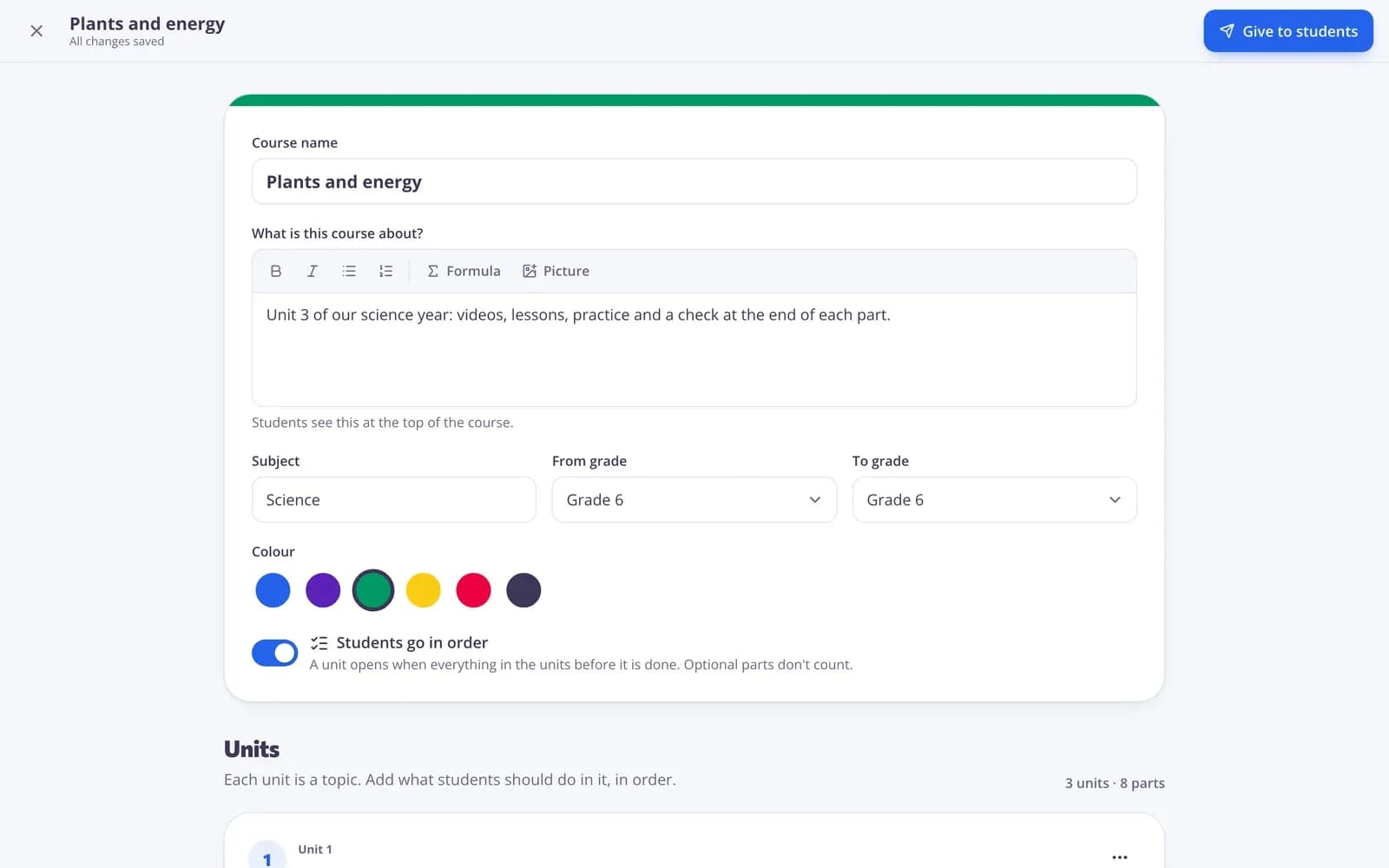
An online course is a path through your own teaching materials. You make units — one per topic or week — and add the tests, worksheets, lessons, video lessons, AI materials and classroom screens you already have, plus your own text, links and files. Nothing is copied: the course points at your materials. Then you give it to a class or open a link that anyone can join with a code. Students see one Continue button that takes them to the next part, quizzes are graded automatically, and you see progress for every student and every part in one table.
How to build an online course
- 1
Make units
Open Courses, choose New course and add a unit for each topic or week. Rename, move or add a short note for students.
- 2
Add your materials
Pick tests, worksheets, lessons, videos and other materials from My library — several at once — or add text, a link or a file.
- 3
Give it to students
Choose Give to students: give it to a class, or turn on an open link with a code and QR code that anyone can join.
Try it yourself
No sign-up needed — try it as a student
This is the real Edform player. Answer the questions and see how they're checked.
One clear path for students
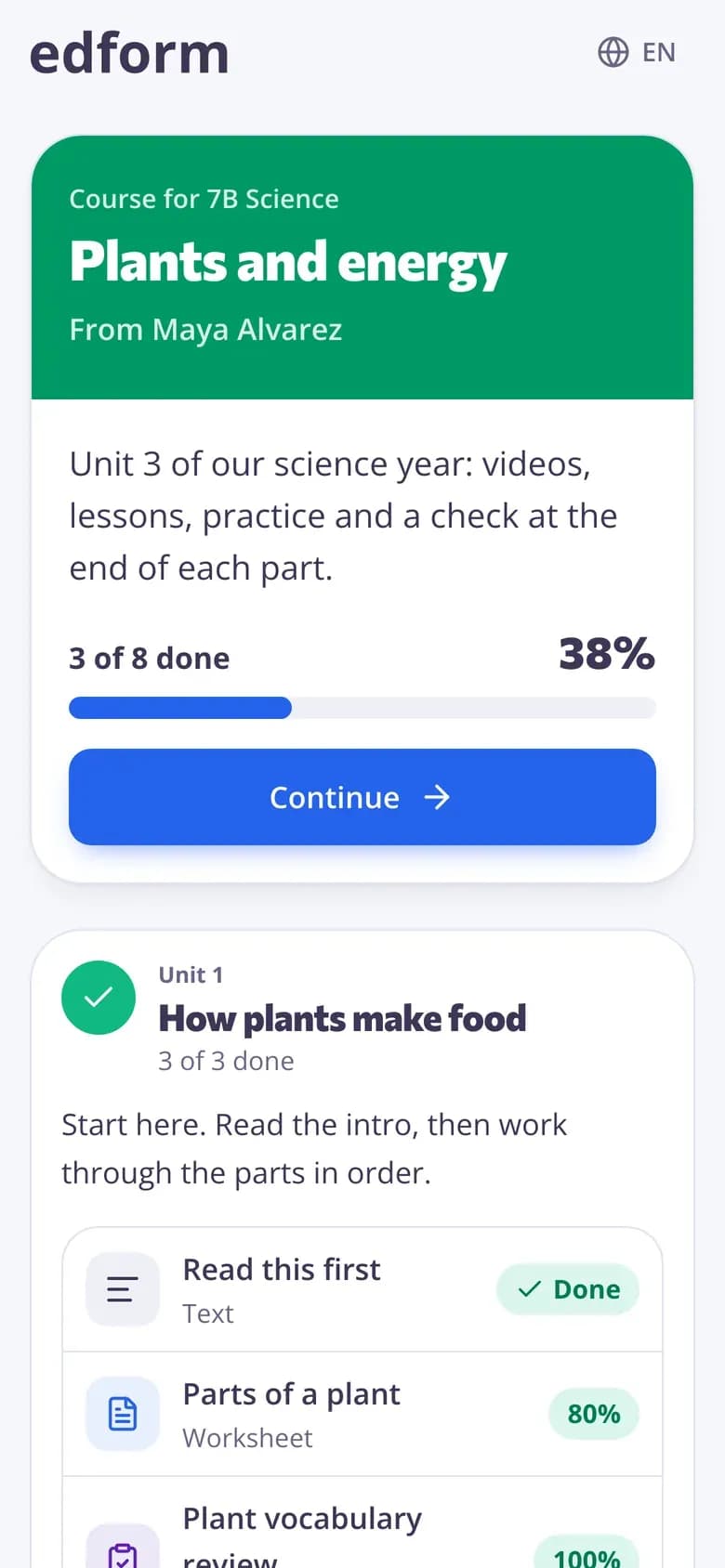
Students open the course on any device and see a progress bar, every unit and one button to the next part. Quizzes and worksheets open in the normal player and count as done when they hand in.
- Start or Continue to the next part
- Mark readings, links and files as done
- Units can unlock in order
See every student's progress
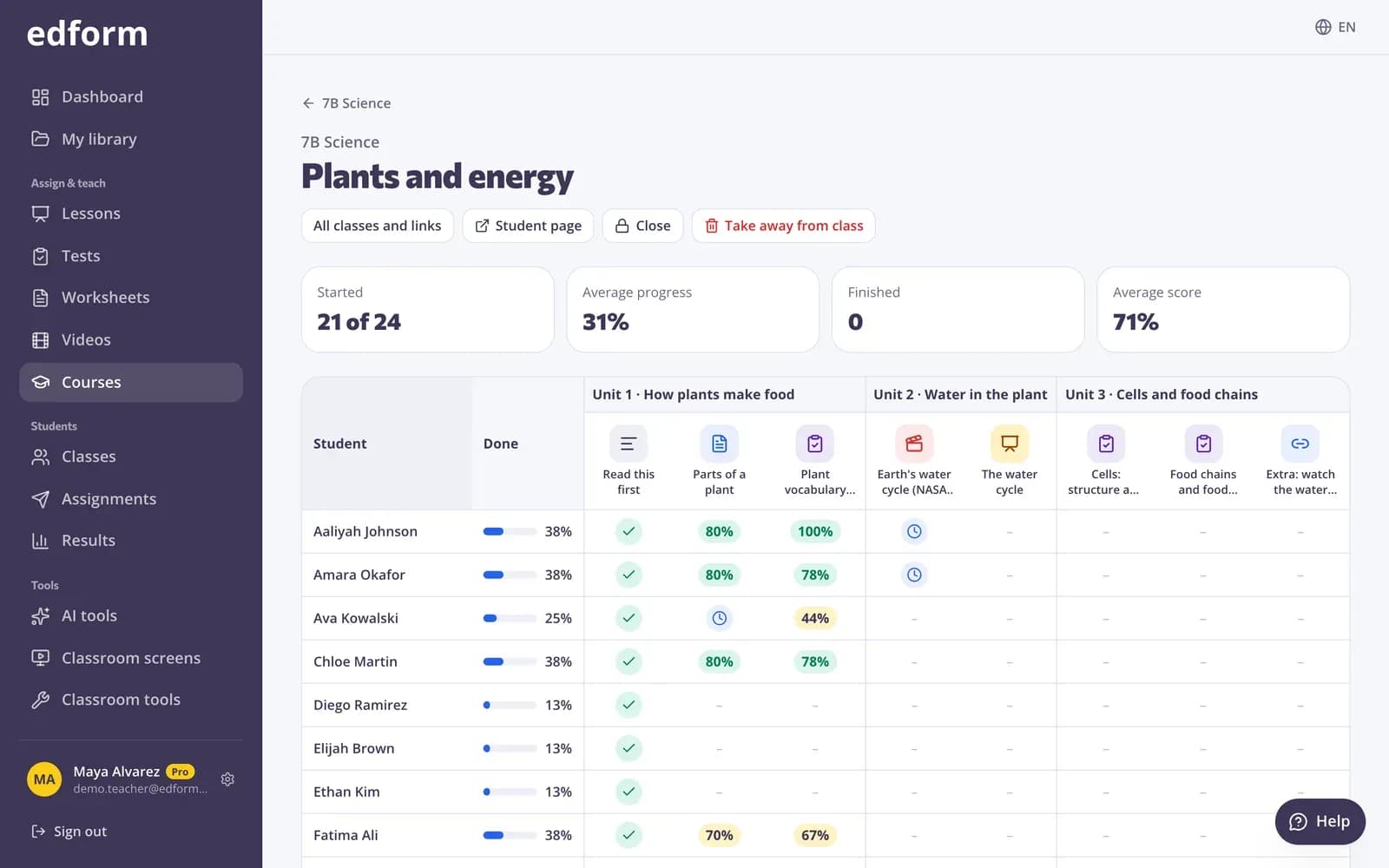
The progress table shows each student against each part of the course, grouped by unit: done, best score, started or waiting for your grading.
- Percent done per student
- Best score on every quiz
- Open any homework report
Results land in your gradebook
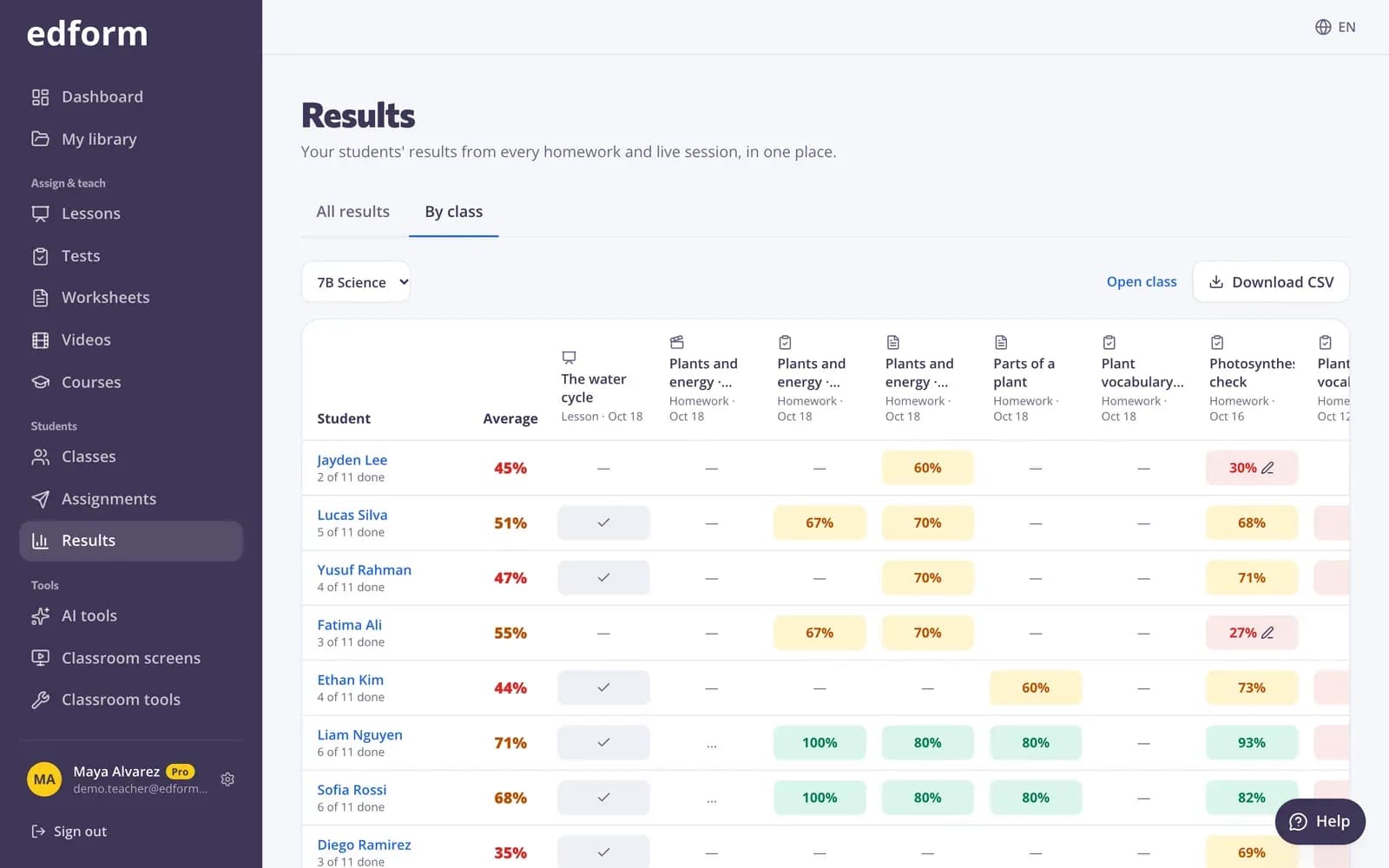
Every quiz in a course is ordinary homework, so its results also appear in Results and in the class gradebook next to the rest of your work.
- Auto-graded quizzes
- Open answers in your grading queue
- CSV download from the gradebook
Everything a course needs
Units and parts
Group your materials by topic or week, move parts between units and mark some as optional.
Students go in order
Turn it on and a unit opens only when every part of the units before it is done.
Link, code and QR
Share an open link with an 8-digit code: anyone with a name can join, or only students with an account.
Your own text, links and files
Add a reading, a YouTube link that plays inside the course, or a PDF, picture or audio file.
Progress per student
Started, average progress, finished and average score at the top; every student and part below.
Give to a whole class
Class members see the course on their student home, and the class page shows its progress.
Teachers use online courses for
- 01
A unit of work
Everything for one topic in order: the video, the lesson, the practice and the test.
- 02
Self-paced learning
Students work through at their own speed while you help the ones who are stuck.
- 03
Summer and catch-up work
One link with everything a student needs to catch up, and progress you can check.
- 04
Tutoring and homeschool
A clear path for each learner, with scores you can show to parents.
Explore more
- Quiz makerAuto-graded quizzes, tests and homework
- Interactive worksheetsTurn any PDF into an online worksheet
- Interactive lessonsSlides with live questions and polls
- Video lessonsQuestions inside any video
- Self-paced learningCourses and homework students work through at their own speed
- HomeschoolCourses, games and auto-graded practice for learning at home
Frequently asked questions
What can I put in a course?
Tests, worksheets, lessons, video lessons, AI materials and classroom screens you made on Edform, plus your own text, links and files such as PDFs, pictures and audio.
Do students need an account?
Not with an open link set to anyone: students type a name and start. You can also allow only students with an account, or give the course to one of your classes.
If I change a quiz, does the course change too?
The course points at your materials, it doesn't copy them. A quiz is frozen for students the first time one of them opens it in the course, so their scores stay fair.
How do I see who has finished?
Open the course's progress page: every student, every part, percent done and best scores. Quiz columns open the full homework report.
Can students go through the course in order?
Yes. Turn on Students go in order and each unit unlocks only when the units before it are done. Optional parts don't block anyone.
Is it free?
Yes. Courses are on the free Basic plan. Only AI usage has limits: 5 AI points a month on Basic and 300 on Pro.
Build your first course
Free for teachers. Use the materials you already have.
- Free for teachers
- No credit card
- Works on any device