


Classroom management
Classroom management with calm routines everyone can see
Put a noise meter, a visual timer, work symbols and a name picker on your projector, so routines run without you repeating them, and stay in control of every live activity.
- Noise meter, timers and traffic light
- Fair name picker and group maker
- Free, runs in the browser
What are classroom management tools?
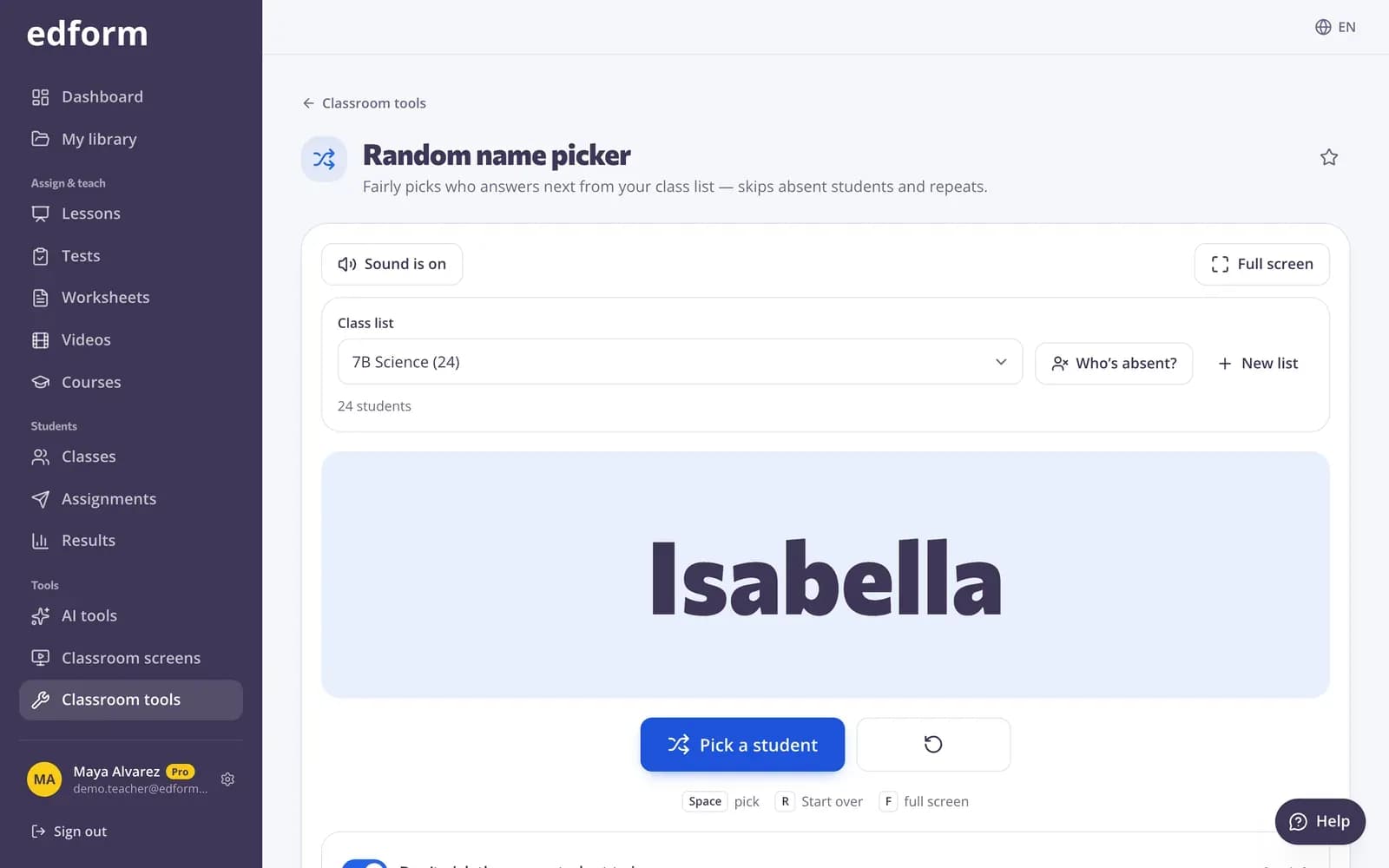
Classroom management tools make expectations visible, so routines rely less on the teacher's voice. Edform includes free tools that run in the browser: a noise meter that reacts to the volume in the room, timers and visual timers, a traffic light and work symbols, a fair random name picker that skips absent students, a group maker, a seating chart and a scoreboard for points. Combine them on a classroom screen for each part of the day. During live lessons and games you can also pause students' screens and close the session to new players.
Edform at a glance
- Price
- Free for teachers: Basic is free forever, with no credit card, and includes every feature.
- AI tools
- AI teacher tools with 5 AI points a month on Basic and 300 a month on Pro.
- Students
- Students join with a code. They need no email address and no account.
- Grading
- Quizzes and worksheets are graded automatically, with results per student and per question.
- Devices
- Runs in the browser on laptops, tablets, phones and interactive boards. Nothing to install.
- Languages
- Available in 32 languages.
- Works with
- Google Classroom, Microsoft Teams, ClassLink and learning platforms that support LTI 1.3.
- Library
- A free library of ready-made quizzes, worksheets and lessons that teachers can copy and edit.
How to manage your class with Edform
- 1
Choose your routines
Pick the tools you need: a timer for transitions, the noise meter for group work, the name picker for questions.
- 2
Put them on one screen
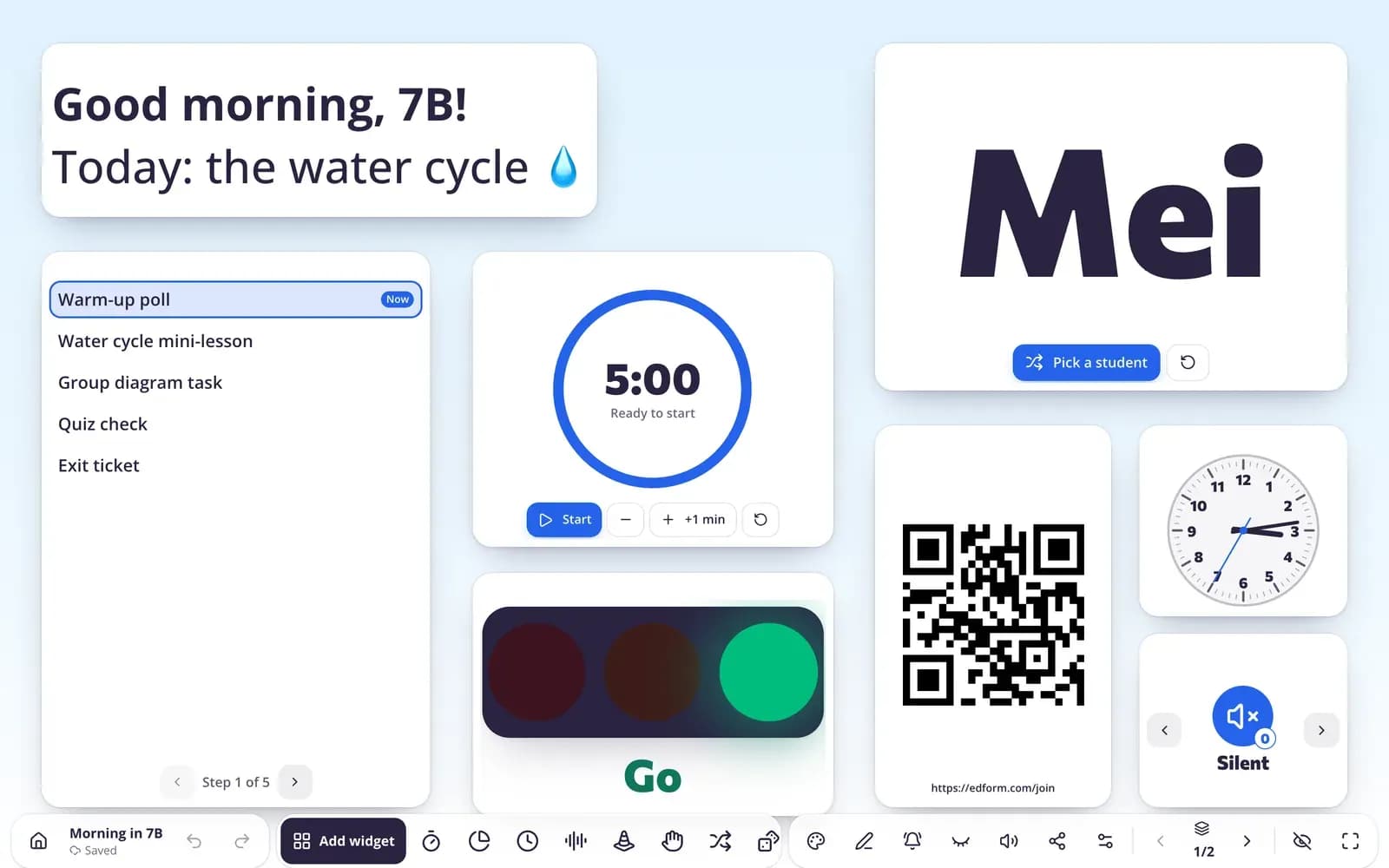
Arrange them on a classroom screen and save a set for each part of the day.
- 3
Let the board do the reminding
Students see time left, the noise level and what's expected at a glance.
Try it yourself
Run your room from the board
These are the real classroom widgets. Click around — nothing is saved.
One screen for each routine
Combine a timer, the noise meter, work symbols and instructions on one classroom screen. Save screens for group work, quiet reading and tidy-up time.
- More than 30 widgets
- Name picker with your class list
- Templates for group work, quiet work and brain breaks
Stay in control of devices
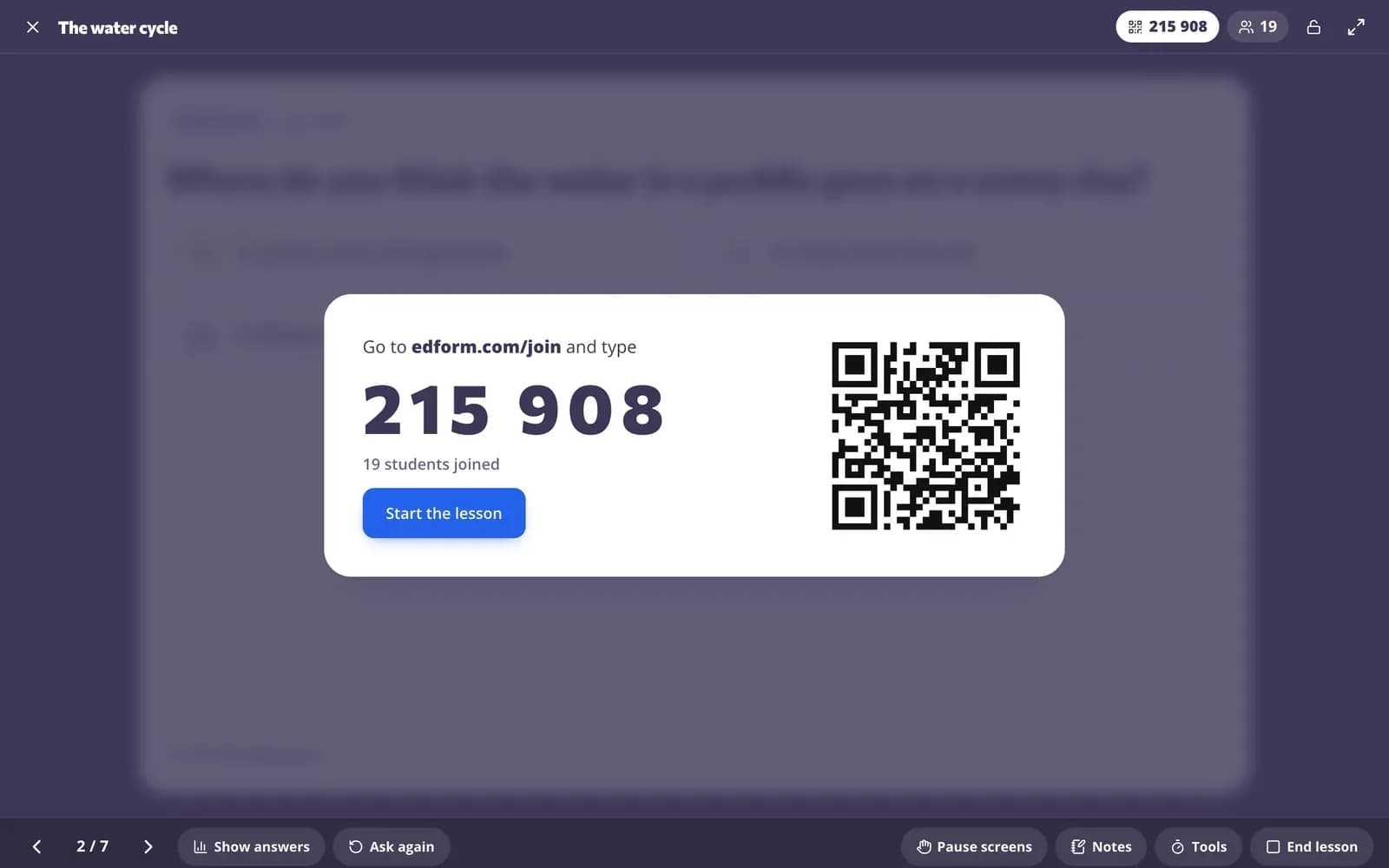
During a live lesson, pause every student's screen to get their attention, close the lesson to new students and remove anyone who shouldn't be there.
- Pause screens
- Close to new students
- Remove a student
Tools for a calmer classroom
Noise meter
Uses the microphone only to measure the volume; nothing is recorded or sent.
Timers and visual timers
Countdowns, a stopwatch and pie, bar or hourglass timers.
Traffic light and work symbols
Show the voice level or work mode with one click or key.
Fair name picker
Picks at random, skips absent students and can avoid repeats.
Group maker
Random groups by number of groups or group size.
Seating chart
Rows and desks, random seating and swaps with two taps.
Teachers use these tools for
- 01
Transitions
A visible countdown for tidy-up and moving between activities.
- 02
Group work
Random groups, a timer and the noise meter on one screen.
- 03
Fair questioning
The name picker chooses who answers, so every student stays ready.
- 04
Behavior support
AI tools suggest how to handle a difficult situation and draft behavior plans.
Explore more
- Noise meterShows the class how loud it is right now — the sound is never recorded.
- Random name pickerFairly picks who answers next from your class list — skips absent students and repeats.
- Seating chart makerDesks and students: seat randomly, swap with two taps and print the plan.
- Classroom screenTimers, name pickers and more on the board
- Behavior intervention planA positive behavior support plan: triggers, replacement behavior, responses and data.
- Difficult classroom situationAdvice on handling a conflict, disruption or bullying — what to do now and next.
Frequently asked questions
Does the noise meter record my class?
No. It uses the microphone only to measure the volume in the browser. Nothing is recorded, played back or sent anywhere.
Do I need an account?
Not for the classroom tools: the timer, noise meter, name picker and others open in any browser. A free account lets you save classroom screens and use your class lists.
Can the name picker use my class list?
Yes. Type or paste names, or pick one of your Edform classes. Mark absent students and the picker skips them.
Do the tools work offline?
Yes. Once you've opened a classroom tool, it keeps working if the internet drops.
Can AI help with a difficult behavior situation?
Yes. Describe the situation and get advice on what to do now and next, or draft a positive behavior support plan to review and adapt.
How do I get the class's attention quickly?
Switch the traffic light to red or the work symbols to silent, start a timer that plays a sound when time is up, or pause every student's screen during a live lesson. Use the same signal every time so it becomes a routine.
How can I reward good behavior?
Put a scoreboard on the board and give points to teams or students, for example for a quick tidy-up or good teamwork. The certificate maker prints awards to hand out at the end of the week.
Are there routines and brain breaks for each age group?
Yes. Classroom screen templates cover the morning routine, quiet work, group work, station rotation and brain breaks with movement ideas, dice and a wheel, many with versions from Pre-K to grade 12. The AI brain break tool suggests short movement breaks linked to your topic.
Is it free?
Yes. Every tool is free for teachers.
Set up your classroom routines
Free for teachers. Works on any computer connected to your projector.
- Free for teachers
- No credit card
- Works on any device