


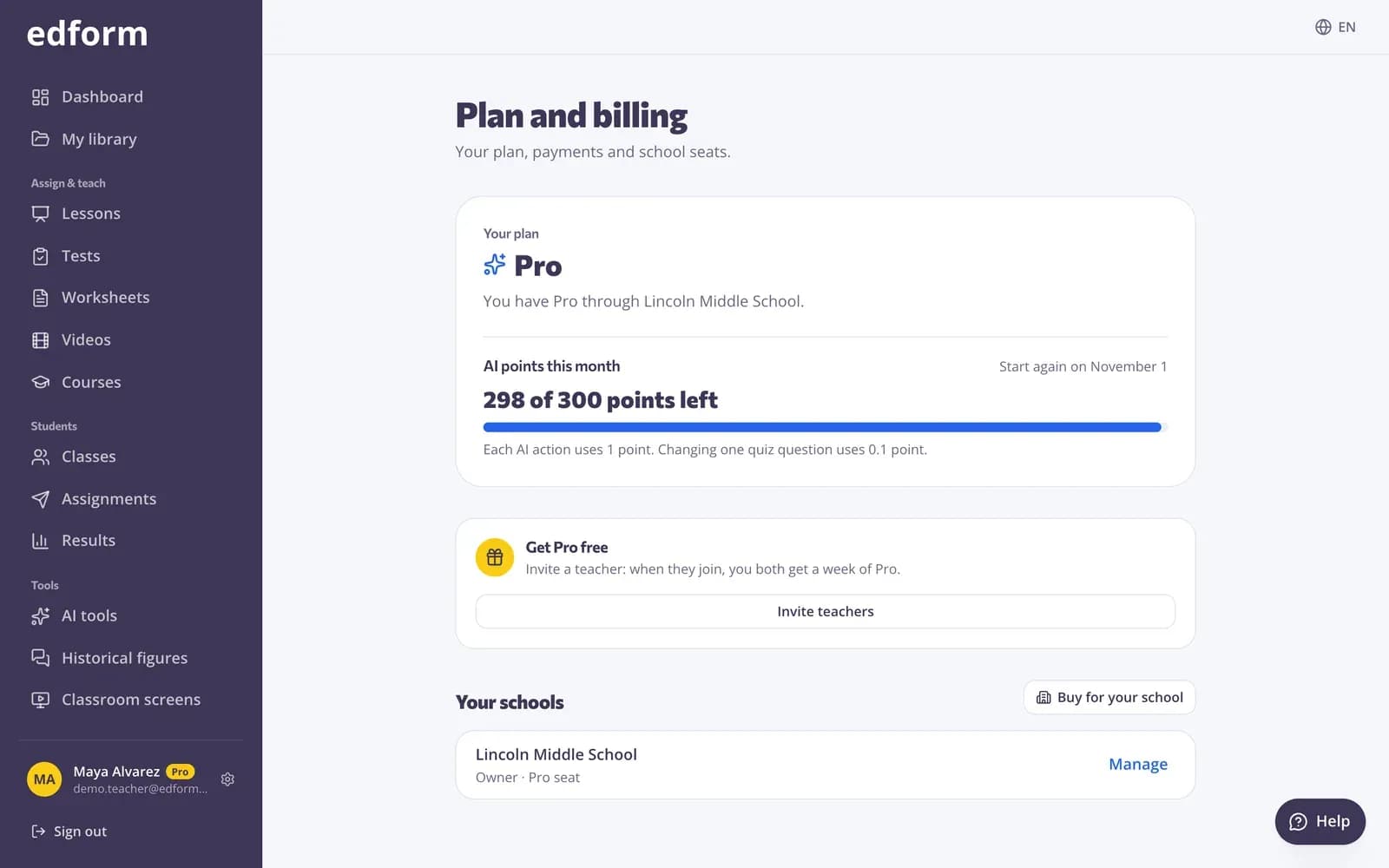
Understand AI points
Creating an AI result, such as a lesson plan, quiz or slide deck, or changing one, uses 1 point. Changing a single quiz question uses 0.1 point. Points start fresh on the 1st of every month and unused points don't carry over. If something goes wrong and nothing is created, you get the point back.
Step 1: See how many are left
The points you have left show under the AI buttons and in Settings under “Plan”.
Step 2: When they run out
A card offers Pro, or a free week of Pro for inviting another teacher. Everything that doesn't use AI keeps working.
Upgrade to Pro
Step 1: Open the pricing page
Go to “Pricing”, choose the currency and “Monthly” or “Yearly” (the price per month is the same), and press “Upgrade to Pro”.
Step 2: Pay with Stripe
Pay by card or another local payment method. Edform never sees your card details. When the payment goes through, “Plan and billing” shows Pro.
Manage your plan
Step 1: Open “Plan and billing”
In Settings, press “Plan and billing”. It shows your plan, when it renews or ends, and the schools you belong to.
Step 2: Invoices, card and cancelling
Press “Payments and invoices” to change your card, download invoices or cancel.
Step 3: If a payment fails
“Plan and billing” says the last payment didn't go through. Update your payment method in “Payments and invoices” to keep Pro.
Questions
What happens when I cancel?
You keep Pro until the end of the period you paid for, then move back to Basic. Nothing you made is deleted.
My school gives me Pro. Do I still need my own subscription?
No. “Plan and billing” tells you when your school already covers you, and you can cancel your own subscription in “Payments and invoices”.
Can I get a refund?
Write to support@edform.com with the email of your account, and a person from the Edform team will look at it.
Related
- PricingFree for teachers, plans for schools
- School planBuy Pro seats for your school, invite teachers and move seats between them.
- Invite teachersShare your invite link with colleagues and both of you get a week of Pro.
- AI toolsCreate lesson plans, quizzes, slides and more with AI, then improve and use them.