


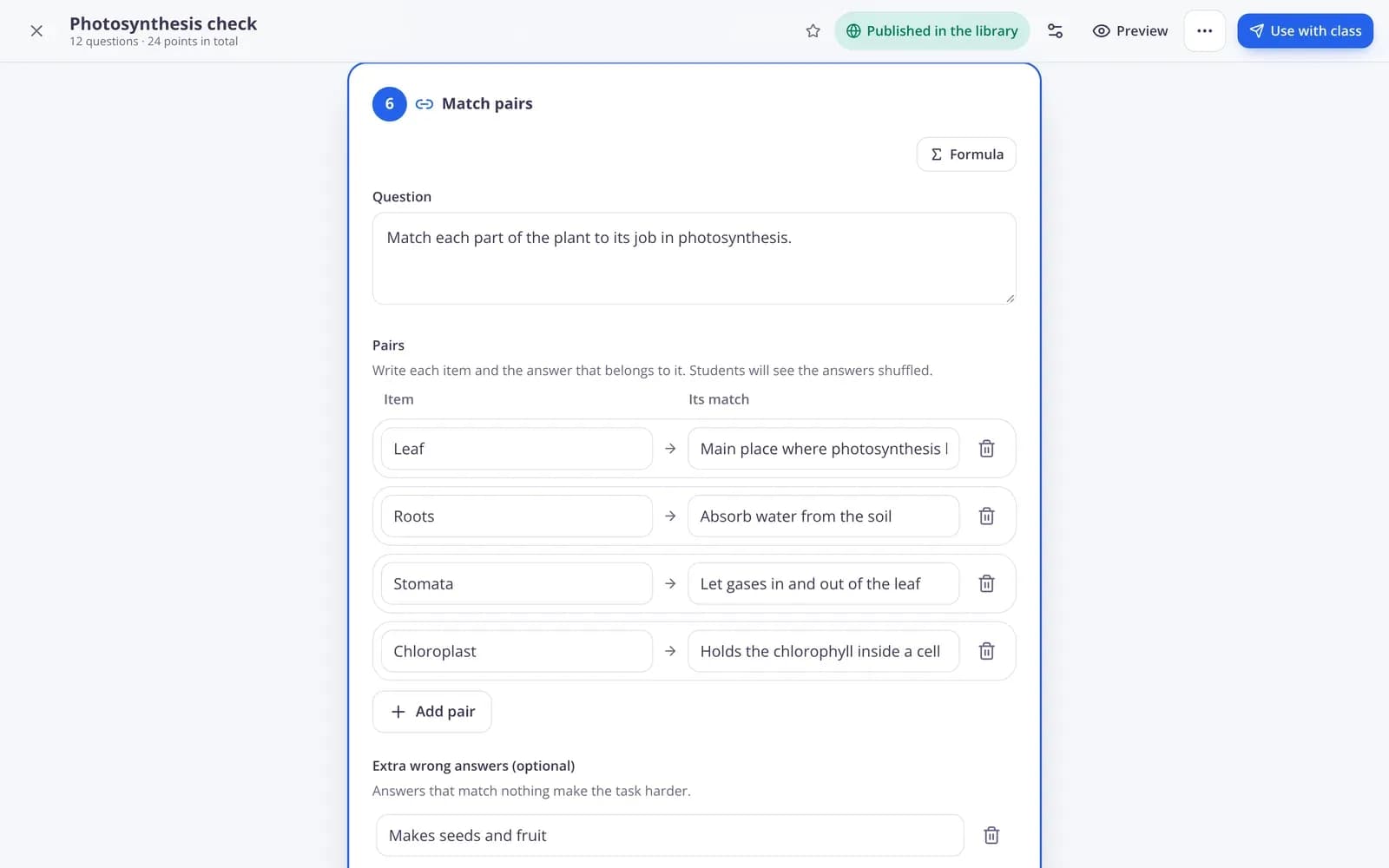
Create the test
Step 1: Open “Tests”
Choose “Tests” in the menu, or press “Make a test” on the dashboard. Your tests are listed under “My tests”.
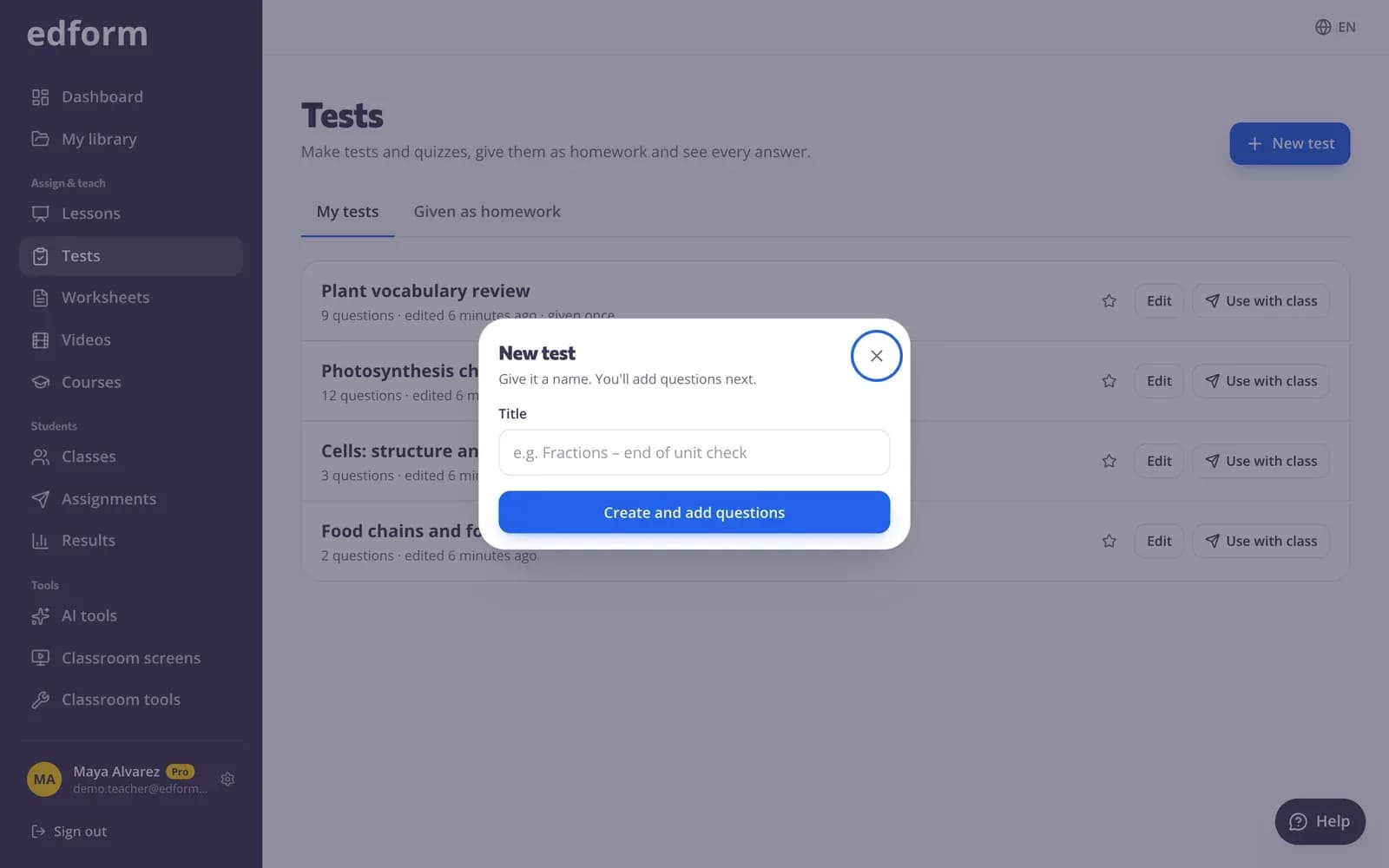
Step 2: Press “New test” and name it
Type a “Title”, for example Fractions – end of unit check, and press “Create and add questions”. The test editor opens.
Add questions
Step 1: Press “Add a question”
The window “What kind of question?” lists every question type with a short description. Pick one; you can mix types in one test.
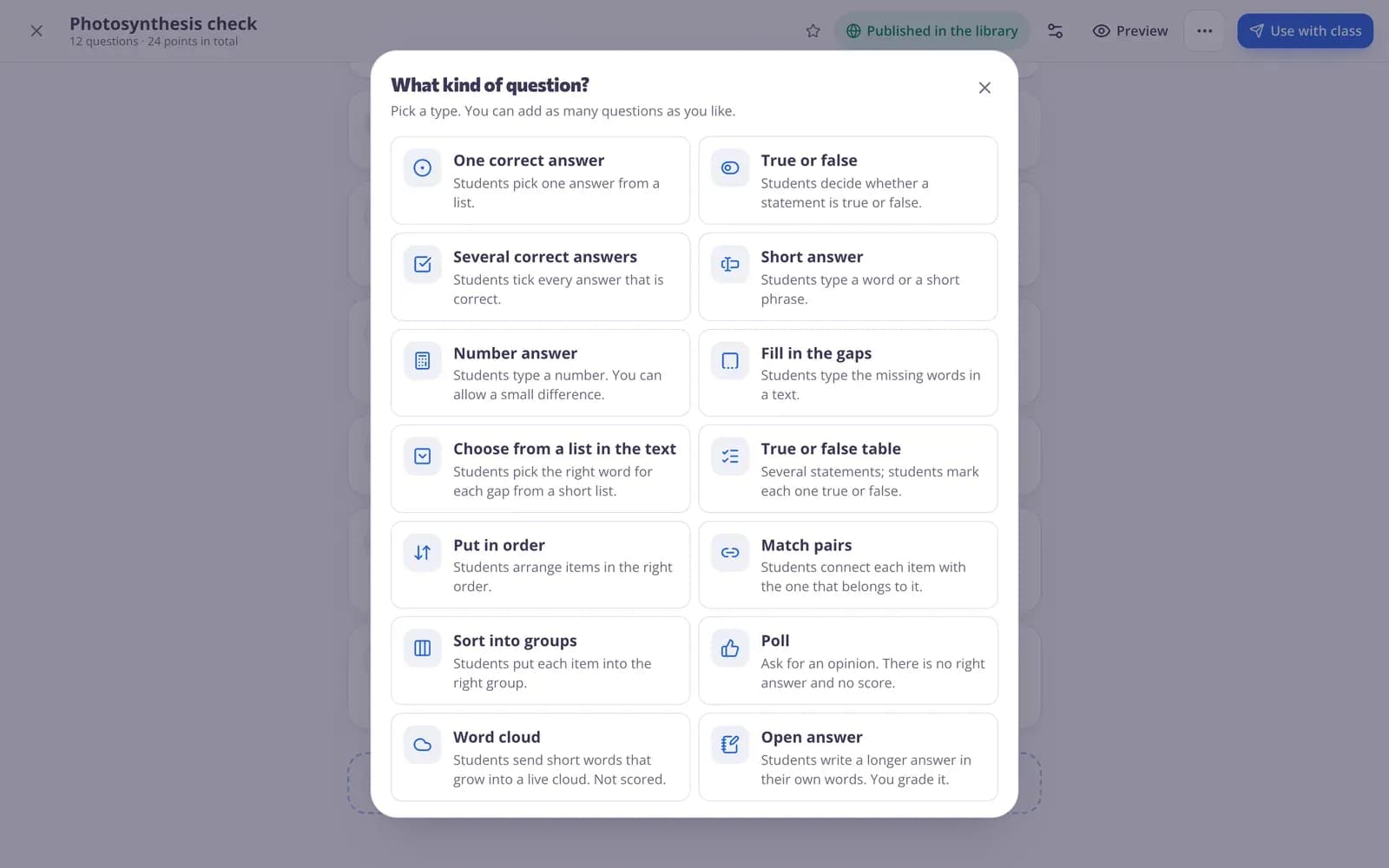
Step 2: Write the question and the answers
Type the question in “Type your question here” and fill in the answers. For choice questions, tick the correct answer next to it. The buttons above the question make words bold or italic, start a list, add a “Formula” (fractions, powers, roots) or a “Picture” — you can also paste or drag a picture straight into the text.
Step 3: Set points, explanation and hint
Open “Points, explanation and hint” to set how many “Points” the question is worth, an “Explanation” students see after answering (when you allow it) and an optional “Hint”.
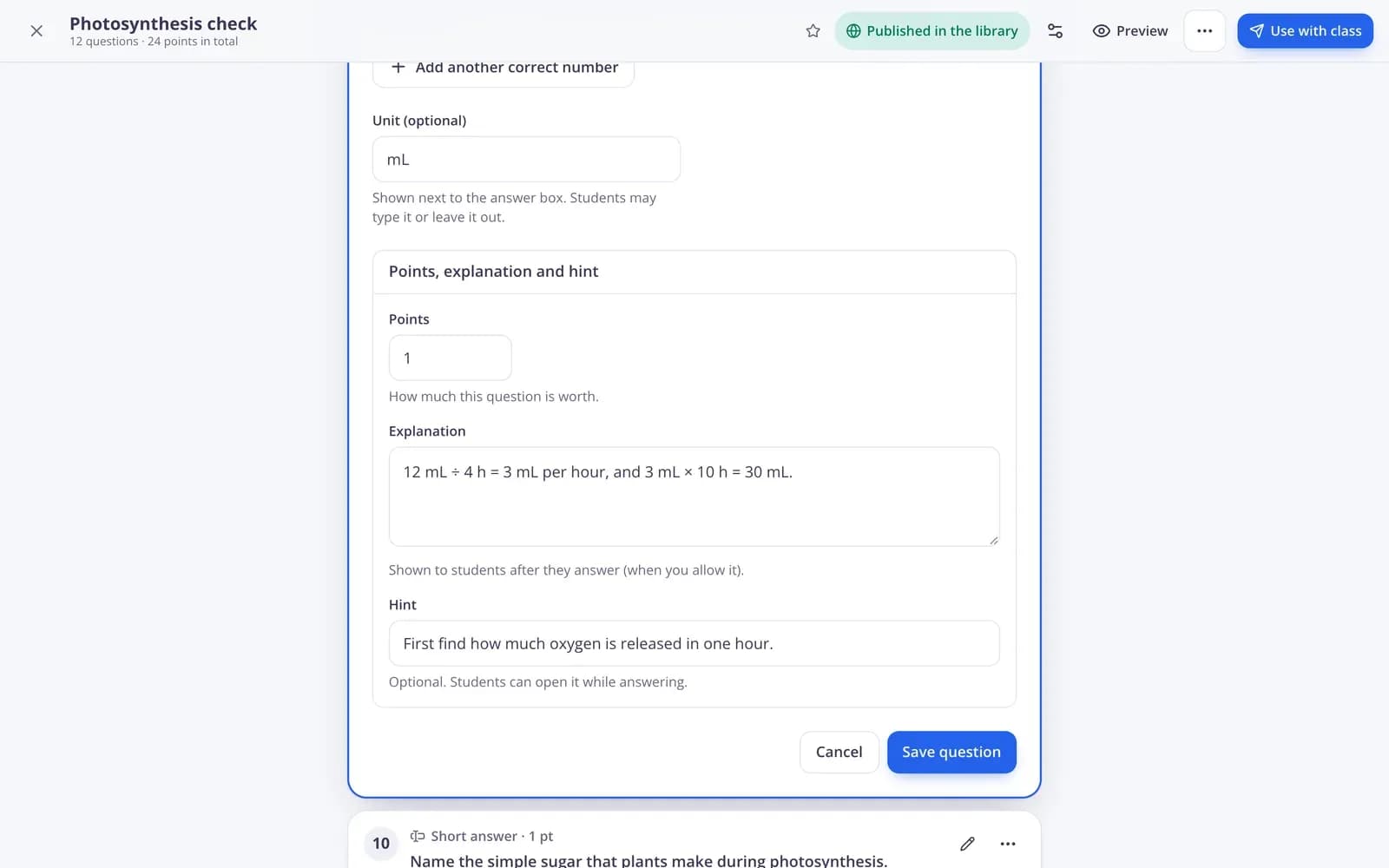
Step 4: Press “Save question”
Each question is saved on its own. If something is missing, Edform highlights it and says “Some fields need attention”.
Step 5: Reuse questions you already made
Press “Questions I already made” next to “Add a question” and pick one of your tests, worksheets, lessons or videos. Its questions are copied to the end of this test with their points, hints, explanations and pictures. The original stays as it is, so you can change or delete the copies.
Organize and check your test
Step 1: Reorder, copy or delete questions
Use the “…” menu on a question for “Edit”, “Move up”, “Move down”, “Duplicate” and “Delete question”.
Step 2: Rename the test
Press the gear button (“Settings”) at the top to change the “Title” or add a “Description”, then press “Save”.
Step 3: Preview it as a student
Press “Preview” to answer the test the way students see it. Nothing you answer there is saved. Press “Back to editing” when you're done.
Use it with your class
Step 1: Press “Use with class”
“Use this test” shows every way to use it: “Homework”, “Live game”, “Team game”, “Flashcards”, “Pairs” and “Print”. Under “Teach with it” you can also “Present question by question” or “Make it a lesson”.
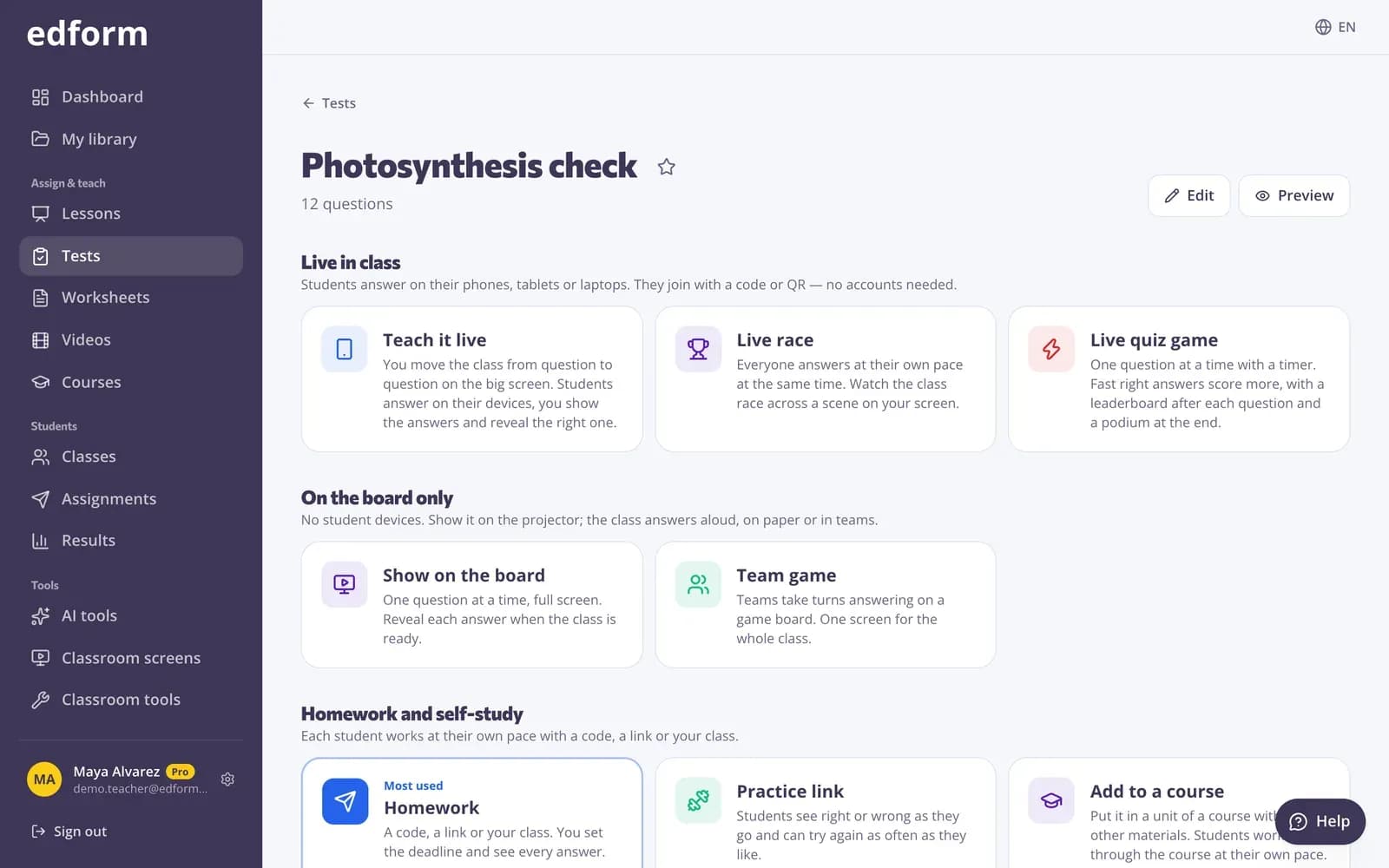
Step 2: Give it as homework
Choose “Homework”, set who can do it and the deadline, and press “Give homework”. Students join with a code, a link or a QR code.
Questions
Can AI write the questions for me?
Yes. Open “AI tools”, choose “Quiz”, describe the topic or add your material and press “Create quiz”. In the result, press “Save as activity” and then “Open activity” to edit it as a normal test.
If I change a question, does homework I already gave change too?
No. Homework keeps the questions it had when you gave it, so every student is marked on the same test. Give the test again to use your changes.
How do I copy or delete a test?
Open the test and use the “More” menu at the top: “Make a copy” or “Delete test”. A deleted test goes to the trash: students can't play it any more, so live games on it end and homework you gave closes. Results and reports you already have stay.
Can other teachers use my test?
Yes, if you want. Press “Publish to library” in the test editor to share it in the free community library.
Can I turn a test I already have in Word or PDF into an Edform test?
Yes. Open “AI tools”, choose “Quiz”, switch to the “File” tab and add your Word or PDF file (up to 20 MB), then press “Create quiz”. Check the questions, press “Save as activity” and then “Open activity” to edit it as a normal test. To keep the pages exactly as they look, upload the PDF as an interactive worksheet instead.
Can I get a deleted test back?
There is no trash page to restore from yet. Write to support@edform.com with the test's name and the email of your account, and the Edform team can bring it back. Homework and live games that ended when it was deleted stay closed.
Related
- Quiz makerAuto-graded quizzes, tests and homework
- Question typesEvery question type in Edform, when to use it and how it is marked.
- Assign homeworkGive a test as homework with a code, link or QR code and set the deadline.
- Auto-gradingClosed answers checked the moment students hand in
- QuizA multiple-choice test on any topic, text, file or video, with an answer key.