


Differentiation
Differentiate without making a second version
Keep one quiz for the whole class and adjust it for the students who need it: extra time, a later deadline or one more attempt — plus a student screen that fits their age.
- Extra time, deadlines and attempts per student
- Questions read aloud
- Free for teachers
How does Edform help you differentiate?
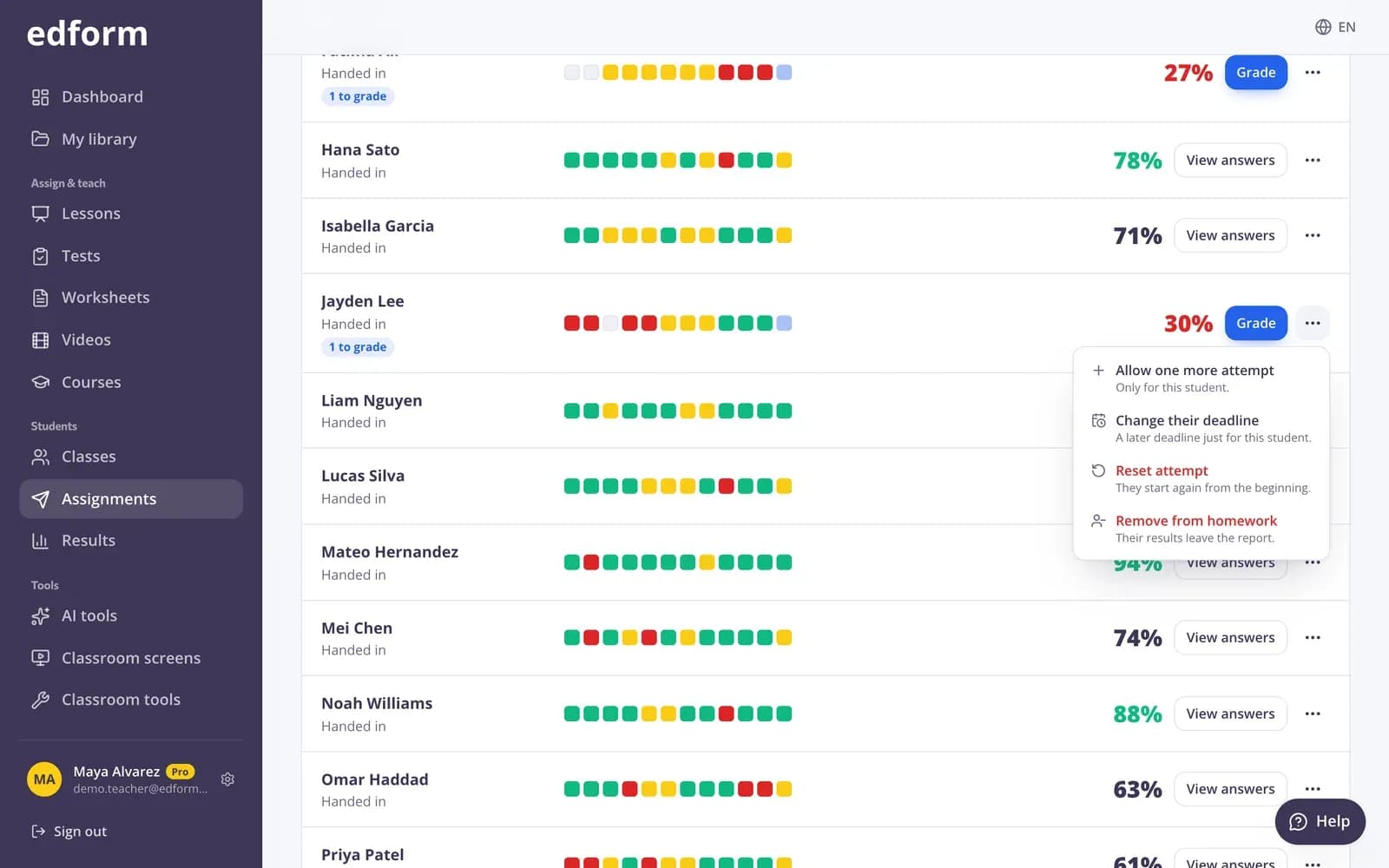
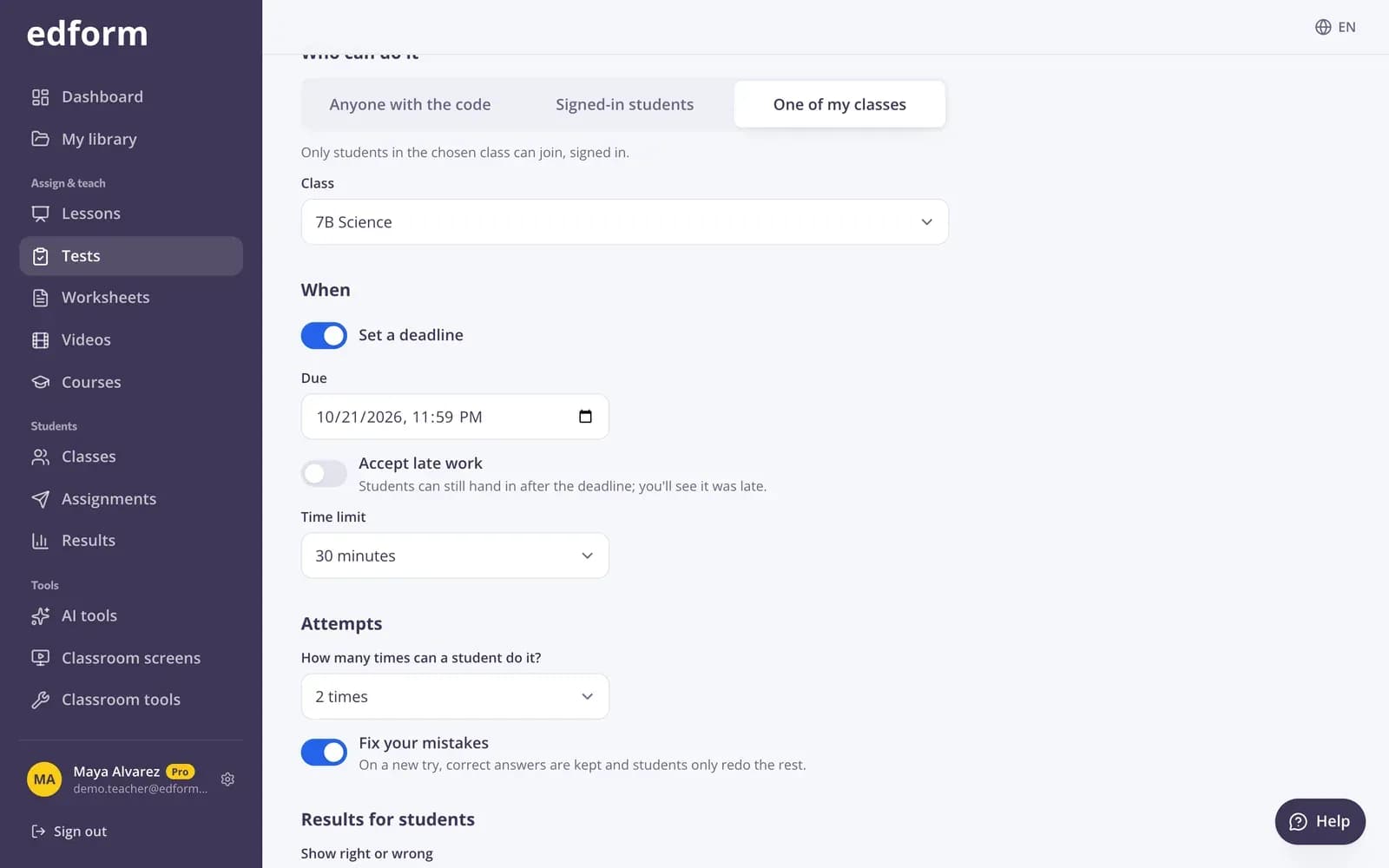
Edform's differentiated instruction tools let you give every student the same activity on terms that fit them. From the homework report you can give one student 25%, 50% or 100% extra time, a later personal deadline or one more attempt, or reset an attempt so they start over — without touching anyone else's settings. When you give the homework, you choose who it's for: young learners get big buttons, questions read aloud and no timer, while older students get a calm layout with flags and a review page. Fix your mistakes lets students redo only what they got wrong.
Edform at a glance
- Price
- Free for teachers: Basic is free forever, with no credit card, and includes every feature.
- AI tools
- AI teacher tools with 5 AI points a month on Basic and 300 a month on Pro.
- Students
- Students join with a code. They need no email address and no account.
- Grading
- Quizzes and worksheets are graded automatically, with results per student and per question.
- Devices
- Runs in the browser on laptops, tablets, phones and interactive boards. Nothing to install.
- Languages
- Available in 32 languages.
- Works with
- Google Classroom, Microsoft Teams, ClassLink and learning platforms that support LTI 1.3.
- Library
- A free library of ready-made quizzes, worksheets and lessons that teachers can copy and edit.
How to adjust homework for one student
- 1
Give the homework
Choose who it's for — young learners, middle school, high school or college — and the settings for the whole class.
- 2
Open the student's row
In the report, open the actions next to the student's name.
- 3
Choose what they need
Allow one more attempt, add extra time or change their deadline. It applies to that student only.
Try it yourself
No sign-up needed — try it as a student
This is the real Edform player. Answer the questions and see how they're checked.
Settings for each age
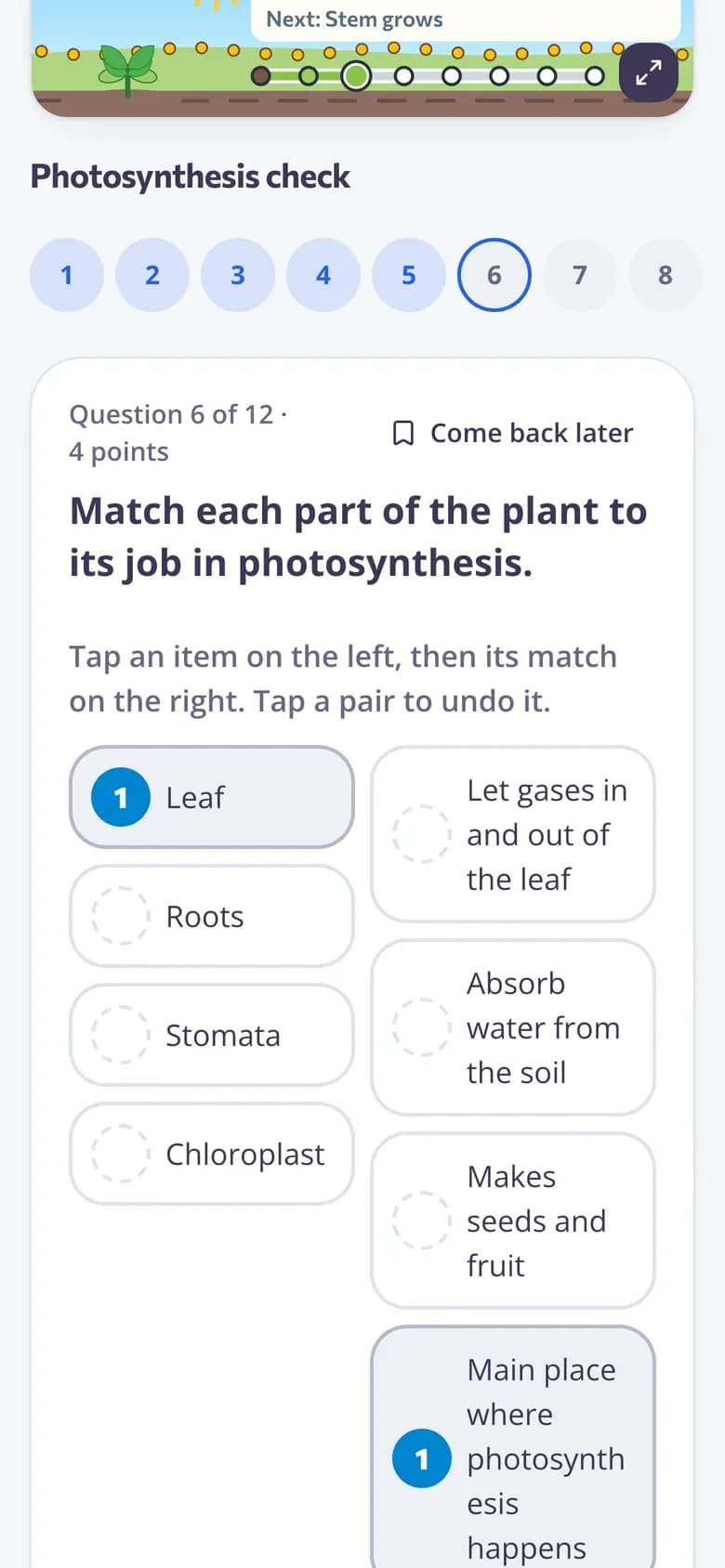
Pick who the homework is for and Edform sets up the student screen to match: playful for young learners, calm and focused for older students.
- Young learners: big buttons and no timer
- Questions read aloud
- Flags and a review page for older students
Read aloud and hints
A speaker button reads the question and answers in the language of the quiz, and hints help students who are stuck.
- Read aloud on any device
- Hints when you add them
- Explanations after answering
See who needs what
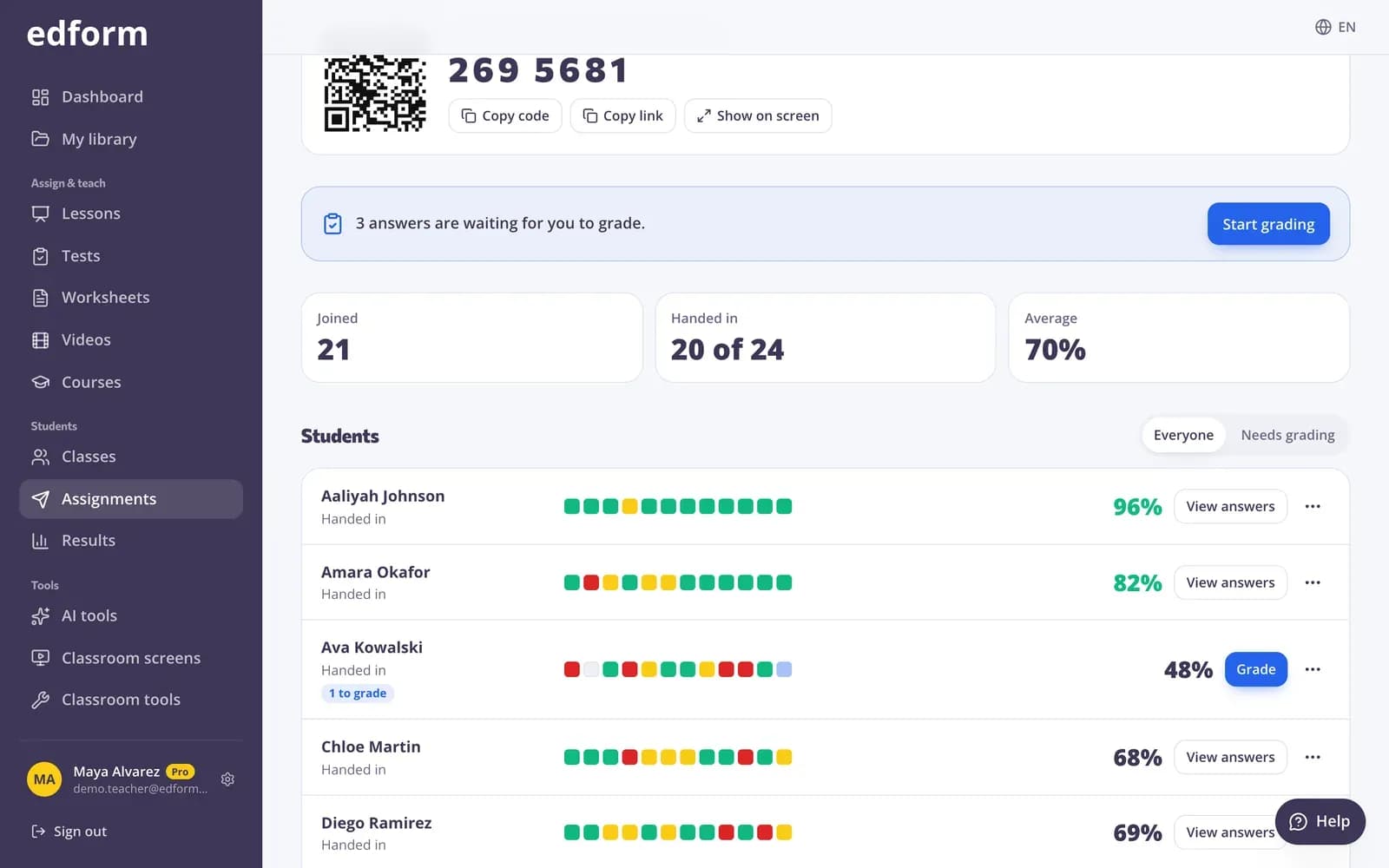
The report marks each student's extra attempts, extra time and personal deadline, so you always know who has what.
- +1 attempt, +50% time and more
- Personal deadline shown
- Scores per question to plan support
Ways to differentiate in Edform
Extra time
25%, 50% or 100% more time on a student's next attempt.
Personal deadline
A later deadline for one student while the class keeps the usual one.
One more attempt
Let a student try again, or reset their attempt so they start fresh.
Read aloud
Questions and answers read out loud for young learners and weaker readers.
Screens for every age
Big friendly buttons for young learners, a calm exam layout for older students.
Group work
Students can play in teams or as a group sharing one device.
Teachers use it for
- 01
Students with extra time
Apply the extra time a student is entitled to in two clicks.
- 02
Absences
A later deadline for a student who was off sick.
- 03
Second chances
One more attempt after you've gone through the mistakes together.
- 04
Mixed-ability classes
Fix your mistakes so everyone works on what they still need.
Explore more
- Online examsTimed tests with shuffled questions and one attempt
- Quiz reportsScores per student, per question and common wrong answers
- Special educationAccommodations, read-aloud and AI help with IEPs and social stories
- Text levelerRewrites any text for a chosen reading level, including plain language for students with SEN.
- Accommodations for students with SENIdeas for accommodations and modifications in lessons, assignments and assessment.
- Scaffolded assignmentRework a task into clear steps with models, starters and organizers, same goal.
Frequently asked questions
Can I give one student extra time on a timed test?
Yes. In the report, choose Extra time next to the student and pick 25%, 50% or 100% more. It applies to their next attempt.
Can I change the deadline for just one student?
Yes. Choose Change their deadline next to the student. The rest of the class keeps the usual deadline.
Do I need to make a separate version of the quiz?
No. Everyone does the same quiz; you change the settings for individual students.
Can I follow accommodations from an IEP?
For the ones Edform can set: extra time, a later deadline, another attempt and questions read aloud, each for a single student without changing the activity for the class.
Can questions be read aloud?
Yes. Turn on Read questions aloud when you give the homework, and students get a speaker button for each question and its answers.
Can AI help me adapt materials?
Yes. AI tools like the text leveler, the accommodations generator and the assignment scaffolder rewrite and support materials for different learners.
One quiz, adjusted for every student
Free for teachers. Extra time, deadlines and attempts in two clicks.
- Free for teachers
- No credit card
- Works on any device