


Add questions you grade yourself
Step 1: Add an “Open answer” question
In the test editor click “Add a question” and choose “Open answer”. Students write a longer answer, and you can set the fewest and most words.
Step 2: Add a grading checklist
Under “Grading checklist” click “Add criterion” for each thing you look for, with its points. Set the question's points (under “Points, explanation and hint”) to match the checklist total.
Step 3: Add a sample answer (optional)
“Sample answer (only you see it)” helps you grade. Students only see it if you show the correct answers after handing in.
Grade the answers
Step 1: Find answers waiting for you
On a homework page a banner says how many answers are waiting for you to grade. On “Given as homework”, the “Needs grading” filter shows only homework with answers to grade.
Step 2: Click “Start grading”
The first student with ungraded answers opens at the first answer waiting for you. Their other answers are on the same page.
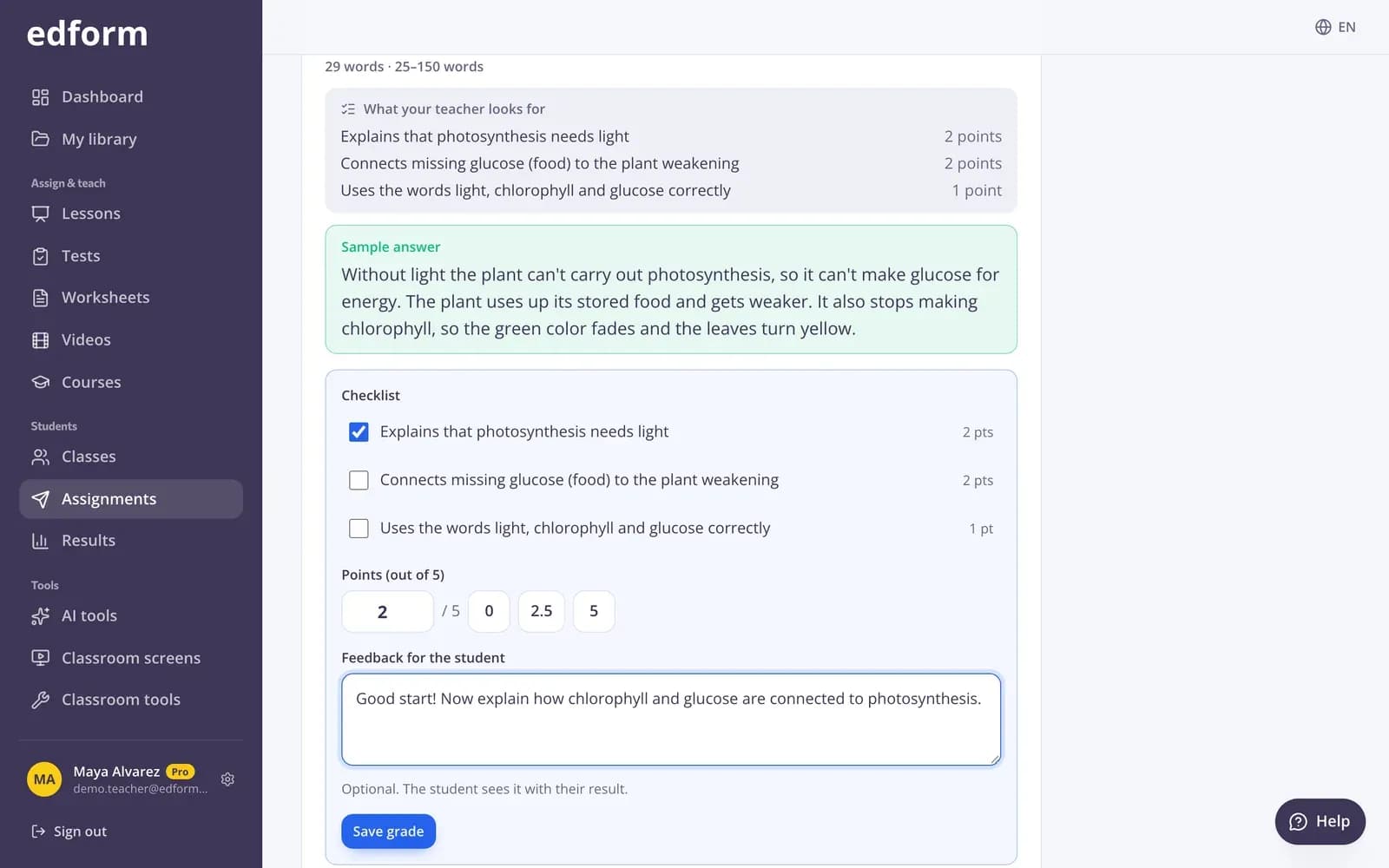
Step 3: Tick the checklist or enter the points
Tick what the student did under “Checklist” and the points add up, or type them in “Points”. Quick buttons give no points, half or full points; half points are allowed.
Step 4: Write feedback (optional)
Type a comment in “Feedback for the student”. The student sees it with their result.
Step 5: Click “Save grade”, then “Next to grade”
The student's total and the homework average update right away. “Next to grade” takes you to the next answer waiting for you.
Change an automatic score
Step 1: Open a student's answers
In the homework report click “View answers” next to a student who has handed in.
Step 2: Change the points
Every answered question has a grading box. Enter the points you want and click “Save grade”; the answer is marked “Graded by you”.
What students see
Until you grade, students see “Waiting for your teacher to grade” and a note that their score may change. Once you have graded, they see their final score and “Your teacher's feedback”.
Questions
When can I grade an answer?
Once the student has handed in. While they are still working, the page tells you they haven't handed in yet.
Can I give half points?
Yes. Points go in steps of 0.5, from 0 up to the question's points.
Do I have to use a checklist?
No. The checklist is optional; you can always type the points yourself.
Can I see which homework still needs grading?
Yes. On “Given as homework” choose “Needs grading”, and in a report use the “Needs grading” filter above the students.
Related
- Rubric gradingGrade open answers with a checklist and feedback
- Auto-gradingClosed answers checked the moment students hand in
- Homework reportsSee every student's score, each answer and how the class did on each question.
- Question typesEvery question type in Edform, when to use it and how it is marked.
- Create a quizMake a test with any mix of question types, preview it and use it with your class.