


Student logins
Student accounts without email addresses
Young students rarely have email. Paste your class list and Edform creates a username and password for everyone, ready to print or download.
- Up to 500 students at once
- Printable login cards
- Free for teachers
How do student accounts without email work?
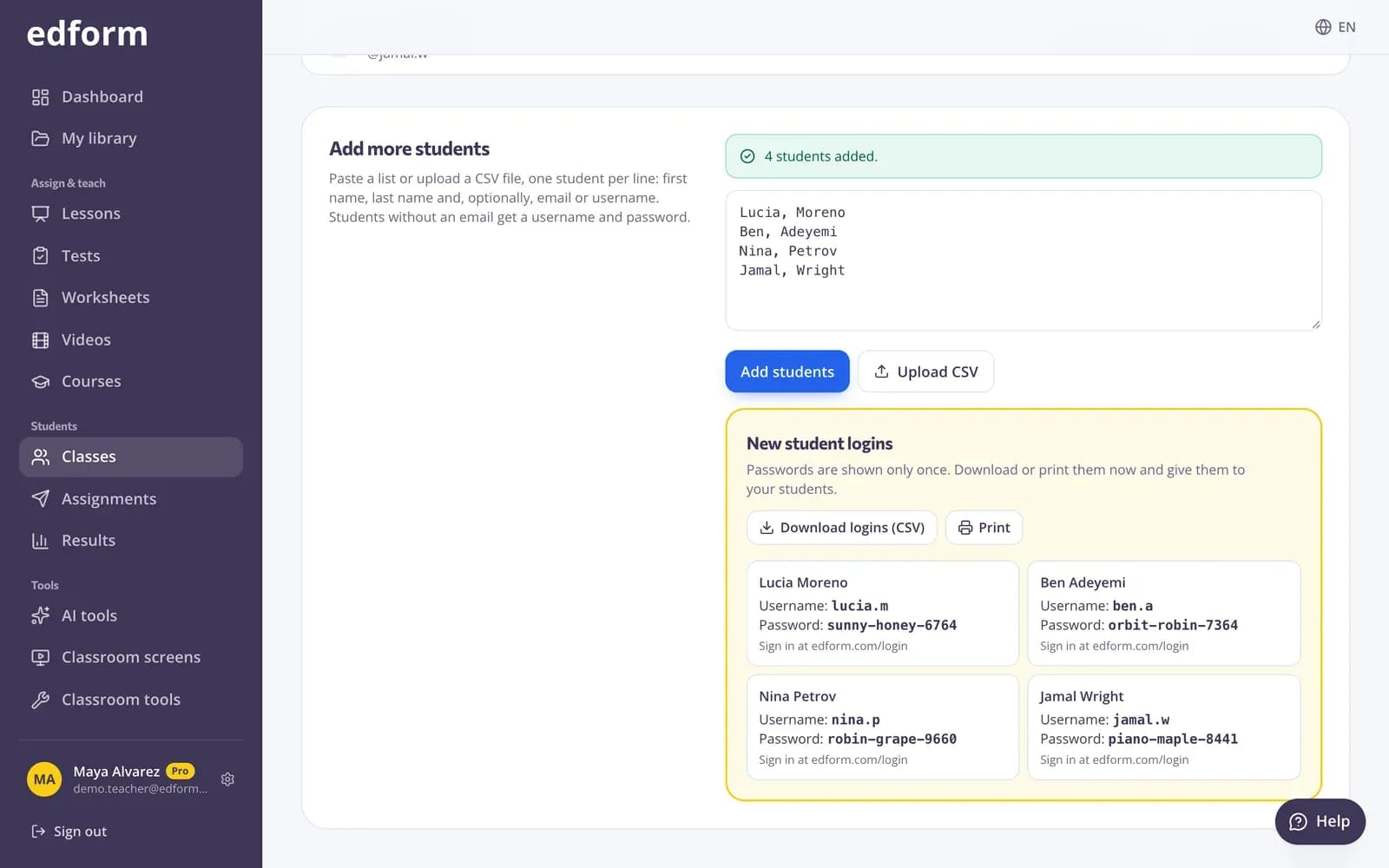
Edform lets students have their own accounts without an email address. In a class, you paste a list or upload a CSV file with first and last names — one student per line. Every student without an email gets a username and a password. The passwords are shown once, so you print them or download them as a CSV and hand them out. Students sign in with their username on the sign-in page, see their classes and find their homework on My homework. If a student forgets the password, you reset it from the class page.
Edform at a glance
- Price
- Free for teachers: Basic is free forever, with no credit card, and includes every feature.
- AI tools
- AI teacher tools with 5 AI points a month on Basic and 300 a month on Pro.
- Students
- Students join with a code. They need no email address and no account.
- Grading
- Quizzes and worksheets are graded automatically, with results per student and per question.
- Devices
- Runs in the browser on laptops, tablets, phones and interactive boards. Nothing to install.
- Languages
- Available in 32 languages.
- Works with
- Google Classroom, Microsoft Teams, ClassLink and learning platforms that support LTI 1.3.
- Library
- A free library of ready-made quizzes, worksheets and lessons that teachers can copy and edit.
How to create student logins
- 1
Create a class
Go to Classes and create a class, or open one you already have.
- 2
Add your students
Choose Add students and paste your list or upload a CSV: first name, last name and, if you have one, an email or a username.
- 3
Hand out the logins
Print the new logins or download them as a CSV. Passwords are shown only once, so do it straight away.
Try it yourself
No sign-up needed — try it as a student
This is the real Edform player. Answer the questions and see how they're checked.
Paste the list you already have
Copy names from a spreadsheet or your school system. Students with an email can sign in with it; everyone else gets a username and password.
- Paste or upload a CSV
- Up to 500 students at once
- Duplicates skipped
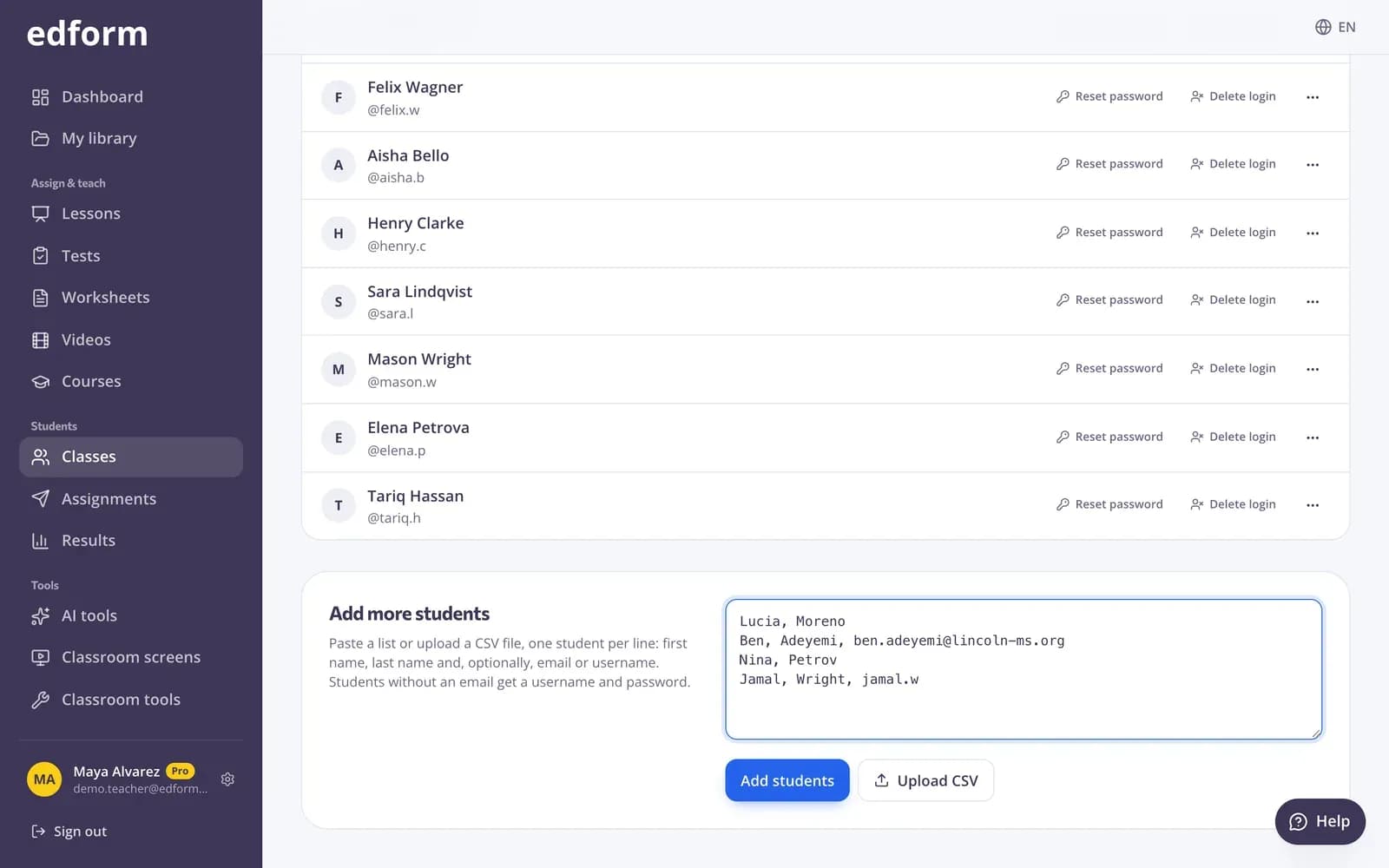
Students find everything in one place
After signing in, students see their classes and everything due on My homework, with their results kept in their account.
- Homework from all their classes
- Best score for each one
- Results kept between devices
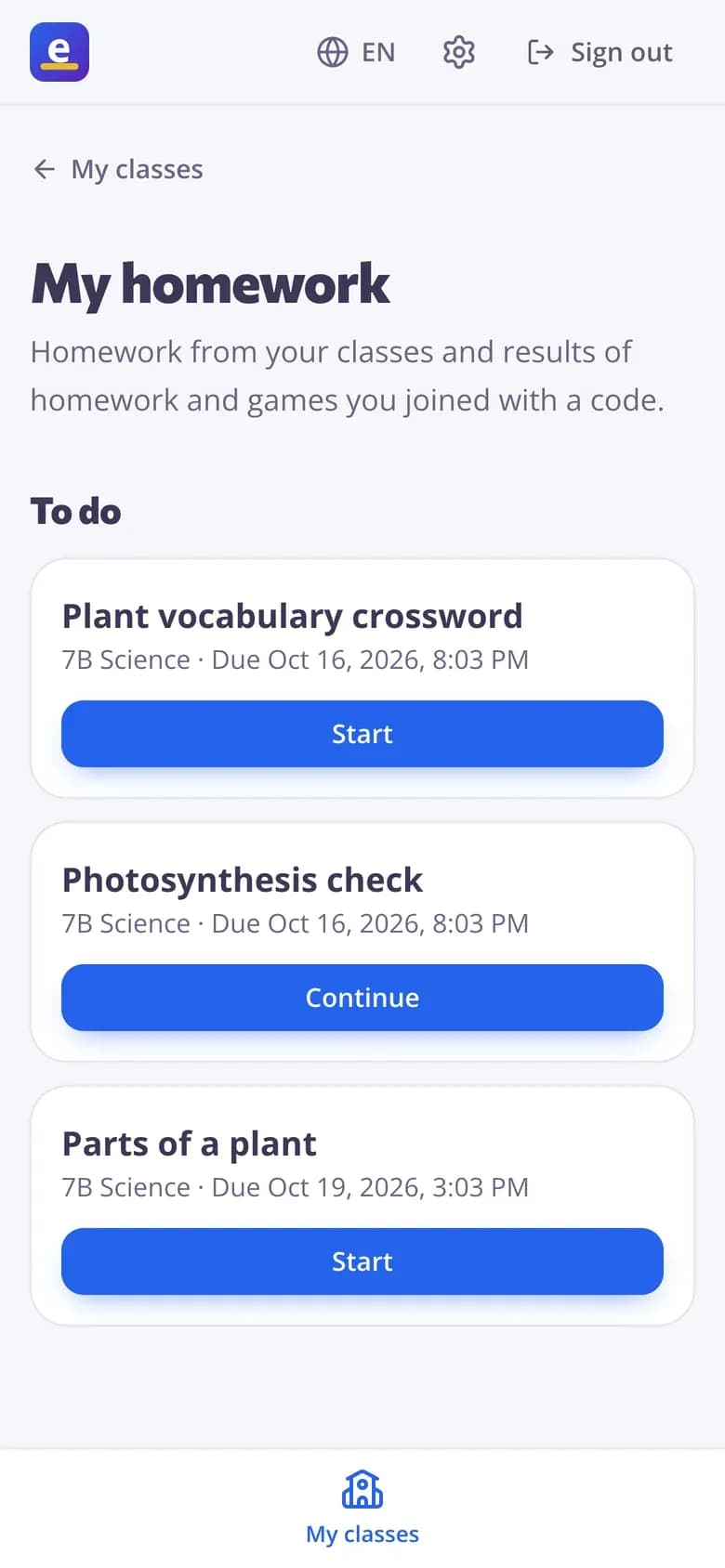
Rosters you control
Export the class list as a CSV any time, add more students later and reset a password in two clicks.
- Export the roster
- Reset a password
- Add students any time
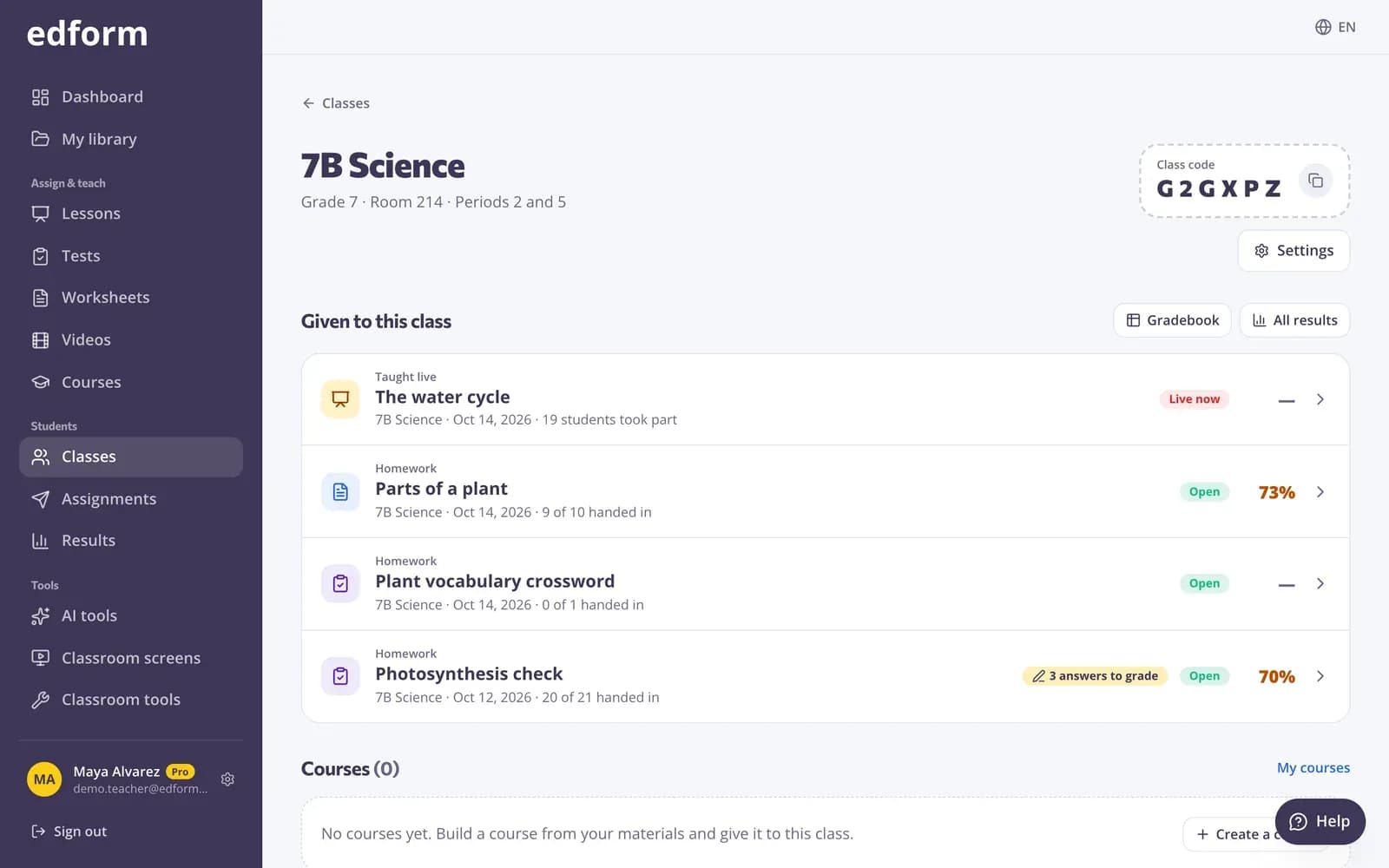
Accounts that work for every age
Bulk creation
Paste or upload up to 500 students in one go.
Print or download
Print the logins to cut out, or download them as a CSV.
Teacher password reset
Reset a student's password from the class page; the old one stops working at once.
Email optional
Students with an email can use it; everyone else uses a username.
Students can sign up too
Older students choose I don't have an email address and pick their own username.
Export your roster
Download the class list as a CSV whenever you need it.
Teachers use it for
- 01
Primary classes
Accounts for children who have no email address.
- 02
Schools without student email
Every student gets a login without involving IT.
- 03
Tracking progress over time
Results stay with the student, not with a device.
- 04
Shared devices
Students sign in and out of class tablets with their own username.
Explore more
- Google ClassroomImport classes and share homework to Classroom
- ClassLinkSign in with ClassLink and import classes from your roster
- Join with a codeStudents type a code — no account needed
- Online homeworkGive homework with a code and a deadline
- Elementary schoolBig buttons, read-aloud and team games for young learners
- For schoolsTeacher seats, student sign-in and flyers for families
Frequently asked questions
Can students use Edform without an email address?
Yes. Teachers create usernames and passwords for them, or students sign up themselves with I don't have an email address and choose a username.
Where do students sign in?
On the sign-in page, by typing their username in the Email or username box and their password.
A student forgot their password. What do I do?
Open the class, open the … menu next to the student, choose Reset password and give them the new password. You see it only once.
Do students need an account at all?
No. For most activities, students can join with a code and their name. Accounts help when you want results kept per student across devices and classes.
Can students sign in with Google instead?
Yes, students with a Google account can use Continue with Google.
Can I import students from Google Classroom?
Yes. Import from Google Classroom adds a class with every student's name and school email; students join by signing in with Google. For young students without email, generated usernames and passwords work as before.
Google Classroom is a trademark of Google LLC. Microsoft and Microsoft Teams are trademarks of the Microsoft group of companies.
Set up logins for your class
Free for teachers. Paste a list and print the logins in a few minutes.
- Free for teachers
- No credit card
- Works on any device