


Quiz reports
Quiz reports that show what to teach next
One table with every student and every question, the percentage correct for each question and the wrong answers students gave most. Know tomorrow's review before you leave school.
- Per student and per question
- Most common wrong answers
- CSV download
What does an Edform quiz report show?
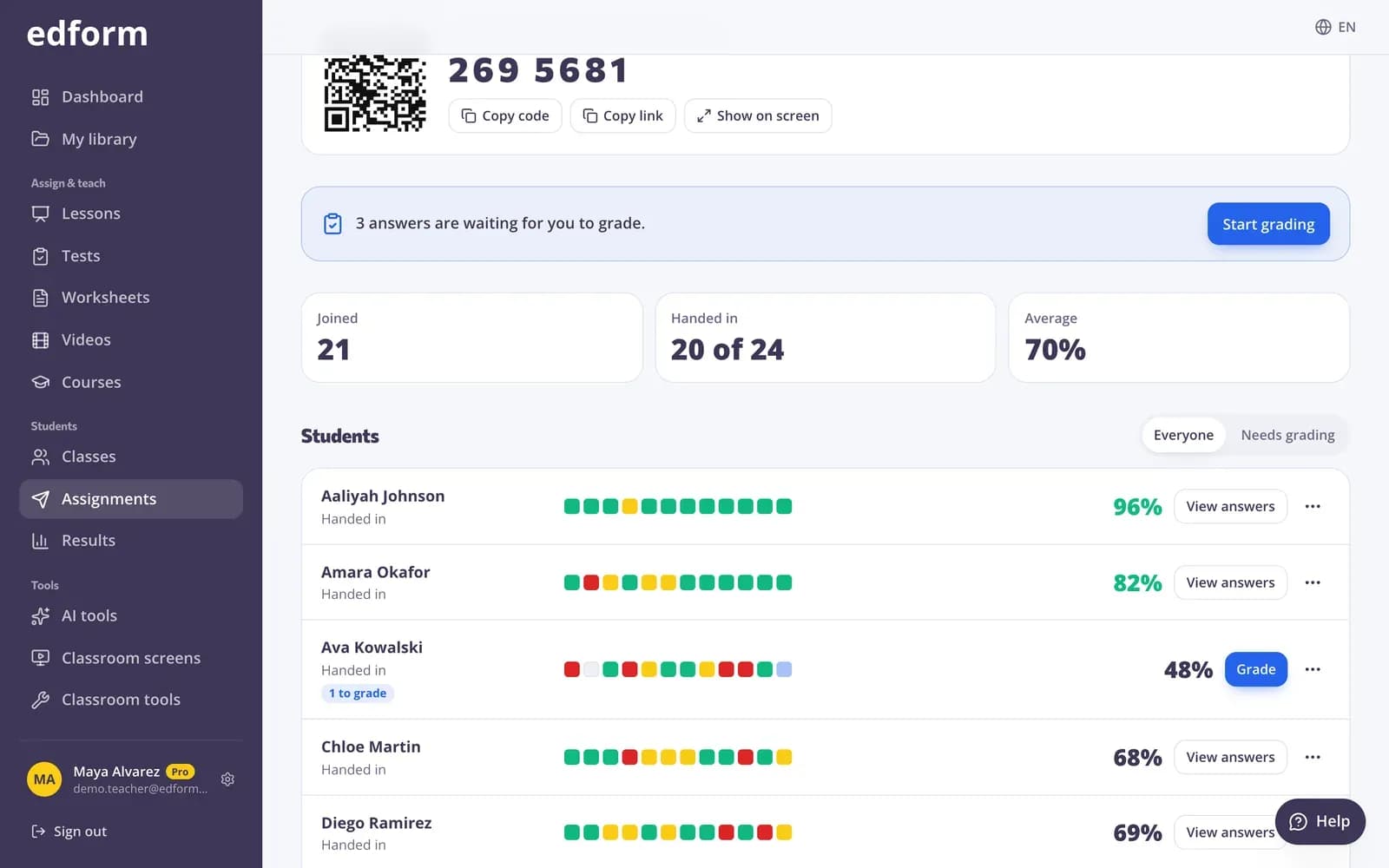
A quiz report in Edform is the page you open after giving a quiz or worksheet as homework. It lists every student with their status, score and one cell per question — correct, partly correct, wrong or waiting for grading. On the Questions tab you see the percentage correct for each question, how the class split between the options and the most common wrong answers. For a class, you also see who hasn't started yet. Results fill in as students hand in, and you can download everything as a CSV file.
Edform at a glance
- Price
- Free for teachers: Basic is free forever, with no credit card, and includes every feature.
- AI tools
- AI teacher tools with 5 AI points a month on Basic and 300 a month on Pro.
- Students
- Students join with a code. They need no email address and no account.
- Grading
- Quizzes and worksheets are graded automatically, with results per student and per question.
- Devices
- Runs in the browser on laptops, tablets, phones and interactive boards. Nothing to install.
- Languages
- Available in 32 languages.
- Works with
- Google Classroom, Microsoft Teams, ClassLink and learning platforms that support LTI 1.3.
- Library
- A free library of ready-made quizzes, worksheets and lessons that teachers can copy and edit.
How to read a quiz report
- 1
Give a quiz as homework
Every homework you give gets its own report, listed under Given as homework.
- 2
Check the students
See who has joined, who has handed in and the class average. Click a student to see their answers next to the right ones.
- 3
Look at each question
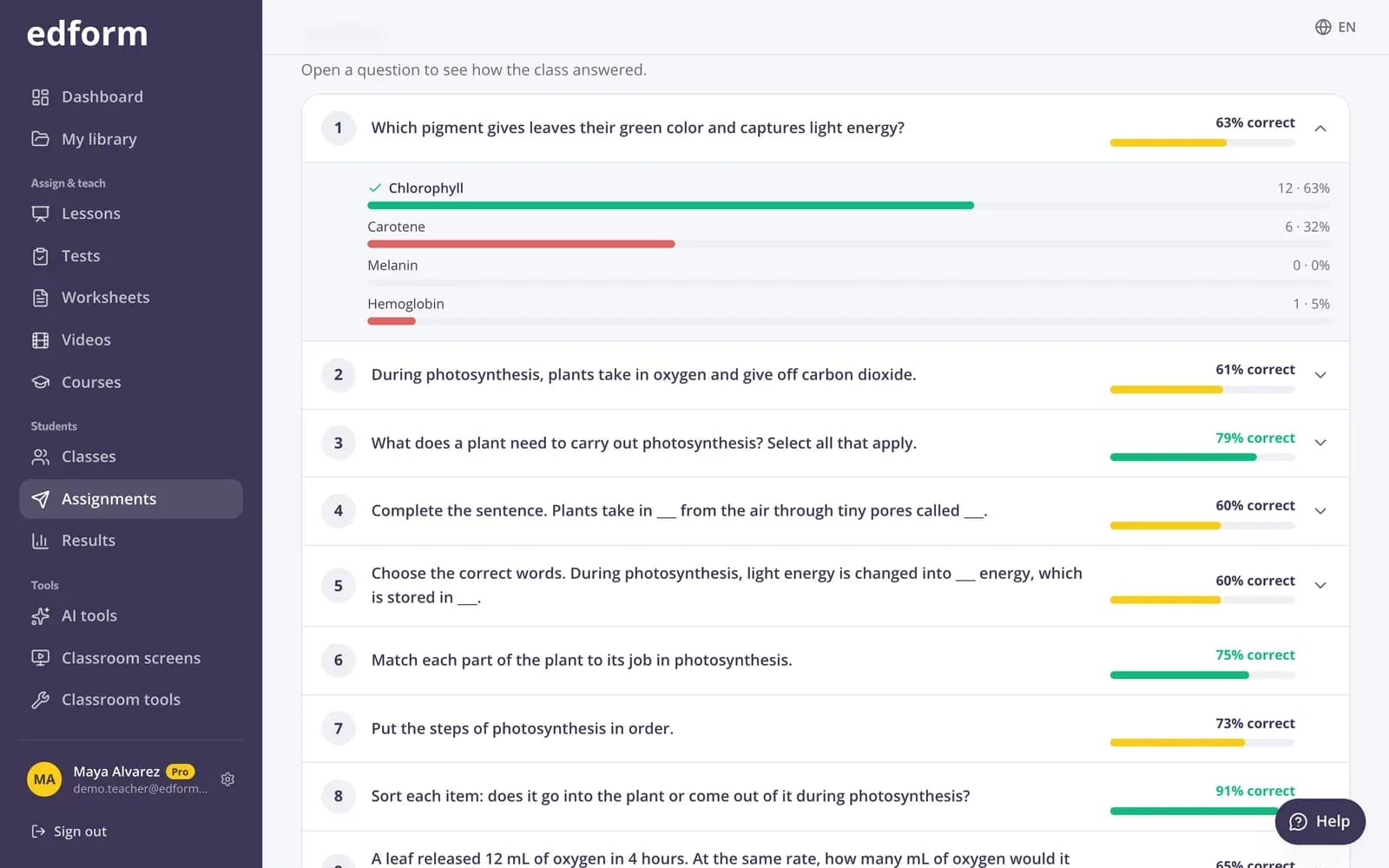
On the Questions tab open a question to see how the class answered and the most common wrong answers.
Try it yourself
No sign-up needed — try it as a student
This is the real Edform player. Answer the questions and see how they're checked.
See how the class answered
Open any question to see how many students chose each option and which wrong answers came up most. Misconceptions jump out in seconds.
- Percentage correct per question
- How many chose each option
- Most common wrong answers
Open answers in the same place
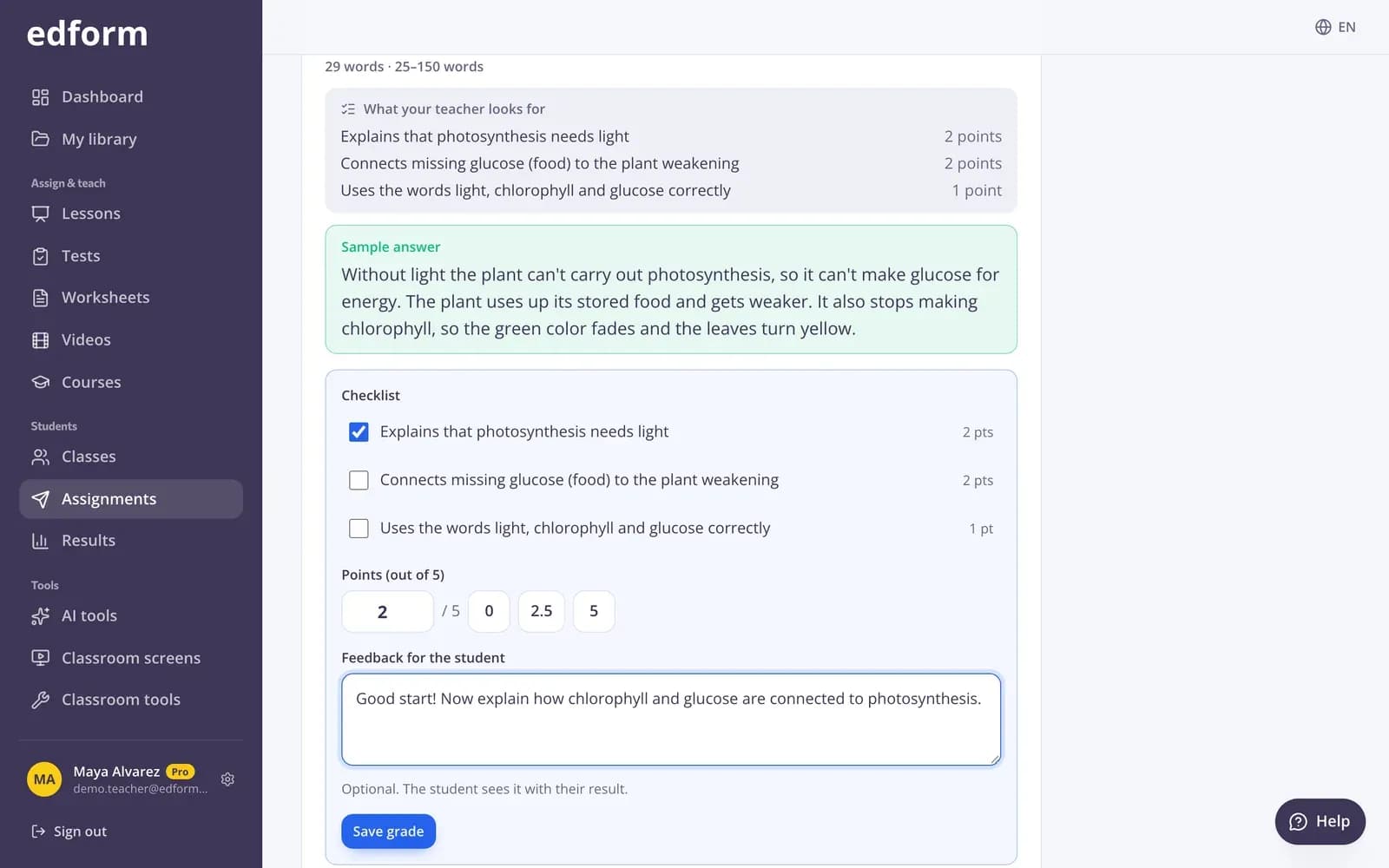
Answers that need you are marked Needs grading. Grade them with a checklist and feedback, and the report updates for everyone.
- Needs grading filter
- Next to grade
- Scores marked provisional until you're done
Act on what you see
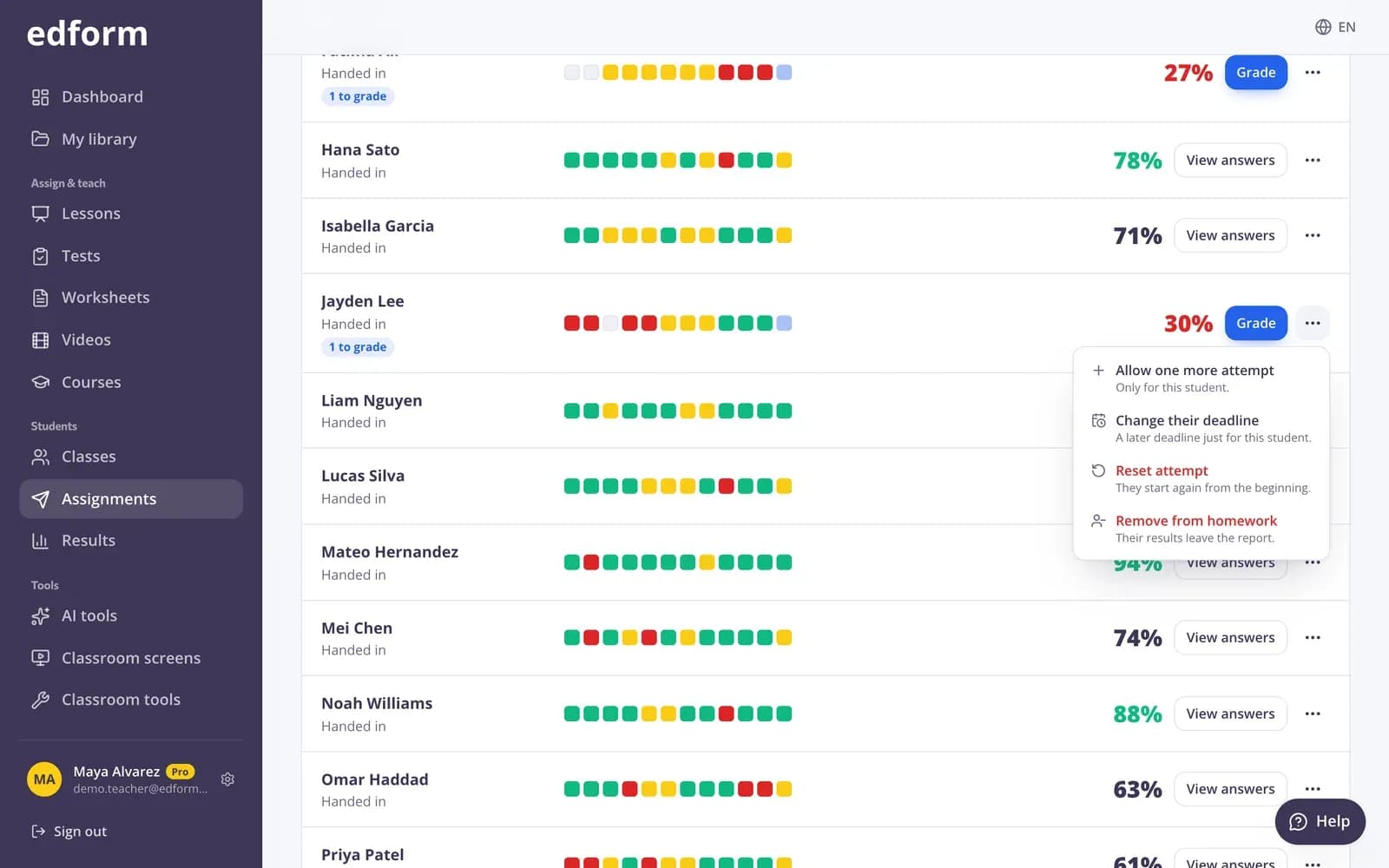
From a student's row, allow one more attempt, add extra time, set a later deadline or reset an attempt — without changing anything for the rest of the class.
- One more attempt
- Extra time or a personal deadline
- Reset or remove
Everything in one report
Every answer, every student
A cell per question shows correct, partly correct, wrong or waiting for grading.
Who hasn't started
For homework given to a class, students who haven't opened it yet are listed.
Class at a glance
How many have joined and handed in, the class average and who's still working.
Left the page
See how many times a student left the quiz page while answering.
Teams and groups
Team results and the members of each group are shown in the report.
CSV download
Download the results and open them in any spreadsheet or gradebook.
Teachers use it for
- 01
Planning tomorrow's lesson
Reteach the two questions most students got wrong.
- 02
Spotting misconceptions
The most common wrong answer often shows exactly what was misunderstood.
- 03
Following up with students
See who hasn't started and who needs another attempt.
- 04
Your gradebook
Download the CSV and copy the scores into your school's system.
Explore more
- Quiz makerAuto-graded quizzes, tests and homework
- Auto-gradingClosed answers checked the moment students hand in
- Rubric gradingGrade open answers with a checklist and feedback
- DifferentiationExtra time, deadlines and attempts per student
- Formative assessmentCheck understanding during the lesson, not after the test
- Class results analysisFind patterns in test scores, see who needs help and plan the next steps.
Frequently asked questions
What does the quiz report show?
Every student's status, score and answers, the percentage correct for each question, how the class answered each one and the most common wrong answers.
Can I export the results to a spreadsheet?
Yes. Download CSV gives you a file that opens in Excel, Google Sheets or any other spreadsheet.
Can I see one student's answers?
Yes. Click View answers on a student's row to see each answer next to the right one, and change a grade if you need to.
Does the report update while students are working?
Yes. Results appear as students hand in, so you can watch a homework fill up during the lesson.
Can I see who didn't do the homework?
Yes. When you give homework to one of your classes, students who haven't opened it are listed as Not started.
Know what to teach next
Free for teachers. Give a quiz and the report builds itself.
- Free for teachers
- No credit card
- Works on any device