


Create logins for your class
Step 1: Open the class
Choose “Classes” in the menu and open the class. If you don't have one yet, press “Create class” first.
Step 2: List the students without an email
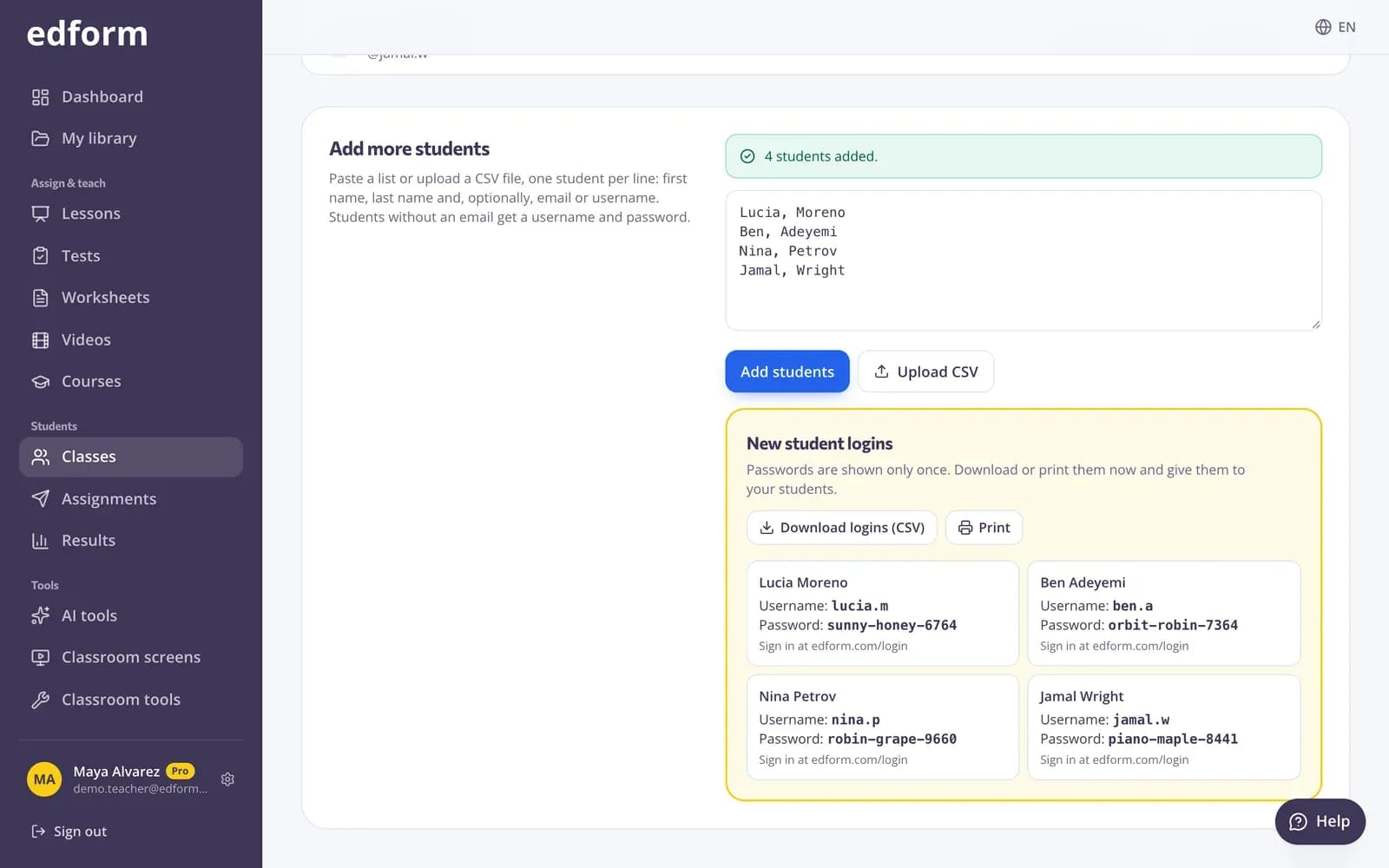
Under “Add students”, write one student per line with their first and last name, for example “Tom, Berg”. To choose a username yourself, add it as the third value, for example “Mia, Rossi, mia.r”.
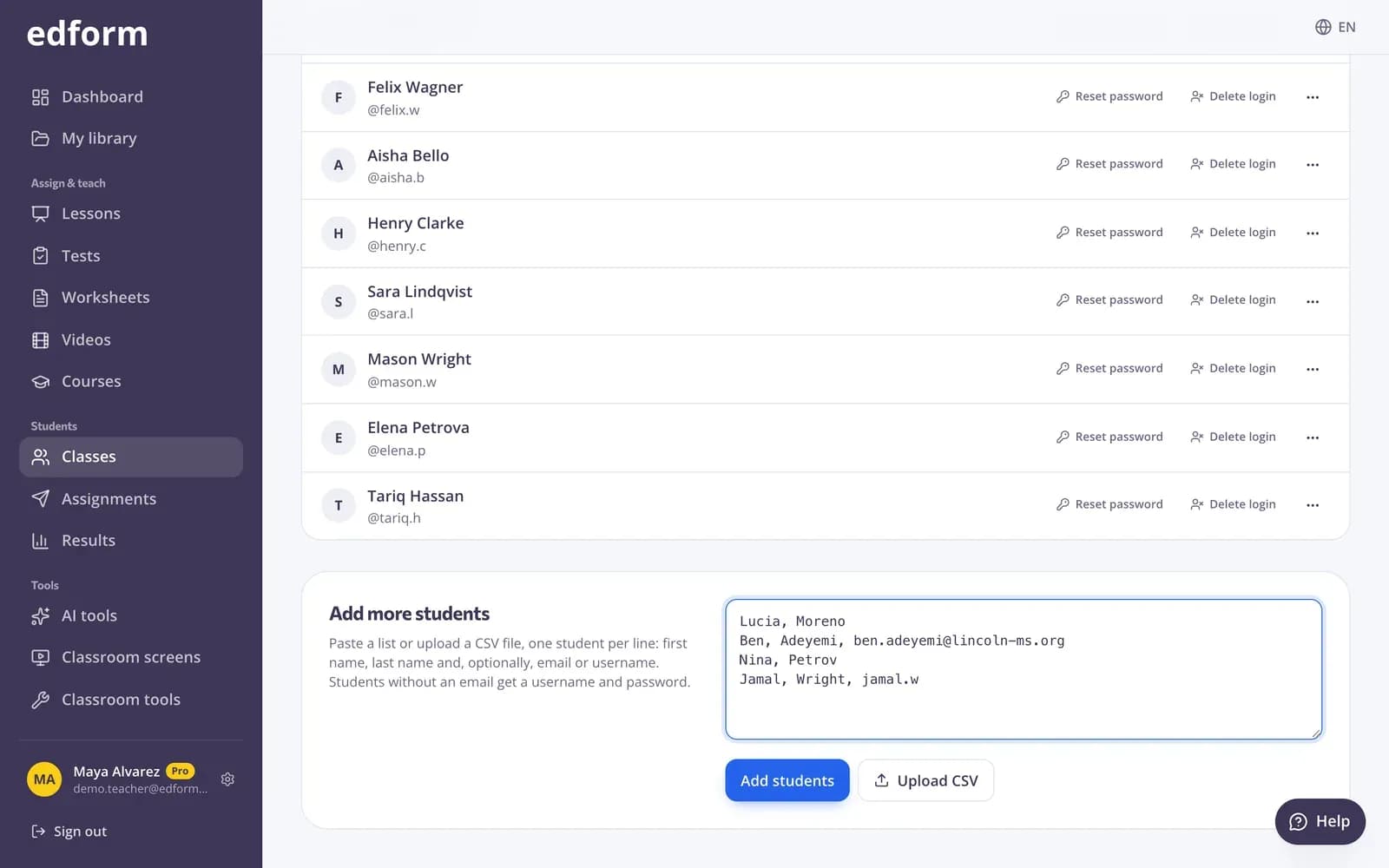
Step 3: Press “Add students”
Edform makes a username from the student's name, such as tom.b, and a password for every student without an email.
Step 4: Download or print the logins
The logins appear under “New student logins”. Passwords are shown only once, so press “Download logins (CSV)” or “Print” now. Each card has the username, the password and the address where students sign in.
How students sign in
Step 1: Open the sign-in page
Students go to edform.com and press “Sign in”.
Step 2: Type the username and password
They type their username in “Email or username”, then their “Password”, and press “Sign in”.
Step 3: Find their classes and homework
Students land on “My classes”. “My homework” shows what is due and their results.
Step 4: Join homework or a live game with a code
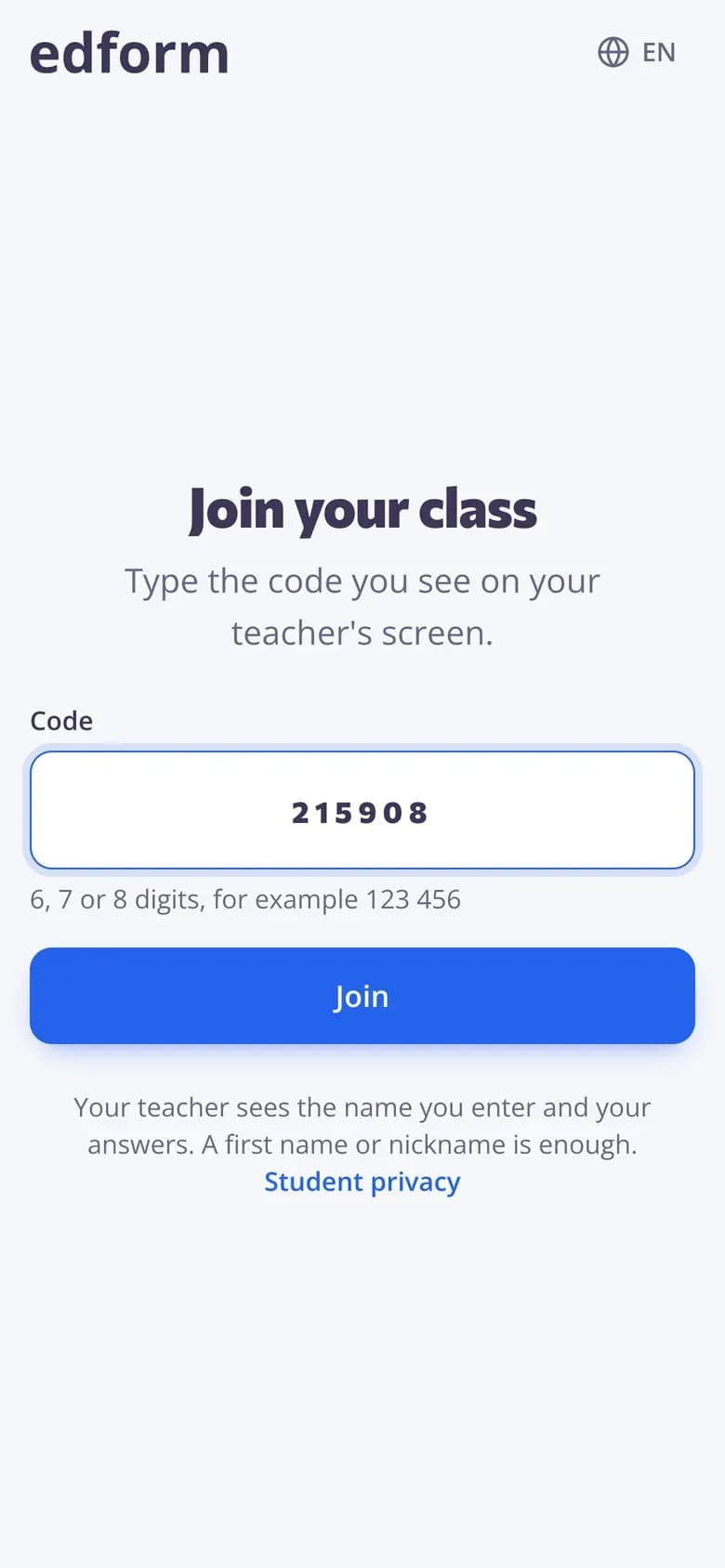
For homework and games, students go to the join page, type the code from your screen (6, 7 or 8 digits) and press “Join”.
Students who make their own account
Step 1: Sign up as a student without email
Students press “Get started free”, choose “I'm a student” and then “I don't have an email address”. They pick a “Username” of 3–32 characters and a password.
Step 2: Join your class with the class code
In “My classes”, they type your 6-character class code under “Join a class” and press “Join”.
Reset a forgotten password
Step 1: Find the student in the class
Open the class and find the student in “Members”. Open the “…” menu next to their name and choose “Reset password”.
Step 2: Confirm and give the new password
Confirm with “Reset password”. The old password stops working right away and the new one is shown once, so give it to the student straight away.
Questions
Do students need an account to do homework?
No. If you give homework to “Anyone with the code”, students only type the code and their name. Accounts are needed when you choose “Signed-in students” or “One of my classes”.
What is the difference between the class code and a homework code?
The class code has 6 characters and is typed once in “My classes” to join your class. Homework, live game and course codes are 6, 7 or 8 digits and are typed on the join page.
Can I see a student's password later?
No. Passwords are shown only once. If a student loses theirs, use “Reset password” to make a new one.
What if two students have the same name?
Edform makes every username unique, adding numbers when a username is already taken.
Is it safe for young students?
Yes. Student logins need no email address, students can't use AI tools or upload files, and Edform never shows ads or sells data. Read more on our Student privacy page at edform.com/page/student-privacy.
Related
- Student logins without emailUsernames and passwords for students without email
- Join with a codeStudents type a code — no account needed
- Create a classMake a class, share the class code and add students from a list.
- Assign homeworkGive a test as homework with a code, link or QR code and set the deadline.
- Elementary schoolBig buttons, read-aloud and team games for young learners