


Buy seats for your school
Step 1: Click “Buy for your school”
You'll find it on the Pricing page, or in the app under Settings → “Plan and billing”.
Step 2: Enter your school and the number of seats
Type the “School name”, choose the “Number of seats” (at least 5), the “Billing period” and the “Currency”. The total is shown below.
Step 3: Click “Continue to payment”
You pay securely with Stripe. Afterwards your school's page opens; you are its owner and have a seat yourself.
Invite your teachers
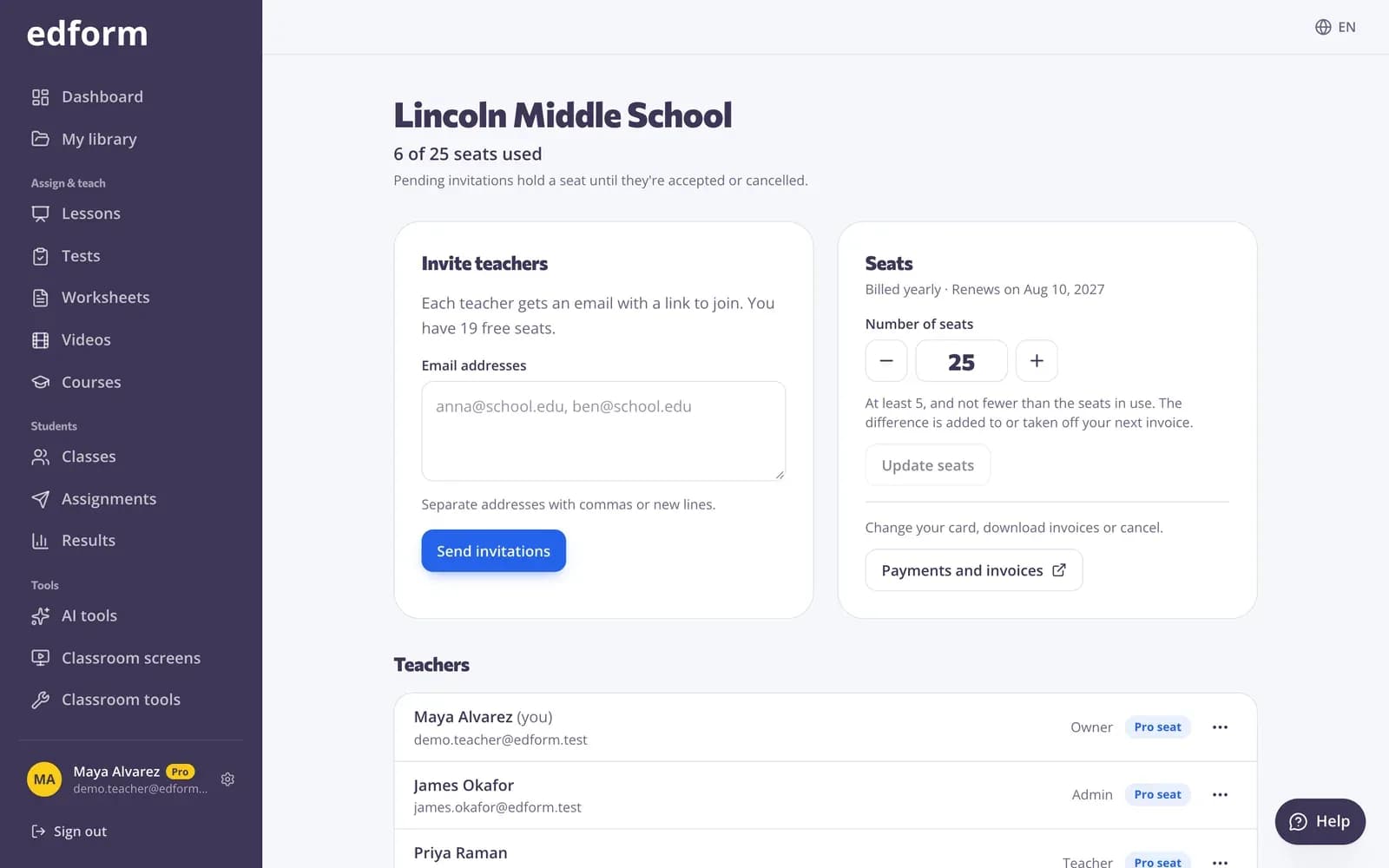
Step 1: Open your school's page
Go to Settings → “Plan and billing” and click “Manage” next to your school under “Your schools”.
Step 2: Paste their email addresses
Under “Invite teachers” paste the addresses into “Email addresses” and click “Send invitations”. Each invitation holds a seat until it is accepted or cancelled.
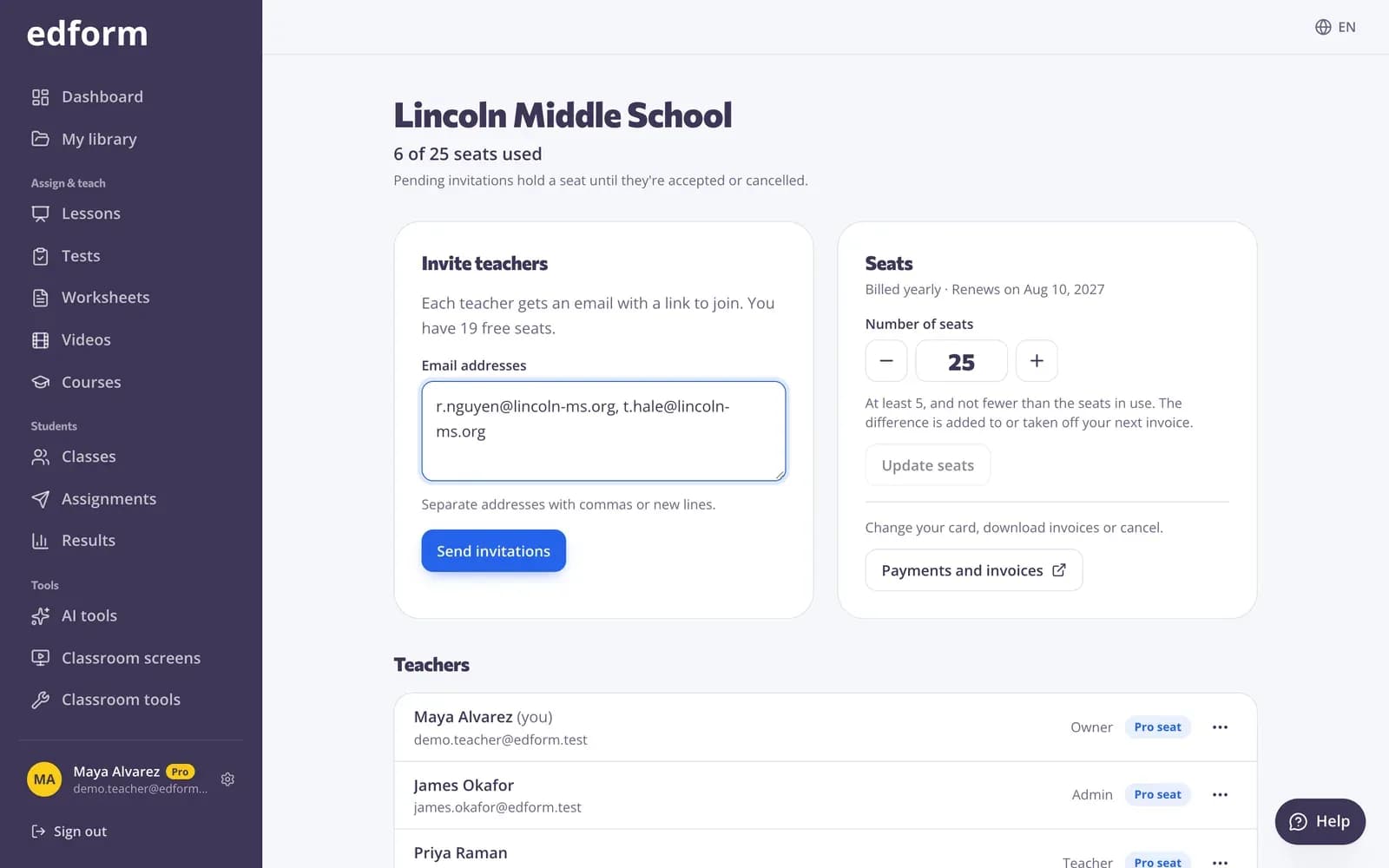
Step 3: Teachers accept
Each teacher gets an email with a link. They sign in (or sign up free) and click “Join school”.
Step 4: Follow up on pending invitations
“Waiting to join” lists invitations not accepted yet. Use “Copy link” to send it another way, or “Cancel invitation” to free the seat.
Manage seats and teachers
Step 1: Move seats between teachers
In the “Teachers” list open the menu next to a teacher: “Give seat”, “Take seat back”, “Make admin” or “Remove”. Their materials always stay theirs.
Step 2: Change the number of seats
Under “Seats” set the “Number of seats” and click “Update seats”. The difference is added to or taken off your next invoice; you can't go below the seats in use.
Step 3: Open “Payments and invoices”
Change the card, download invoices or cancel the school plan.
Questions
Do teachers need the school plan to use Edform?
No. Every feature is on the free Basic plan. A seat gives a teacher Pro: 300 AI points a month instead of 5.
Can a school admin invite teachers too?
Yes. The owner can make any teacher an admin, and admins can invite teachers and manage seats.
What happens when a teacher leaves the school?
Remove them or let them click “Leave school” in “Plan and billing”. Their seat becomes free and their materials stay theirs.
How long does an invitation link work?
30 days. After that, send a new invitation from your school's page.