


Open the results
Step 1: Go to “Given as homework”
In the sidebar click “Tests”, then the “Given as homework” tab. Every homework you gave is listed with its status, how many students handed in and the average.
Step 2: Open a homework
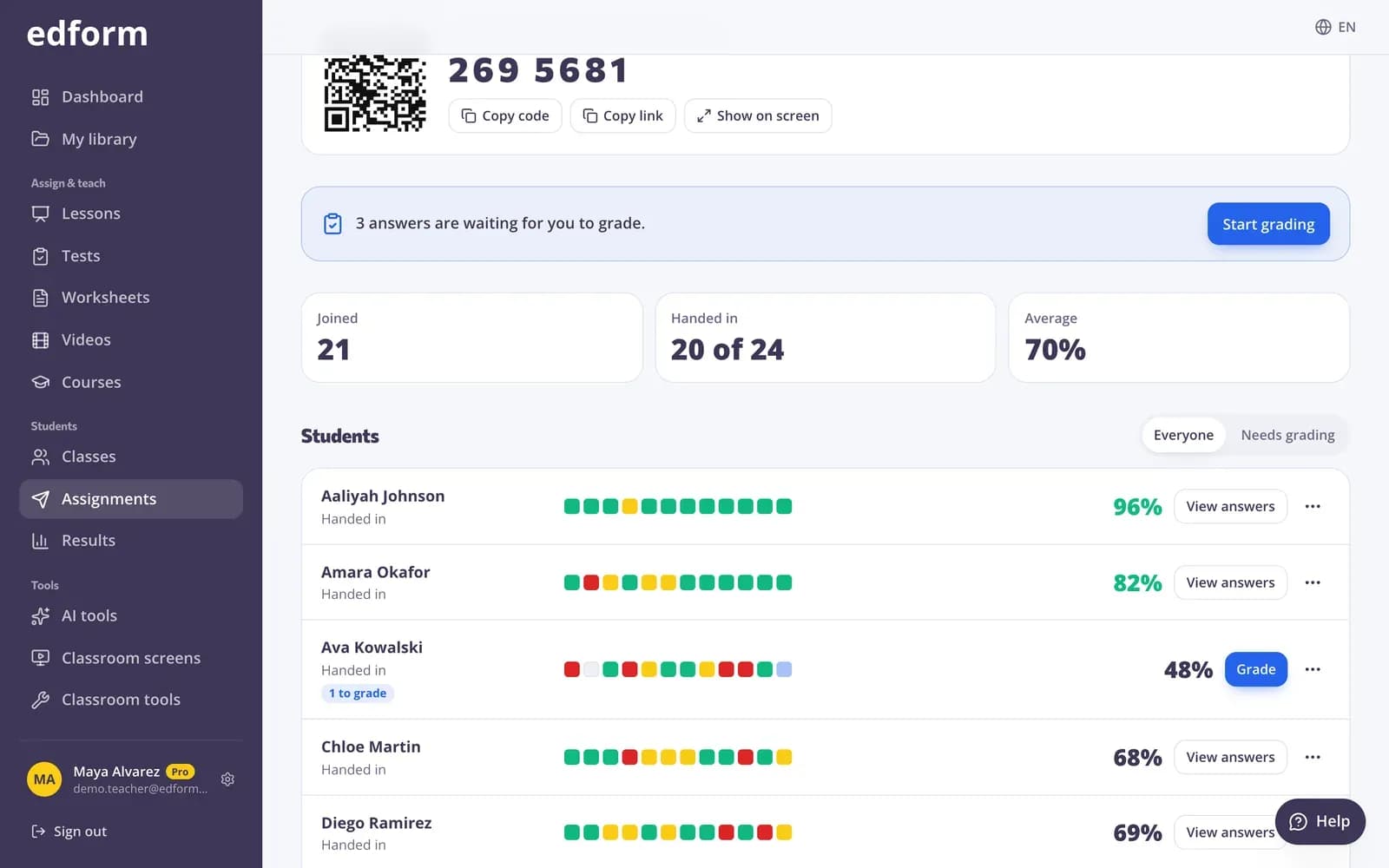
Click it to see its report. At the top you see “Joined”, “Handed in” and “Average”; for a class homework “Handed in” shows how many of the class handed in.
See each student
Step 1: Read the “Students” list
Each row shows the student's status (“Working” or “Handed in”), their score and one small square per question: green is correct, yellow partly correct, red wrong and grey not answered. Late hand-ins, extra attempts and leaving the page are noted under the name.
Step 2: Open a student's answers
Click “View answers” to see every answer the student gave next to the correct answer.
Step 3: See who hasn't started
For homework given to one of your classes, “Not started” lists the students in the class who haven't opened it yet.
Step 4: Compare teams
If students played in teams, the “Teams” section shows each team's average.
See how each question went
Step 1: Scroll to “Questions”
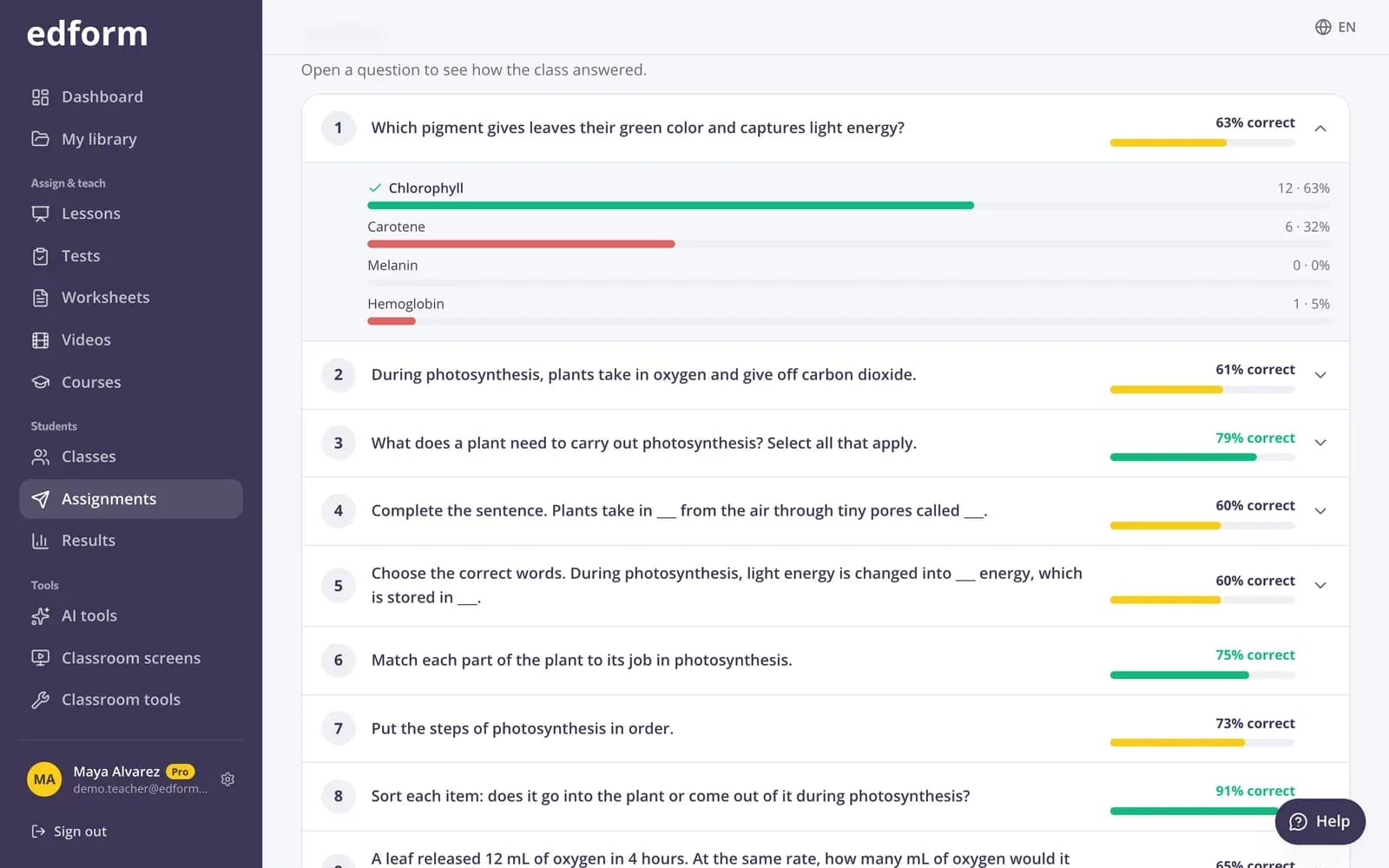
Each question shows the percentage of correct answers with a coloured bar, so the hardest questions stand out.
Step 2: Open a question
Click a question to see how the class answered: how many students picked each option and the most common wrong answers.
Download and follow up
Step 1: Click “Download CSV”
You get one row per student with the status, score, percentage and each question. It opens in any spreadsheet program.
Step 2: Help students who need it
The menu next to each student lets you allow one more attempt, give extra time, set a later deadline, reset an attempt or remove the student.
Questions
Do results appear while students are still working?
Yes. Students appear in the report as soon as they start. Reload the page to see the latest answers.
Why does a score say it may change?
The homework has open answers that you haven't graded yet. The score is final once you grade them.
Two students typed the same name. How do I tell them apart?
Duplicate names are numbered in the report, for example “Anna (2)”. Choose “Signed-in students” or “One of my classes” next time to have results tied to accounts.
Is there a report for a live game?
A live game shows its ranking on the game screen. If you use “Continue at home”, the game becomes homework with a normal report.
Related
- Quiz reportsScores per student, per question and common wrong answers
- Auto-gradingClosed answers checked the moment students hand in
- Formative assessmentCheck understanding during the lesson, not after the test
- Grade open answersGrade written answers with points, a checklist and feedback, or change an automatic score.
- Assign homeworkGive a test as homework with a code, link or QR code and set the deadline.