


Sign in with Microsoft
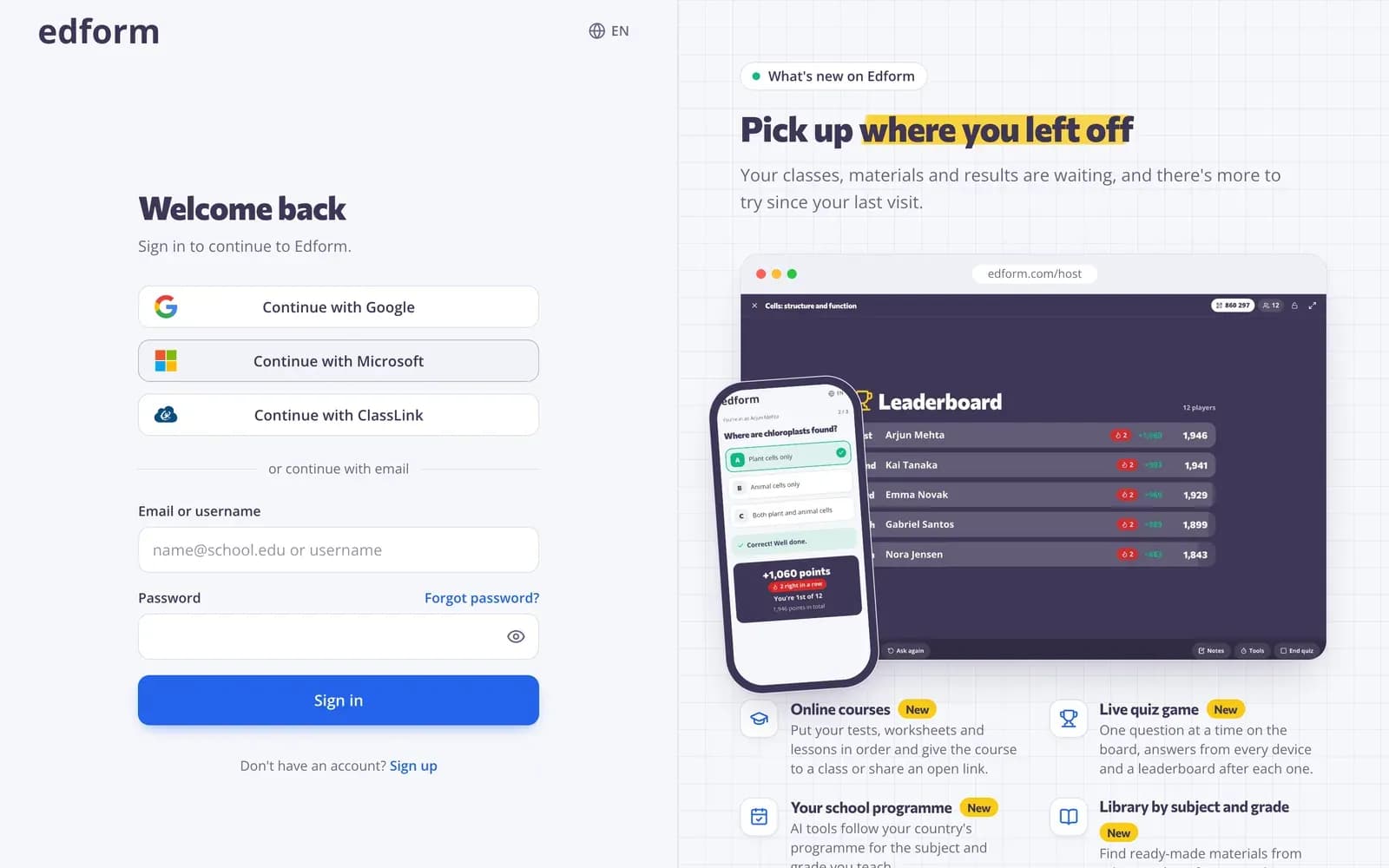
Step 1: Press “Continue with Microsoft”
On Edform's sign-up or sign-in page, press Continue with Microsoft and pick your school or personal Microsoft account. You come back to Edform signed in.
Import a class from Microsoft Teams
Step 1: Open Classes
In the menu on the left, open Classes.
Step 2: Press “Import from Microsoft Teams”
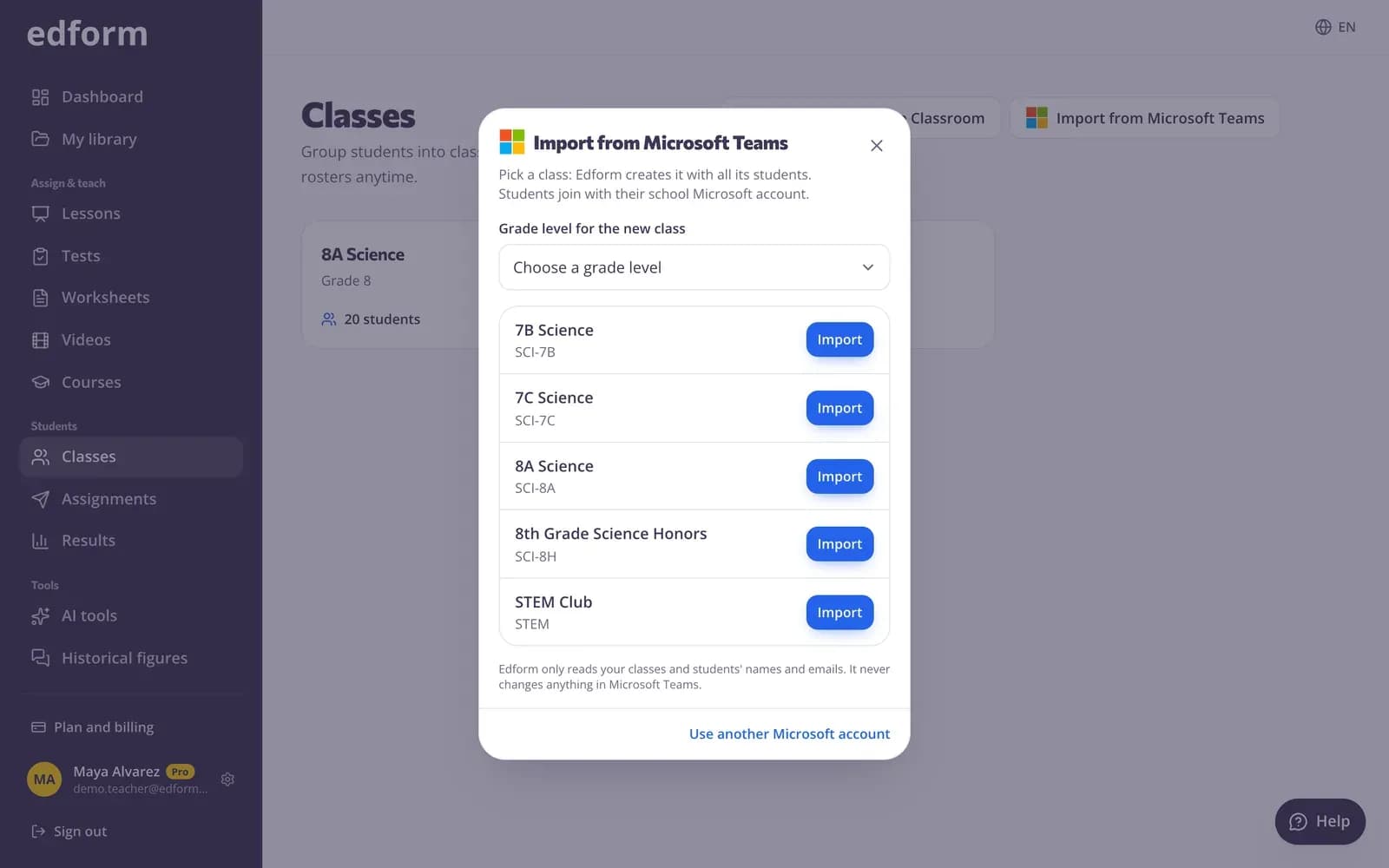
The button with the Microsoft logo is next to “Create class”. The first time, Microsoft asks you to sign in and allow Edform to read your classes; then you come back to the list of the classes you teach in Teams.
Step 3: Choose a grade level and press “Import”
Pick the grade level for the new class and press Import next to a class. Edform creates it with every student in the Teams class.
Keep the class in sync
Step 1: Press “Sync with Microsoft Teams”
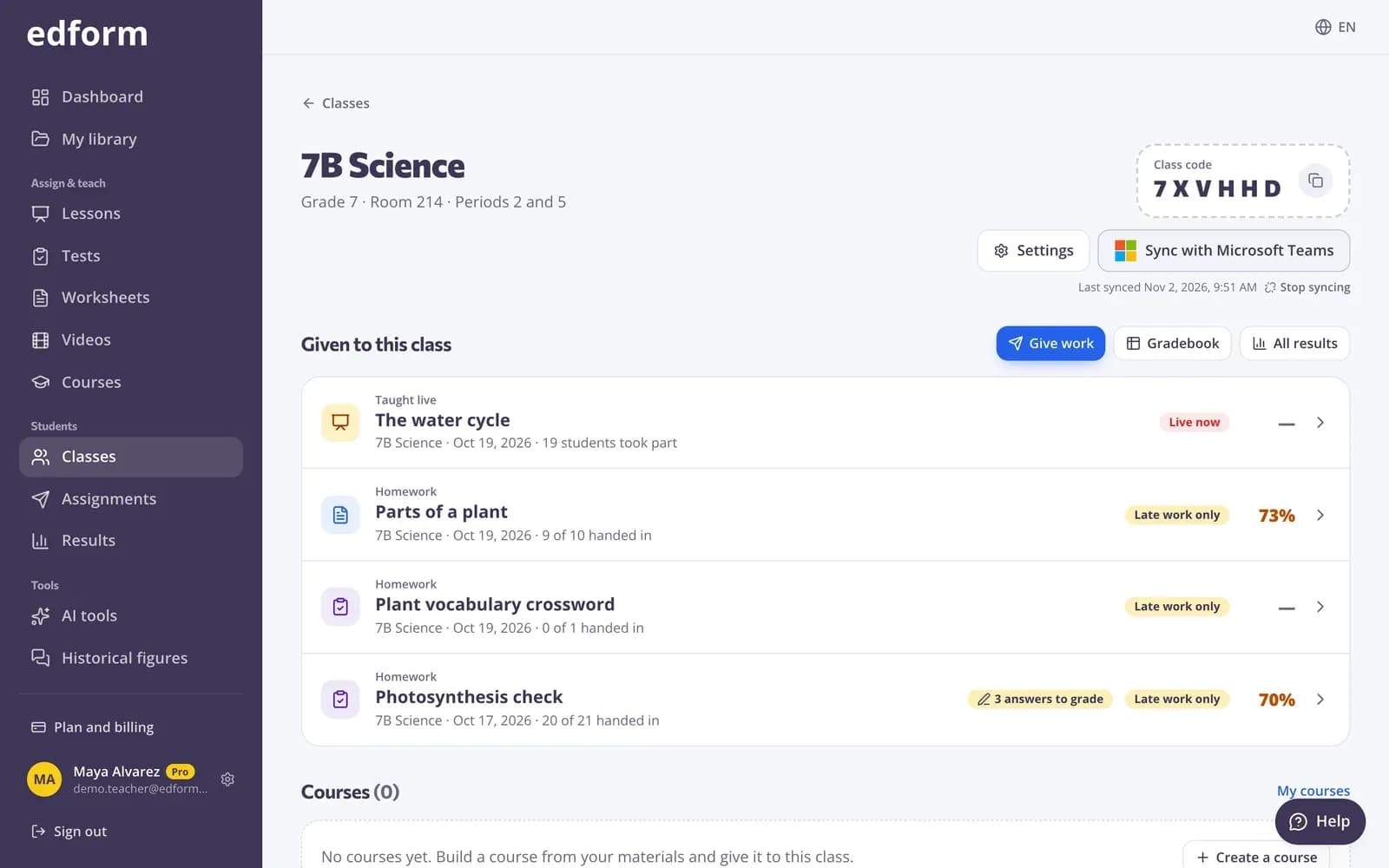
A class imported from Teams stays linked to it. Press Sync with Microsoft Teams on the class page to add students who joined the Teams class and update changed names.
Assign in Teams
Post Edform homework or a course to your Teams class as a Teams assignment.
Step 1: Give the homework in Edform
Give homework to your class as usual and open it on the Assignments page.
Step 2: Press “Assign in Teams”
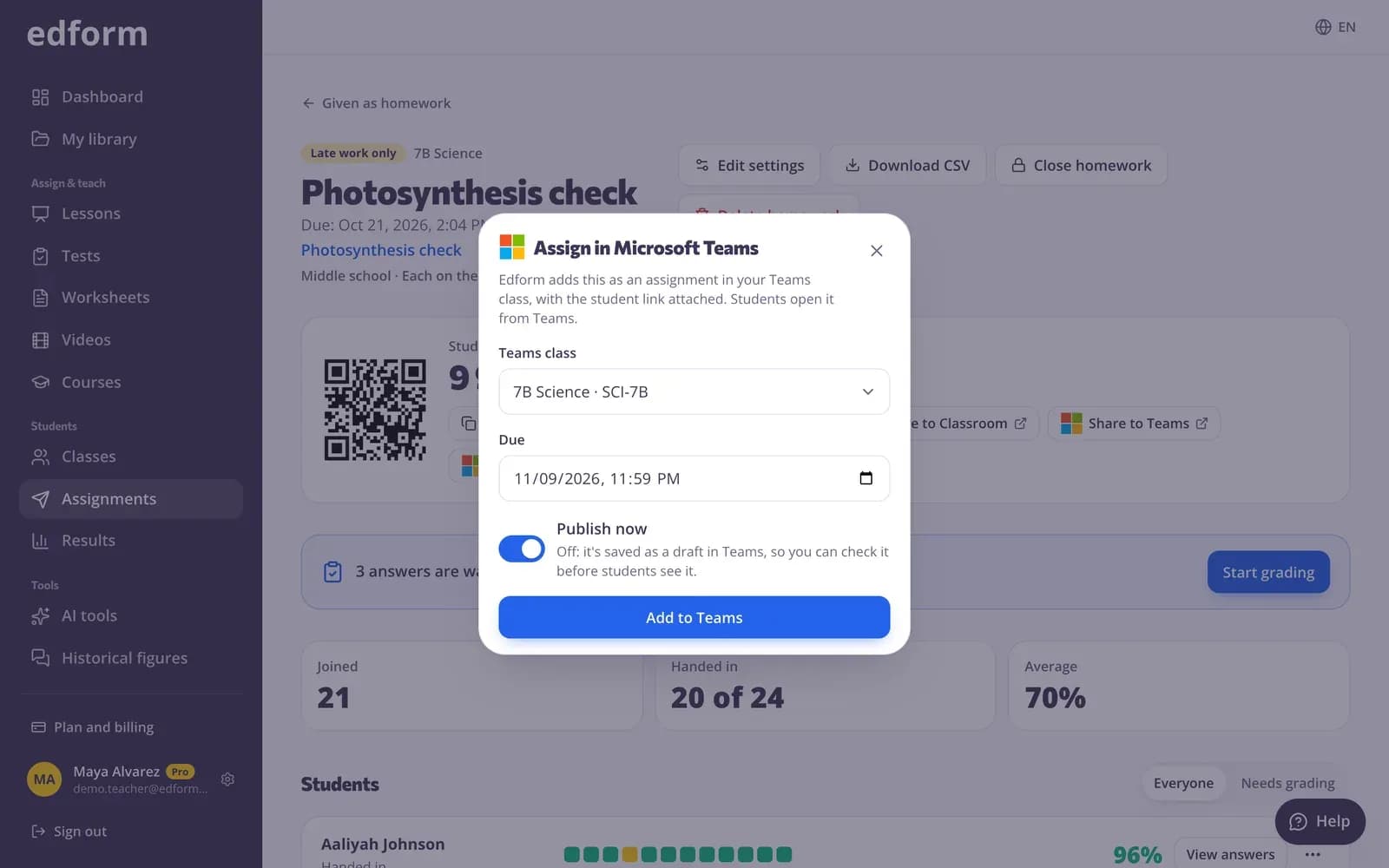
Pick the Teams class, check the due date and press Add to Teams. With Publish now on, students see it in Teams right away; turn it off to save a draft in Teams and publish it there later.
For Microsoft 365 administrators
Many schools only let administrators approve apps that read class rosters. If Microsoft says a teacher needs approval, Edform shows a link for the IT admin.
Step 1: Open the approval link
A Global, Application or Cloud Application Administrator opens the link Edform shows and signs in with their Microsoft 365 admin account.
Step 2: Approve Edform for the school
Microsoft lists what Edform asks for: sign-in, reading classes and rosters, and creating assignments. After approval, every teacher at the school can import their classes.
Questions
Why does Microsoft say I need admin approval?
Your school only lets its IT admin approve apps that read class rosters. Send your admin the link Edform shows; once they approve Edform, try Import from Microsoft Teams again.
Why don't I see any classes?
Edform lists the class teams you teach in Microsoft Teams for Education. Check that you signed in with your school account, not a personal one, and that you are a teacher (owner) of the class team.
Do grades go back to Teams?
No. Students' answers are graded in Edform, where you see every result and report. Teams shows the assignment with its link and due date.
Can a student be in a Teams class and join with a code too?
Yes. Edform matches students by their Microsoft account and email, so nobody appears twice.
Related
- Microsoft TeamsSign in with Microsoft, import Teams classes and assign in Teams
- IntegrationsGoogle Classroom, Microsoft Teams, LMS (LTI)
- Google ClassroomImport classes from Google Classroom, keep them in sync and share homework to Classroom.
- Create a classMake a class, share the class code and add students from a list.
- Assign homeworkGive a test as homework with a code, link or QR code and set the deadline.