


For LMS administrators: register Edform
Edform supports LTI 1.3 Dynamic Registration: paste one URL and Edform registers itself.
Step 1: Copy Edform's registration URL
https://edform.com/api/lti/register
Step 2: Moodle
Site administration → Plugins → Activity modules → External tool → Manage tools. Paste the URL into “Tool URL”, press “Add LTI Advantage”, then activate Edform in the list.
Step 3: Canvas
Admin → Developer Keys → + Developer Key → + LTI Registration, paste the URL and enable the key. Then install Edform with its client ID under Settings → Apps.
Step 4: D2L Brightspace
Admin Tools → Manage Extensibility → LTI Advantage → Register Tool, choose Dynamic and paste the URL. Then create a deployment for the org units that should use Edform.
Step 5: Blackboard Learn
Administrator Panel → Integrations → LTI Tool Providers → Register LTI 1.3/Advantage Tool. Enter Edform's Client ID a552e226-43e2-459e-bf64-256b02e41824 and approve the tool.
Step 6: Sakai
Administration Workspace → External Tools → LTI Dynamic Registration: paste the URL, press Begin Configuration, then save the tool.
Step 7: Open edX, itslearning, Blackbaud and other LTI 1.3 LMSs
Open https://edform.com/lti/setup. Enter Edform's URLs listed there in your LMS's LTI 1.3 tool settings, then save your LMS's Client ID, Deployment ID and URLs on the same page.
Add an Edform activity to a course
Step 1: Add an external tool and choose Edform
Where you add activities or external tools to a course, choose Edform. Edform's picker opens inside the LMS.
Step 2: Connect your Edform account the first time
Press “Use my Edform account” to sign in to the account you already use (it opens a new tab; come back and press continue), or “I'm new” to create one.
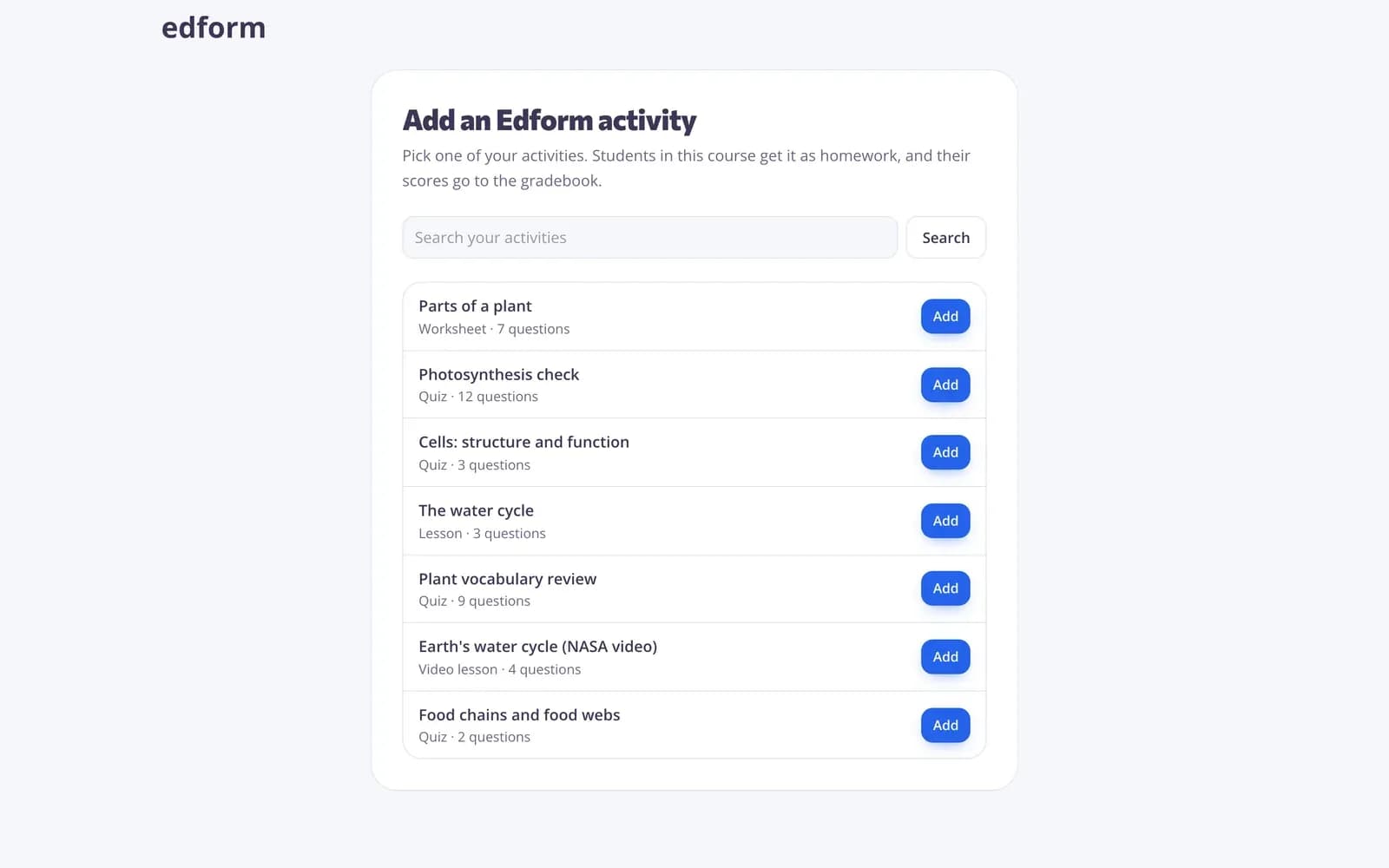
Step 3: Pick an activity and press “Add”
Edform creates homework for this course and the LMS places the link, with a gradebook column out of 100.
Students open it from the course
Step 1: Open the activity in the course
Students click the Edform activity. If the LMS shows Edform inside the page, they press “Open Edform” and it opens in a new tab, signed in.
Step 2: Hand in
Their best score goes to the LMS gradebook right away. Answers you grade later update it.
Questions
Why does Edform open in a new tab?
Many browsers block sign-in cookies inside another site's page, so Edform opens in a tab of its own, already signed in. LMS admins can set the tool to open in a new window to skip the extra click.
The LMS says Edform isn't connected
Your LMS admin needs to register Edform with LTI 1.3 first (see above).
Can I use my existing Edform activities?
Yes. Connect the LMS to your Edform account the first time you add Edform, and the picker shows your activities.
What if I copy my LMS course?
Edform links in the copied course get their own homework for the new course the first time you open them, with the same settings.
Related
- Other LMSs (LTI 1.3)Canvas, Moodle, Brightspace and more: activities in your course, scores in the gradebook
- IntegrationsGoogle Classroom, Microsoft Teams, LMS (LTI)
- Assign homeworkGive a test as homework with a code, link or QR code and set the deadline.
- Homework reportsSee every student's score, each answer and how the class did on each question.