

 Microsoft Teams integration
Edform works with Microsoft Teams
Sign in with your school Microsoft account, bring your Teams classes into Edform with every student, and post homework back to Teams as a real Teams assignment.
- Continue with Microsoft
- Classes imported from Teams
- Assignments posted to Teams
How does Edform work with Microsoft Teams?
Microsoft Teams for Education is where many schools keep their classes: each class team has its students, and Assignments is where they find their work. Edform connects to it in three ways. Sign-in: Continue with Microsoft is on every Edform sign-in page, for school and personal Microsoft accounts. Rosters: a teacher presses Import from Microsoft Teams, picks a class they teach and Edform creates it with every student; Sync with Microsoft Teams adds new students later. Assignments: Assign in Teams posts Edform homework to the Teams class as an assignment with the student link and due date, so students open it from Teams. Edform only reads classes and students' names and emails, and it writes nothing to Teams except the assignments you post.
Edform at a glance
- Price
- Free for teachers: Basic is free forever, with no credit card, and includes every feature.
- AI tools
- AI teacher tools with 5 AI points a month on Basic and 300 a month on Pro.
- Students
- Students join with a code. They need no email address and no account.
- Grading
- Quizzes and worksheets are graded automatically, with results per student and per question.
- Devices
- Runs in the browser on laptops, tablets, phones and interactive boards. Nothing to install.
- Languages
- Available in 32 languages.
- Works with
- Google Classroom, Microsoft Teams, ClassLink and learning platforms that support LTI 1.3.
- Library
- A free library of ready-made quizzes, worksheets and lessons that teachers can copy and edit.
How to use Edform with Microsoft Teams
- 1
Sign in with Microsoft
On Edform's sign-up or sign-in page, press Continue with Microsoft and pick your school account.
- 2
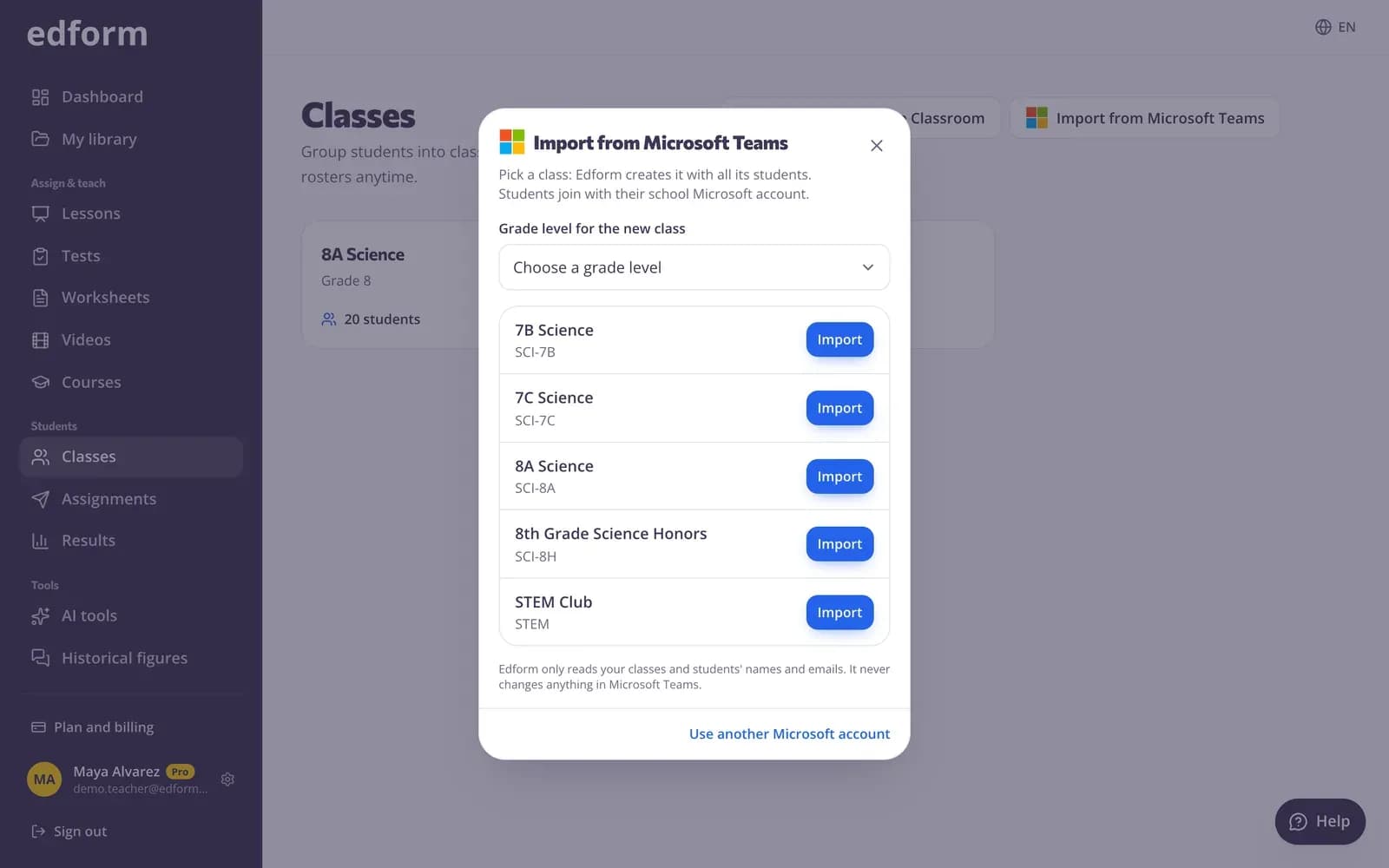
Import your Teams classes
On Classes, press Import from Microsoft Teams, choose a grade level and press Import next to a class. Its students are added at once.
- 3
Assign in Teams
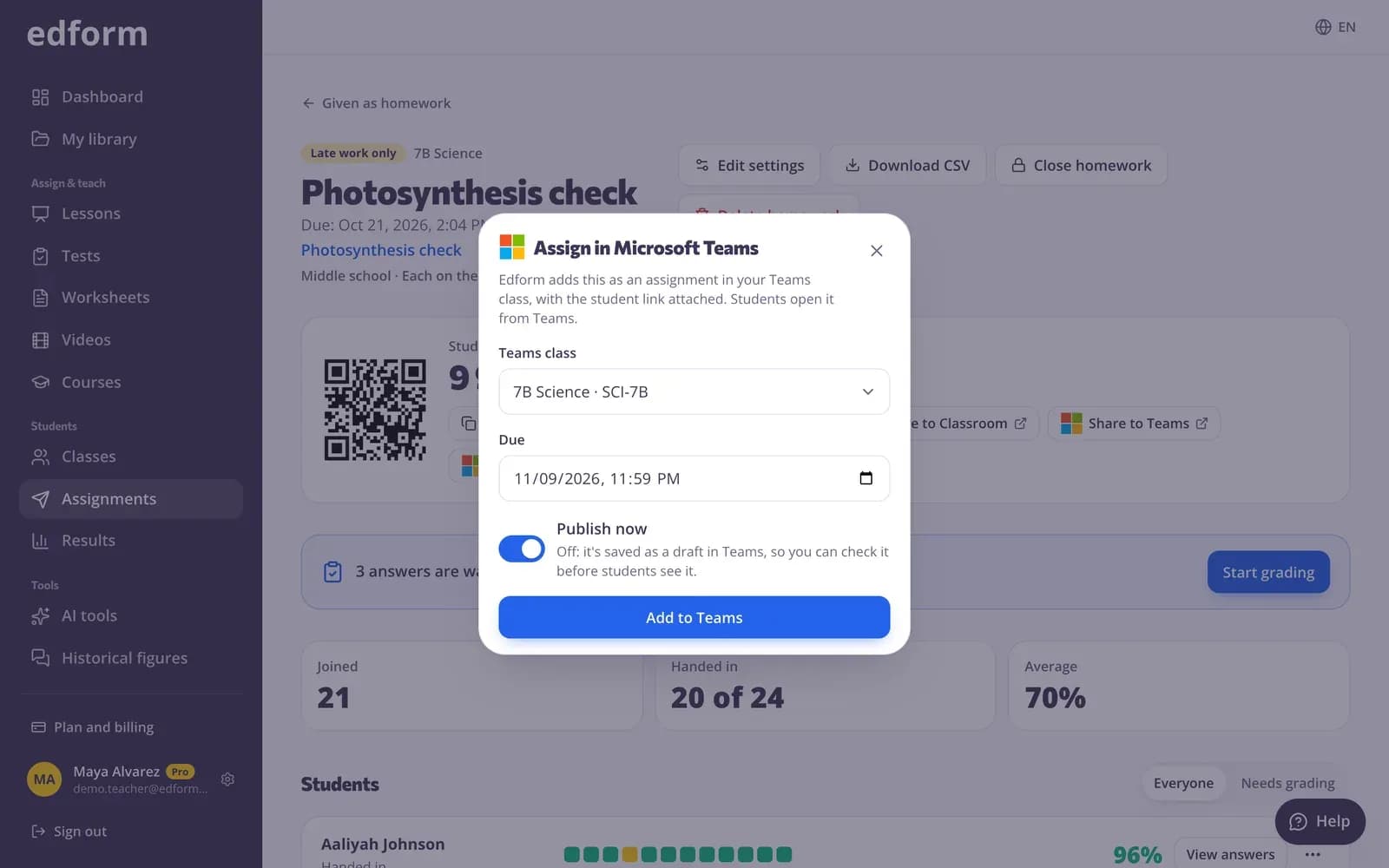
Give homework in Edform, press Assign in Teams, pick the Teams class and the due date. Students find it in Teams Assignments.
Try it yourself
No sign-up needed — try it as a student
This is the real Edform player. Answer the questions and see how they're checked.
Your Teams classes in one click
Import from Microsoft Teams lists the classes you teach in Teams. Pick one and Edform creates it with every student, or bring the students into a class you already have. Students who already signed in with Microsoft join right away; the others take their place the first time they sign in.
- Classes you teach in Teams
- Into a new or an existing class
- Nobody added twice
Rosters that follow Teams
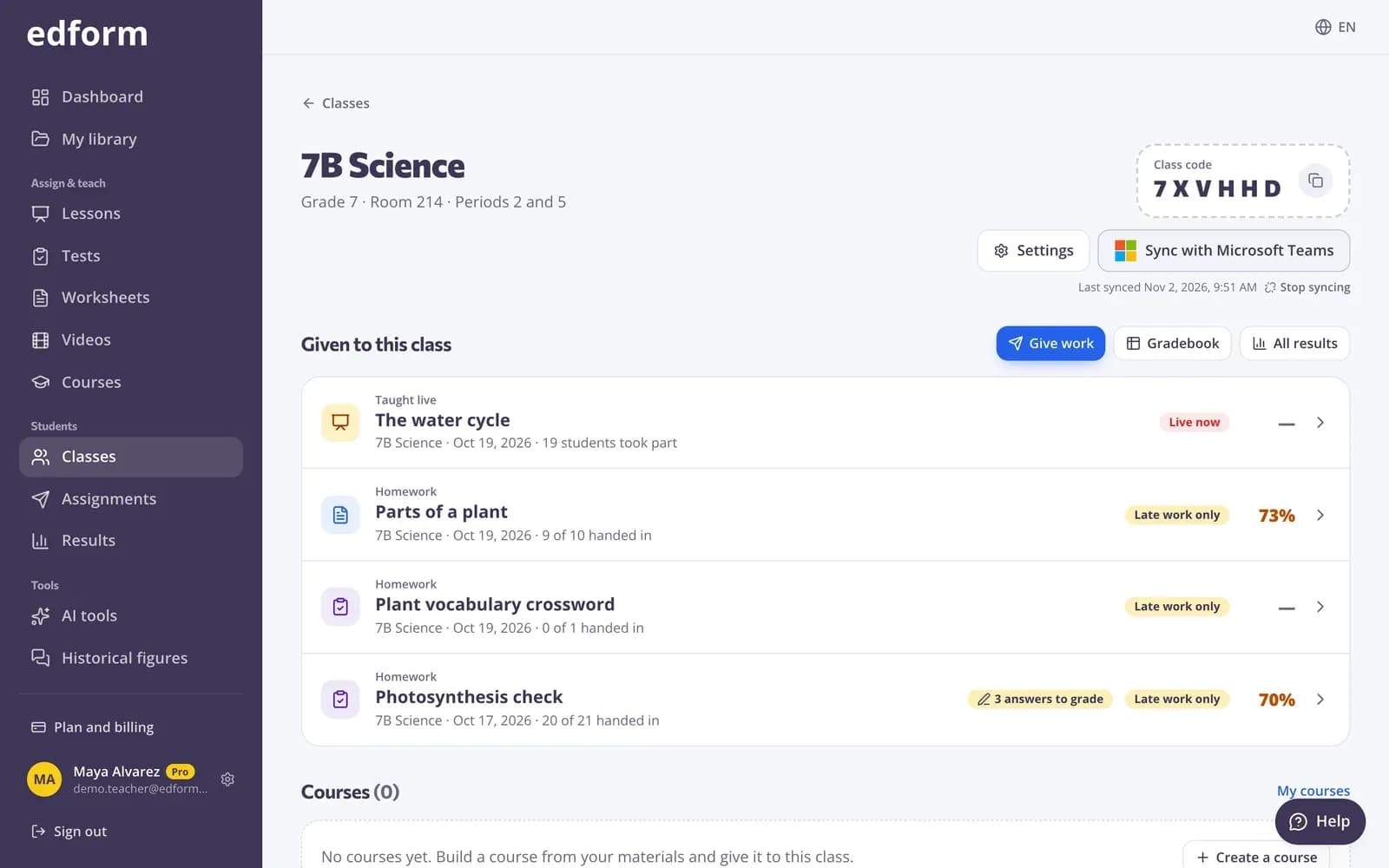
A class imported from Teams stays linked to it. When students join the Teams class later, press Sync with Microsoft Teams: new students are added and changed names are updated. Students who left stay in Edform with their results until you remove them.
- Sync with one button
- Changed names updated
- Never removes anyone on its own
Homework that shows up in Teams
Assign in Teams posts Edform homework or a course to your Teams class as a Teams assignment, with the student link attached and the due date you pick. Publish it now, or keep it as a draft in Teams and publish it there when you're ready. Students open it from Teams and Edform grades it.
- Real Teams assignments
- Due date and link included
- Publish now or save a draft
Everything a Microsoft school needs
Sign in with Microsoft
Teachers and students sign in with their school or personal Microsoft account. No new password to remember.
Class import
Import from Microsoft Teams lists the classes you teach. Pick one and Edform creates it with every student.
Roster sync
Sync with Microsoft Teams adds students who joined the Teams class and updates changed names.
Students land in their class
A student's first Microsoft sign-in takes the place reserved for them, matched by their Microsoft account.
Assign in Teams
Post homework and courses to a Teams class as assignments with the student link and due date.
Approved once by IT
Your Microsoft 365 admin approves Edform once for the whole school, then every teacher can import their classes.
Schools use it to
- 01
Start the school year in minutes
Teachers import every Teams class they teach instead of typing names or handing out codes.
- 02
Keep students in one place
Students keep opening their work from Teams Assignments, and Edform does the grading.
- 03
Make sign-in easy
Students use the Microsoft account the school already gave them, so nobody forgets a password.
- 04
Mix Teams with live lessons
Run live games and lessons in class, then post the follow-up homework to Teams.
Explore more
- IntegrationsGoogle Classroom, Microsoft Teams, LMS (LTI)
- Google ClassroomImport classes and share homework to Classroom
- Online homeworkGive homework with a code and a deadline
- Join with a codeStudents type a code — no account needed
- Student logins without emailUsernames and passwords for students without email
- For schoolsTeacher seats, student sign-in and flyers for families
Frequently asked questions
Is the Microsoft Teams integration free?
Yes. Signing in with Microsoft, importing Teams classes, syncing rosters and Assign in Teams are free for teachers and schools, like every Edform feature.
Which Microsoft accounts work?
Any Microsoft account can sign in. Importing classes and Assign in Teams need a school account in Microsoft 365 Education, because classes come from Teams class teams.
What does our IT admin need to do?
Many schools let only their Microsoft 365 admin approve apps that read class rosters. If Microsoft asks for approval, Edform shows a link to send to your admin: they approve Edform once for the whole school, and every teacher can then import their classes. Our Microsoft Teams guide has the details.
What data does Edform read from Microsoft?
For sign-in: your name, email and Microsoft account id. For classes: the classes you teach with their names and codes, and the students' names and school emails. Edform writes nothing to Microsoft except the assignments you post with Assign in Teams.
Do grades go back to Teams?
No. Assign in Teams posts the assignment with the student link and due date; students' answers are graded in Edform, where you see every result and report.
Can I use Microsoft Teams and Google Classroom together?
Yes. Each Edform class follows one roster: some classes can come from Teams and others from Google Classroom, and you can still add students with a class code or a pasted list.
Google Classroom is a trademark of Google LLC. Microsoft and Microsoft Teams are trademarks of the Microsoft group of companies.
Bring your Teams classes to Edform
Sign in with Microsoft and import your first class in a minute. Free for teachers.
- Free for teachers
- No credit card
- Works on any device