


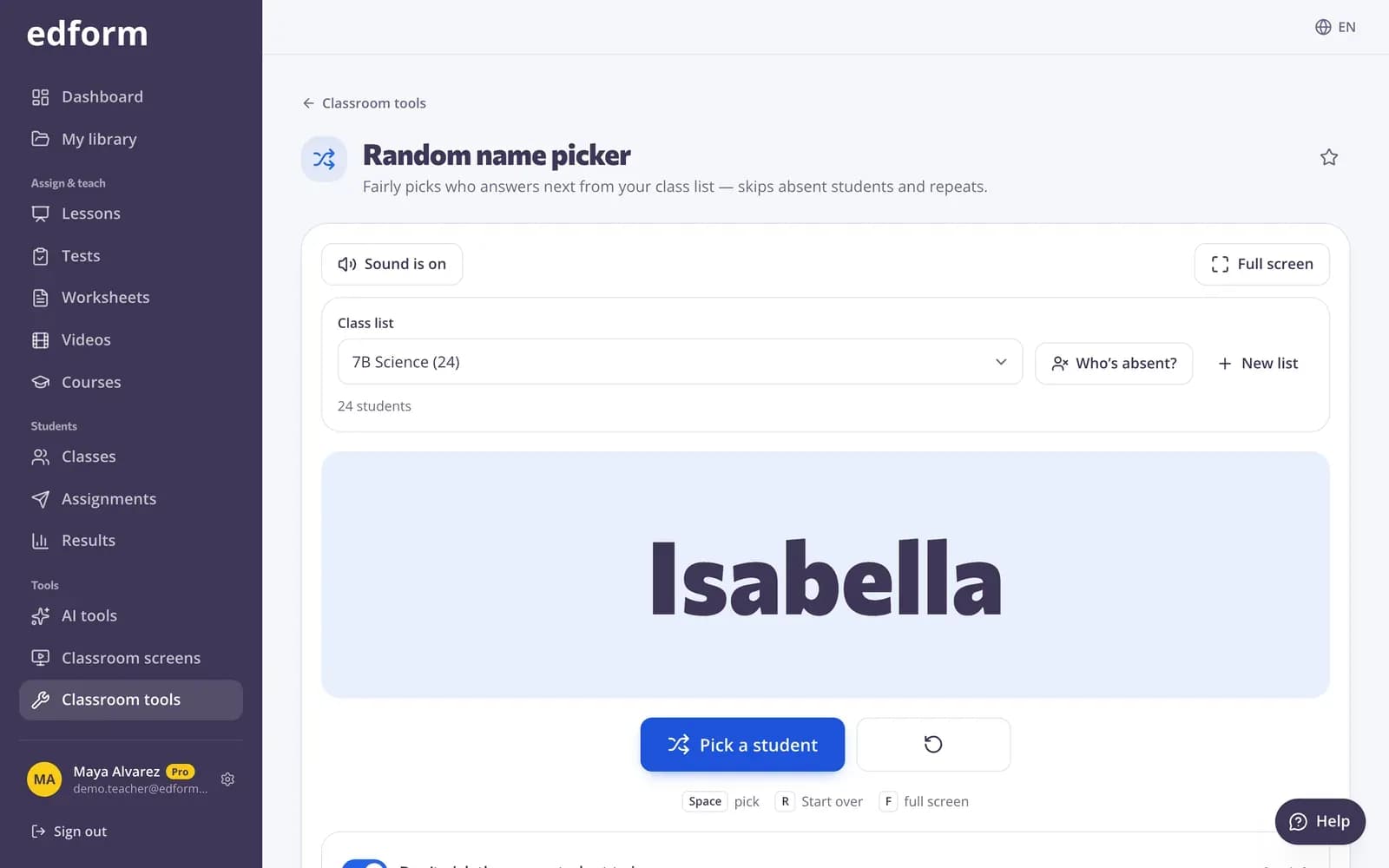
Open a tool
Step 1: Go to “Classroom tools”
In the sidebar, under “Tools”, click “Classroom tools”. Tools are grouped into “On the classroom screen” and “Printables”, and you can star the ones you use most.
Step 2: Click a tool
For example “Classroom timer”, “Random name picker” or “Noise meter”. The tool opens with big buttons and its settings underneath.
Step 3: Press “Full screen”
The tool fills the projector. The sound button turns chimes on or off, and keyboard shortcuts are listed under the controls.
Use your class list
Step 1: Open the class list
Tools such as “Random name picker”, “Group maker” and “Seating chart maker” show a “Class list”. Choose one of “My Edform classes”, or click “New list” and paste names, one per line.
Step 2: Mark who is absent
Under “Who's absent?” tap the students who are away today. They won't be picked, and the marks reset tomorrow.
Step 3: Pick, spin or make groups
Press the big button, for example “Pick a student”. Turn on “Don't pick the same student twice” to give everyone a turn.
Make a printable
Step 1: Open a printable
Choose from “Crossword maker”, “Word search maker”, “Math worksheet generator”, “Bingo card generator”, “Anagram worksheet maker”, “Certificate maker” and “Name tent cards”.
Step 2: Type your words or names
Fill in the form and the sheet appears in the preview as you type.
Step 3: Print it
Click “Another version” for a new layout, add an answer key page where it's offered, then click “Print or save as PDF”.
Put tools on a classroom screen
Step 1: Click “Classroom screens”
The button is at the top of the Classroom tools page and opens your screens.
Step 2: Add the tool as a widget
On a screen, click “Add widget”. The timer, name picker, noise meter, group maker and other tools are there, so you can combine them on one board.
Questions
Is the noise meter recording my class?
No. It only measures how loud it is. The sound is never recorded, played back or sent anywhere.
Where are my class lists saved?
Lists you paste are saved only in this browser. Your Edform classes come from your account.
Do the tools work without internet?
Yes. A tool you have opened before keeps working offline in the same browser.
Do I need an account?
No. The tools are also free on the public Classroom tools pages without signing up. With an account you can use your Edform classes and star favourites.
Related
- Classroom toolsFree timers, pickers and printables
- Random name pickerFairly picks who answers next from your class list — skips absent students and repeats.
- Classroom timerA big countdown timer and stopwatch for the projector, with a sound when time is up.
- Classroom managementNoise meter, timers and routines on the board
- Classroom screensBuild projector screens with timers, name pickers, instructions and polls.