


Online exams
Online exams with a timer that's fair to everyone
Set a time limit that runs on the server, shuffle questions and answer options for each student, allow one attempt and release results when you choose.
- Time limit checked on the server
- Shuffled for every student
- Free for teachers
What is an online exam in Edform?
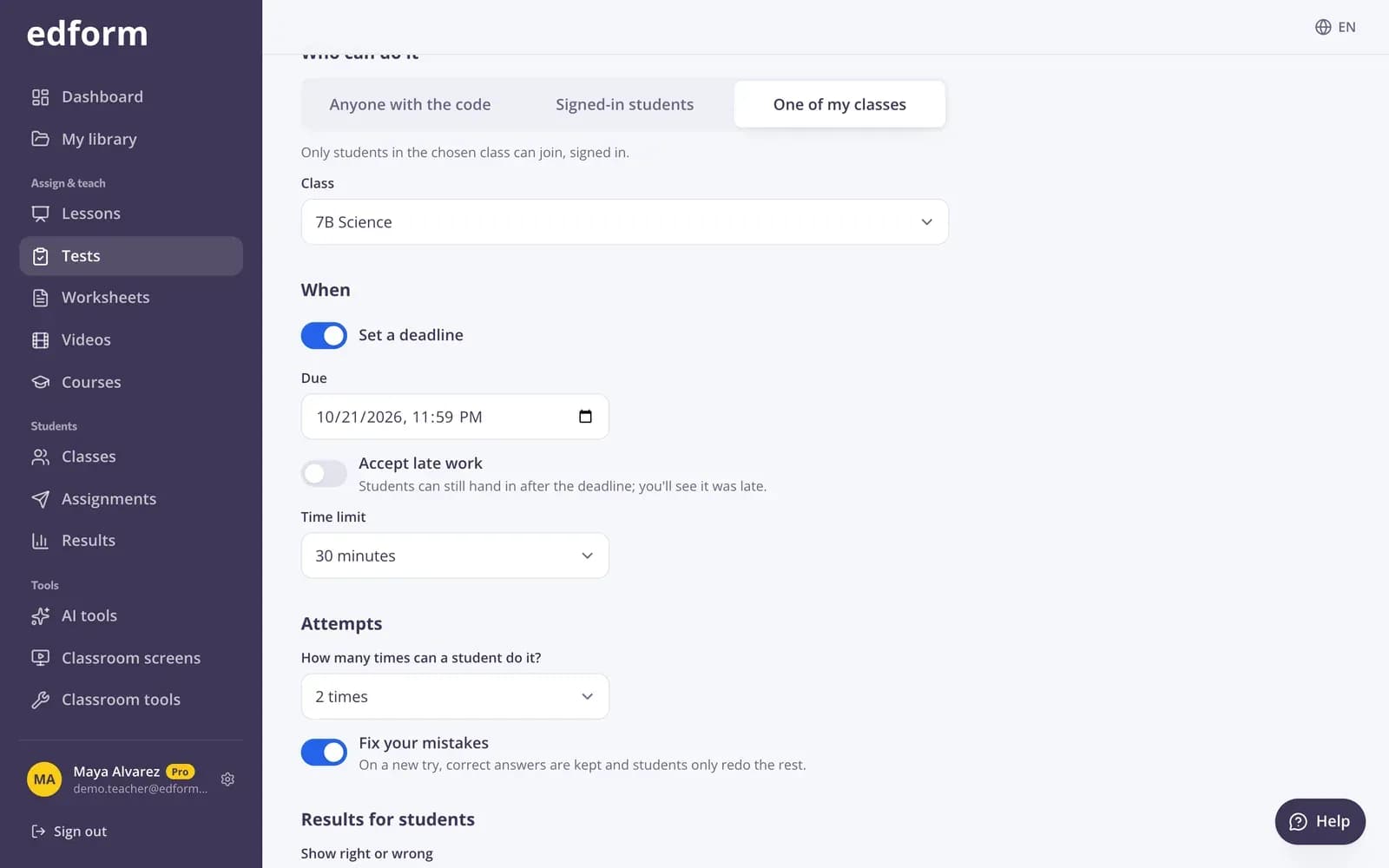
An online exam in Edform is a quiz given with exam settings. You set a time limit, and the timer runs on Edform's servers: when time is up, the answers are handed in automatically. Questions and answer options are shuffled for each student, you allow one attempt, and results stay hidden until after the deadline or until you decide. The exam can be limited to signed-in students or one of your classes. Students can flag questions and review their answers before handing in, and the report shows how often each student left the exam page.
Edform at a glance
- Price
- Free for teachers: Basic is free forever, with no credit card, and includes every feature.
- AI tools
- AI teacher tools with 5 AI points a month on Basic and 300 a month on Pro.
- Students
- Students join with a code. They need no email address and no account.
- Grading
- Quizzes and worksheets are graded automatically, with results per student and per question.
- Devices
- Runs in the browser on laptops, tablets, phones and interactive boards. Nothing to install.
- Languages
- Available in 32 languages.
- Works with
- Google Classroom, Microsoft Teams, ClassLink and learning platforms that support LTI 1.3.
- Library
- A free library of ready-made quizzes, worksheets and lessons that teachers can copy and edit.
How to set up an online exam
- 1
Write the exam
Create a quiz with any mix of question types, or let AI draft one for you to check.
- 2
Choose the exam settings
Choose Give as homework. Set who can do it, the time limit, one attempt, shuffling and when results are shown.
- 3
Share the code and watch
Students join with a code, a link or from their class. Results come in as they hand in or as time runs out.
Try it yourself
No sign-up needed — try it as a student
This is the real Edform player. Answer the questions and see how they're checked.
A calm exam screen
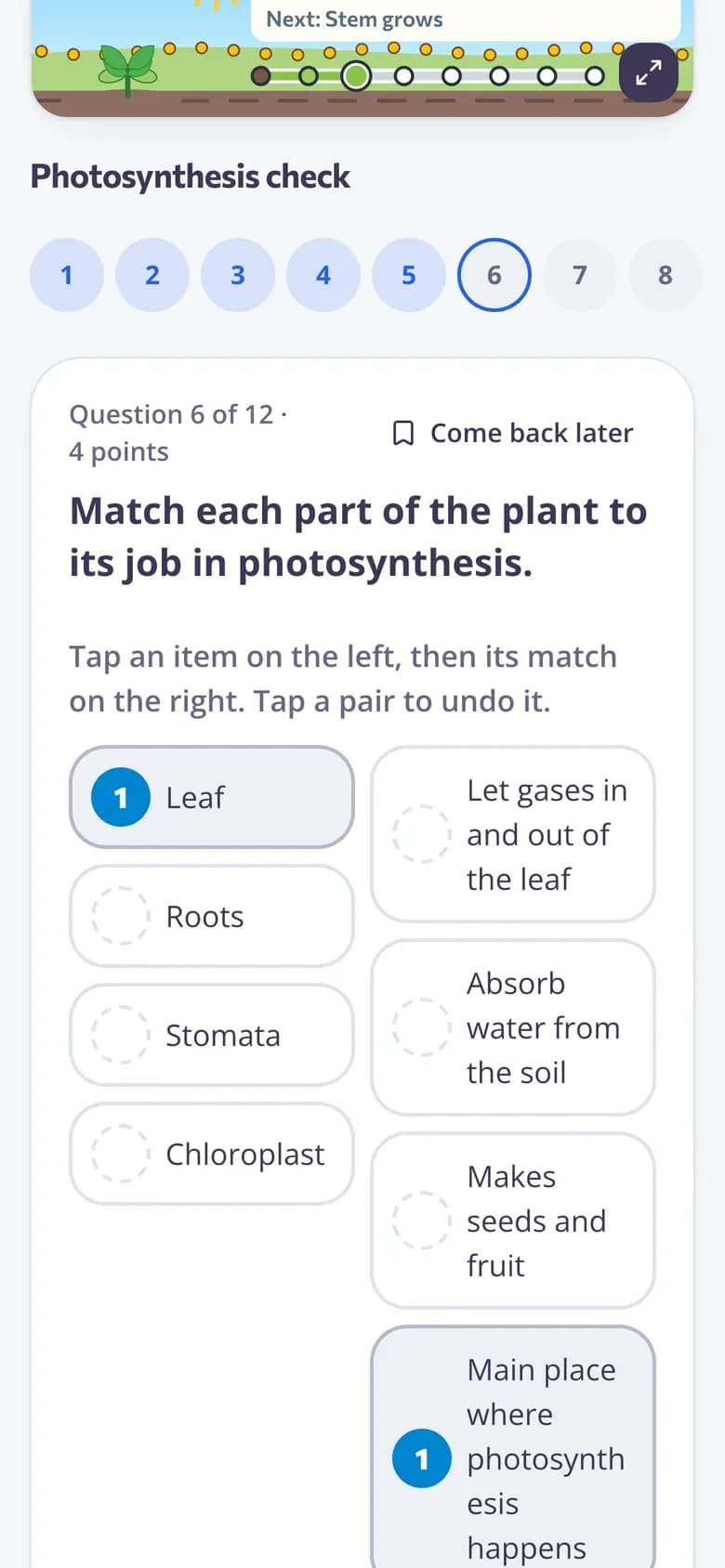
One question per screen, a clear timer and answers that save as students go. For older students, a calm layout with flags and a review page before handing in.
- Time left always visible
- Flag questions to come back to
- Review page before handing in
Adjust for individual students
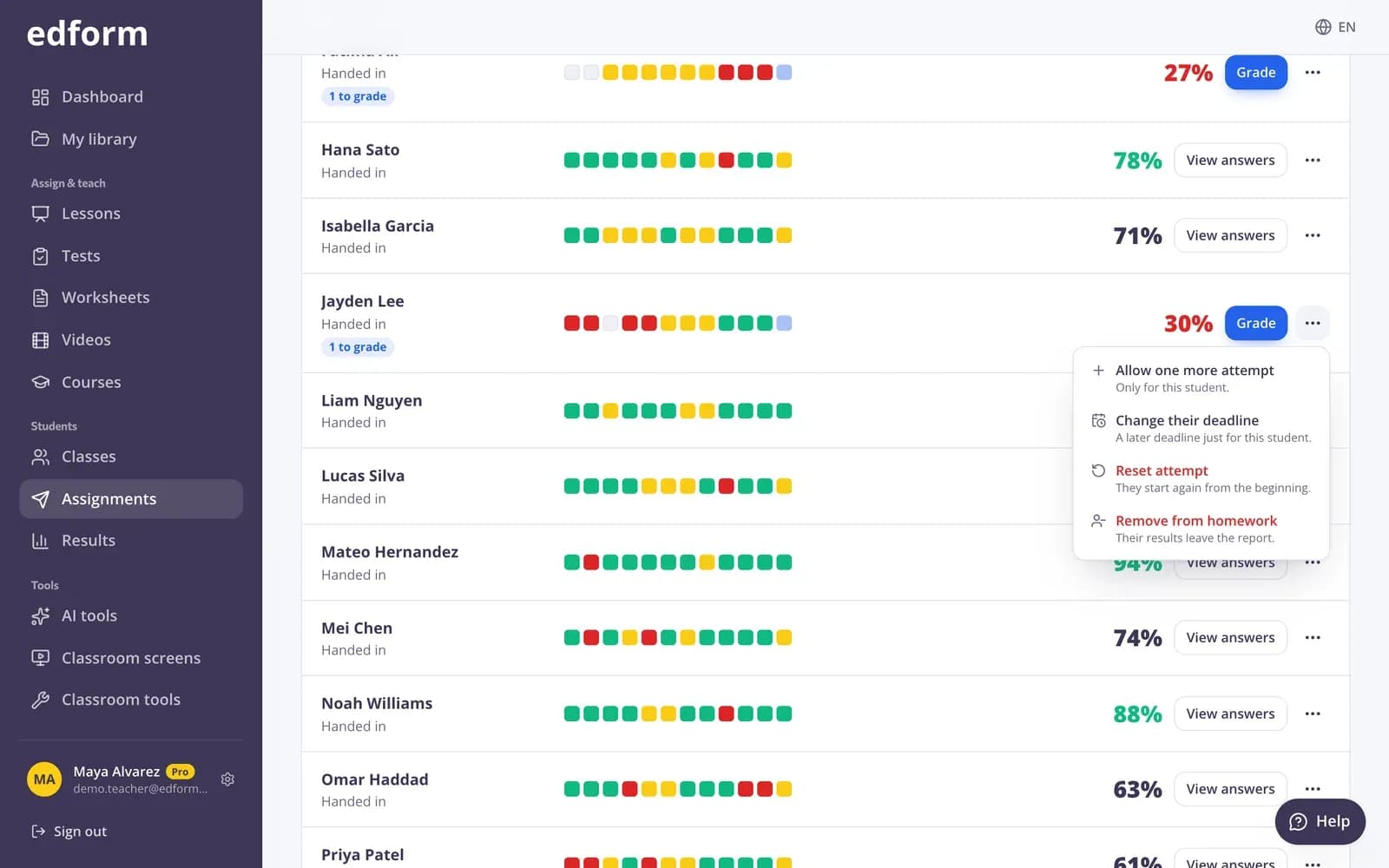
Give a student extra time, a later deadline or one more attempt without changing the exam for anyone else.
- Extra time of 25%, 50% or 100%
- Personal deadline
- Reset an attempt
Results when you're ready
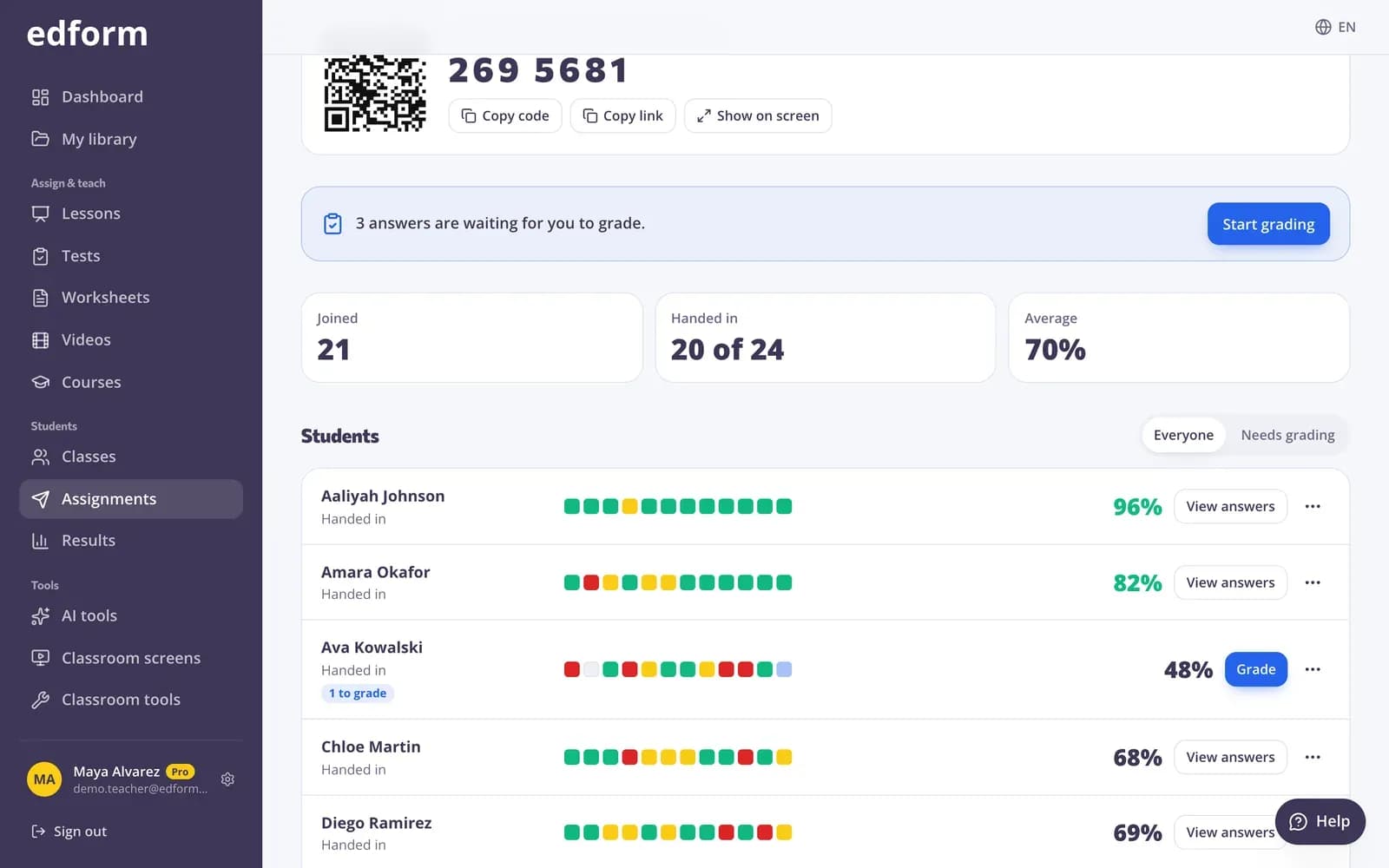
Closed answers are graded instantly and open answers wait for you. Students see their results only when you allow it.
- Scores per student and per question
- Times a student left the page
- Download as CSV
Exam settings that matter
Server-side timer
The time limit runs on Edform's servers, so refreshing the page or changing the clock doesn't help.
Shuffling
Questions and answer options are shuffled for each student.
Left-the-page count
See how many times each student left the exam page.
Flags and review
Students mark questions to come back to and see a summary before handing in.
Who can take it
Anyone with the code, signed-in students only, or one of your classes.
Opens and closes on time
Set the deadline, accept late work or not, and close the exam automatically.
Teachers use it for
- 01
Unit tests
A timed test at the end of every topic, graded before the bell.
- 02
Mock exams
Practise exam conditions with a strict time limit and one attempt.
- 03
College courses
A calm exam layout with a review page and an honor statement.
- 04
Remote assessment
The same exam for students at home, with results held until the deadline.
Explore more
- Quiz makerAuto-graded quizzes, tests and homework
- Online homeworkGive homework with a code and a deadline
- Auto-gradingClosed answers checked the moment students hand in
- DifferentiationExtra time, deadlines and attempts per student
- Test prepPractice tests, flashcards and review games before exams
- High schoolTimed tests, rubric grading and focused practice for grades 9–12
Frequently asked questions
How does the timer work?
The time limit starts when a student presses Start and is checked on Edform's servers. When time runs out, the student's answers are handed in automatically.
Which question types can an exam have?
All 13: multiple choice, short answers, numbers, gaps, matching, ordering, sorting, open answers and more. Closed questions are graded automatically; open answers wait for you with an optional rubric. Students take the exam on any phone, tablet or laptop.
Can Edform stop students from opening other tabs?
No website can lock a device. Edform counts how many times each student left the exam page and shows it in the report, and you can ask students to confirm they'll work on their own before they start.
Can I give one student more time?
Yes. In the report, choose Extra time for that student: 25%, 50% or 100% more on their next attempt.
Can I hide the results until everyone has finished?
Yes. Show right or wrong and the correct answers after the deadline, or never.
Can I start from a ready-made test?
Yes. Let the AI quiz generator draft the questions, or open a test in the community library and press Use this to copy it into your account. Check the questions, then give it with exam settings.
Can I change the exam after giving it?
You can change the name, dates, attempts and results settings at any time. The questions stay fixed, so every student is marked on the same exam.
Set up your first online exam
Free for teachers. Fair timing, shuffled questions and grading done for you.
- Free for teachers
- No credit card
- Works on any device