Edform for Chrome
Turn any web page into a quiz in one click
Reading an article, a PDF or a YouTube video you want to teach? Click Edform and get a quiz, flashcards, slides, a worksheet or a lesson plan made from it.
- Works on web pages, PDFs and YouTube
- 30+ AI tools for teachers
- Reads a page only when you click
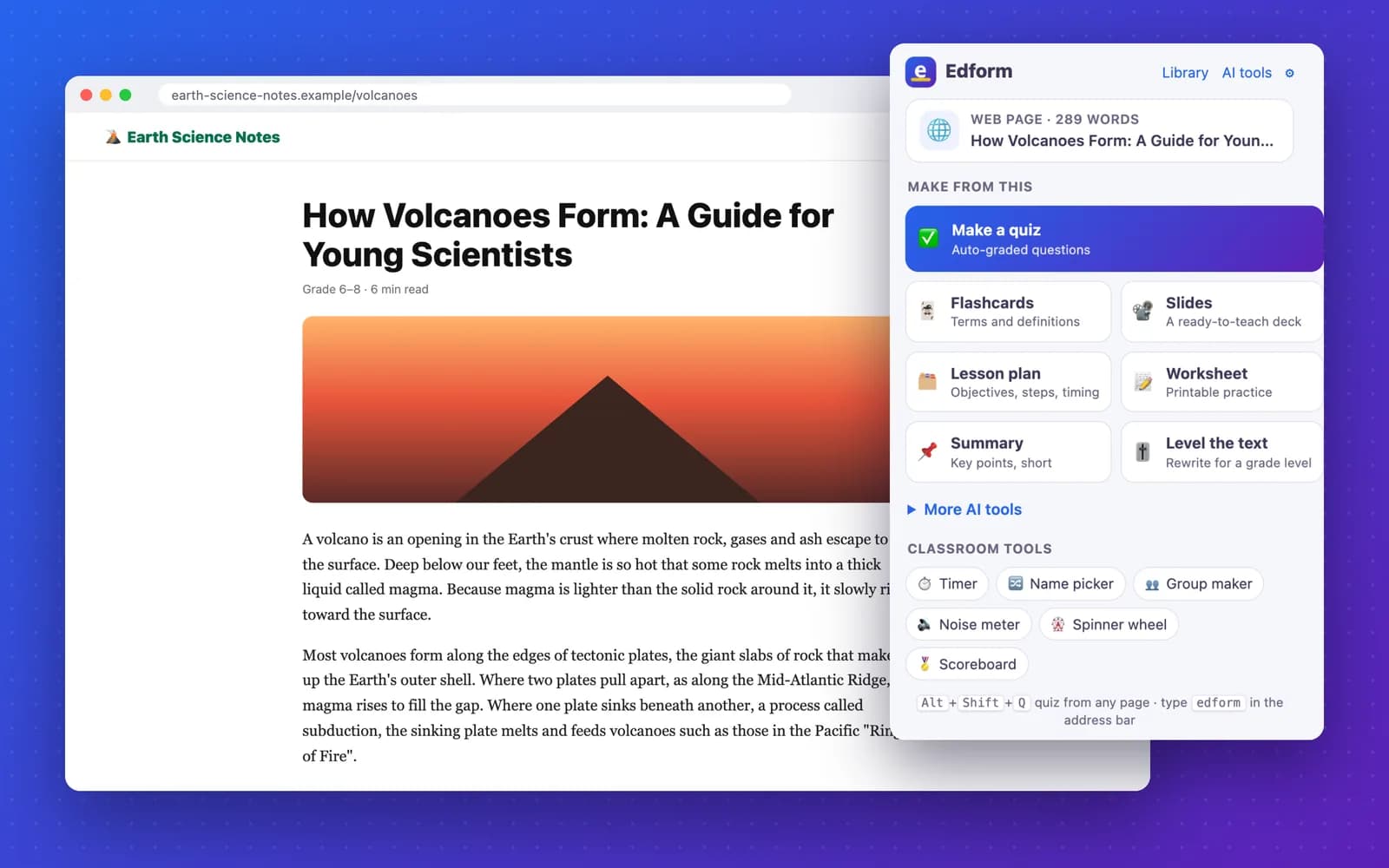
How to make a quiz from a web page
- 1
Open what you want to teach
An article, a Wikipedia page, a PDF, a YouTube video, or a few paragraphs you select.
- 2
Click the Edform icon
Pick a quiz, flashcards, slides, a lesson plan, a worksheet or any other AI tool.
- 3
Check it and use it
Edform opens with your material already filled in. Choose the grade and create it: edit, print, download or assign it to your class.
One extension, every kind of material
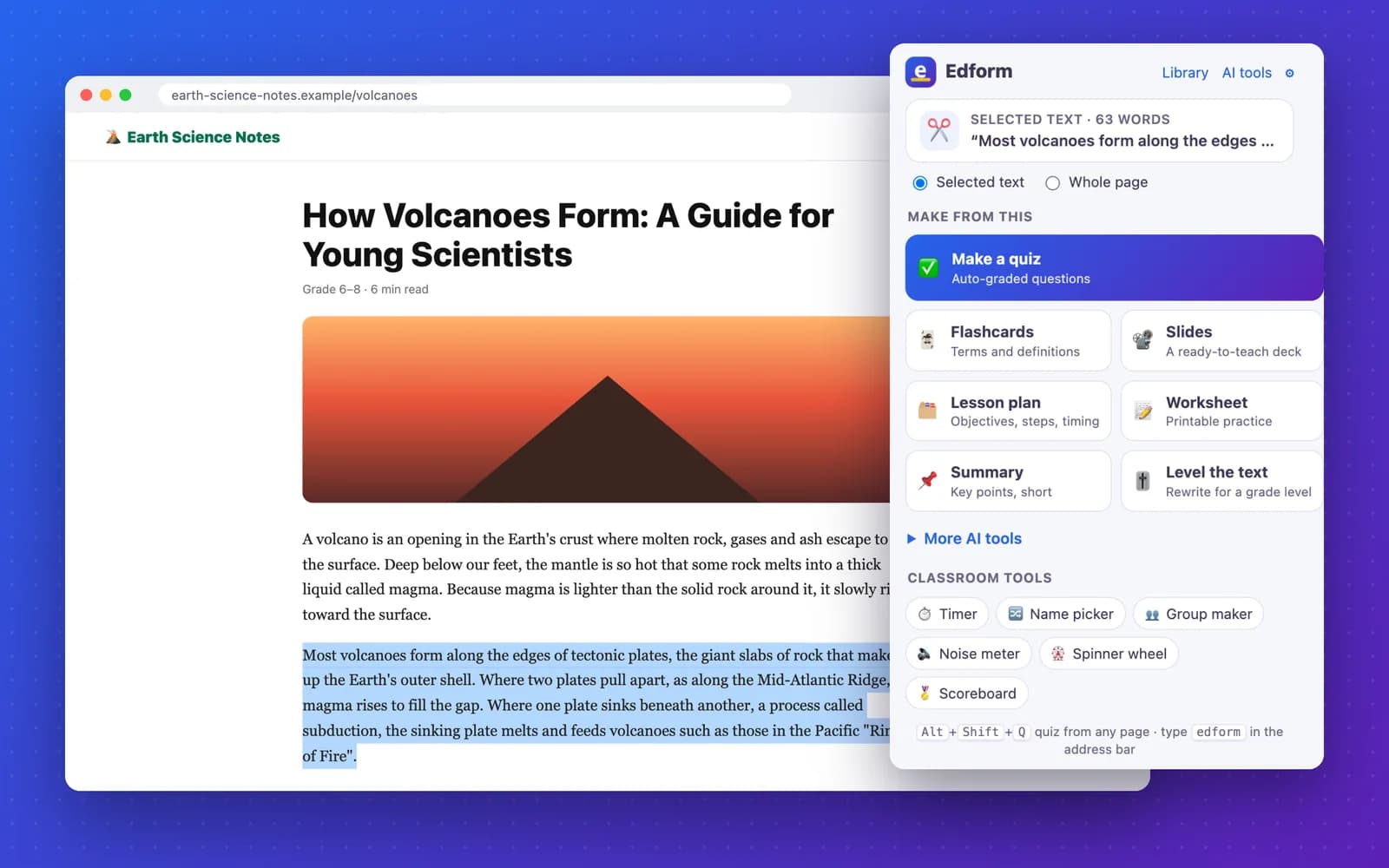
Just the part you selected
Highlight a paragraph or a section and only that text is used. Right-click works too: Edform AI → Flashcards from selection.
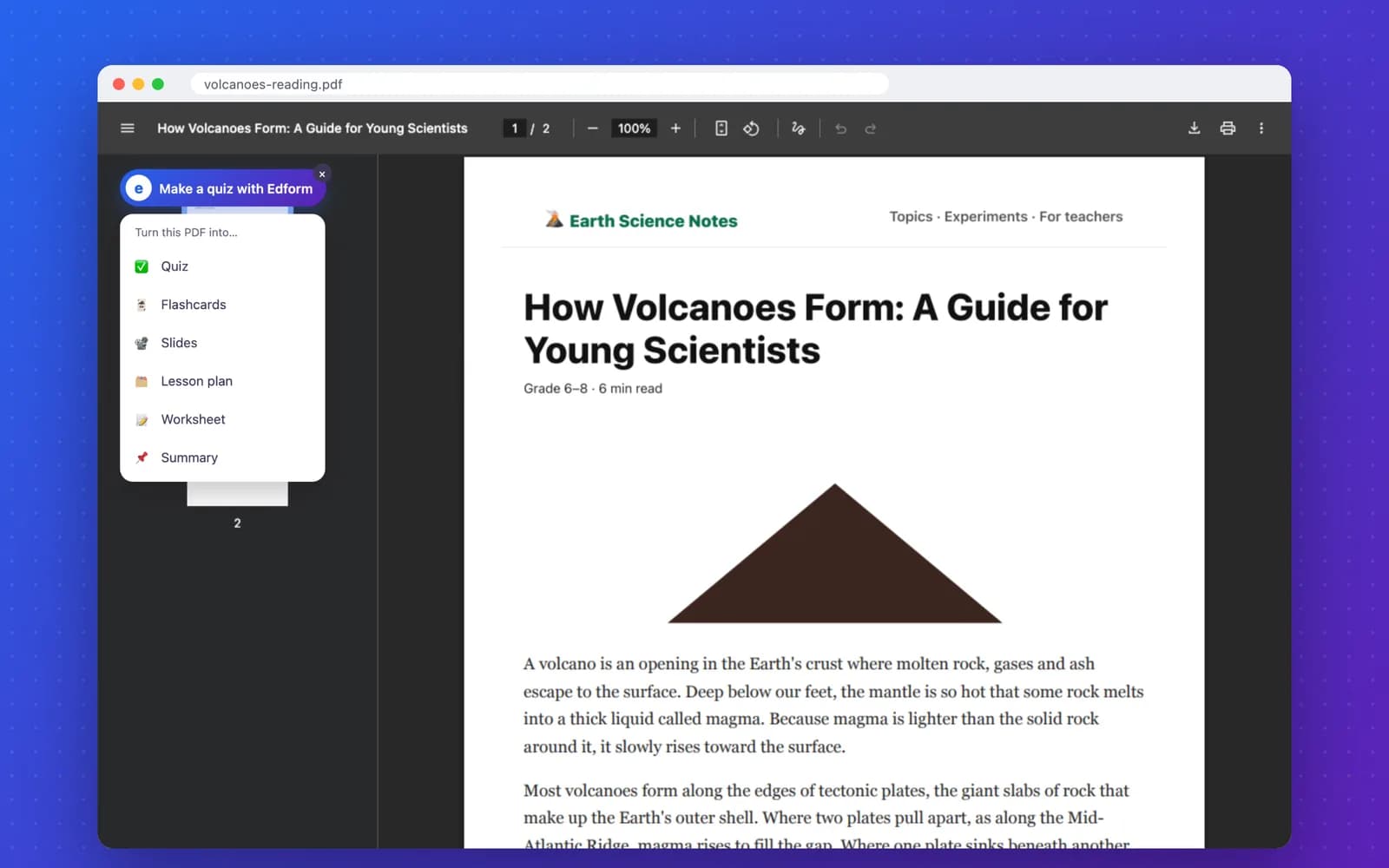
PDFs open in Chrome
A small Edform button appears on PDFs. Choose quiz, flashcards, slides, lesson plan, worksheet or summary and the PDF is read for you, even one you opened from your school's drive or your computer.
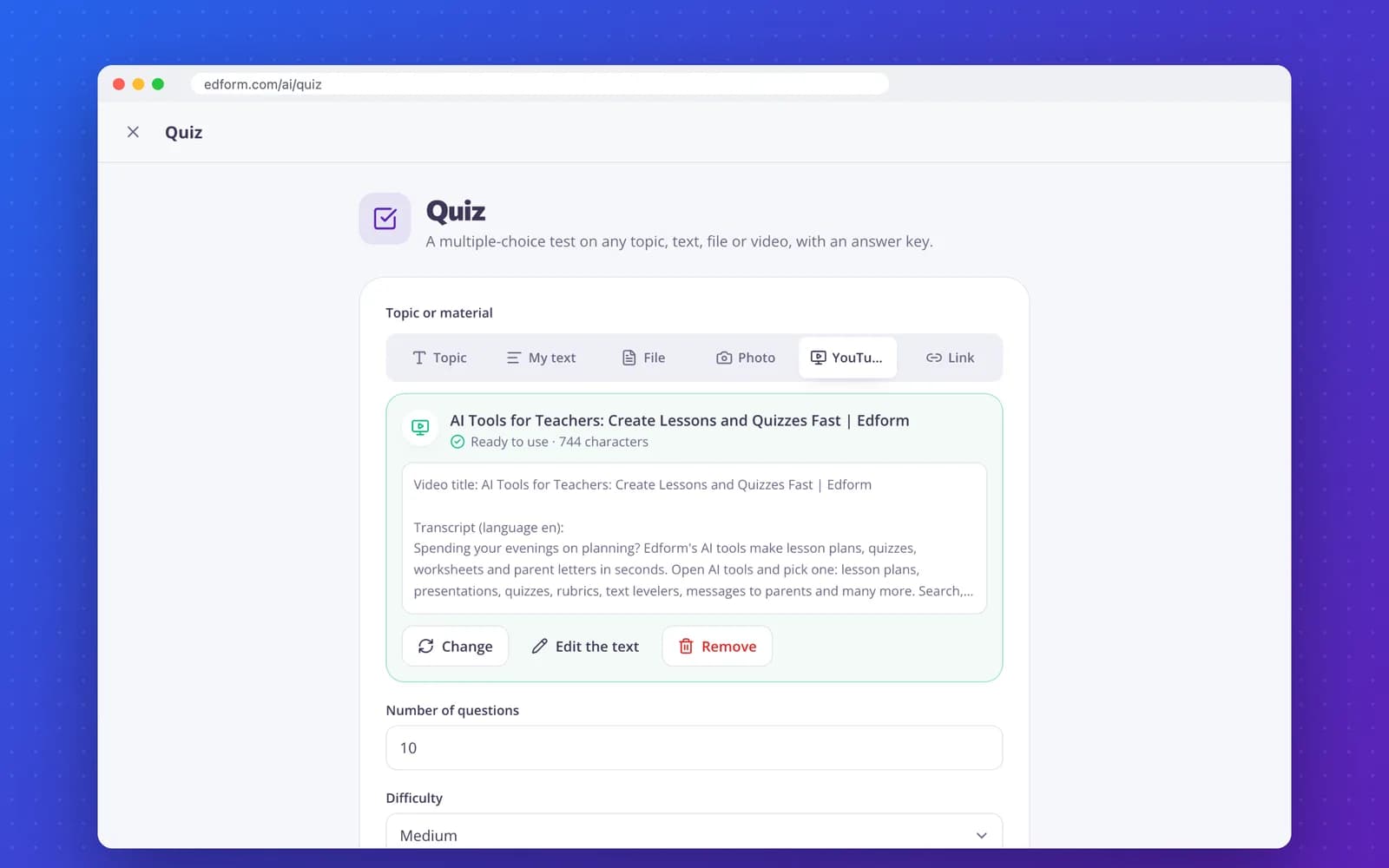
YouTube videos
On a video page, click Edform: the video's captions become the material for a quiz, flashcards, slides or a summary.
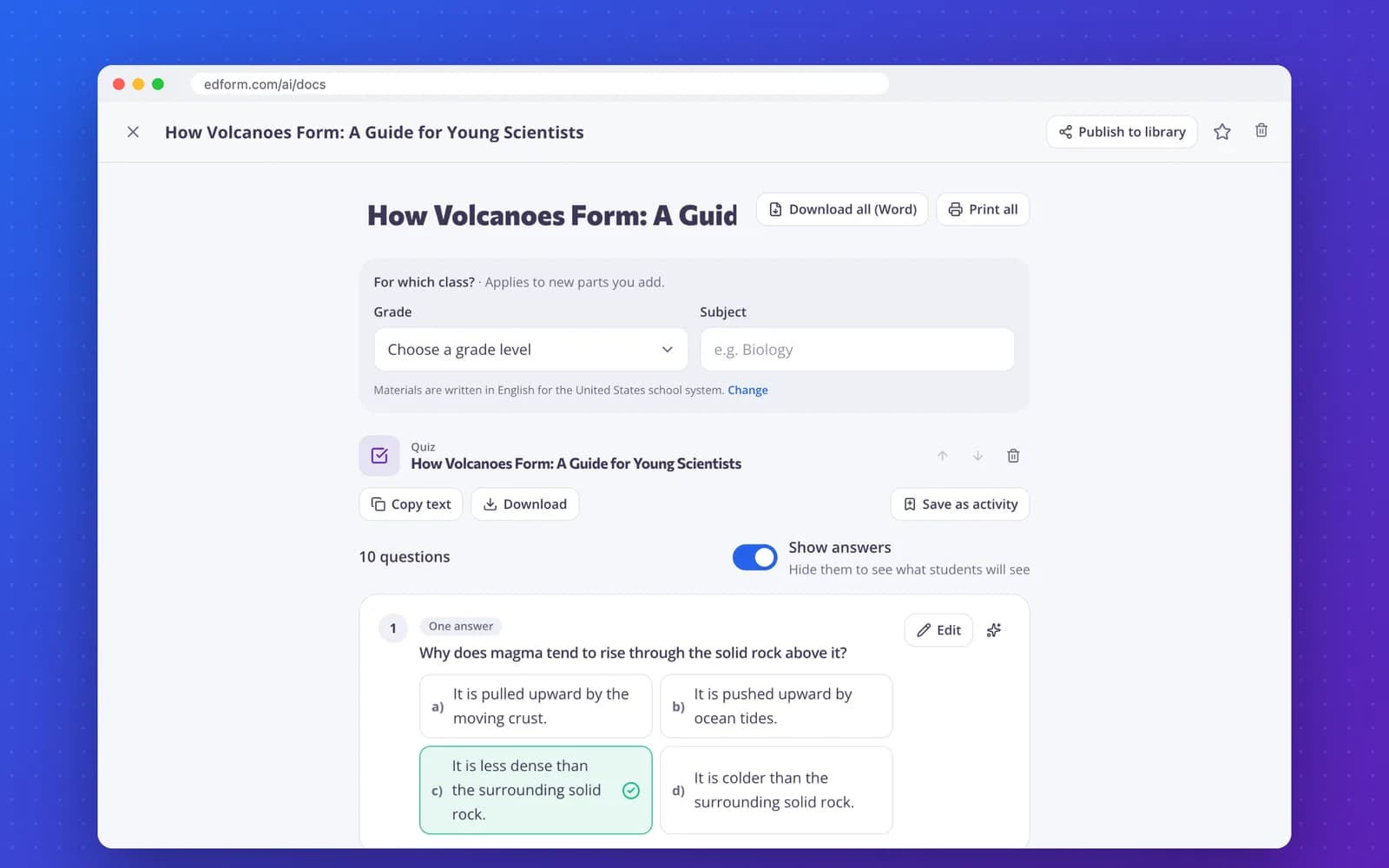
A finished, editable result
Questions come with an answer key. Edit any part, then print it, download it as Word, or save it as an auto-graded activity for your class.
Everything in the extension
Toolbar popup
Shows what it will use (page, selection, PDF or video) and the tools that fit it.
Right-click menu
Edform AI on any page, selection or link: quiz, flashcards, slides, lesson plan and more.
Keyboard shortcut
Alt+Shift+Q makes a quiz from the page or your selection. Alt+Shift+E opens Edform.
Address bar
Type “edform”, a space and a topic, like “lesson plan volcanoes”, to start from a topic.
PDF button
One click on any PDF in Chrome. You can turn it off in the extension's settings.
Classroom tools
Timer, name picker, group maker, noise meter, spinner wheel and scoreboard, one click away.
AI tools you can start from a page
The popup lists the tools that fit what's on your screen, starting with the ones you use most.
Questions teachers ask
Is the Edform Chrome extension free?
Yes. The extension is free, and Edform is free for teachers. AI tools use AI points: the free Basic plan includes 5 a month and Pro includes 300. See the pricing page for details.
What does the extension read, and when?
Only the tab you're on, and only when you click the Edform icon, use the right-click menu, press the shortcut or click the PDF button. It sends that page's text, your selection, the PDF or the video link to edform.com and nowhere else. It doesn't collect your browsing history.
Can it make a quiz from a PDF?
Yes. Open the PDF in Chrome and click the Edform button on it, or the Edform icon in the toolbar. PDFs with real text work: up to 7 MB when the PDF is on your computer or behind a sign-in, and up to 20 MB from a public link. Scanned pages without a text layer don't, so take photos of them and use the Photo tab instead.
Can it make a quiz from a YouTube video?
Yes, when the video has captions. Edform uses the captions in your language when there are some, otherwise the original ones. Without captions it can use a long video description.
Which pages don't work?
Chrome's own pages (like settings and the Chrome Web Store) can't be read by any extension. On those, type a topic in the popup instead.
Do I need an Edform account?
Yes, a free teacher account. If you aren't signed in, Edform asks you to sign in and then continues with your material.
Does it work on a school Chromebook?
Yes, it's a regular Chrome extension. If your school manages Chromebooks, your IT admin may need to allow it.
Make your next quiz from what you're reading
Add Edform to Chrome and turn any page, PDF or video into something your class can use tomorrow.
- Free for teachers
- No credit card
- Works on Chromebooks